
1. Product Overview
The iCAN M-2121 is a dual-mode wireless gaming mouse designed for versatility and comfort. It supports both 2.4GHz USB and Bluetooth connectivity, allowing seamless switching between devices. Key features include silent click technology, adjustable DPI, RGB lighting, and an ergonomic design for extended use.
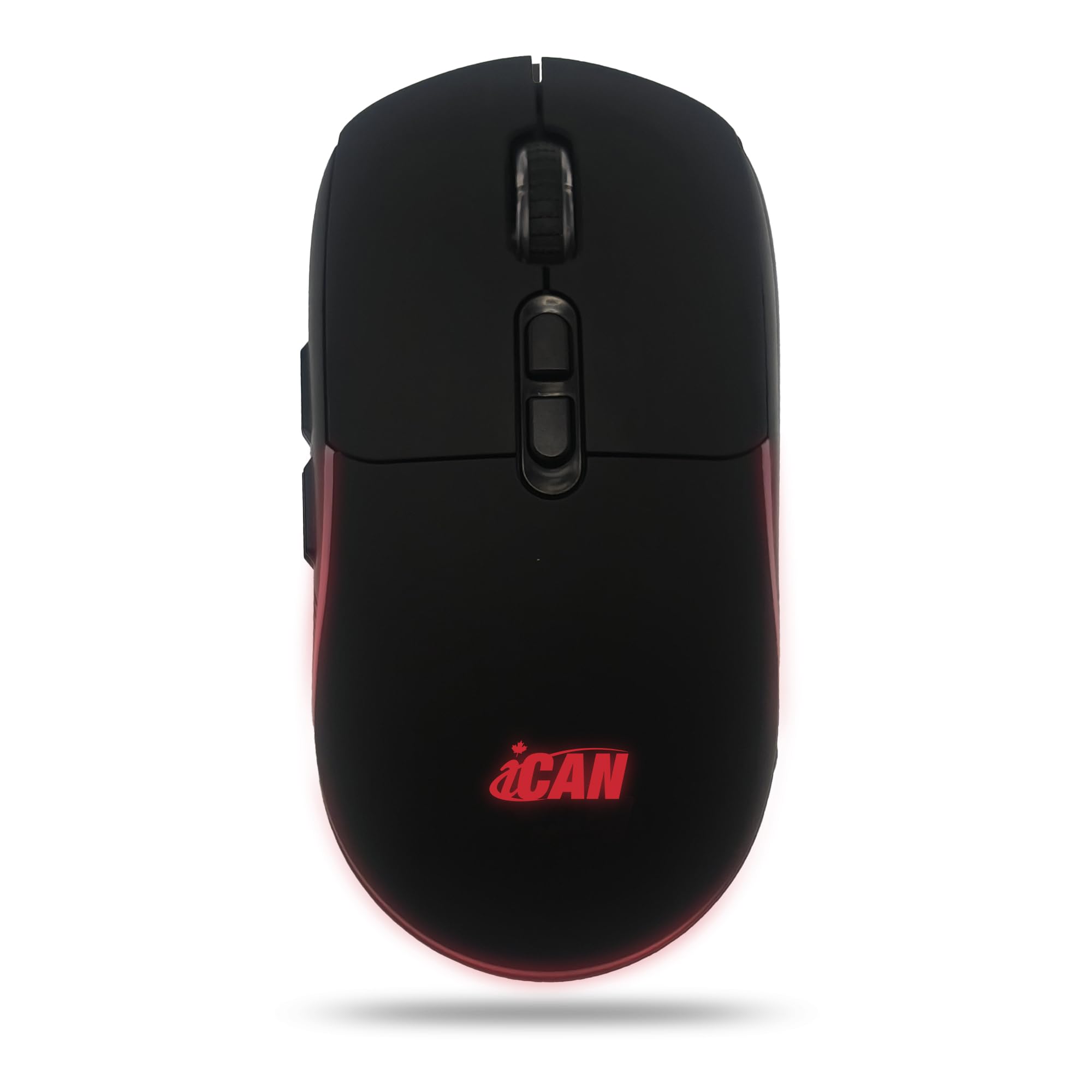
Figure 1: Top view of the iCAN M-2121 Wireless Gaming Mouse.
2. Package Contents
- 1 x iCAN M-2121 Wireless Mouse
- 1 x USB Receiver (stored at the bottom of the mouse)
- 1 x Charging Cable
- 1 x User Manual
3. Features
- Dual Mode Connectivity: Supports both 2.4GHz wireless (via USB receiver) and Bluetooth 5.0/4.0 for flexible connection to various devices.
- Rechargeable Battery: Built-in 600mAh rechargeable battery with automatic sleep mode for power saving.
- Silent Clicks: Reduces click noise by up to 90% for quiet operation.
- RGB Backlight: Dynamic RGB lighting belt (can be toggled on/off).
- Adjustable DPI: 3 adjustable DPI levels up to 3200 DPI for precise control.
- 7 Programmable Buttons: Includes forward/backward side buttons for enhanced productivity and gaming.
- Ergonomic Design: Shaped to fit naturally in hand, reducing fatigue during prolonged use.
4. Setup and Connectivity
4.1. 2.4GHz Wireless Mode Setup
- Locate the USB receiver stored in the compartment at the bottom of the mouse.
- Turn on the mouse using the ON/OFF switch located on the underside.
- Insert the USB receiver into an available USB port on your computer or device.
- The mouse should automatically connect. You can now move and click to use.
Video 1: Demonstrates how to set up the mouse using the 2.4GHz USB receiver. This video shows turning on the mouse, removing the USB receiver from its storage compartment, inserting it into a laptop's USB port, and then using the mouse.
Video 2: Illustrates the process of connecting the 2.4GHz USB mouse. This video shows the mouse being turned on, the USB receiver being removed and inserted into a laptop, and the mouse being used immediately.
4.2. Bluetooth Mode Setup
- Turn on the mouse using the ON/OFF switch on the underside.
- Press the mode switch button (usually on the underside or top) to switch to Bluetooth mode. An indicator light (often blue) will flash, indicating pairing mode.
- On your device (laptop, tablet, etc.), go to Bluetooth settings and search for new devices.
- Select "iCAN M-2121" or a similar name from the list of available devices to pair.
- Once paired, the indicator light will become solid, and you can use the mouse.
Video 3: Shows the setup for both 2.4GHz and Bluetooth modes. This video demonstrates switching between modes, pairing via Bluetooth, and the plug-and-play nature of the 2.4GHz connection.
5. Operating Instructions
5.1. DPI Adjustment
The mouse features a DPI button, typically located behind the scroll wheel. Press this button to cycle through the available DPI settings (e.g., 800, 1200, 1600, 2400, 3200 DPI). Each press changes the cursor speed, allowing you to select the sensitivity that best suits your task or game.
Video 4: Highlights various features of a similar wireless mouse, including DPI adjustment. This video shows the DPI button being pressed and the corresponding change in indicator lights, demonstrating the adjustable sensitivity.
5.2. Button Functions
The iCAN M-2121 mouse is equipped with 7 buttons:
- Left Click Button
- Right Click Button
- Scroll Wheel (also functions as a middle click button)
- DPI Adjustment Button
- Forward Button (side button)
- Backward Button (side button)
- Mode Switch Button (usually on the underside, for switching between 2.4GHz and Bluetooth)
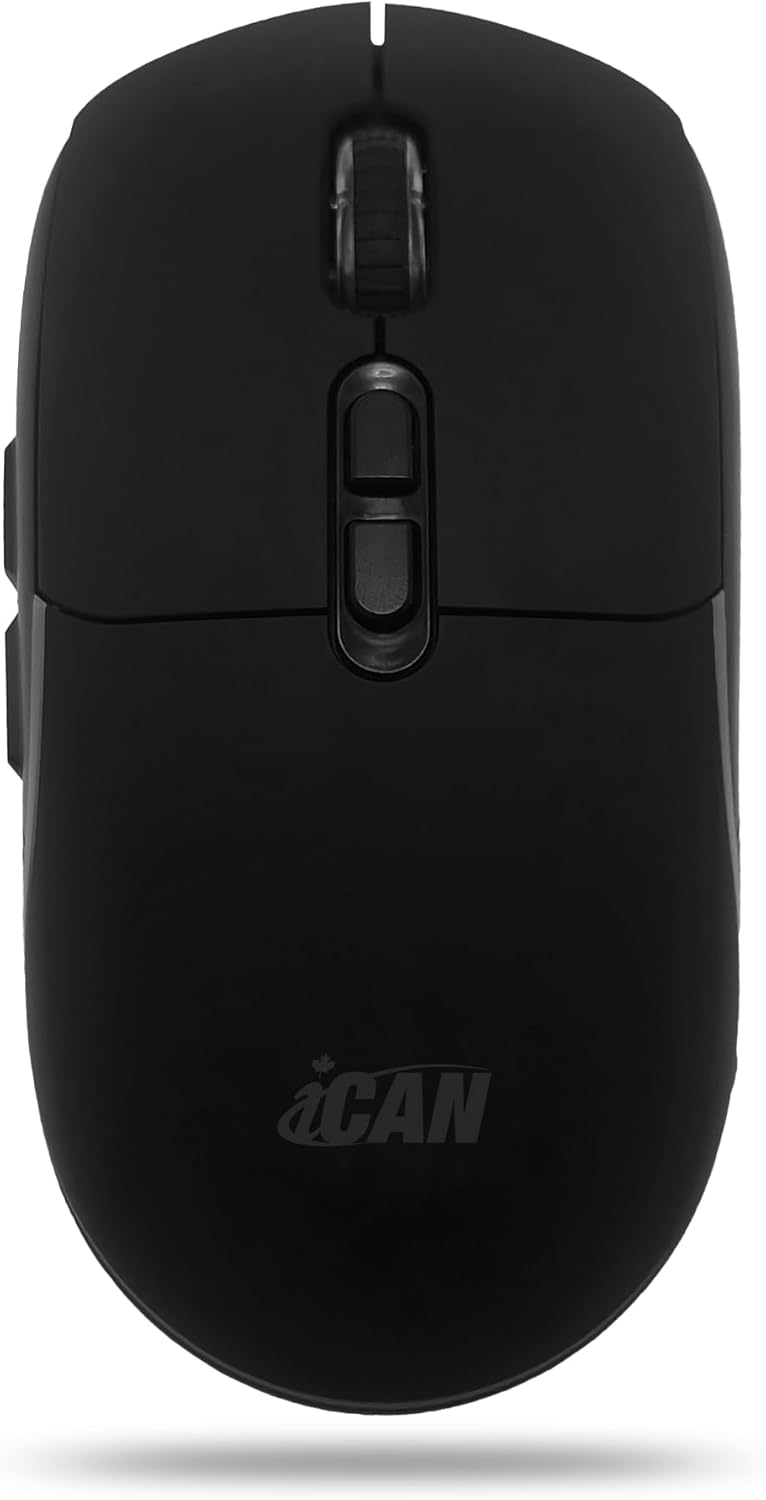
Figure 2: Top-down view of the iCAN M-2121 mouse, illustrating the main buttons and scroll wheel.
5.3. RGB Lighting Control
The RGB lighting belt can be toggled on or off. Refer to the specific instructions in your package for the exact button or combination of buttons to control the lighting. This feature allows customization of the mouse's aesthetic.
6. Charging Instructions
The iCAN M-2121 mouse has a built-in rechargeable 600mAh battery. Use the provided charging cable to recharge the mouse.
- Connect the small end of the charging cable to the charging port on the front of the mouse.
- Connect the USB-A end of the charging cable to a USB power source (e.g., computer USB port, USB wall adapter).
- During charging, an indicator light (often blue) will illuminate.
- The light will turn off or change color when the mouse is fully charged.
- The mouse can be used while charging.
Video 5: Demonstrates the charging process of a wireless mouse. This video shows connecting the charging cable to the mouse and a laptop, and the blue indicator light confirming charging status.
7. Maintenance
- Keep the mouse clean by wiping it with a soft, dry cloth.
- Avoid exposing the mouse to extreme temperatures, humidity, or direct sunlight.
- Do not disassemble the mouse, as this may void the warranty.
- Store the USB receiver in its designated compartment when not in use to prevent loss.
8. Troubleshooting
8.1. Mouse Not Responding
- Ensure the mouse is turned ON.
- Check the battery level and charge the mouse if necessary.
- For 2.4GHz mode: Ensure the USB receiver is securely plugged into a working USB port. Try a different USB port.
- For Bluetooth mode: Ensure Bluetooth is enabled on your device and the mouse is properly paired. Try unpairing and re-pairing the mouse.
- Try restarting your computer or device.
8.2. Lag or Intermittent Connection
- Ensure there are no strong interference sources (e.g., other wireless devices, large metal objects) between the mouse and the receiver/device.
- Move the mouse closer to the receiver/device.
- For 2.4GHz mode: Try plugging the USB receiver into a different USB port, preferably one closer to the mouse.
- For Bluetooth mode: Disconnect other Bluetooth devices that might be causing interference.
8.3. DPI Not Changing
- Ensure you are pressing the correct DPI button.
- If the issue persists, try restarting the mouse and your device.
9. Specifications
| Feature | Description |
|---|---|
| Model | M-2121 |
| Connectivity | Dual Mode (Bluetooth + 2.4GHz Wireless) |
| Sensor Type | Optical |
| DPI Levels | Adjustable up to 3200 DPI |
| Buttons | 7 Buttons |
| Battery Capacity | 600mAh Rechargeable |
| Polling Rate | 125 Hz |
| Keystroke Lifespan | 3 Million Cycles |
| Lighting | RGB LED Backlight |
| Compatibility | Windows, macOS, iPadOS, Android, Linux |
10. Warranty and Support
10.1. Warranty Information
This iCAN M-2121 Wireless Gaming Mouse comes with a 2-year warranty from the date of purchase. This warranty covers manufacturing defects and malfunctions under normal use. Please retain your proof of purchase for warranty claims.
10.2. Customer Support
For any questions, technical assistance, or warranty inquiries, please contact our customer support team:
- Email: Support.Lekvey@foxmail.com