
Introduction
This manual provides detailed instructions for the operation and maintenance of your YFFIZQ 80GB Hi-Fi Smart MP3 Player. Please read this manual thoroughly before using the device to ensure proper functionality and to maximize your listening experience. This device combines a traditional music player with smart system capabilities, offering a full touch screen IPS LCD display, Bluetooth 5.0, and Wi-Fi connectivity.
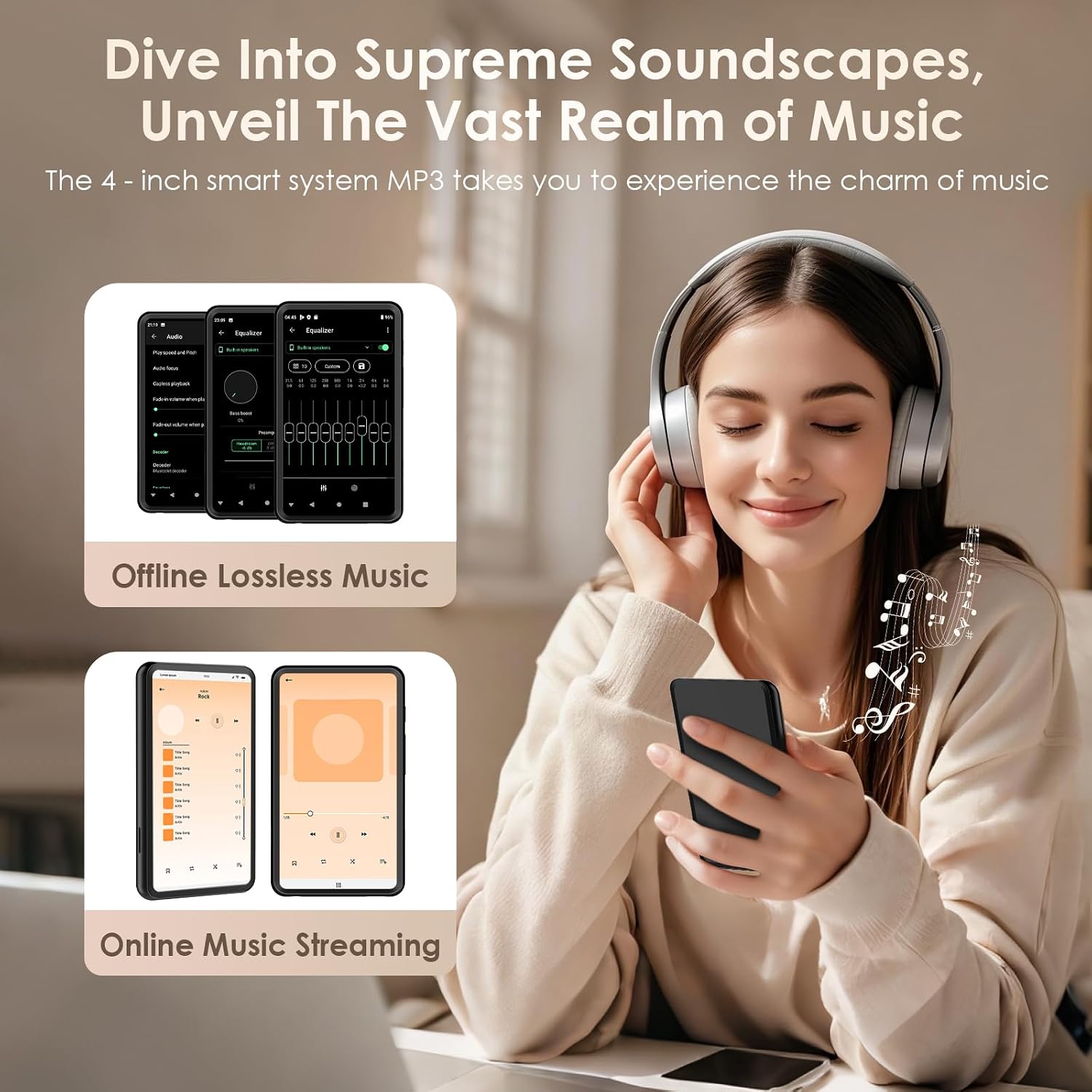
Image: The YFFIZQ 80GB Hi-Fi Smart MP3 Player, showcasing its compact design and vibrant touch screen display.
Getting Started
Package Contents
Verify that all items are present in the package:
- YFFIZQ 80GB Hi-Fi Smart MP3 Player
- Charging Cable
- User Manual
Charging the Device
Before first use, fully charge the MP3 player. Connect the charging cable to the device's charging port and plug the other end into a compatible USB power adapter (not included) or a computer's USB port. The battery indicator on the screen will show charging status.
Powering On/Off
- To Power On: Press and hold the Power button located on the side of the device until the screen illuminates.
- To Power Off: Press and hold the Power button until a power-off menu appears on the screen. Select "Power Off" to shut down the device.
- To Sleep/Wake: Briefly press the Power button to put the device into sleep mode or wake it up.
Initial Setup
Upon first power-on, follow the on-screen prompts to configure basic settings:
- Language Selection: Choose your preferred language.
- Wi-Fi Connection: Connect to a Wi-Fi network to enable online features and app downloads. Navigate to Settings > Network & Internet > Wi-Fi, select your network, and enter the password.
- Date and Time: Set the correct date and time, or enable automatic synchronization via network.
Operating Instructions
Touch Screen Navigation
The device features a 4-inch full touch screen IPS LCD display. Navigate by tapping icons, swiping between screens, and using pinch-to-zoom gestures where applicable.
Connecting to Bluetooth Devices
The MP3 player supports Bluetooth 5.0 for wireless audio connections.
- Ensure the Bluetooth device (headphones, speaker, car audio) is in pairing mode.
- On the MP3 player, go to Settings > Connected devices > Bluetooth.
- Toggle Bluetooth On. The device will scan for available devices.
- Select your device from the list to pair. Confirm any pairing requests on both devices.

Image: The MP3 player demonstrating its ability to connect wirelessly to headphones, car audio systems, and external speakers via Bluetooth.
Managing Music and Storage
The device offers 80GB of total memory storage capacity for your music library. This includes both internal storage and expandable options.
- Transferring Music: Connect the MP3 player to a computer using the USB cable. The device will appear as a removable storage drive. Drag and drop music files (MP3 and other supported formats) into the designated music folder.
- Offline Playback: Access your stored music through the pre-installed music player application.
- Online Streaming: Connect to Wi-Fi and download streaming applications from the Play Store to access online music services.

Image: A visual representation of the MP3 player's storage, indicating its capacity. The device has a total memory storage capacity of 80GB.

Image: The MP3 player's interface displaying various music management features, including search, equalizer, playlist creation, and options for viewing lyrics and album art.
Audio Settings and Equalizer
Customize your audio experience with the built-in equalizer and sound settings.
- Equalizer: Access the equalizer settings within the music player app. Choose from 10 preset modes or manually adjust frequency bands to fine-tune the sound.
- Preamp: Adjust the preamp settings (Off/Boost +2 dB) for additional audio amplification.
- Surround Sound: Enable or disable surround sound control for an immersive listening experience.

Image: Screenshots of the MP3 player's interface, illustrating the equalizer settings and the distinction between offline lossless music playback and online music streaming capabilities.
Using the Smart System and Apps
The smart system allows for the download and installation of various applications via the Play Store.
- App Installation: Connect to Wi-Fi, open the Play Store app, search for desired applications (e.g., online music streaming apps), and install them.
- App Management: Manage installed apps through the device's settings, including uninstalling or clearing data.

Image: The MP3 player screen showcasing a variety of application icons, highlighting its smart system functionality and ability to run multiple apps.
FM Radio
The device includes an FM radio function. Connect to Wi-Fi to access international FM stations.
- Open the FM Radio application.
- Ensure Wi-Fi is connected for international stations.
- Scan for available stations or manually tune to a frequency.

Image: The MP3 player displaying its FM radio interface, indicating the ability to tune into local and international FM frequencies with Wi-Fi connectivity.
Maintenance
Cleaning the Device
Use a soft, dry, lint-free cloth to clean the screen and body of the MP3 player. Avoid using abrasive cleaners, solvents, or aerosol sprays, which may damage the surface.
Battery Care
To prolong battery life:
- Avoid exposing the device to extreme temperatures.
- Do not allow the battery to fully discharge frequently.
- If storing the device for an extended period, charge it to approximately 50% before storage.

Image: An internal diagram of the MP3 player highlighting its battery and power management system, emphasizing its low power consumption for extended battery life.
Storage
Store the MP3 player in a cool, dry place away from direct sunlight and moisture when not in use.
Troubleshooting
If you encounter issues with your MP3 player, refer to the following common solutions:
- Device Not Powering On: Ensure the device is fully charged. If the issue persists, try performing a hard reset (refer to the device's specific reset procedure, usually holding the power button for an extended period).
- Bluetooth Connection Issues: Ensure both the MP3 player and the Bluetooth accessory are in pairing mode and within range. Try turning Bluetooth off and on again on both devices.
- Wi-Fi Connectivity Problems: Verify your Wi-Fi password is correct. Restart your router and the MP3 player. Ensure the device is within range of the Wi-Fi signal.
- No Sound: Check the volume level on the device and any connected headphones/speakers. Ensure headphones are properly plugged in or Bluetooth is correctly paired. Check equalizer settings.
- Apps Not Downloading/Working: Ensure a stable Wi-Fi connection. Check available storage space. Clear the cache of the Play Store app.
Specifications
| Product Dimensions | 0.4 x 2.5 x 4 inches |
| Item Weight | 6 ounces |
| Brand | YFFIZQ |
| Model Name | Yffizq 48gb Hi-fi Smart Mp3 Player |
| Memory Storage Capacity | 80 GB (Total) |
| Screen Size | 4 Inches |
| Connectivity Technology | Bluetooth 5.0, Wi-Fi |
| Special Feature | Hi-fi Sound, Built-in Speaker, Full Touch Screen IPS LCD |
| Compatible Devices | Headphones, Bluetooth Speakers, Car Audio Systems |
| Media Type | MP3 and other supported audio formats |
Warranty and Support
Warranty Information
This YFFIZQ MP3 Player comes with a 2-year warranty from the date of purchase. This warranty covers manufacturing defects and malfunctions under normal use. It does not cover damage caused by misuse, accidents, unauthorized modifications, or normal wear and tear. Please retain your proof of purchase for warranty claims.
Customer Support
For technical assistance, warranty claims, or further inquiries, please contact YFFIZQ customer support. Refer to the product packaging or the official YFFIZQ website for the most current contact information.