
Introduction
This manual provides essential information for setting up, operating, maintaining, and troubleshooting your Memorex 15.6-inch Touch 2-in-1 Laptop, model MYOGA15-A100. Designed for versatility, this device functions as both a traditional laptop and a tablet, adapting to your computing needs.
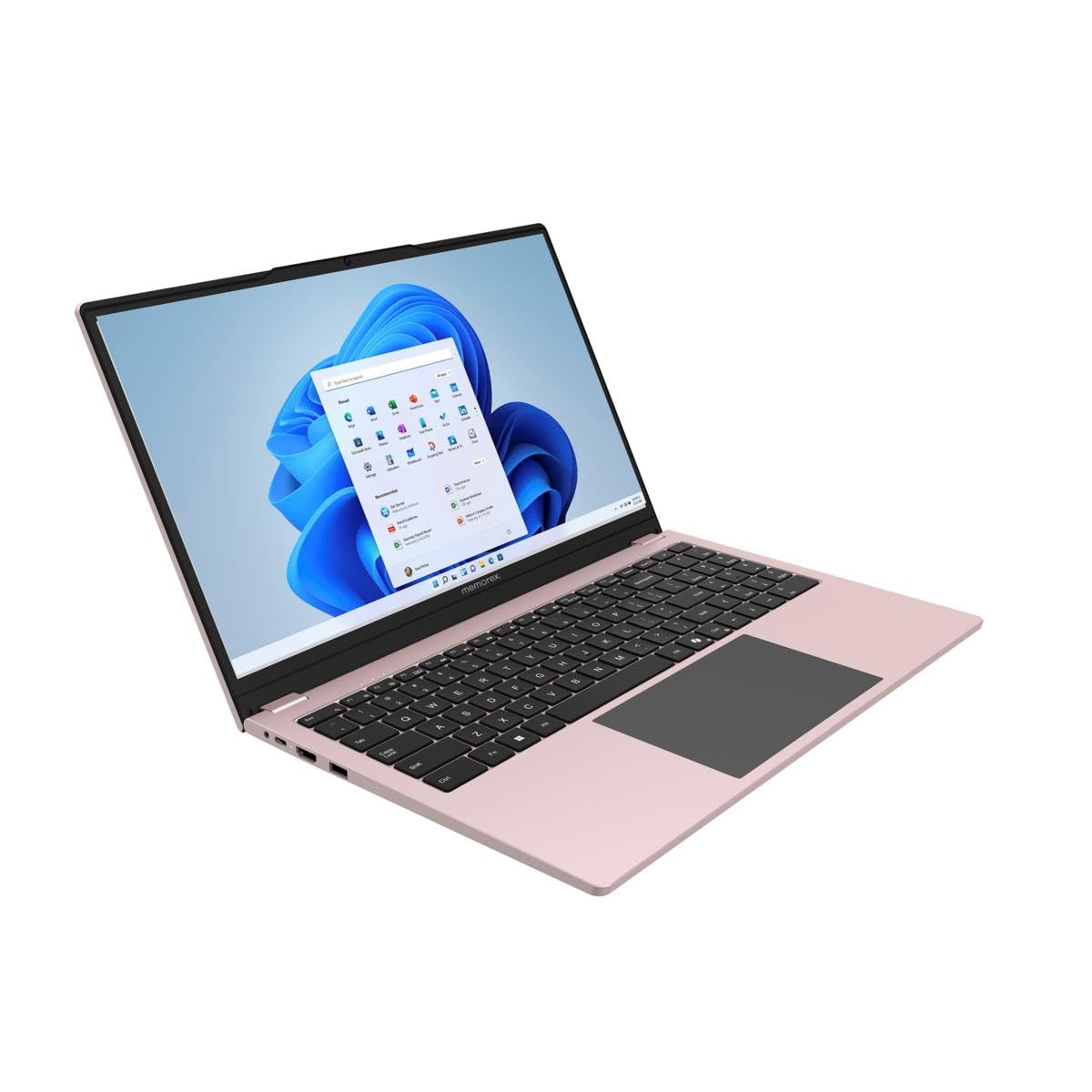
Image: The Memorex 15.6-inch Touch 2-in-1 Laptop in its standard laptop configuration, displaying the Windows 11 desktop.
Package Contents
Ensure all items are present in the box:
- Memorex 15.6" Convertible Laptop
- Power Adapter
- Quick Start Guide (if included)
Setup
1. Initial Charging
Before first use, connect the power adapter to the laptop's charging port and a power outlet. Allow the laptop to charge for at least 3 hours or until the battery indicator shows a full charge.
2. Powering On
Press and hold the power button located on the side of the laptop until the screen illuminates. The laptop will boot into the Windows 11 setup process.
3. Windows 11 Setup
Follow the on-screen prompts to complete the Windows 11 initial setup. This includes selecting your region, connecting to a Wi-Fi network, creating a user account, and accepting the license agreement.

Image: Diagram highlighting key features such as the front camera, 15.6-inch FHD touch screen, 7.7V 6000mAh battery, slim design, and Windows 11 operating system.
Operating Instructions
1. Laptop Mode
In laptop mode, use the integrated keyboard and touchpad for navigation and input. The 15.6-inch display provides a clear viewing experience for productivity and entertainment.

Image: The Memorex 2-in-1 laptop shown in its traditional laptop form, open and ready for use.
2. Tablet Mode and Convertible Design
The 360-degree hinge allows you to convert the laptop into various modes, including stand, tent, and tablet mode. Simply fold the screen back to transform the device. The touchscreen display enables intuitive interaction in tablet mode.

Image: An illustration demonstrating the Memorex 2-in-1 laptop's ability to convert into stand mode, tent mode, and tablet mode, highlighting the 360-degree hinge and touchscreen display.
3. Connectivity
- Wi-Fi: Connect to wireless networks via 802.11ac, 802.11ax, 802.11b, 802.11g, 802.11n standards.
- Bluetooth: Pair with Bluetooth 5.0 compatible devices such as headphones, mice, and keyboards.
- USB Ports: Utilize USB-C and USB 3.0 ports for connecting external devices.
- HDMI: Connect to external displays using the HDMI port for extended or mirrored screen functionality.
- MicroSD: Expand storage or transfer files using the MicroSD card slot.
- Headphone Jack: Connect wired headphones for audio output.
4. Webcam Usage
The integrated front camera supports video calls and online meetings. Access it through applications like Camera, Microsoft Teams, or Zoom.
Maintenance
1. Cleaning
Use a soft, lint-free cloth slightly dampened with water or a screen cleaner to wipe the display. For the laptop body, use a dry or slightly damp cloth. Avoid harsh chemicals or abrasive materials.
2. Battery Care
To prolong battery life, avoid fully discharging the battery frequently. Store the laptop in a cool, dry place when not in use for extended periods. Do not expose the battery to extreme temperatures.
3. Software Updates
Regularly check for and install Windows updates to ensure optimal performance, security, and compatibility. Go to Settings > Windows Update to manage updates.
4. Storage Management
Periodically review and delete unnecessary files to free up storage space on the 128GB SSD. Utilize cloud storage or external drives for large files.
Troubleshooting
1. Laptop Not Powering On
- Ensure the power adapter is securely connected and the outlet is functional.
- Try a different power outlet.
- If the battery is completely drained, allow it to charge for at least 30 minutes before attempting to power on again.
2. Wi-Fi Connectivity Issues
- Check if Wi-Fi is enabled in Windows settings.
- Restart your router and modem.
- Forget the network and reconnect, entering the password again.
- Update Wi-Fi drivers via Device Manager.
3. Touchscreen Not Responding
- Restart the laptop.
- Ensure the screen is clean and free of debris.
- Check for updated touchscreen drivers in Device Manager.
4. Slow Performance
- Close unnecessary applications running in the background.
- Check for and remove any malware or viruses.
- Ensure Windows is up to date.
- Consider freeing up storage space.
Specifications
| Feature | Specification |
|---|---|
| Brand | Memorex |
| Model Name | Laptop |
| Model Number | MYOGA15-A100(P) |
| Screen Size | 15.6 inches |
| Display Resolution | 1920 x 1080 pixels (FHD) |
| Display Type | LED, LCD, IPS |
| Touch Screen Type | Capacitive/In-cell |
| Processor | Intel N100 (1.1 GHz, up to 3.4 GHz, 4 Cores) |
| RAM Memory | 4 GB DDR4 SDRAM |
| Hard Disk Size | 128 GB SSD |
| Operating System | Windows 11 Home |
| Graphics Card | Integrated Intel Graphics |
| Connectivity | Wi-Fi (802.11ac/ax/b/g/n), Bluetooth 5.0, USB-C, HDMI, USB 3.0, MicroSD, Headphone Jack |
| Webcam | Yes |
| Form Factor | Convertible (2-in-1) |
| Battery | 7.7V 6000mAh |
| UPC | 838689001861 |

Image: A collage demonstrating the laptop's capabilities for designing, gaming, home-cinema, and multitasking, highlighting Windows 11, 4GB RAM, Intel N100 Quad Core, 15.6" 1920x1080 IPS display, and Wi-Fi connectivity.
Warranty Information
This Memorex 15.6-inch Touch 2-in-1 Laptop comes with a 3-Year Limited Warranty. Please retain your proof of purchase for warranty claims. The warranty covers manufacturing defects under normal use conditions. For full terms and conditions, refer to the warranty card included with your product or visit the official Memorex website.
Customer Support
For further assistance, technical support, or warranty inquiries, please visit the official Memorex support website or contact their customer service department. Contact information can typically be found on the manufacturer's website or in the documentation included with your product.
Online Resources: Check the Memorex website for FAQs, driver downloads, and additional support materials.


