
1. Introduction
Welcome to the CINMOORE CM-C2U 3K Battery Cam Indoor Security Camera user manual. This document provides essential information for the proper installation, operation, and maintenance of your new security camera. Please read these instructions carefully before using the device to ensure optimal performance and safety.
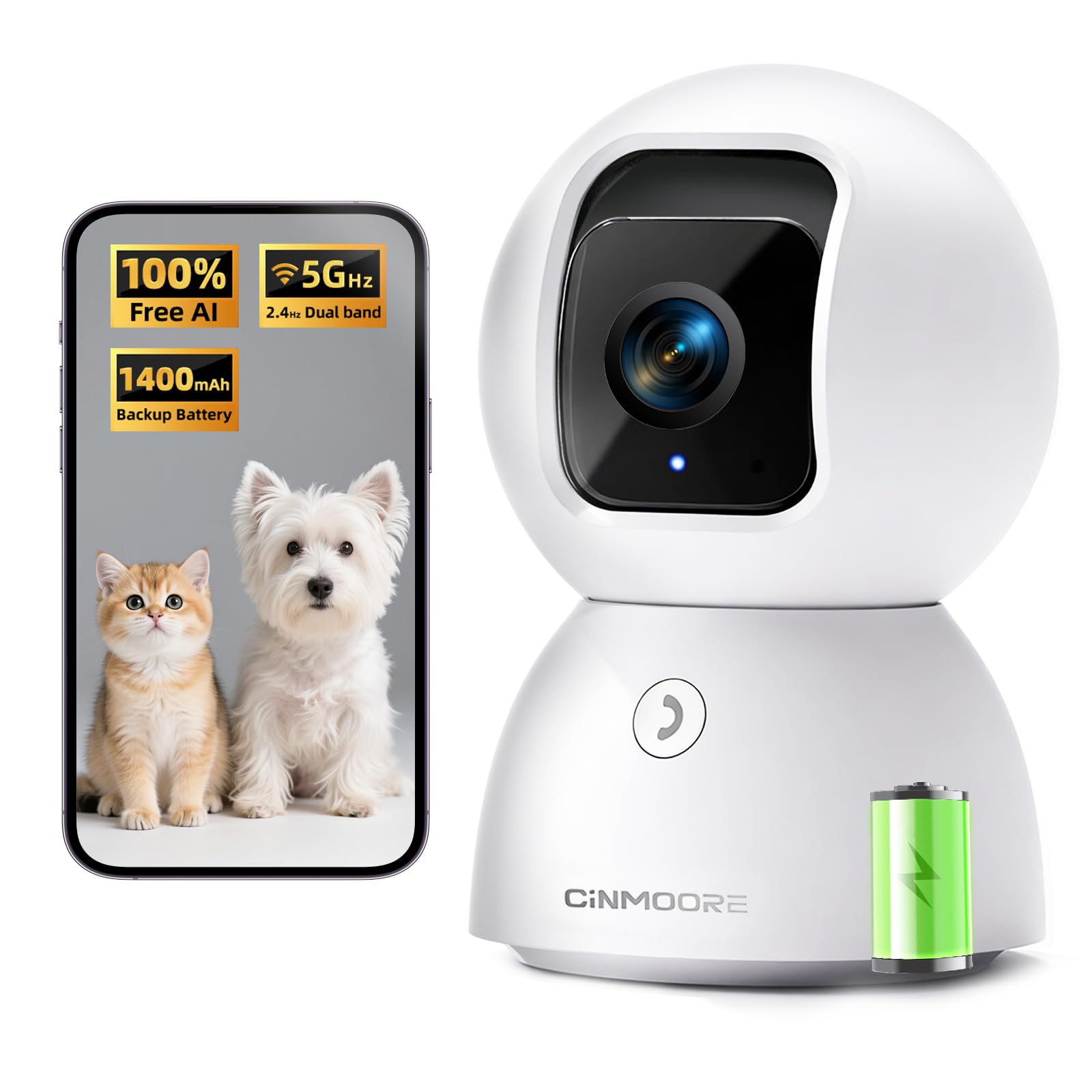
Figure 1: CINMOORE CM-C2U 3K Battery Cam Indoor Security Camera
2. Product Overview
2.1 Key Features
- Free AI Detections: The camera offers lifetime free AI detections, including facial recognition (stores up to 5 faces locally), person, pet, motion, noise, loitering, baby crying, smoke, and gas alarm detection without subscription fees.
- 3K UHD Resolution: Provides clear 3K Ultra High Definition video for detailed monitoring.
- 0-Glow Night Vision: Equipped with Night Vision 2.0 technology that operates without a visible red glow, ensuring discreet monitoring and undisturbed sleep for babies and pets.
- Dual-Band WiFi 6 & Bluetooth: Supports both 2.4GHz and 5GHz Wi-Fi bands for stable and faster connectivity, reducing dropouts.
- Full Duplex 2-Way Audio: Allows simultaneous two-way communication, enabling natural conversations with individuals or pets in the camera's vicinity. Includes a one-click call button for alerts.
- Local & Cloud Storage: Supports local storage via an SD card (up to 512GB, not included) for 24/7 recording. Optional AWS Cloud storage with bank-level security is available, often with a trial period.
- Pan & Tilt Functionality: Offers 360° pan and tilt capabilities for comprehensive area coverage.
- Power Outage Protection: Features an internal battery (1400mAh) to maintain operation during power interruptions.

Figure 2: Always-On Power Outage Proof Camera with 1400mAh battery
2.2 Package Contents
Upon unpacking, please ensure all items are present and in good condition:
- CINMOORE CM-C2U 3K Battery Cam Indoor Security Camera
- Power Adapter
- USB Charging Cable
- Mounting Clip/Bracket
- Mounting Screws and Wall Plugs
- User Manual (this document)

Figure 3: Camera and included accessories
3. Setup
3.1 App Installation
- Download the official CINMOORE app from your smartphone's app store (Google Play Store for Android or Apple App Store for iOS). Search for "CINMOORE".
- Install the app and create an account if you are a new user, or log in with your existing credentials.
3.2 Powering On the Camera
- Connect the USB charging cable to the camera's power port and the other end to the provided power adapter.
- Plug the power adapter into a wall outlet.
- The camera will power on and initiate its self-check sequence. Wait for the indicator light to flash, indicating it's ready for pairing.

Figure 4: Connecting power to the camera
3.3 Pairing with the App
- Open the CINMOORE app on your smartphone.
- Tap on "Add Device" or the "+" icon to begin the pairing process.
- Follow the on-screen instructions in the app. You may be prompted to scan a QR code on the camera or select your camera model from a list.
- Ensure your smartphone is connected to a 2.4GHz or 5GHz Wi-Fi network. The camera supports dual-band Wi-Fi 6 for improved connectivity.
- The app will guide you through connecting the camera to your home Wi-Fi network.
- Once successfully paired, the camera's indicator light will change, and you will see the live feed in the app.

Figure 5: Dual-Band WiFi 6 + Bluetooth connectivity
3.4 Inserting an SD Card (Optional)
For local storage of recordings, you can insert a microSD card (not included, up to 512GB). To access the SD card slot and reset button:
- Gently push the camera lens upwards until it points straight up. This will reveal the microSD card slot and the reset button.
- Insert the microSD card into the slot with the contacts facing down.
- The camera will automatically detect and format the SD card. You can manage SD card settings within the app.

Figure 6: Location of SD card slot and reset button
4. Operating Instructions
4.1 Live View and Pan/Tilt Control
- Open the CINMOORE app and select your camera from the device list to access the live view.
- On the live view screen, use the directional controls (usually a joystick or arrows) to pan (move horizontally) and tilt (move vertically) the camera lens.
- Pinch to zoom in or out on the live feed to view details.

Figure 7: 360° Pan and Tilt functionality

Figure 8: 3K Clarity for detailed viewing
4.2 Two-Way Audio
- To speak through the camera, tap the microphone icon in the live view interface. Hold the button to speak.
- The camera supports full-duplex audio, allowing you to speak and hear simultaneously without needing to switch modes.
- Use the one-click call button feature in the app to send immediate alerts to linked family members.
4.3 Night Vision
The camera automatically switches to 0-Glow Night Vision in low-light conditions. This feature provides clear black and white video without emitting a visible red light, ensuring discreet monitoring.

Figure 9: Discreet 0-Glow Night Vision
4.4 AI Detections and Alerts
Configure various AI detection settings within the app:
- Facial Recognition: Enable local facial recognition to identify up to 5 family members. The camera will send alerts for recognized or unrecognized faces.
- Person/Pet Tracking: Activate these features to receive alerts when a person or pet is detected and to have the camera automatically track their movement.
- Motion Detection: Customize motion detection zones and sensitivity to reduce false alarms.
- Sound Detection: Set up alerts for specific sounds like baby crying, smoke alarms, or gas alarms. Adjust sensitivity as needed.

Figure 10: AI Home Guardian features
4.5 Recording and Storage
- SD Card Recording: If an SD card is inserted, the camera will record continuously or based on detection events, as configured in the app. Footage is stored locally and can be reviewed via the app. Note: Enabling "SD Card Encryption" in the app means footage is only viewable within the CINMOORE App.
- Cloud Storage: An optional AWS Cloud storage service is available, often with a free trial period. This provides off-site storage with bank-level security. After the trial, a subscription may be required for continued cloud service.
4.6 Smart Home Integration
The CINMOORE CM-C2U camera is compatible with Alexa-enabled smart displays. You can stream your camera's live feed using voice commands.
- Ensure your camera is properly set up and connected to the CINMOORE app.
- Enable the CINMOORE skill in your Alexa app.
- Discover devices through the Alexa app.
- Use voice commands such as "Alexa, show me the baby room" to view the live feed on your compatible Alexa device.

Figure 11: Alexa integration for live streaming
5. Maintenance
- Cleaning: Use a soft, dry cloth to clean the camera lens and body. Avoid using harsh chemicals or abrasive materials.
- Firmware Updates: Regularly check the CINMOORE app for available firmware updates. Keeping your camera's firmware up-to-date ensures optimal performance, security, and access to new features.
- Placement: Ensure the camera is placed on a stable surface or securely mounted to prevent accidental falls. Avoid placing it in direct sunlight or near heat sources.
6. Troubleshooting
6.1 Common Issues and Solutions
| Issue | Possible Cause | Solution |
|---|---|---|
| Camera fails to connect to Wi-Fi. | Incorrect Wi-Fi password, camera too far from router, router issues, incorrect Wi-Fi band selected. |
|
| No recording to SD card. | SD card not inserted correctly, card full, card corrupted, recording settings incorrect, SD card encryption enabled. |
|
| Cannot view recorded events without subscription. | Misunderstanding of cloud vs. local storage. |
|
| Camera is unresponsive or frozen. | Temporary software glitch. |
|
6.2 Factory Reset
If you encounter persistent issues, a factory reset may resolve them. This will erase all settings and return the camera to its default state. You will need to re-pair the camera with the app after a reset.
- Ensure the camera is powered on.
- Gently push the camera lens upwards until it points straight up to reveal the reset button.
- Using a small pin or paperclip, press and hold the reset button for approximately 5-10 seconds until you hear a voice prompt or see the indicator light change.
- Release the button and wait for the camera to restart.
- Proceed with the pairing process as described in Section 3.3.
7. Specifications
| Feature | Detail |
|---|---|
| Model Name | CM-C2U |
| Brand | CINMOORE |
| Recommended Use | Indoor Security |
| Connectivity Technology | WI-FI (Dual-Band 2.4/5GHz) |
| Special Features | Night Vision (0-Glow), AI Detections (Facial, Person, Pet, Motion, Sound), Full Duplex 2-Way Audio, Pan/Tilt, Battery Backup |
| Indoor/Outdoor Usage | Indoor |
| Mounting Type | Tabletop Mount (Mounting clip included) |
| Video Capture Resolution | 3K (5MP) |
| Video Capture Format | MP4 |
| SD Card Support | Up to 512GB (not included) |
| Battery | Built-in (1400mAh for power outage protection) |
| Item Dimensions | 25.4 x 5.1 x 7.6 Centimetres |
| Country of Origin | China |
8. Warranty and Support
Manufacturer Warranty: This product comes with a 1 Year Manufacturer Warranty.
For technical support, warranty claims, or any inquiries regarding your CINMOORE CM-C2U camera, please contact CINMOORE customer service. Refer to the contact information provided on the product packaging or the official CINMOORE website.
Manufacturer Contact Information: Cinmoore


