
1. Introduction
This manual provides essential information for setting up, operating, and maintaining your Smart Tech 40QG01V2 40-inch Full HD QLED Smart Google Television. Please read these instructions carefully before using the product to ensure safe and optimal performance. Keep this manual for future reference.

Figure 1: Smart Tech 40QG01V2 Television
2. Key Features
- Immersive QLED Display: Enjoy vibrant colors and refined contrasts for an enhanced visual experience with Full HD resolution.
- Smart Google TV: Access your favorite streaming applications and online content easily through a fluid and user-friendly interface.
- Optimal Size: With its 40-inch (100 cm) screen, the Smart Tech 40QG01V2 integrates perfectly into various spaces such as a living room, bedroom, or office.
- Comprehensive Connectivity: Easily connect all your devices including game consoles, TV boxes, media players, or USB drives. Features 3 HDMI ports and 2 USB ports.
- Integrated Chromecast: Stream content directly from your mobile devices to the TV.
- Dolby Audio: Experience immersive sound quality.

Figure 2: Overview of Key Features
3. Setup
3.1 Unboxing
Carefully remove the television and all accessories from the packaging. Ensure all components listed in the packing list are present and undamaged.
3.2 Stand Installation
If you are not wall-mounting the television, attach the included stand. Follow these steps:
- Place the television face down on a soft, flat surface to prevent screen damage.
- Align the stand with the mounting holes on the bottom of the television.
- Secure the stand using the provided screws. Do not overtighten.
3.3 Connections
Before connecting any cables, ensure the television is unplugged from the power outlet.
- Power: Connect the power cord to the TV's power input and then to a wall outlet.
- HDMI Devices: Use HDMI cables to connect external devices (e.g., game consoles, Blu-ray players) to the HDMI ports (3 available).
- USB Devices: Connect USB drives or other USB devices to the USB ports (2 available).
- Ethernet: For a stable internet connection, connect an Ethernet cable to the RJ45 port.
- Antenna/Cable: Connect your antenna or cable TV source to the appropriate input.
- Optical Audio: For high-quality audio output to a soundbar or receiver, use the optical audio port.
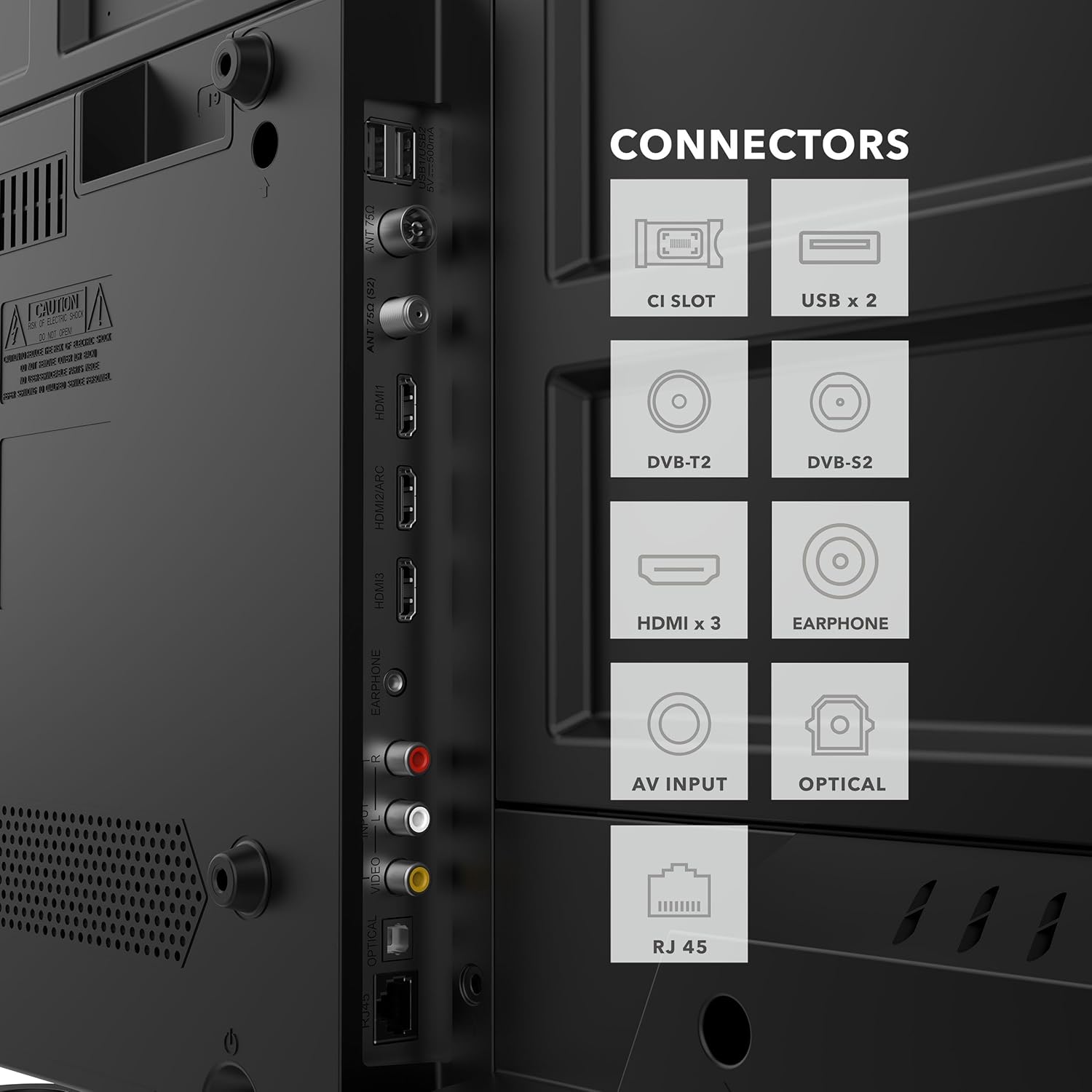
Figure 3: Rear Connectors of the Television
4. Operating Instructions
4.1 Power On/Off
Plug the power cord into a wall outlet. Press the power button on the remote control or on the TV to turn it on. To turn off, press the power button again.
4.2 Google TV Interface
Your Smart Tech TV features the Google TV operating system, providing a personalized and intuitive user experience. The home screen displays recommended content, installed apps, and quick access to various features.

Figure 4: Google TV Home Screen
4.3 Voice Control and Remote
The included remote control allows for easy navigation and features dedicated buttons for popular streaming services. Utilize the voice control function for hands-free operation and quick content search.

Figure 5: Remote Control with Voice Control and Quick Access Buttons
4.4 Streaming Applications
Access pre-installed applications like YouTube, Netflix, Prime Video, and Disney+. You can download additional applications from the Google Play Store.
4.5 Picture and Sound Settings
Adjust picture and sound settings to your preference. The QLED display offers Full HD resolution (1920x1080 pixels) for clear and detailed images. Dolby Audio provides an immersive sound experience.

Figure 6: Full HD (1920x1080px) vs. HD (1366x768px) Resolution

Figure 7: Dolby Audio for Enhanced Sound
5. Maintenance
To ensure the longevity and optimal performance of your television, follow these maintenance guidelines:
- Cleaning the Screen: Use a soft, lint-free cloth specifically designed for electronics. Do not use harsh chemicals or abrasive cleaners.
- Cleaning the Body: Wipe the TV's exterior with a soft, damp cloth.
- Ventilation: Ensure proper ventilation around the TV. Do not block ventilation openings.
- Power Cord: Regularly check the power cord for any damage.
6. Troubleshooting
If you encounter any issues with your television, refer to the following common troubleshooting tips:
| Problem | Possible Solution |
|---|---|
| No power | Check if the power cord is securely connected to both the TV and the wall outlet. Ensure the outlet is functional. |
| No picture, but sound is present | Check the input source. Ensure all HDMI cables are properly connected. Try a different HDMI port. |
| No sound, but picture is present | Check the volume level and mute settings. Verify audio output settings in the TV menu. Ensure external audio devices are correctly connected. |
| Remote control not working | Replace the batteries in the remote control. Ensure there are no obstructions between the remote and the TV. |
| Cannot connect to Wi-Fi | Check your router and modem. Restart them if necessary. Ensure the Wi-Fi password is correct. |
If the problem persists after trying these solutions, please contact customer support.
7. Specifications
| Feature | Description |
|---|---|
| Brand | Smart Tech |
| Model Number | 40QG01V2 |
| Screen Size | 40 inches (100 cm) |
| Display Technology | QLED, LED |
| Resolution | Full HD (1080p) |
| Operating System | Google TV |
| Refresh Rate | 60 Hz |
| Special Features | Chromecast built-in |
| Connectivity | Bluetooth, Ethernet, HDMI (x3), USB (x2) |
| Audio Technology | Dolby Audio |
| Aspect Ratio | 16:9 |
| Product Dimensions (D x W x H) | 22D x 89.2W x 56.1H cm |
| Color | Black |
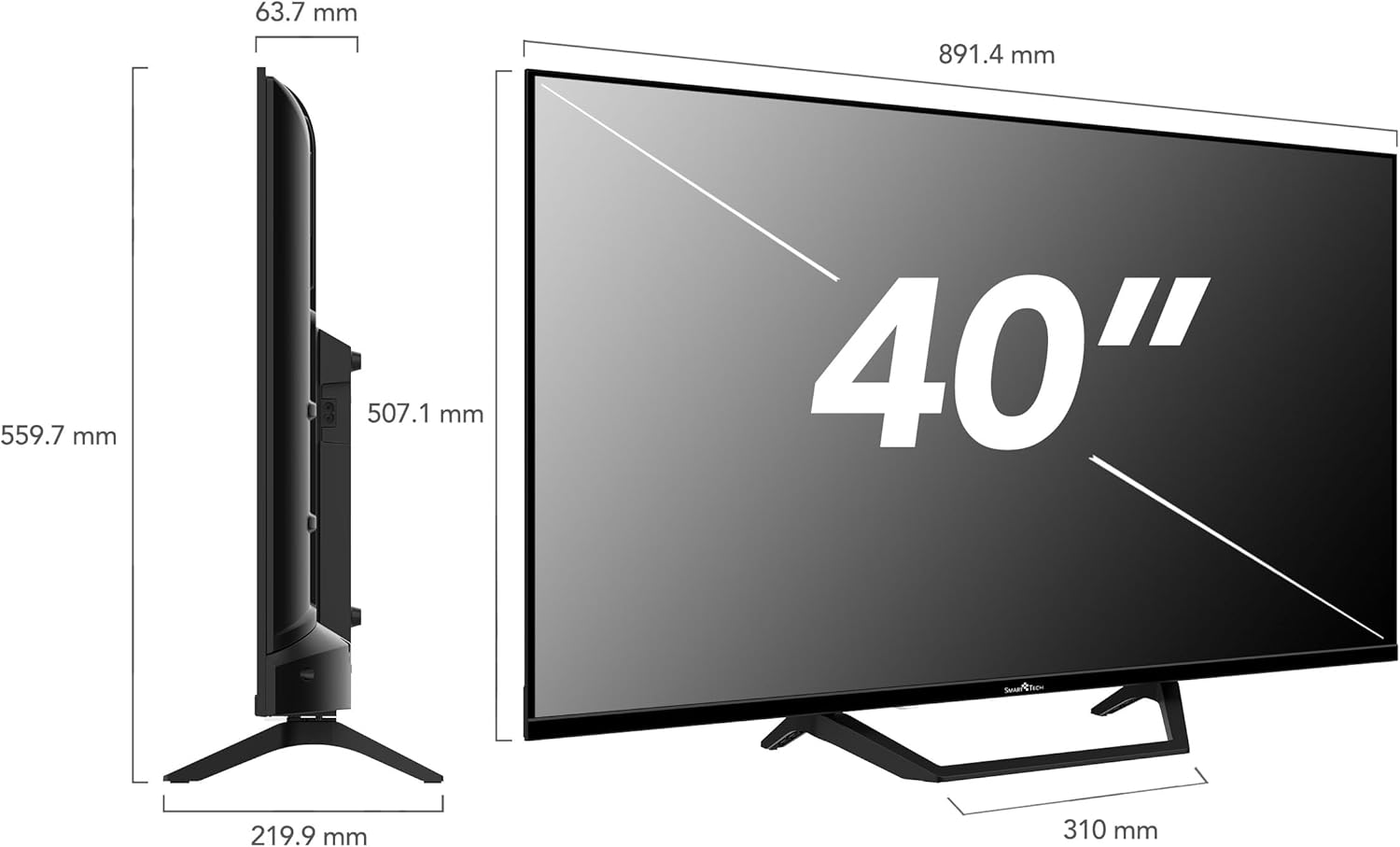
Figure 8: Television Dimensions
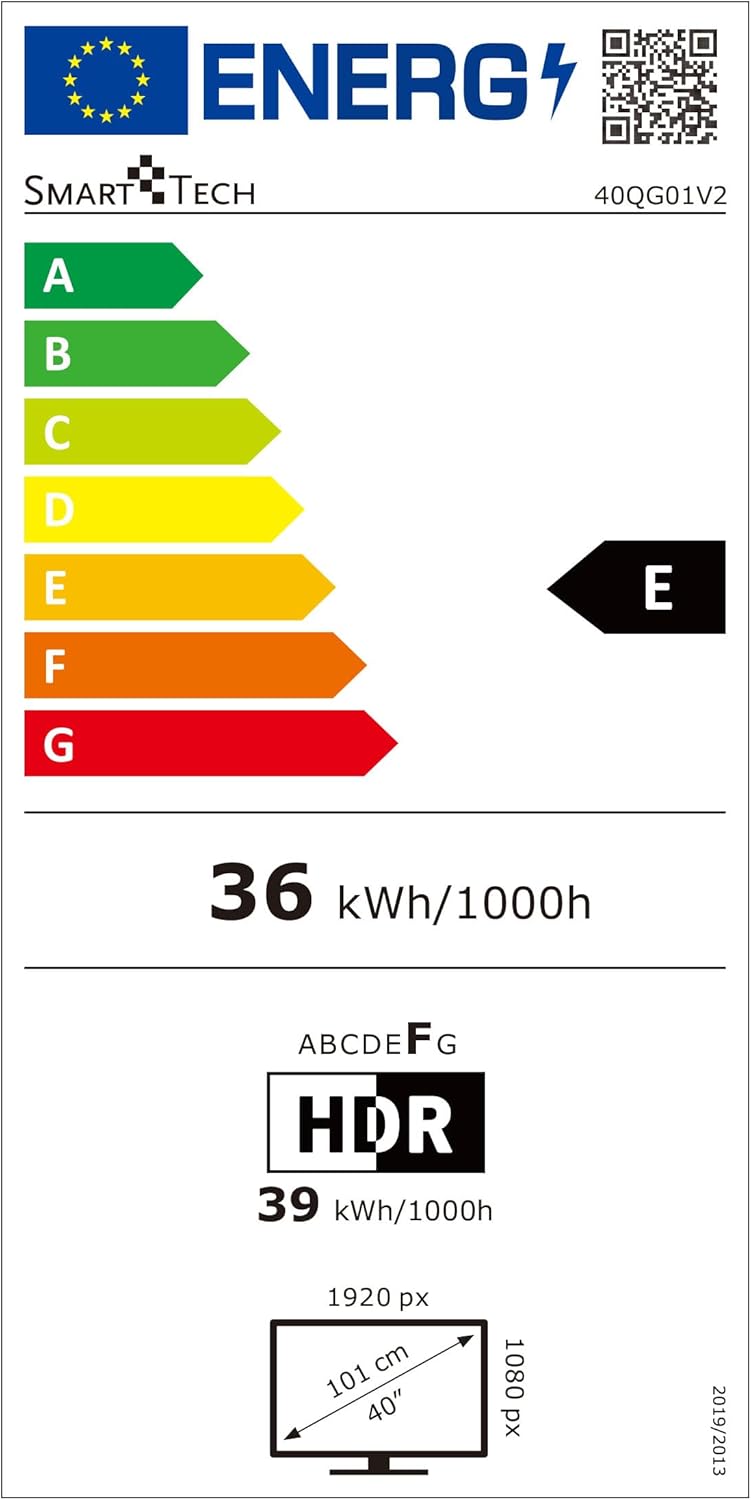
Figure 9: Energy Label for Model 40QG01V2. For more details, visit EPREL Database.
8. Warranty and Support
Your Smart Tech 40QG01V2 television comes with a 2-year manufacturer's warranty. For warranty claims or technical support, please refer to the contact information provided with your purchase or visit the official Smart Tech website.


