
1. Introduction
Welcome to the FitSpark CINEMAGIC 102 Pro Projector user manual. This guide provides essential information for setting up, operating, maintaining, and troubleshooting your new projector. Please read this manual thoroughly before use to ensure optimal performance and longevity of your device.

Image: The CINEMAGIC 102 Pro Projector showcasing its design and core capabilities like 600 ANSI, 1080p, HDR10, CineTone, 4K FireStick support, and a sealed engine.
2. What's in the Box
Upon unpacking, please verify that all the following items are included:
- 1N CINEMAGIC 102 Pro Projector
- 1N Power Cable
- 1N Remote Control
- 1N User Manual (this document)
3. Key Features
3.1. Tiltable Design for Flexible Placement
The CINEMAGIC 102 Pro features a tiltable body, allowing you to adjust the projection angle from various surfaces such as floors, tables, or shelves. This design adapts the projector to your room layout, providing flexibility in setup.

Image: A projector placed on a bedside table, projecting an image onto the ceiling, demonstrating its tiltable design and flexible placement options.
3.2. CineTone Engine for Enhanced Visuals
Equipped with the CineTone optical engine, the projector delivers improved lens transparency, a wider color gamut, and an efficient light engine. This results in warm, accurate, and cinema-grade colors, offering a richer viewing experience with native 1080p resolution and HDR10 support.

Image: A graphic illustrating the benefits of the CineTone Engine, including improved lens optics for sharper details, a wider color gamut for richer colors, and an efficient light engine for brighter output with lower power usage.
3.3. 100% Sealed Optical Engine
The projector features a 100% enclosed, dust-proof optical engine. This design prevents dust accumulation and picture degradation over time, ensuring consistent cinematic quality throughout the product's lifespan.

Image: The projector inside a clear bubble, representing its 100% sealed optical engine, which prevents dust and ensures long-term picture quality.
3.4. True 4K Support with EDID 2.1
The CINEMAGIC 102 Pro incorporates EDID 2.1 technology, enabling true 4K output from compatible devices like the Fire TV Stick. This ensures that 4K content from streaming services is displayed in its native resolution without downscaling.

Image: The projector displaying a vibrant 4K interface with various streaming applications, emphasizing its compatibility with Fire TV Stick for true 4K content.
3.5. Auto Focus and Auto Keystone Correction
For a hassle-free setup, the projector features automatic focus and keystone correction. These functions intelligently adjust the image to ensure it is sharp and perfectly rectangular, regardless of the projection angle.

Image: A visual representation of the projector's auto-focus and auto-keystone features, showing a perfectly aligned and sharp image projected onto a screen.
3.6. Integrated 10W Dual Surround Sound
The projector includes built-in 10W dual surround sound speakers, providing immersive audio that fills the room without the need for external speakers. This enhances the overall home cinema experience.

Image: The projector at the center of a room, with concentric circles emanating outwards, symbolizing its 10W dual surround sound filling the space.
3.7. Wide Connectivity Options
Connectivity options include Wi-Fi, HDMI, USB, Bluetooth 5.4, and a 3.5mm audio jack, allowing connection to laptops, gaming consoles, streaming sticks, smartphones, and other devices.
4. Setup
4.1. Initial Placement
- Choose a stable surface for the projector. The tiltable design allows for placement on a floor, table, or shelf.
- Ensure there is adequate ventilation around the projector to prevent overheating.
- Position the projector within the recommended throw distance of 4 to 10 feet from your projection surface for optimal image quality. The maximum image size is 300 inches.
4.2. Power Connection
- Connect the provided power cable to the projector's power input.
- Plug the other end of the power cable into a suitable electrical outlet.
4.3. First Power On
- Press the power button on the projector or the remote control to turn on the device.
- The projector will initiate its auto-focus and auto-keystone correction features to provide a clear and rectangular image automatically.
5. Operating Instructions
5.1. Basic Navigation
- Use the arrow keys on the remote control to navigate through the on-screen menus.
- Press the 'OK' or 'Enter' button to select an option.
- Use the 'Back' or 'Return' button to go back to the previous menu.
5.2. Connectivity
The projector supports various input sources:
- HDMI: Connect devices like laptops, gaming consoles, or streaming sticks (e.g., Fire TV Stick) using an HDMI cable. The projector's EDID 2.1 ensures true 4K output from compatible sources.
- USB: Insert a USB drive to play media files directly.
- Wi-Fi: Connect to your wireless network for internet-based features or screen mirroring (if supported by your device).
- Bluetooth 5.4: Pair with external Bluetooth speakers or headphones for alternative audio output.
- 3.5mm Audio Jack: Connect wired headphones or external speakers.
5.3. Image Adjustment
- Auto Focus: The projector automatically adjusts the focus for a clear image. If manual adjustment is needed, refer to the on-screen display settings.
- Auto Keystone: The projector automatically corrects image distortion to ensure a rectangular picture. Manual keystone correction options may be available in the settings menu for fine-tuning.
- HDR10: The projector supports HDR10 for enhanced contrast and color detail. Ensure your source device is also configured for HDR output.

Image: A side-by-side comparison demonstrating the visual difference between SDR (Standard Dynamic Range) and HDR10 (High Dynamic Range 10), highlighting the improved dynamic range and detail with HDR10.
5.4. Audio Output
- The built-in 10W dual surround sound speakers provide default audio.
- To use external audio devices, connect them via Bluetooth or the 3.5mm audio jack. Select the desired audio output in the projector's sound settings.
6. Maintenance
6.1. Cleaning the Projector
- Exterior: Use a soft, dry cloth to wipe the exterior of the projector. Avoid abrasive cleaners or solvents.
- Lens: Gently clean the projector lens with a lens cleaning cloth or specialized lens cleaning solution. Do not touch the lens directly with your fingers.
- Ventilation: Ensure the ventilation ports are clear of dust and obstructions to maintain proper airflow. The 100% sealed optical engine minimizes internal dust accumulation.
6.2. Storage
When not in use for extended periods, store the projector in a cool, dry place, away from direct sunlight and extreme temperatures.
7. Troubleshooting
| Problem | Possible Cause | Solution |
|---|---|---|
| No image displayed | Power cable disconnected; Input source not selected; Device not powered on. | Check power connection; Select correct input source (HDMI, USB); Ensure connected device is on. |
| Image is blurry | Out of focus; Projector too close/far from screen. | Allow auto-focus to complete; Adjust projector distance within 4-10 feet range. |
| Image is distorted (not rectangular) | Keystone not corrected. | Allow auto-keystone to complete; Manually adjust keystone in settings if needed. |
| No sound | Volume too low; Incorrect audio output selected; External device muted. | Increase volume; Select correct audio output (internal speakers, Bluetooth, 3.5mm); Unmute external device. |
| Remote control not working | Batteries low/dead; Obstruction between remote and projector. | Replace batteries; Ensure clear line of sight to projector's IR receiver. |
8. Specifications
- Brand: FitSpark
- Model Name: CINEMAGIC 102
- Display Resolution: Native 1920 x 1080 (Full HD)
- Maximum Display Resolution: 1920 x 1080 (Supports 4K input via EDID 2.1)
- Brightness: 600 ANSI Lumens
- Display Type: LCD
- Special Features: Auto Focus, Auto Keystone, CineTone Engine, 100% Sealed Optical Engine, HDR10
- Connectivity Technology: Wi-Fi, HDMI, USB, Bluetooth 5.4, 3.5mm Audio
- Recommended Uses: Home Cinema, Cafes, Business, Gaming, Education
- Mounting Type: Tabletop Mount (Tiltable)
- Minimum Throw Distance: 4 Feet
- Maximum Throw Distance: 10 Feet
- Maximum Image Size: 300 Inches
- Item Dimensions (L x W x H): 26.5L x 22W x 22.5H Centimeters
- Item Weight: 3.2 Kilograms
9. Warranty and Support
9.1. Warranty Information
The FitSpark CINEMAGIC 102 Pro Projector comes with a 1-year warranty from the date of purchase. This warranty covers manufacturing defects and ensures free repair or replacement of parts as per the terms and conditions.
9.2. Customer Support
FitSpark offers dedicated customer support for your projector:
- Doorstep Service: Enjoy free pick-up and drop-off service across India for warranty-related issues for 1 year.
- Contact Hours: Support is available Monday to Friday, 10 AM to 6 PM IST.
- Contact Methods: You can reach our support team via chat, email, or phone call. Refer to your purchase documentation or the FitSpark website for specific contact details.
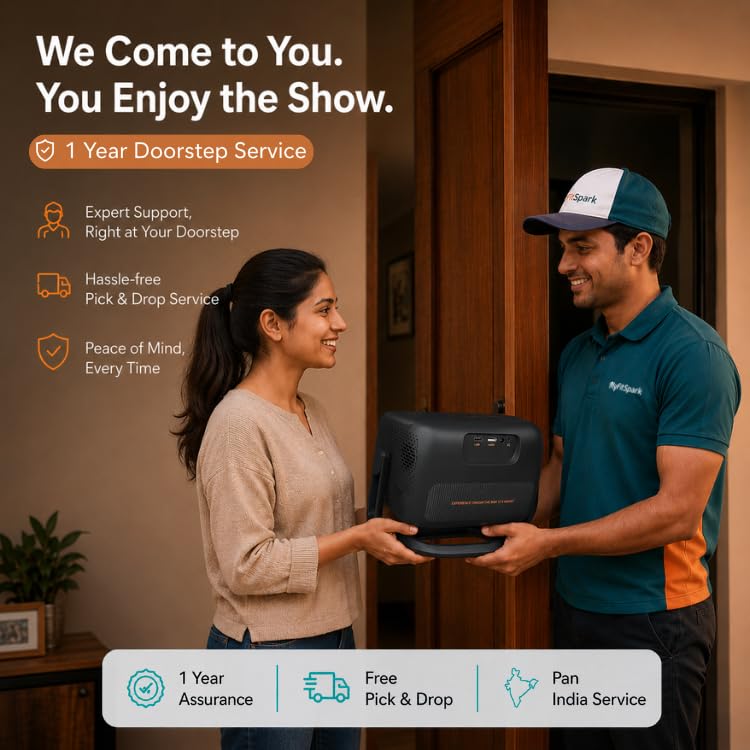
Image: A FitSpark service representative handing over a projector to a customer at their doorstep, illustrating the convenient doorstep warranty service.