
1. Introduction
This manual provides essential information for the safe and efficient operation of your NBVOICE PRX II 2800W Powered PA System. Please read these instructions thoroughly before use and retain them for future reference. This system is designed for professional audio applications, offering a modular and powerful sound solution for various events.
Video Description: An official product video showcasing the NBVOICE NBV11204A 2800W Portable PA System, highlighting its features and applications in various settings like live performances and events.
2. Product Overview and Components
The NBVOICE PRX II is a modular 5-piece line array PA system designed for versatility and high-quality sound reproduction. It consists of a powerful subwoofer and four detachable top array speakers.
2.1 Key Features
- Modular 5-Piece Line Array Design: Includes a 12-inch subwoofer and four top array speakers, allowing flexible deployment for various venue sizes.
- 4x4-inch Mid-Range Array: Dedicated mid-range drivers ensure exceptional vocal clarity and detailed mid-frequency response.
- Integrated 2-Channel Mixer: Provides independent control over microphone and instrument levels, eliminating the need for an external mixer. Features 270° volume knobs for precise adjustments and recessed switches to prevent accidental changes.
- Wide Frequency Response: Delivers clear bass down to 45Hz, suitable for various music genres.
- Bluetooth Connectivity: Built-in Bluetooth allows wireless audio streaming from compatible devices.
- Portability: Designed for easy transport and quick setup, ideal for mobile applications.
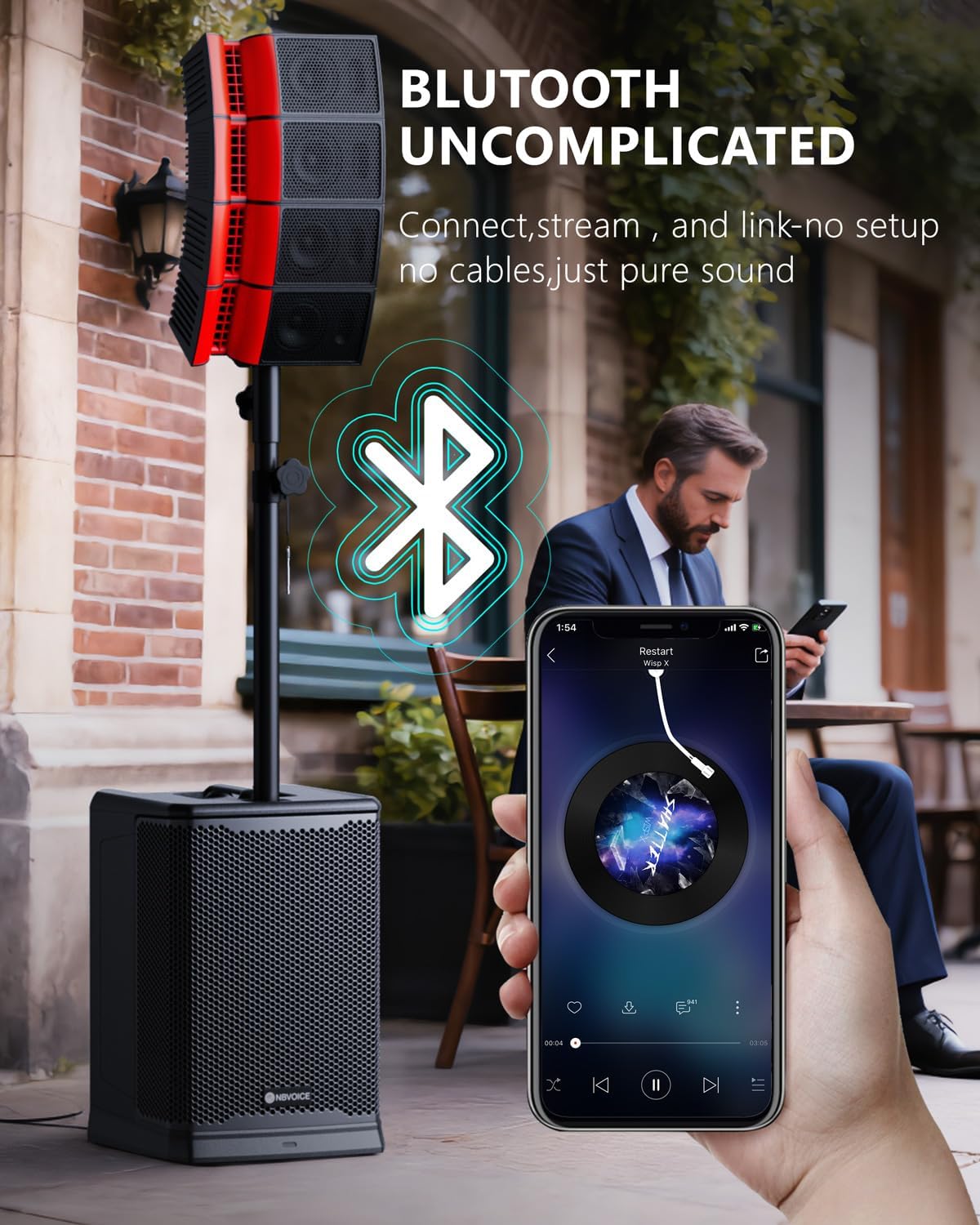
Image Description: A complete view of the NBVOICE PRX II 2800W Powered PA System, showing the 12-inch subwoofer base and the four stacked top array speakers mounted on a pole.
2.2 Control Panel Overview
The control panel, located on the top of the subwoofer unit, provides all necessary inputs, outputs, and controls for the system.

Image Description: A close-up of the NBVOICE NBV11204A control panel, illustrating the various knobs, buttons, and ports for audio input, output, and system adjustments.
- USB Playback: Port for USB media devices.
- LCD Display: Shows current mode, settings, and track information.
- Mode Select: Button to cycle through input modes (Bluetooth, USB, Line).
- Previous Track: Navigates to the previous track during media playback.
- Recording: Initiates or stops recording (if supported).
- Play/Pause: Controls media playback.
- Next Track: Navigates to the next track during media playback.
- DSP Presets: Knob to select various Digital Sound Processing presets (e.g., Live, Music, Flat, Speech).
- Mic/Line Input Switches (CH1-CH4): Toggles between microphone and line-level input sensitivity for each channel.
- Full Range Level: Adjusts the overall volume of the full-range speakers.
- Subwoofer Level: Adjusts the volume of the subwoofer.
- Status Indicators: LEDs for Signal, Clip, and Power.
- Mic/Line Inputs (CH1-CH4): Combination XLR/TRS inputs for microphones or line-level devices.
- Aux/Line Input: RCA or 3.5mm input for auxiliary devices.
- Mix Out: XLR output for sending the mixed signal to another PA system or recording device.
- Speaker Output: Connects to the top array speakers.
- Circuit Breaker: Resettable overload protection.
- Power Switch: Turns the unit on/off.
- AC Power Input: Connects the system to a power source (AC110V/60Hz).
3. Setup Instructions
Follow these steps to correctly assemble and set up your NBVOICE PRX II PA System.
3.1 Assembly of Line Array Speakers
- Install Four Speakers to Bracket: Carefully slide each of the four top array speakers onto the provided mounting bracket. Ensure they click securely into place.
- Install Bracket Pole to Subwoofer: Insert the bottom end of the speaker pole into the designated socket on top of the subwoofer. Twist to secure if applicable.
- Connect Bracket and Pole: Attach the assembled speaker bracket to the top of the pole. Secure it using the locking mechanism on the pole.
- Connect Speaker Cable: Connect the speaker cable from the subwoofer's 'Speaker Output' to the input on the bottom-most top array speaker.
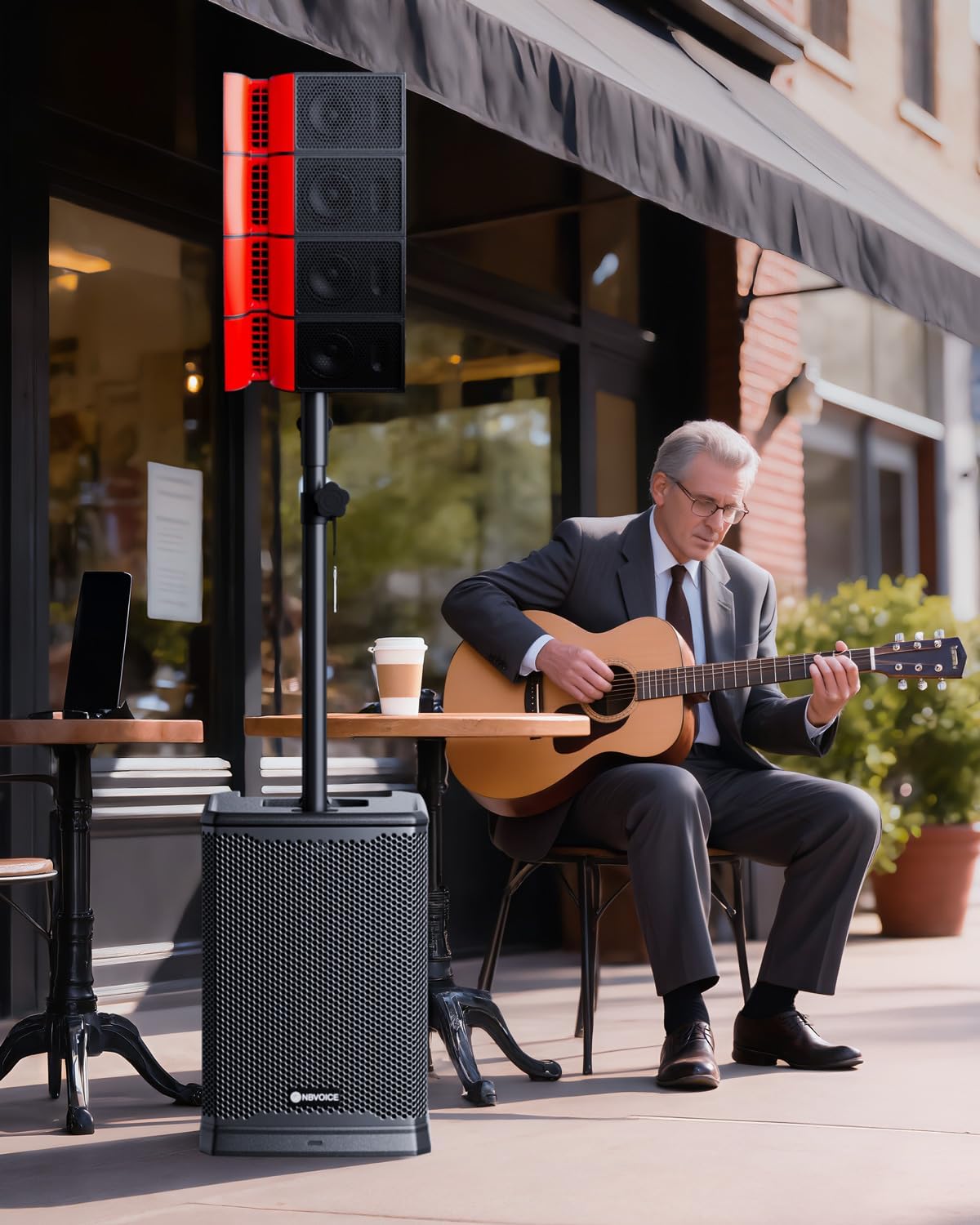
Image Description: A four-panel image demonstrating the assembly process of the line array speakers: installing speakers to the bracket, attaching the pole to the subwoofer, connecting the bracket to the pole, and the final assembled system.
3.2 Power Connection
- Ensure the Power Switch (18) on the control panel is in the OFF position.
- Connect the provided AC power cable to the AC Power Input (19) on the control panel and then to a suitable power outlet (AC110V/60Hz).
3.3 Initial Power On
- Turn the Power Switch (18) to the ON position. The LCD Display (2) should illuminate, and the Status Indicators (12) will show power.
- Adjust the Full Range Level (10) and Subwoofer Level (11) to a low setting before connecting any audio sources.
4. Operating Instructions
This section details how to connect and operate various audio sources with your PA system.
4.1 Connecting Microphones and Line-Level Devices
- Connect your microphone or instrument to one of the Mic/Line Inputs (13).
- Use the corresponding Mic/Line Input Switch (9) to select the correct input sensitivity: 'MIC' for microphones and 'LINE' for line-level instruments (e.g., keyboards, guitars with preamps).
- Adjust the individual channel level knob for the connected input.
4.2 Bluetooth Audio Streaming
- Press the Mode Select button (3) until 'Bluetooth' is displayed on the LCD Display (2). The Bluetooth indicator will flash.
- On your mobile device, enable Bluetooth and search for available devices. Select 'NBVOICE PRX II' (or similar name) from the list.
- Once paired, the Bluetooth indicator on the PA system will become solid. You can now stream audio from your device.
- Control playback using your device or the Play/Pause (6), Previous Track (4), and Next Track (7) buttons on the PA system.
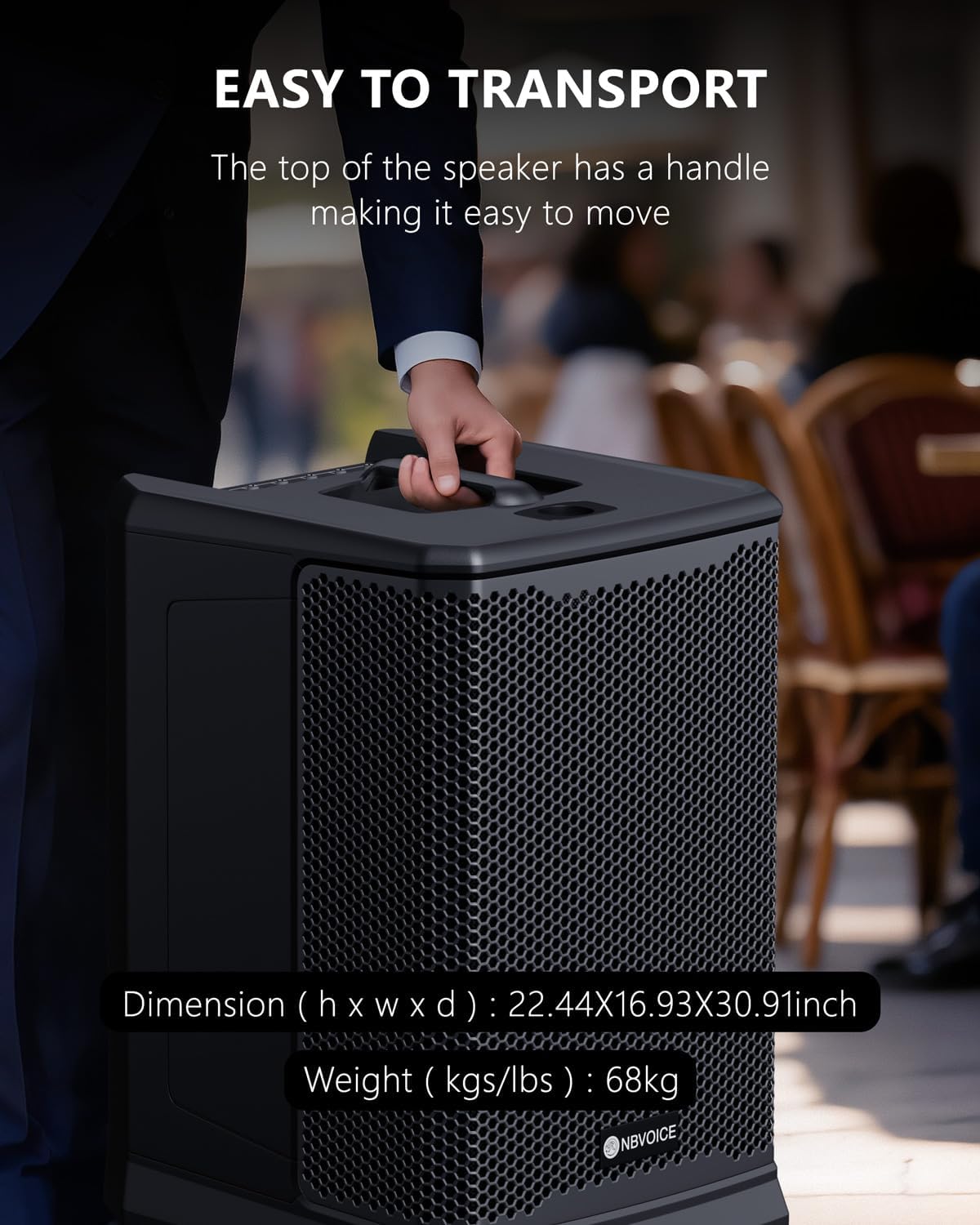
Image Description: An image depicting a smartphone wirelessly connected to the NBVOICE PA system via Bluetooth, illustrating the ease of streaming audio.
4.3 USB/MP3 Playback
- Insert a USB flash drive containing MP3 audio files into the USB Playback port (1).
- Press the Mode Select button (3) until 'USB' is displayed. The system will automatically begin playing the first track.
- Use the Play/Pause (6), Previous Track (4), and Next Track (7) buttons to control playback.
4.4 Using DSP Presets
The DSP Presets knob (8) allows you to optimize the sound for different applications:
- Live: General setting for live music performances.
- Music: Enhanced bass and treble for recorded music playback.
- Flat: A neutral frequency response, suitable for mixing or when external processing is used.
- Speech: Optimizes vocal clarity for spoken word applications.
Rotate the DSP Presets knob to select the desired setting. The LCD display may show the active preset.
5. Maintenance
Proper maintenance ensures the longevity and optimal performance of your PA system.
- Cleaning: Use a soft, dry cloth to clean the exterior surfaces. Do not use abrasive cleaners or solvents.
- Storage: Store the system in a dry, dust-free environment when not in use. If transporting, use appropriate covers or cases to protect components.
- Ventilation: Ensure adequate ventilation around the subwoofer to prevent overheating. Do not block any vents.
- Cable Management: Regularly check all cables for damage. Replace frayed or damaged cables immediately.
6. Troubleshooting
Refer to this section for solutions to common issues.
| Problem | Possible Cause | Solution |
|---|---|---|
| No power | Power cable disconnected; Power switch off; Circuit breaker tripped. | Check power cable connection; Ensure power switch is ON; Reset circuit breaker (17). |
| No sound output | Volume levels too low; Incorrect input selected; Speaker cable disconnected; Faulty audio source. | Increase Full Range Level (10) and Subwoofer Level (11); Select correct input mode (3); Check speaker cable connection; Test with a different audio source. |
| Distorted sound | Input level too high (clipping); DSP preset unsuitable; Damaged speaker. | Reduce input level until 'CLIP' indicator (12) no longer illuminates; Try a different DSP preset (8); Contact support if distortion persists. |
| Bluetooth not pairing | Not in Bluetooth mode; Device too far; Interference. | Ensure system is in Bluetooth mode (3); Move device closer to the PA system; Reduce other wireless interference. |
7. Specifications
| Feature | Detail |
|---|---|
| Brand | NBVOICE |
| Model Number | NBV11204A |
| Power Output | 2800W Peak |
| Components | 12-inch Subwoofer, 4 Top Array Speakers |
| Connectivity | Bluetooth, MP3/USB, Mic/Line Inputs (XLR/TRS), Aux/Line Input (RCA/3.5mm) |
| Mixer | Built-in 2-channel mixer |
| Dimensions (L x W x H) | 23 x 17 x 31 inches (overall assembled) |
| Power Input | AC110V/60Hz |
8. Warranty and Support
For warranty information regarding your NBVOICE PRX II 2800W Powered PA System, please contact the seller directly. You may also find detailed warranty terms and conditions on the manufacturer's official website.
For technical support, troubleshooting assistance beyond this manual, or service inquiries, please reach out to NBVOICE customer support through their official channels or the retailer where the product was purchased.