
ARTILAURA AR-W2-GREEN
Contents
ARTILAURA Digital Speedometer Car HUD Head Up Display (Model AR-W2-GREEN) Instruction Manual
Model: AR-W2-GREEN | Brand: ARTILAURA
Introduction
This manual provides detailed instructions for the ARTILAURA Digital Speedometer Car HUD Head Up Display, model AR-W2-GREEN. This device offers real-time vehicle speed display, overspeed alarms, and automatic brightness adjustment for a safer and more convenient driving experience. It is designed for universal compatibility with vehicles equipped with a 5V USB power source.
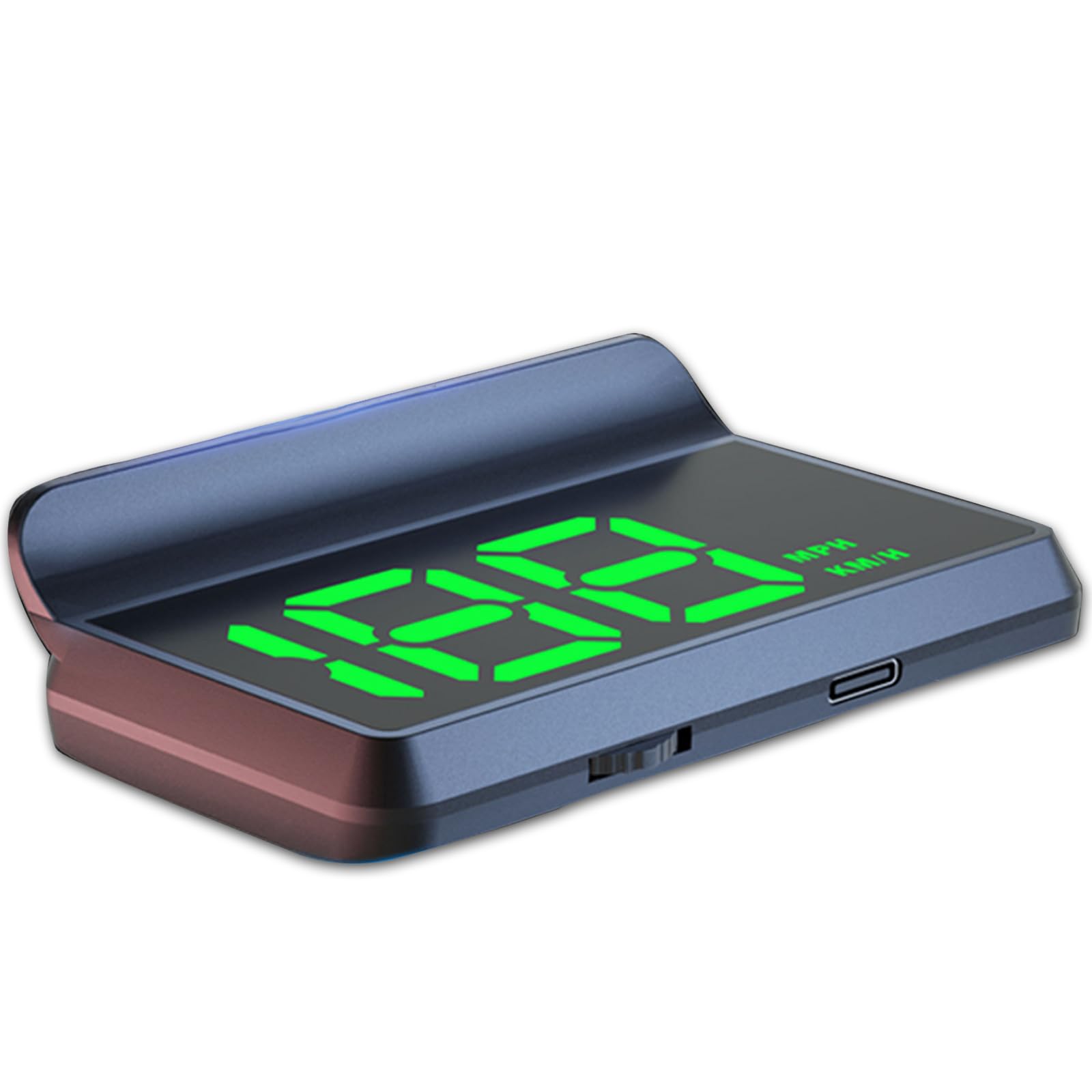
Image: The ARTILAURA HUD Head Up Display projecting speed information onto the windshield, as seen from the driver's perspective, with a scenic road background.
Key Features
- Real-Time Speed Data Display & Fine-Tuning: Displays vehicle speed (0-255 KM/H/MPH) using independent satellite signals. Supports speed fine-tuning (50-150 range) to match actual vehicle speed.
- Multi-Function Head-UP Display: Supports MPH/KmH unit switching and clearly shows real-time vehicle speed without complex setup.
- Three-Level Over-Speed Alarm: Allows setting three custom speed alarms (Level 1-3) within the range of 0-255 MPH or KmH, providing timely reminders.
- Adjustable Brightness Mode: Features 0-11 brightness levels, including an automatic photosensitive mode for clear visibility in various lighting conditions.
- Simple Operation: Uses a rotary key for mode switching, parameter adjustment, and factory reset.
- Plug-And-Play Installation: Connects to your car's USB port (5V only) and automatically locks onto satellite signals.
- Universal Vehicle Compatibility: Works with all vehicles equipped with a 5V USB power source.
Setup Instructions
- Placement: Choose a suitable location on your dashboard where the display does not obstruct your view of the road. The compact design allows for flexible placement.
- Power Connection: Connect the device to your car's USB port using the provided cable. Ensure the power source is 5V only to prevent damage.
- Satellite Signal Acquisition: After connecting, the display will show dashes. Wait for a few moments for the device to acquire satellite signals. Once signals are locked, the display will change from dashes to zero, indicating it is ready for use.

Image: The ARTILAURA HUD device positioned on a car dashboard, demonstrating its compact size and suitable placement without obstructing the driver's view.
Operating Instructions
Speed Display and Unit Switching
- The device automatically displays your current vehicle speed.
- To switch between MPH and KmH units, use the rotary key. Refer to the device's on-screen prompts or a quick press/hold action on the rotary key (specific action may vary, consult quick start guide if provided).
Speed Fine-Tuning
- If the displayed speed does not perfectly match your vehicle's actual speed, you can fine-tune it.
- Access the fine-tuning menu using the rotary key. Adjust the speed within the 50-150 range to calibrate the display.
Setting Over-Speed Alarms
- The device supports three levels of over-speed alarms.
- Use the rotary key to navigate to the alarm settings. Set your desired speed limits for Level 1, Level 2, and Level 3 (range: 0-255 MPH/KmH).
- When your vehicle exceeds a set limit, the device will provide a timely reminder.
Adjusting Brightness
- The HUD features an automatic photosensitive mode that adjusts brightness based on ambient light.
- You can also manually select from 0-11 brightness levels using the rotary key to suit your preference.

Image: A close-up view of the ARTILAURA HUD, highlighting the light sensor, speed display, and speed unit indicators for clear operation.

Image: Illustration of the automatic light sensor feature, showing the display's clarity and automatic adjustment in both bright daytime and dark nighttime conditions.
Maintenance
- Cleaning: Use a soft, dry cloth to clean the display surface. Avoid abrasive cleaners or solvents that could damage the screen or casing.
- Power Supply: Always ensure the device is connected to a 5V USB power source. Using a higher voltage can cause irreversible damage.
- Storage: If storing the device for an extended period, disconnect it from the power source and keep it in a cool, dry place.
Troubleshooting
| Problem | Possible Cause | Solution |
|---|---|---|
| Display shows dashes or no speed. | No satellite signal or weak signal. | Ensure the vehicle is outdoors with a clear view of the sky. Wait for the device to acquire satellite signals (may take a few minutes). |
| Incorrect speed displayed. | Speed calibration needed. | Use the speed fine-tuning feature (50-150 range) to adjust the displayed speed to match your vehicle's actual speed. |
| Device does not power on. | No power or incorrect voltage. | Check the USB connection. Ensure the car's USB port is providing power and that the voltage is 5V. Try a different USB port or cable. |
| Display is too dim or too bright. | Brightness setting needs adjustment. | Adjust the brightness levels manually using the rotary key, or ensure the automatic photosensitive mode is active. |
Specifications
| Feature | Detail |
|---|---|
| Brand | ARTILAURA |
| Model Number | AR-W2-GREEN |
| Material | Glass, Metal, Plastic |
| Item Dimensions (L x W x H) | 2.1 x 3.4 x 1.4 inches |
| Item Weight | 4.8 ounces |
| Voltage | 5 volts |
| Speed Range | 0-255 KM/H / MPH |
| Brightness Levels | 0-11 (including AUTO photosensitive mode) |
| Interface | Type-C (for power) |

Image: Detailed view of the ARTILAURA HUD device, illustrating its physical dimensions and Type-C interface for power connection.
Warranty and Support
For warranty information or technical support regarding your ARTILAURA Digital Speedometer Car HUD Head Up Display, please contact ARTILAURA customer service. Refer to the product packaging or the retailer's website for specific contact details.
You can also visit the official ARTILAURA store on Amazon for more information and support: ARTILAURA Store
Ask a question about this manual
Ask about setup, troubleshooting, compatibility, parts, safety, or missing instructions. Manuals+ will review the question and use this page’s manual context to help answer it.