
1. Introduction
Thank you for choosing the Satechi Slim EX Wireless Mouse. This manual provides detailed instructions to help you set up, operate, and maintain your new multi-device wireless mouse. Designed for seamless connectivity across macOS, Windows, iPadOS, and Android devices, the Slim EX Wireless Mouse offers quiet clicks, a premium anodized aluminum shell, and a convenient USB-C rechargeable battery.
2. What's in the Box
- Satechi Slim EX Wireless Mouse
- USB-C to USB-C Charging cable
- User Manual
3. Product Overview
The Satechi Slim EX Wireless Mouse features a sleek design with essential controls for efficient navigation.
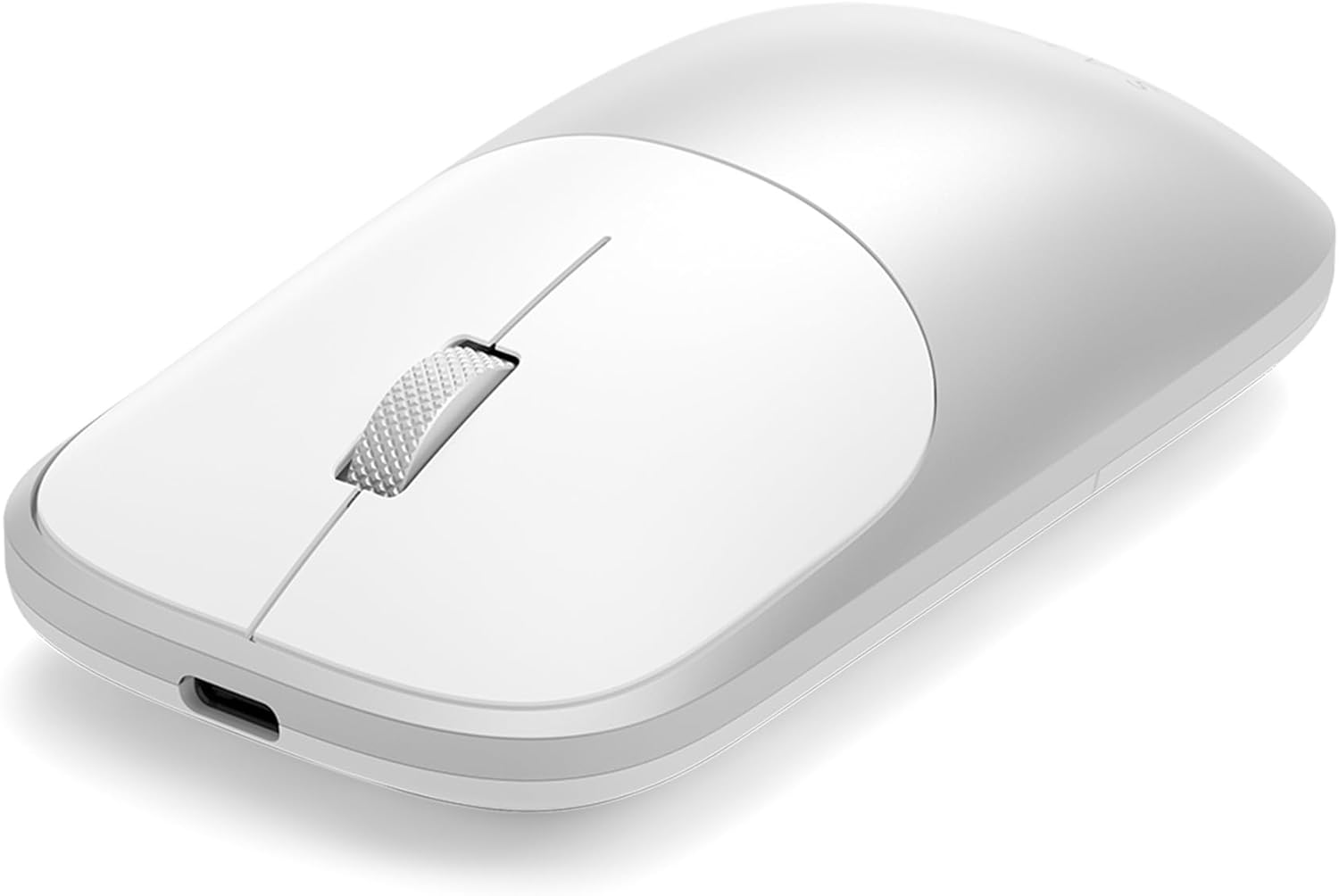
Key Features:
- USB-C Charging Port: Located at the front for convenient charging.
- Left & Right Buttons: Provide quiet, discreet clicks for minimal disturbance.
- Scroll Wheel: Precision-machined metal wheel for smooth scrolling and a clickable third button function.
- LED Indicator: Displays pairing status and battery level.
- ON/OFF Switch: Located on the underside of the mouse.
- Pairing Button: Allows switching between connected devices and initiating pairing mode.
- USB-C 2.4GHz Receiver: Stored in a dedicated compartment on the underside for easy portability.


4. Setup
4.1. Charging the Mouse
Before first use, fully charge the mouse using the included USB-C to USB-C charging cable. Connect one end to the mouse's USB-C port and the other to a compatible USB-C power source. The LED indicator will show charging status (Red for low battery, Green for fully charged).
4.2. Powering On/Off
Locate the ON/OFF switch on the underside of the mouse and slide it to the 'ON' position to power on the device.
4.3. Connecting to Devices
The Slim EX Wireless Mouse supports three connection modes: two Bluetooth channels (BT1, BT2) and one 2.4GHz USB-C receiver connection.
- 2.4GHz USB-C Receiver Connection:
- Remove the USB-C receiver from its storage compartment on the underside of the mouse.
- Plug the receiver into an available USB-C port on your computer or device.
- Slide the ON/OFF switch to 'ON'. The mouse should automatically connect.
- Bluetooth Connection (BT1/BT2):
- Ensure the mouse is powered on.
- Press and hold the pairing button on the underside of the mouse for 3-5 seconds until the corresponding LED (BT1 or BT2) blinks rapidly, indicating pairing mode.
- On your device (macOS, Windows, iPadOS, Android), go to Bluetooth settings and select 'Satechi Slim EX Mouse' from the list of available devices.
- Once connected, the LED will stop blinking and remain solid.

5. Operating the Mouse
5.1. Switching Between Devices
To switch between connected devices, simply press the pairing button on the underside of the mouse. The LED indicator will change to show which connection (BT1, BT2, or 2.4GHz) is currently active.
5.2. Quiet Clicks and Scrolling
The mouse features quiet click switches for both left and right buttons, and a precision-machined scroll wheel for smooth and silent navigation.
5.3. Power Saving Mode
The mouse automatically enters a sleep mode after a period of inactivity to conserve battery life. To wake it up, simply move the mouse or click any button.
6. Maintenance
6.1. Battery Care
The mouse is equipped with a USB-C rechargeable battery. For optimal battery life, avoid fully discharging the battery frequently. Recharge the mouse when the LED indicator shows a low battery warning. The battery is user-replaceable, extending the product's lifespan.
6.2. Cleaning
To clean the mouse, use a soft, damp cloth. Avoid using harsh chemicals or abrasive materials that could damage the finish.
7. Troubleshooting
- Mouse not connecting:
- Ensure the mouse is powered on and fully charged.
- Verify the correct connection mode (2.4GHz or Bluetooth) is selected on the mouse.
- For Bluetooth, ensure your device's Bluetooth is enabled and the mouse is in pairing mode (rapidly blinking LED).
- For 2.4GHz, ensure the USB-C receiver is securely plugged into your device.
- Try restarting both the mouse and your device.
- Lag or intermittent connection:
- Ensure there are no obstructions between the mouse and the receiver/device.
- Move closer to your device.
- Check for interference from other wireless devices.
- Ensure the mouse battery is not low.
- Mouse not responding:
- Check the battery level and recharge if necessary.
- Power cycle the mouse (turn off, then on).
- Re-establish the connection as described in the Setup section.
8. Specifications
| Feature | Detail |
|---|---|
| Brand | Satechi |
| Model Number | ST-MEXS |
| Connectivity Technology | 2.4Ghz Receiver, 2x Bluetooth 5.3 |
| Movement Detection Technology | Optical |
| Mouse Maximum Sensitivity | 1200 Dots per Inch (DPI) |
| Button Quantity | 2 (plus clickable scroll wheel) |
| Hand Orientation | Ambidextrous |
| Power Source | Battery Powered (USB-C Rechargeable) |
| Number of Batteries | 1 Nonstandard Battery (included) |
| Compatible Devices | macOS, Windows, iPadOS, Android (e.g., MacBook Pro, MacBook Air, iPad Pro, iPad Air, Mac Mini, iMac, Thinkpad Series, Surface Series, iPhone, Galaxy, Pixel series) |
| Item Weight | 90 Grams |
| Item Dimensions (L x W) | 4.09"L x 2.28"W |
| Enclosure Material | Plastic (with anodized aluminum shell) |
9. Warranty & Support
9.1. Limited Warranty
The Satechi Slim EX Wireless Mouse is backed by a 2-year limited warranty. This warranty covers defects in materials and workmanship under normal use. Please retain your proof of purchase for warranty claims.
9.2. Customer Service
For further assistance, technical support, or warranty inquiries, please contact Satechi customer service. Contact information can typically be found on the official Satechi website or through the retailer where the product was purchased.
10. Official Product Videos
Satechi EX Wireless Mouse Overview
This video provides an overview of the Satechi EX Wireless Mouse, highlighting its features and design. It demonstrates the mouse's quiet click buttons, premium aluminum construction, and multi-device connectivity options including 2.4GHz USB-C receiver and Bluetooth channels. The video also shows the USB-C rechargeable battery and the ambidextrous design.


