
1. Introduction
Thank you for choosing the FUNYET NY-14 15.6-inch Laptop. This manual provides essential information for setting up, operating, maintaining, and troubleshooting your new device. Please read this manual thoroughly before using the laptop to ensure proper function and longevity.
2. Product Overview
The FUNYET NY-14 is a versatile 15.6-inch laptop designed for everyday computing. It features a Full HD IPS display, a 4425Y processor, 16GB of RAM, and a 512GB SSD, offering a balance of performance and portability.

Figure 2.1: The FUNYET NY-14 laptop showcasing its 180-degree hinge design, allowing the screen to lay flat for versatile viewing angles.
Key Features:
- Display: 15.6-inch Full HD (1920x1080) IPS screen for clear visuals.
- Processor: Intel 4425Y processor with 2.4GHz maximum frequency.
- Memory & Storage: 16GB DDR4 RAM and 512GB SSD for efficient multitasking and fast data access.
- Battery: 5000mAh (38Wh) battery for extended usage.
- Operating System: Pre-installed with Windows 11 Pro.
- Connectivity: Integrated WiFi 5 (802.11ac) and Bluetooth 5.0.
- Ports: Multiple ports including USB 3.0, Mini HDMI, and a 3.5mm audio jack.
- Design: 180-degree hinge for flexible screen positioning and a numeric keypad for enhanced productivity.

Figure 2.2: An illustration detailing the laptop's internal components, highlighting the Intel 4425Y processor, WiFi 5, Bluetooth 5.0, 15.6-inch FHD IPS display, 30W front camera, Windows 11 Pro, 512GB SSD support (TF max 128G), and 38Wh battery.

Figure 2.3: The 15.6-inch Full HD (1920x1080) IPS display, emphasizing its vibrant colors and wide viewing angles, with a screen-to-body ratio of 93%.

Figure 2.4: The laptop's keyboard layout, including a numeric keypad, and indicators for WiFi, front camera, and Bluetooth 5.0. The touchpad area is also highlighted, indicating a 40% increased area for improved navigation.
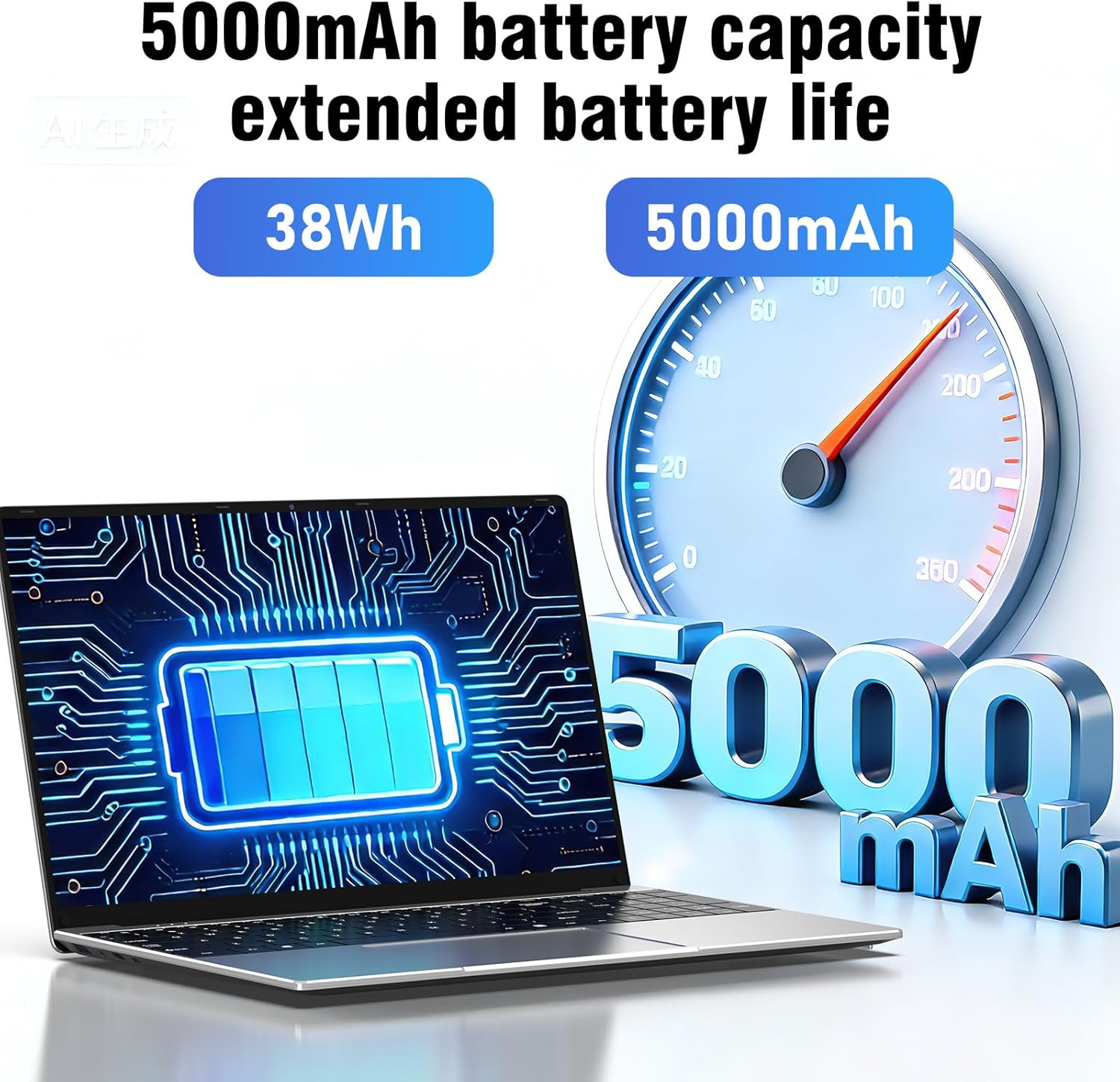
Figure 2.5: Visual representation of the laptop's 5000mAh (38Wh) battery capacity, indicating extended battery life for portable use.

Figure 2.6: An overview of the laptop's multiple port designs, including USB 3.0, 12V2A DC Port, Mini HDMI, 3.5mm headphone jack, and TF Card Slot. The dimensions (14.09 x 9.05 x 0.78 inches) and weight (3.30 pounds) are also indicated.
3. Setup
3.1 Unpacking
Carefully remove the laptop and all accessories from the packaging. Ensure the following items are present:
- FUNYET NY-14 Laptop
- Power Adapter
- User Manual (this document)
3.2 Charging the Battery
Before initial use, fully charge the laptop's battery. Connect the power adapter to the DC-in port on the laptop and then plug the adapter into a power outlet. The charging indicator light will illuminate. Once fully charged, the indicator light may change color or turn off, depending on the model.
3.3 Initial Power-On and Windows Setup
- Open the laptop lid.
- Press the power button located on the keyboard.
- The laptop will boot up and guide you through the Windows 11 Pro setup process. Follow the on-screen instructions to select your language, region, connect to a Wi-Fi network, and create a user account.
- It is recommended to connect to the internet during setup to ensure the latest updates are installed.
4. Operating Instructions
4.1 Power On/Off and Sleep Mode
- Power On: Press the power button.
- Shut Down: Click the Windows Start button, then select Power > Shut down.
- Restart: Click the Windows Start button, then select Power > Restart.
- Sleep: Click the Windows Start button, then select Power > Sleep, or close the laptop lid.
4.2 Using the Keyboard and Touchpad
The laptop features a full-size keyboard with a dedicated numeric keypad. The touchpad supports multi-touch gestures for navigation. Refer to Windows settings for customizing touchpad gestures.
4.3 Connecting Peripherals
- USB Devices: Connect USB devices (e.g., mouse, external hard drive) to the available USB 3.0 ports.
- External Display: Use the Mini HDMI port to connect to an external monitor or TV. An appropriate Mini HDMI to HDMI cable (not included) may be required.
- Audio Devices: Plug headphones or external speakers into the 3.5mm audio jack.
- Memory Card: Insert a TF card into the TF Card Slot for additional storage (supports up to 128GB).
4.4 Wireless Connectivity
- Wi-Fi: To connect to a Wi-Fi network, click the Wi-Fi icon in the taskbar, select your desired network, and enter the password if prompted.
- Bluetooth: To pair Bluetooth devices, go to Windows Settings > Bluetooth & devices, turn on Bluetooth, and select 'Add device'.
4.5 Using the Webcam
The integrated front camera can be used for video calls and conferences. Access it through applications like Camera, Microsoft Teams, or Zoom.
4.6 Adjusting Display Settings
You can adjust screen brightness by using the function keys (Fn + Fx keys, typically F5/F6) or through Windows Settings > System > Display. Resolution can also be changed in Display settings.
4.7 Utilizing the 180° Hinge
The laptop's 180-degree hinge allows the screen to lay completely flat. This feature is useful for sharing content with others around a table or for specific presentation scenarios.
5. Maintenance
5.1 Cleaning
- Screen: Use a soft, lint-free cloth slightly dampened with water or a screen cleaner. Do not spray liquid directly onto the screen.
- Keyboard and Casing: Use a soft, dry cloth. For stubborn dirt, a slightly damp cloth can be used. Avoid harsh chemicals.
- Ports: Keep ports free of dust and debris. Use compressed air if necessary, but do so gently.
5.2 Battery Care
- Avoid fully discharging the battery frequently.
- Do not expose the laptop to extreme temperatures.
- If storing the laptop for an extended period, ensure the battery is charged to around 50-70%.
5.3 Software Updates
Regularly check for and install Windows updates to ensure your system has the latest security patches and performance improvements. Go to Windows Settings > Windows Update.
5.4 Storage Management
Periodically clean up unnecessary files and applications to maintain optimal performance. Windows provides tools like Disk Cleanup and Storage Sense (in Settings > System > Storage) to assist with this.
6. Troubleshooting
This section addresses common issues you might encounter with your FUNYET NY-14 laptop.
6.1 Laptop Does Not Turn On
- Ensure the power adapter is securely connected to both the laptop and a working power outlet.
- Verify the power outlet is functional by plugging in another device.
- If the battery is completely drained, it may take a few minutes of charging before the laptop can power on.
- Try holding the power button for 10-15 seconds to perform a hard reset.
6.2 No Wi-Fi Connection
- Check if Wi-Fi is enabled in Windows Settings > Network & internet > Wi-Fi.
- Restart your router and modem.
- Ensure you are within range of the Wi-Fi network.
- Try forgetting the network and reconnecting.
- Update Wi-Fi drivers through Device Manager.
6.3 Slow Performance
- Close unnecessary applications running in the background.
- Check for and install any pending Windows updates.
- Ensure your storage (SSD) is not nearly full.
- Run a virus scan to check for malware.
- Consider performing a system restore or reinstalling Windows if issues persist after backing up your data.
6.4 Screen Issues (No Display, Flickering)
- If there is no display, connect an external monitor via Mini HDMI to check if the issue is with the laptop's screen or the graphics output.
- Adjust screen brightness.
- Update graphics drivers.
- Restart the laptop.
7. Specifications
| Feature | Specification |
|---|---|
| Model Number | NY-14 |
| Display Size | 15.6 inches |
| Display Resolution | 1920 x 1080 (Full HD IPS) |
| Processor | Intel 4425Y (Pentium 4 type, 2.4 GHz, 1 core, 2 threads) |
| RAM | 16GB DDR4 (2666 MHz) |
| Storage | 512GB SSD |
| Graphics | Integrated |
| Operating System | Windows 11 Pro |
| Battery Capacity | 5000 mAh (38 Wh) |
| Wi-Fi | WiFi 5 (802.11ac) |
| Bluetooth | Bluetooth 5.0 |
| USB Ports | 2 x USB 3.0 |
| Video Output | Mini HDMI |
| Audio Port | 3.5mm Headphone Jack |
| Card Reader | TF Card Slot (max 128GB) |
| Webcam | Front Camera (30W, typically 0.3MP) |
| Dimensions (L x W x H) | 35.7 x 22 x 2 cm (14.09 x 9.05 x 0.78 inches) |
| Weight | 2.4 kg (3.30 lbs) |
| Special Features | 180° Hinge, Numeric Keypad, HD Audio |
8. Warranty and Support
For warranty information and technical support, please refer to the warranty card included with your product or visit the official FUNYET website. If you encounter issues not covered in this manual, please contact FUNYET customer service for assistance.


