
1. Introduction
This manual provides essential information for setting up, operating, and maintaining your URAO X109 10.1-inch Android 16 Tablet. Please read this guide thoroughly to ensure proper use and to maximize your device's performance and longevity. Keep this manual for future reference.
2. Product Overview
2.1 Package Contents
- URAO X109 Android Tablet
- USB Type-C Charging Cable
- Power Adapter
- User Manual
2.2 Device Layout
Familiarize yourself with the physical components and controls of your URAO X109 tablet.

Figure 2.2.1: URAO X109 Tablet Ports and Buttons
This diagram illustrates the location of key features on your tablet. On the side, you will find the Power ON/OFF button, Volume Up/Down buttons, a Reset pinhole, the Micro SD card slot, the USB Type-C port for charging and data transfer, and a 3.5mm headset jack. The tablet also features dual speakers, a front camera, and a rear camera.
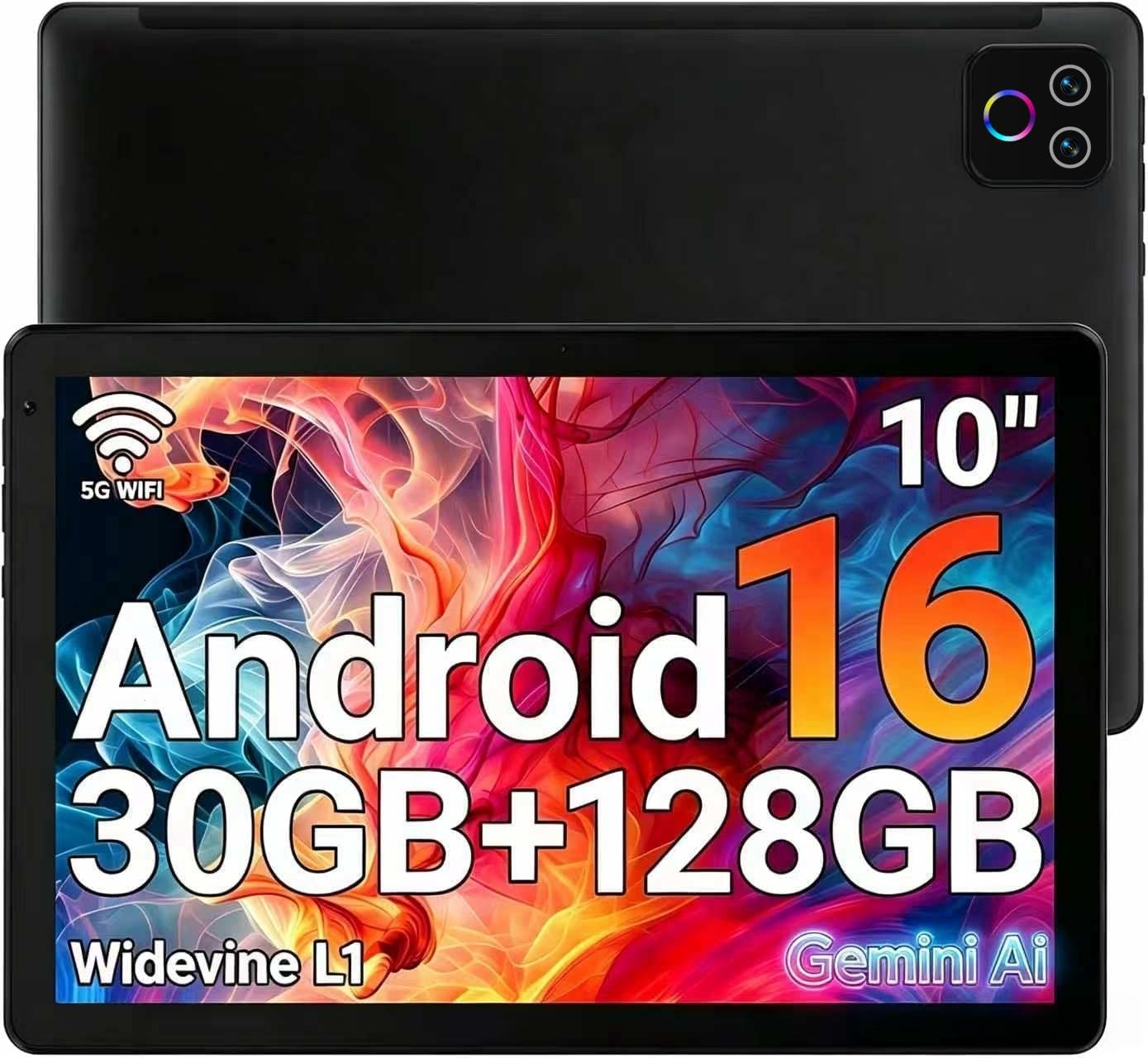
Figure 2.2.2: Front View of URAO X109 Tablet
The front view highlights the 10.1-inch HD IPS display, ideal for viewing content. The tablet features a slim bezel and a modern design.
3. Setup
3.1 Initial Power On
- Press and hold the Power ON/OFF button located on the side of the tablet until the URAO logo appears on the screen.
- Follow the on-screen prompts to select your language, region, and accept the terms and conditions.
3.2 Wi-Fi Connection
- During the initial setup, select your desired Wi-Fi network from the list of available networks.
- Enter the Wi-Fi password if prompted and tap 'Connect'.
- To connect later, go to Settings > Network & internet > Wi-Fi and select your network.
3.3 Google Account Setup
A Google account is required to download apps from the Google Play Store and access Google services.
- During setup, you will be prompted to sign in with an existing Google account or create a new one.
- Enter your email and password, then follow the on-screen instructions.
- If you skip this step, you can add an account later via Settings > Accounts > Add account > Google.
3.4 Charging the Battery
Before first use, fully charge the tablet. Use the provided USB Type-C cable and power adapter.
- Connect the USB Type-C cable to the tablet's Type-C port.
- Plug the other end of the cable into the power adapter, then plug the adapter into a wall outlet.
- The battery indicator on the screen will show charging status. A full charge typically takes about 1.5 hours.
4. Operating Instructions
4.1 Basic Navigation
- Touch Gestures: Tap to select, swipe to scroll, pinch to zoom.
- Home Screen: Access apps, widgets, and notifications.
- Notification Panel: Swipe down from the top of the screen to view notifications and quick settings.
4.2 App Management
- Installing Apps: Open the Google Play Store app, search for your desired app, and tap 'Install'.
- Uninstalling Apps: Press and hold an app icon on the home screen or app drawer, then drag it to 'Uninstall' or select 'App info' and choose 'Uninstall'.
- Split Screen: The tablet supports split-screen multitasking. Open a recent apps view, tap the app icon at the top of an app's card, and select 'Split screen'.
4.3 Camera Usage
The tablet features a 5MP front camera and an 8MP rear camera.
- Open the Camera app.
- Tap the camera switch icon to toggle between front and rear cameras.
- Tap the shutter button to take a photo or start/stop video recording.

Figure 4.3.1: Tablet Camera Functionality
The tablet's dual cameras allow for capturing photos and videos. The 5MP front camera is suitable for video calls, while the 8MP rear camera captures general photos.
4.4 Face Unlock
The front camera supports facial recognition for unlocking the device.
- Go to Settings > Security & privacy > Face unlock.
- Follow the on-screen instructions to register your facial data.
- Once registered, you can unlock your tablet by looking at the front camera.

Figure 4.4.1: Face Unlock Feature
The tablet's face unlock feature provides a convenient and secure way to access your device using facial recognition.
5. Media Integration
5.1 Product Video Overview
Watch this video for a visual overview of the URAO Android Tablet 10 Inch.
Video 5.1.1: URAO Android Tablet 10 Inch Overview
This video provides a detailed look at the URAO Android Tablet, showcasing its features and design. It covers aspects such as the display, performance, and overall user experience.
6. Maintenance
6.1 Cleaning the Tablet
- Use a soft, lint-free cloth to clean the screen and body of the tablet.
- Do not use abrasive cleaners, alcohol, or chemical solvents, as these can damage the device.
- Avoid getting moisture into openings.
6.2 Battery Care
- To prolong battery life, avoid exposing the tablet to extreme temperatures.
- Do not leave the tablet fully discharged for extended periods.
- Use only the provided charger or a certified compatible charger.
6.3 Storage
When storing the tablet for an extended period, ensure it is charged to about 50% and powered off. Store it in a cool, dry place away from direct sunlight.
7. Troubleshooting
7.1 Tablet Does Not Turn On
- Ensure the battery is charged. Connect the tablet to the charger and wait a few minutes before attempting to power on again.
- Press and hold the Power ON/OFF button for at least 10-15 seconds to perform a forced restart.
7.2 Screen Is Unresponsive
- Restart the tablet.
- If the issue persists, perform a factory reset (note: this will erase all data). Go to Settings > System > Reset options > Erase all data (factory reset).
7.3 Wi-Fi Connection Issues
- Ensure Wi-Fi is enabled in Settings > Network & internet > Wi-Fi.
- Restart your Wi-Fi router.
- Forget the network and reconnect by entering the password again.
7.4 Apps Crashing or Freezing
- Clear the app's cache: Go to Settings > Apps > See all apps, select the problematic app, then Storage & cache > Clear cache.
- Update the app via the Google Play Store.
- Uninstall and reinstall the app.
8. Specifications
| Feature | Detail |
|---|---|
| Model Name | X109 |
| Operating System | Android 16 |
| Processor | 2.0 GHz Octa-core (Allwinner) |
| RAM | 30GB (6GB + 24GB Expansion) |
| Internal Storage (ROM) | 128GB |
| Expandable Storage | Up to 1TB via MicroSD card (not included) |
| Screen Size | 10.1 inches |
| Display Type | HD IPS Touchscreen |
| Display Resolution | 1280 x 800 pixels |
| Rear Camera | 8MP |
| Front Camera | 5MP |
| Battery Capacity | 6000mAh |
| Battery Life (Average) | Up to 8 hours (mixed use) |
| Charging | USB Type-C, Fast Charging (1.5 hours for full charge) |
| Wi-Fi | Wi-Fi 6 (802.11ax), Dual-band (2.4G+5G) |
| Bluetooth | Bluetooth 5.4 |
| Dimensions (L x W x Thickness) | 9.84" x 6.1" x 0.4" (approx. 8mm thickness) |
| Weight | 540g |
| GPS | Not included |
| UPC | 768807679743 |
9. Warranty and Support
9.1 Manufacturer's Warranty
The URAO X109 Tablet comes with a 2-Year Manufacturer's Warranty. This warranty covers defects in materials and workmanship under normal use. It does not cover damage caused by misuse, accidents, unauthorized modifications, or normal wear and tear.
9.2 Customer Support
For technical assistance, warranty claims, or any questions regarding your URAO X109 Tablet, please contact URAO customer support through the following channels:
- Online Support: Visit the official URAO website for FAQs and support resources.
- Email Support: Refer to your product packaging or the official URAO website for the customer service email address.
- Amazon Seller Page: You can also reach out to the seller, URAO e-Tech, directly through your Amazon order history for assistance.
Please have your product model (X109) and proof of purchase ready when contacting support.