
1. Introduction
Thank you for choosing the MARBERO M365 Portable Power Station. This device is designed to provide reliable power for various applications, including outdoor activities, RV travel, and emergency backup. Please read this manual carefully before using the product to ensure safe and optimal performance. Keep this manual for future reference.
Important Safety Information
- Do not disassemble, repair, or modify the unit. Incorrect reassembly may cause fire or injury.
- Do not expose the unit to fire or extreme temperatures (above 60°C / 140°F).
- Do not use or store the unit in a bathroom or in an area exposed to water or moisture.
- Do not use or store the unit near heat sources such as fires or heaters.
- Use only the provided or approved accessories.
- Keep the unit away from children and pets.
- Do not insert foreign objects into the ports.
- Ensure proper ventilation during use and charging. Do not cover the unit.
- If the unit emits smoke, strange odors, or any other abnormal phenomena, stop using it immediately and contact customer support.
2. Package Contents
Verify that all items listed below are included in your package. If any items are missing or damaged, please contact MARBERO customer support.
- 1 x MARBERO M365 Portable Power Station
- 1 x 15V/2A Power Adapter (Wall Charger)
- 1 x Car Charger
- 1 x Cigarette Lighter Adapter
- 1 x User Manual
3. Product Overview
The MARBERO M365 Portable Power Station features multiple output ports to power a wide range of devices. Familiarize yourself with the components below.
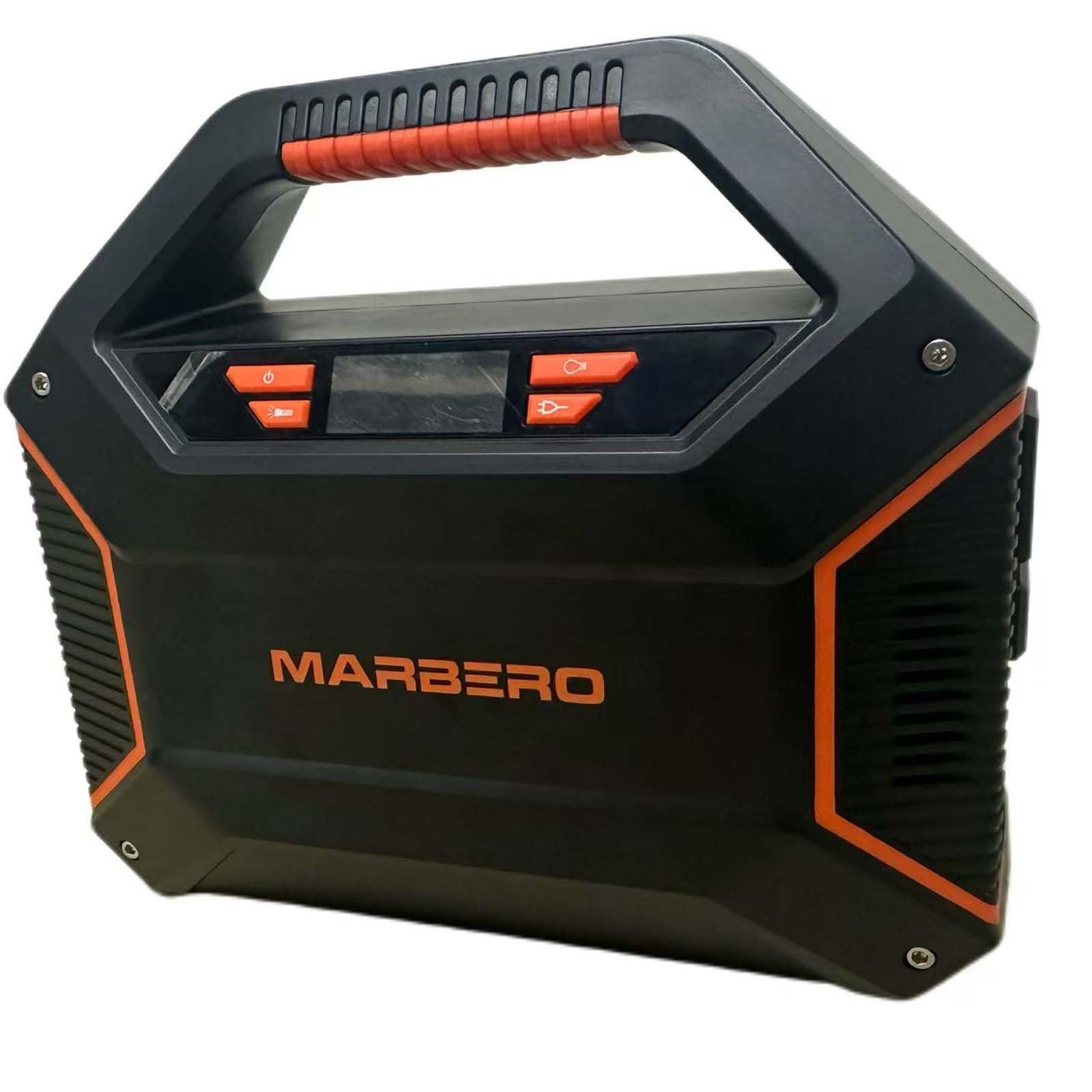
Image 3.1: Front view of the MARBERO M365 Portable Power Station, showing the display, AC outlets, USB ports, and DC outputs.
Components and Ports
- LCD Display: Shows battery level, output status, and error indicators.
- AC Output Ports (x2): 110V, 100W (max). For powering household appliances.
- USB-A Output Ports (x2): Standard USB ports for charging smartphones, tablets, etc.
- QC3.0 USB-A Output Port (x1): Quick Charge 3.0 compatible for faster charging of supported devices.
- USB-C Output Port (x1): For charging USB-C compatible devices.
- DC Output Ports (x3): 12V, for DC-powered devices.
- Car Port Output (x1): 12V, for car-powered devices.
- DC Input Port: For charging the power station via AC adapter, car charger, or solar panel.
- Power Button: Turns the unit on/off.
- AC Output Button: Activates/deactivates AC output.
- DC Output Button: Activates/deactivates DC output.
- USB Output Button: Activates/deactivates USB output.
- Emergency Light: Built-in LED light for illumination.
4. Setup
Before first use, fully charge the MARBERO M365 Portable Power Station.
Charging the Power Station
The M365 can be charged using the included AC wall adapter, car charger, or a compatible solar panel (sold separately).
- AC Wall Charging:
- Connect the 15V/2A Power Adapter to the DC Input Port of the power station.
- Plug the other end of the adapter into a standard wall outlet.
- The LCD display will show a charging indicator, and the battery level will increase.
- Charging time is approximately 5-6 hours for a full charge.
- Car Charging:
- Connect the Car Charger to the DC Input Port of the power station.
- Insert the other end into your vehicle's 12V cigarette lighter socket.
- The LCD display will indicate charging.
- Solar Panel Charging (Optional):
- Connect a compatible solar panel (15V-24V, 3A max) to the DC Input Port using the appropriate cable (not included with all solar panels).
- Place the solar panel in direct sunlight.
- The LCD display will indicate charging. Charging time varies depending on solar intensity.
It is recommended to fully charge the unit every 3 months if not in regular use to maintain battery health.
5. Operating Instructions
Powering On/Off
- To turn on the power station, press and hold the Power Button for 3 seconds. The LCD display will illuminate.
- To turn off the power station, press and hold the Power Button for 3 seconds again.
Using AC Output
- After turning on the power station, press the AC Output Button to activate the AC outlets. The AC icon will appear on the LCD display.
- Plug your AC-powered device (up to 100W continuous, 150W peak) into one of the AC output ports.
- When finished, press the AC Output Button again to turn off the AC output and conserve battery.
- Note: If the total power draw exceeds 100W, the unit may automatically shut down to prevent overload.
Using DC Output
- After turning on the power station, press the DC Output Button to activate the DC and Car Port outputs. The DC icon will appear on the LCD display.
- Connect your 12V DC device to one of the DC output ports or the car port.
- When finished, press the DC Output Button again to turn off the DC output.
Using USB Output
- After turning on the power station, press the USB Output Button to activate all USB ports (USB-A, QC3.0 USB-A, USB-C). The USB icon will appear on the LCD display.
- Connect your USB-powered device to the appropriate USB port.
- When finished, press the USB Output Button again to turn off the USB outputs.
Emergency Light
- To turn on the emergency light, press the Emergency Light Button (often integrated with the Power Button or a dedicated button, refer to physical unit).
- Press again to cycle through different modes (e.g., low, high, SOS flash) or to turn off.
6. Maintenance
Storage
- Store the power station in a cool, dry place, away from direct sunlight and corrosive materials.
- Ideal storage temperature is between -10°C to 40°C (14°F to 104°F).
- For long-term storage, charge the unit to approximately 50-80% every 3 months to prolong battery life.
- Avoid storing the unit completely discharged for extended periods.
Cleaning
- Use a dry, soft cloth to wipe the exterior of the unit.
- Do not use abrasive cleaners or solvents.
- Keep the ventilation openings clear of dust and debris.
7. Troubleshooting
If you encounter issues with your MARBERO M365, refer to the following common problems and solutions. If the problem persists, contact customer support.
| Problem | Possible Cause | Solution |
|---|---|---|
| Unit does not turn on. | Battery is completely discharged. | Charge the unit using the AC adapter. |
| No output from AC ports. | AC output not activated. Device power draw exceeds 100W. Battery level too low. | Press the AC Output Button. Use devices within the 100W limit. Recharge the power station. |
| No output from USB/DC ports. | USB/DC output not activated. Battery level too low. | Press the respective USB/DC Output Button. Recharge the power station. |
| Unit is not charging. | Charger not properly connected. Charger is faulty. Unit is too hot/cold. | Ensure all connections are secure. Try a different charging method. Move unit to a suitable temperature environment. |
| LCD display shows an error code. | Internal fault or protection mode activated. | Turn off the unit, wait a few minutes, then restart. If error persists, contact support. |
8. Specifications
Detailed technical specifications for the MARBERO M365 Portable Power Station.
| Model | M365 |
| Battery Type | Lithium Ion, 12V |
| AC Output | 2 x 110V, 60Hz, 100W (Rated), 150W (Peak) |
| DC Output | 3 x 12V DC ports, 1 x 12V Car Port |
| USB Output | 2 x USB-A, 1 x QC3.0 USB-A, 1 x USB-C |
| Input (DC) | 15V/2A (via AC adapter, car charger, or solar panel) |
| Dimensions (L x W x H) | 8.14" x 3.77" x 7.08" (20.68cm x 9.58cm x 17.98cm) |
| Weight | 3.74 lbs (1.7 kg) |
| Operating Temperature | -10°C to 40°C (14°F to 104°F) |
| Protection Features | Short Circuit Protection, Over Charge Protection, Overload Protection, Over-Voltage Protection, Automatic Shut Down |
9. Warranty and Support
Warranty Information
MARBERO provides a 12-month warranty for the M365 Portable Power Station from the date of purchase. This warranty covers manufacturing defects and workmanship under normal use. It does not cover damage caused by misuse, accidents, unauthorized modifications, or natural disasters.
Please retain your proof of purchase for warranty claims.
Customer Support
If you have any questions, require technical assistance, or need to make a warranty claim, please contact MARBERO customer service:
- Email: Refer to your purchase platform or product packaging for the most current contact email.
- Online Support: Visit the official MARBERO website or the Amazon store page for support options.
Our customer service team is available to assist you with any issues you may encounter.


