
Introduction
Thank you for choosing the RedThunder K75 Wireless Mechanical Keyboard. This manual provides detailed instructions for setting up, operating, and maintaining your keyboard. Please read this manual thoroughly to ensure proper use and to maximize your experience with the K75 keyboard.

Image: Overview of the RedThunder K75 Mechanical Keyboard highlighting its main features.
What's in the Box
Verify that all items are present in the package:
- K75 Keyboard
- USB Cable
- Spare Switches (4 pieces)
- User Manual
- Keycap Puller
- 2.4G Dongle

Image: All components included in the RedThunder K75 package.
Setup
Connectivity Modes
The RedThunder K75 supports three connection modes: USB-C Wired, 2.4GHz Wireless, and Bluetooth (BT). Ensure the system switch (Win/Mac) and connection mode switch are in the correct positions before use.
- USB-C Wired: Connect the keyboard to your device using the provided USB-C data cable.
- 2.4GHz Wireless: Insert the 2.4G dongle into your device's USB port. The keyboard will connect automatically.
- Bluetooth (BT): Press FN+Q/W/E to switch between BT1, BT2, or BT3 devices.

Image: Illustration of the three multi-device connection modes available on the K75 keyboard.
Driver Installation (Windows Only)
To access comprehensive programmability and customization options, download and install the K75-US driver. This software is compatible with Windows operating systems and functions when the keyboard is connected via 2.4G wireless or wired mode.
Steps for Driver Download:
- Ensure the system switch on the keyboard is set to "Win".
- Connect the keyboard to your Windows PC using the original USB-C data cable.
- Visit the official RedThunder website or use the provided short link (if available in your product documentation) to download the K75-US driver.
- Follow the on-screen instructions to complete the installation.
Video: Instructions on how to download and install the K75 driver for Windows.
Operating Instructions
Multi-function CNC Knob
The CNC knob provides versatile control for both gaming and office modes:
- Switch Modes: Long press the knob for approximately 5 seconds to switch between Gaming Mode and Office Mode.
- Gaming Mode: Rotate the knob to adjust backlight brightness. Click the knob to cycle through lighting effects.
- Office Mode: Rotate the knob to adjust system volume. Click the knob to play or pause media.

Image: Detailed functions of the CNC knob and indicator lights.
RGB Backlighting Control
The K75 keyboard features full RGB backlighting with 1.68 million colors. Adjust lighting effects using FN key combinations or the dedicated software.
- Adjust Backlight Brightness: Press FN + ↑ / ↓.
- Adjust Backlight Speed: Press FN + ← / →.
- Switch Side Lighting Modes: Press FN + TAB.
- Switch Backlight Mode: Press FN + \|.
- Switch Backlight Color: Press FN + PU.
- Self-set Game Lighting: Press FN + PD once to activate, press twice to start customized game lighting.
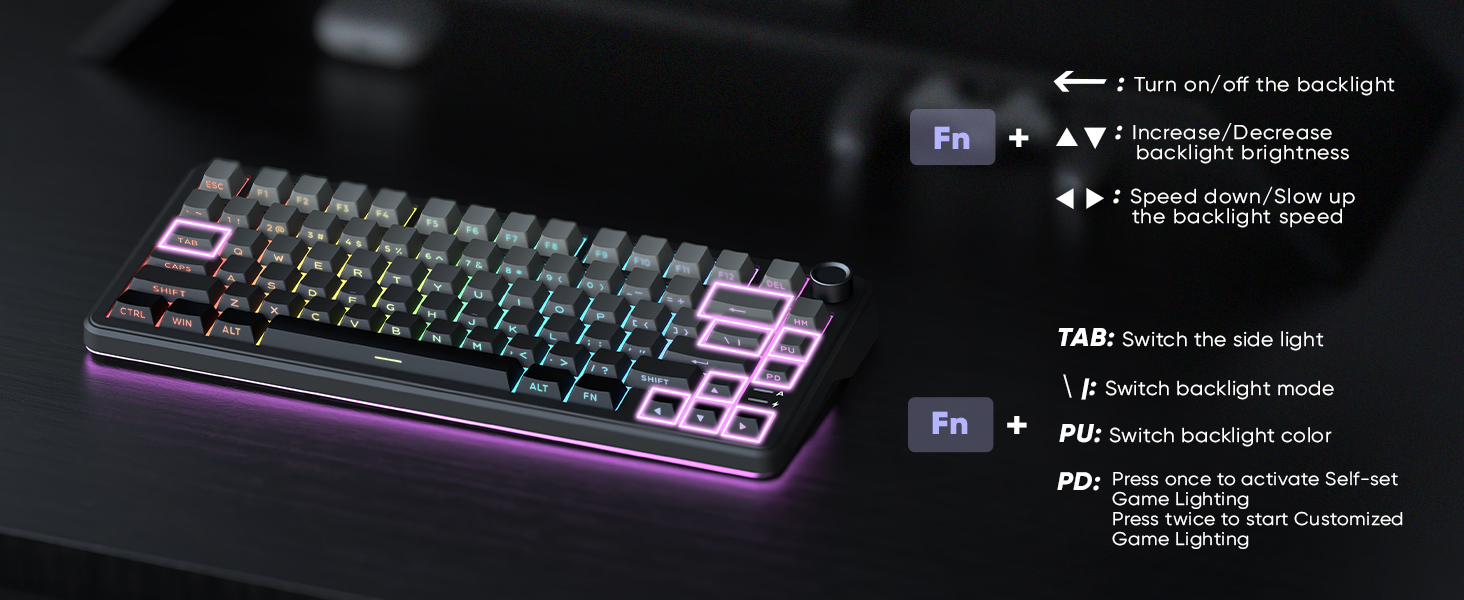
Image: The K75 keyboard displaying its vibrant RGB lighting.
Hot-Swappable Switches
The K75 features a hot-swappable PCB, allowing you to easily replace 3-pin or 5-pin mechanical switches without soldering. This enables customization of your typing feel.
- Use the included keycap puller to remove keycaps.
- Use the included switch puller to carefully remove the switch.
- Align the pins of the new switch with the sockets on the PCB and press firmly until it clicks into place.
- Replace the keycap.

Image: Hot-swappable switches and components of the K75 keyboard.
Battery Information
The keyboard is equipped with a rechargeable 4000mAh lithium-ion battery. A charging indicator light shows the power status:
- Low Battery: Flashes red.
- Charging: Stays red.
- Fully Charged: Green/Off.
For optimal charging, use the original charging cable or a qualified data-capable cable connected to a computer's USB port (DC: 5V).

Image: Battery capacity and estimated usage times for the K75 keyboard.
Programmable Software
The K75-US driver software (Windows only, 2.4G wireless or wired mode) allows for extensive customization:
- Key Mapping: Reassign keys to suit your workflow.
- Macro Definition: Create complex sequences of commands.
- Backlight Effects: Adjust RGB lighting, including music rhythm backlights.
- Sensitivity & Debounce: Fine-tune keyboard response.
- Sleep Time: Configure power-saving settings.

Image: The K75 programmable software interface for customization.
Video: Demonstration of the RedThunder K75 Gaming Keyboard's features and lighting.
Maintenance
Cleaning
Regular cleaning helps maintain keyboard performance and appearance:
- Disconnect the keyboard from all power sources before cleaning.
- Use a soft, lint-free cloth slightly dampened with water or a mild cleaning solution to wipe the keycaps and chassis.
- For dust and debris between keys, use compressed air or a small brush.
- Avoid using harsh chemicals or abrasive materials.
Switch Replacement
As the K75 is hot-swappable, switches can be replaced if they become faulty or if you wish to change the typing feel. Refer to the "Hot-Swappable Switches" section for detailed instructions.
Troubleshooting
If you encounter issues with your RedThunder K75 keyboard, please refer to the following common solutions:
- Connectivity Issues: Ensure the keyboard is fully charged. Check that the system switch (Win/Mac) and connection mode switch (Wired/2.4G/BT) are correctly set. For Bluetooth, ensure your device's Bluetooth is enabled and the keyboard is paired.
- Keys Not Responding: Try reconnecting the keyboard. If using wireless, ensure the dongle is properly inserted or Bluetooth is paired. If a specific key is not working, consider replacing the switch as the keyboard is hot-swappable.
- Backlight Problems: Check backlight brightness settings using FN + ↑. Ensure the keyboard is not in a mode where backlighting is disabled. If using the software, verify settings there.
- Software Not Detecting Keyboard: Ensure the keyboard is connected via USB-C wired or 2.4G wireless mode and the system switch is set to "Win". Restart the software and/or your computer.
- Battery Not Charging: Use the original USB-C cable and connect to a reliable power source, preferably a computer's USB port. Check the charging indicator light.
If problems persist, please contact RedThunder customer support for further assistance.
Specifications
| Model Number | K75 |
| Brand | RedThunder |
| Dimensions | 14 x 7 x 1.9 inches (35.56 x 17.78 x 4.83 cm) |
| Item Weight | 1.98 pounds (0.9 kg) |
| Connectivity | 2.4G Wireless, Bluetooth, USB-C |
| Battery | 4000mAh Lithium Ion (included) |
| Switches | Hot-Swappable (3-pin/5-pin compatible) |
| Backlighting | Full RGB |
| Keycaps | Dual-color PBT |
| Special Features | CNC Knob, Programmable Keys, Gasket Structure, Two-stage Foot Support |
Warranty and Support
For warranty information or technical support, please refer to the documentation included with your product or visit the official RedThunder website. You may also contact RedThunder customer service directly for assistance with product issues or inquiries.


