
1. Introduction
This manual provides detailed instructions for the installation, operation, and maintenance of your ZMDCAM KP 2K HD WiFi Indoor Security Camera. Please read this manual thoroughly before using the product to ensure proper functionality and safety. Keep this manual for future reference.
2. Product Overview
2.1 Key Features
- 2K HD Resolution: Provides clear and detailed video monitoring.
- Night Vision: Equipped with advanced 940nm IR lights for clear viewing in darkness.
- Motion Detection: Sends real-time notifications upon detecting activity.
- Two-Way Audio: Allows communication through the built-in microphone and speaker.
- Storage Options: Supports local SD card storage (up to 128GB, not included) and secure cloud storage.
- Family Sharing: Enables sharing live feeds with multiple authorized users.
- App Control: Manage and monitor the camera via a dedicated smartphone application.
- Indoor Use: Designed specifically for indoor environments.
2.2 Package Contents
Verify that all items are present in your package:
- 1 x ZMDCAM KP 2K Camera
- 1 x Charging Cable
- 1 x Instruction Manual (This Document)
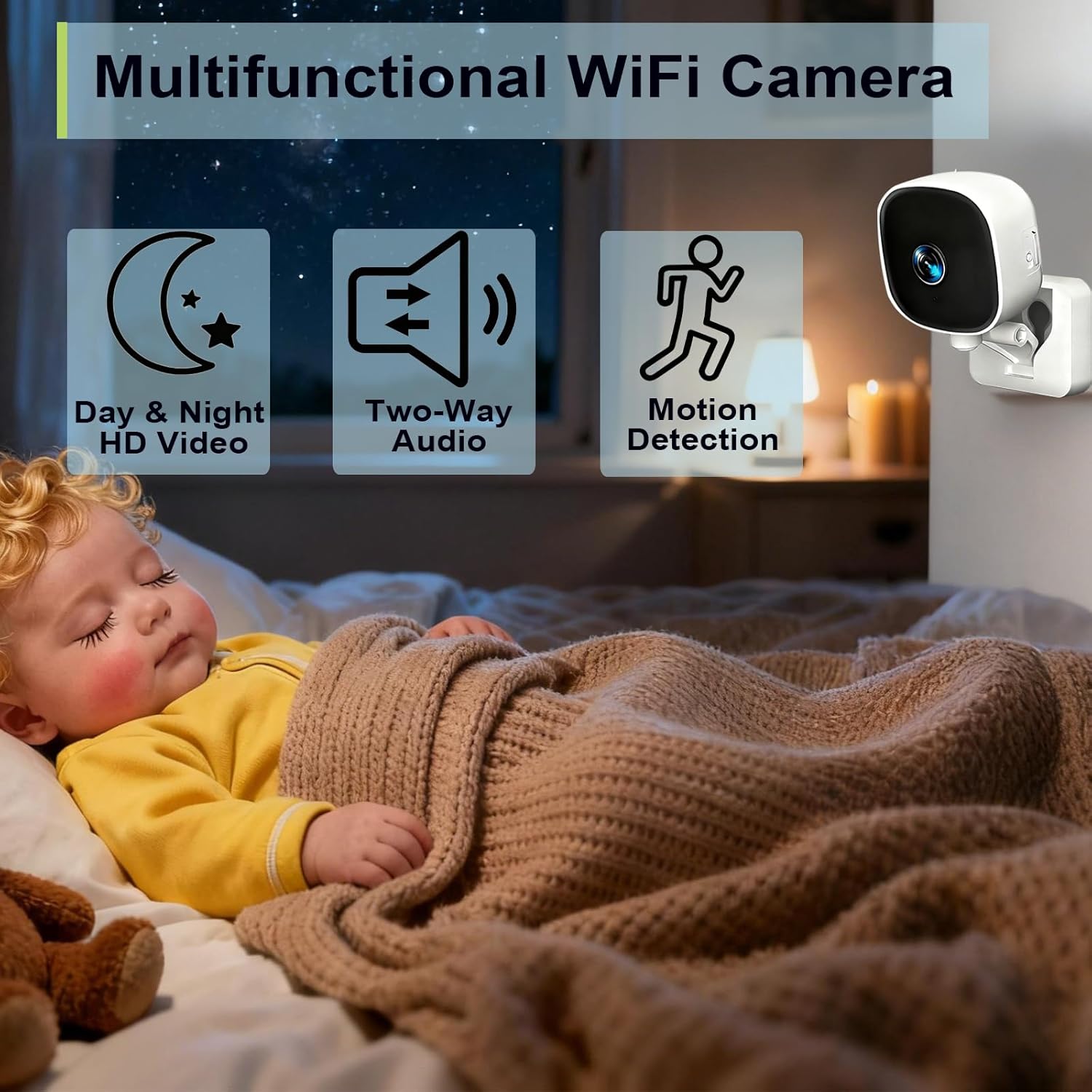
Image: The ZMDCAM KP 2K HD WiFi Indoor Security Camera, showing its compact design and included accessories like the charging cable.
3. Setup
3.1 Powering the Camera
- Connect the provided charging cable to the camera's power input port.
- Plug the other end of the charging cable into a standard USB power adapter (not included) and then into a wall outlet.
- The camera will power on, and an indicator light will show its status. Refer to the app for specific indicator light meanings during setup.
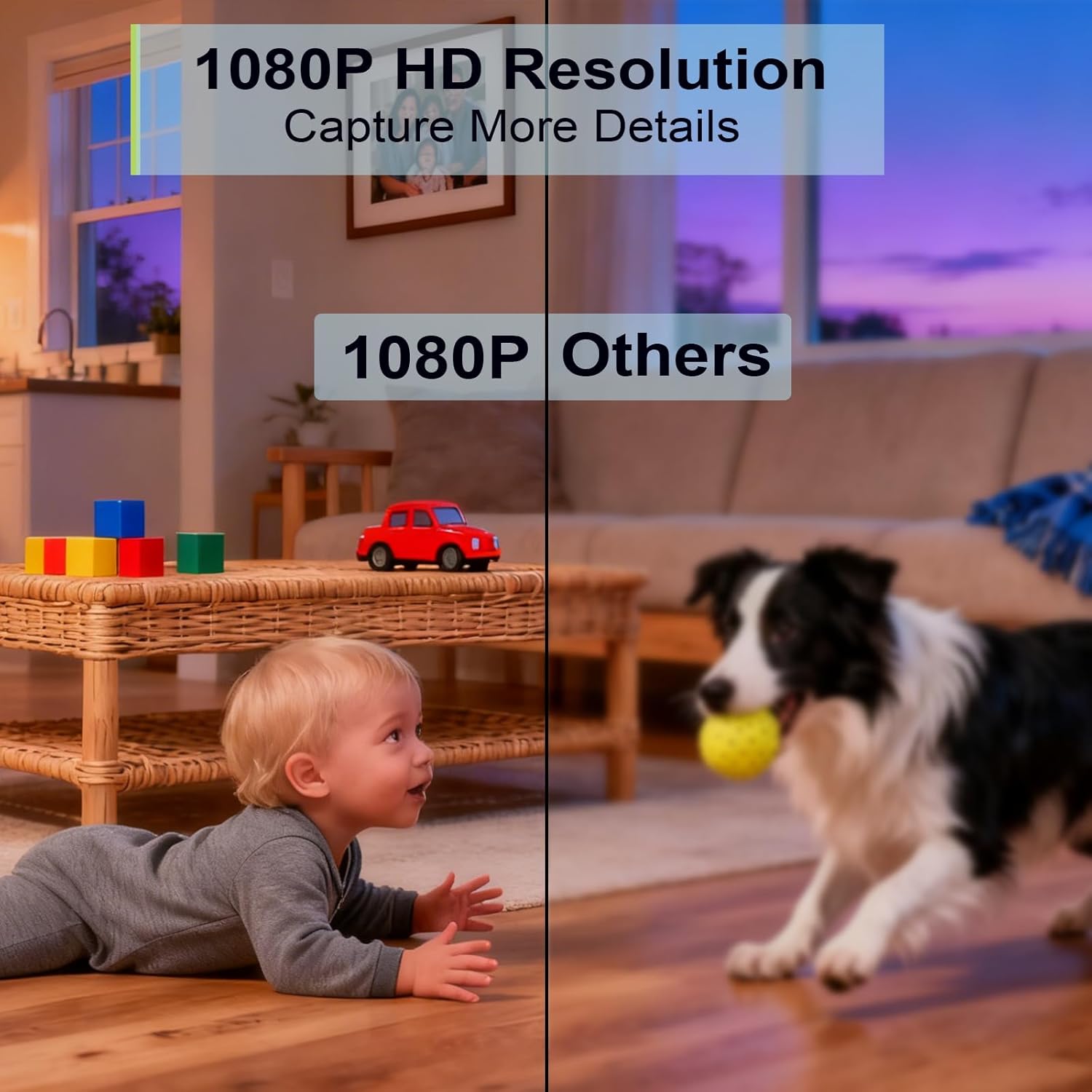
Image: A hand connecting the charging cable to the back of the ZMDCAM KP camera, illustrating the power connection step.
3.2 App Installation and Account Creation
- Download the official ZMDCAM app from your smartphone's app store (iOS or Android). Search for "ZMDCAM" or scan the QR code provided in the quick start guide (if applicable).
- Open the app and create a new account. Follow the on-screen prompts to register using your email address or phone number.
- Log in to your newly created account.
3.3 Connecting the Camera to Wi-Fi
Ensure your smartphone is connected to a 2.4GHz Wi-Fi network. The camera does not support 5GHz Wi-Fi.
- In the ZMDCAM app, tap the "+" icon to add a new device.
- Select your camera model from the list of available devices.
- Follow the in-app instructions, which typically involve scanning a QR code displayed on your phone with the camera, or entering your Wi-Fi credentials.
- Wait for the camera to connect to your Wi-Fi network. The indicator light will change to a solid color (usually blue or green) once connected.
- Name your camera (e.g., "Living Room Camera," "Baby's Room").
4. Operating the Camera
4.1 Live View
To access the live video feed:
- Open the ZMDCAM app.
- Tap on the camera name from your device list.
- The live video stream will appear. You can switch between standard and high definition (SD/HD) viewing modes.

Image: A smartphone screen displaying a live feed from the ZMDCAM KP camera, showing a child playing, demonstrating the 1080P enhanced viewing.
4.2 Two-Way Audio
The two-way audio feature allows you to speak through the camera and hear audio from the camera's location.
- While in live view, tap the microphone icon in the app.
- Speak into your smartphone's microphone. Your voice will be broadcast through the camera's speaker.
- To hear audio from the camera, ensure the speaker icon in the app is enabled.

Image: An illustration showing a person speaking into a phone and a cat near the camera, with speech bubbles indicating two-way communication, highlighting the live view and two-way audio feature.
4.3 Motion Detection and Alerts
The camera can detect motion and send alerts to your smartphone.
- Navigate to the camera settings in the ZMDCAM app.
- Find the "Motion Detection" or "Alarm Settings" option.
- Enable motion detection and adjust sensitivity levels as needed.
- Ensure push notifications are enabled for the ZMDCAM app in your phone's system settings to receive alerts.

Image: A child reaching for an object on a shelf, with a speech bubble indicating "Lucas Dangerous!!!" and the camera in the foreground, demonstrating the motion detection alert feature.
4.4 Night Vision
The camera automatically switches to night vision mode in low-light conditions.
- The 940nm IR lights provide clear black and white video in complete darkness.
- No manual activation is typically required for night vision.
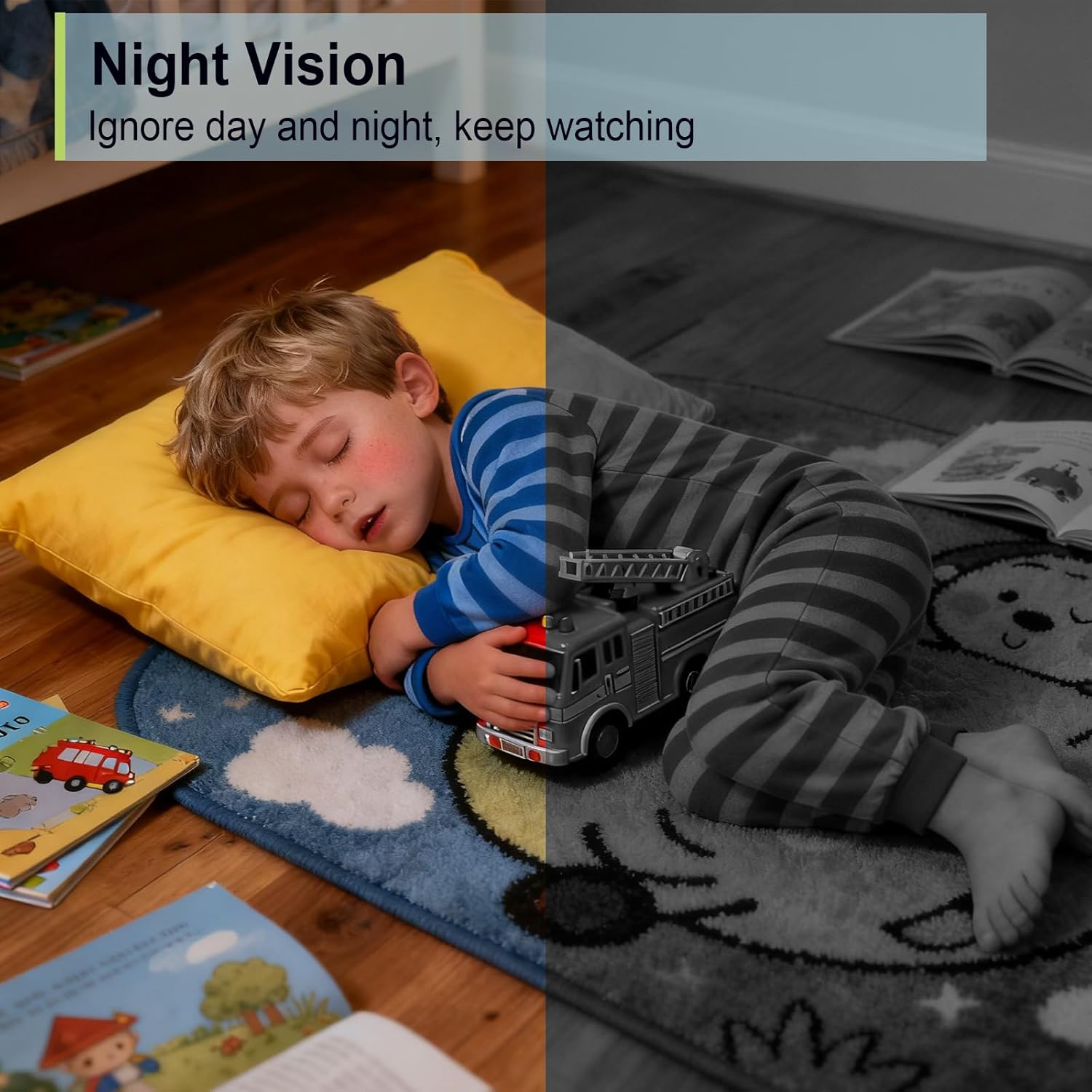
Image: A split image showing a child sleeping in a room, with one side in color (day view) and the other in black and white (night vision), illustrating the camera's night vision feature.
4.5 Video Storage (SD Card / Cloud)
The camera supports two methods for video recording and storage:
SD Card Storage
- Insert a Micro SD card (up to 128GB, Class 10 or higher recommended) into the camera's SD card slot. Ensure the camera is powered off before inserting or removing the card.
- Once inserted and the camera is powered on, go to the camera settings in the app to format the SD card.
- Configure recording settings (e.g., continuous recording, event-triggered recording) within the app.
- To view recordings, access the "Playback" section in the app and select the desired date and time.
Cloud Storage
Cloud storage offers a secure, off-site backup for your video recordings. This service typically requires a subscription.
- In the ZMDCAM app, navigate to the "Cloud Storage" section.
- Follow the prompts to subscribe to a cloud storage plan.
- Once activated, recordings will be automatically uploaded to the cloud.
- Access cloud recordings through the app's "Cloud Playback" or similar section.
5. Maintenance
- Cleaning: Use a soft, dry cloth to clean the camera lens and body. Do not use liquid cleaners or aerosols.
- Placement: Ensure the camera is placed in a stable, dry indoor environment, away from direct sunlight, heat sources, and excessive moisture.
- Software Updates: Regularly check the ZMDCAM app for firmware updates. Keeping your camera's firmware updated ensures optimal performance and security.
- Power Supply: Use only the provided charging cable. Do not use damaged cables or adapters.
6. Troubleshooting
| Problem | Possible Cause | Solution |
|---|---|---|
| Camera not powering on. | No power, faulty cable/adapter. | Check power connection. Try a different USB power adapter and outlet. |
| Unable to connect to Wi-Fi. | Incorrect Wi-Fi password, 5GHz network, camera too far from router. | Ensure correct 2.4GHz Wi-Fi password. Move camera closer to router. Restart router and camera. |
| No motion detection alerts. | Motion detection disabled, app notifications off, low sensitivity. | Enable motion detection in app settings. Check phone's notification settings for the ZMDCAM app. Increase sensitivity. |
| Poor video quality. | Weak Wi-Fi signal, dirty lens. | Ensure strong Wi-Fi signal. Clean the camera lens with a soft, dry cloth. Switch to HD viewing mode in the app. |
| Two-way audio not working. | Microphone/speaker muted in app, volume too low. | Check microphone and speaker icons in the app. Adjust volume settings on your phone and in the app. |
| SD card not recording. | SD card full, not formatted, faulty card. | Format the SD card via the app. Replace with a new SD card if necessary. Check recording settings. |
7. Specifications
| Feature | Detail |
|---|---|
| Model Name | KP |
| Resolution | 2K HD (Video Capture Resolution: 2k) |
| Connectivity | WiFi (2.4G Only) |
| Special Features | 2-Way Audio, Motion Detection, Night Vision |
| Storage | SD Card (up to 128GB, not included), Cloud Storage |
| Indoor/Outdoor Usage | Indoor |
| Compatible Devices | Smartphone (iOS & Android) |
| Power Source | Wired |
| Viewing Angle | 150 degrees (360° Horizontal, 110° Vertical) |
| Dimensions | 1 x 1.2 x 0.7 inches |

Image: The ZMDCAM KP camera positioned in a living room, with arrows indicating its 360° horizontal and 110° vertical viewing capabilities, highlighting its wide coverage.
8. Warranty and Support
8.1 Warranty Information
ZMDCAM backs every purchase with a 30-day money-back guarantee and 3-year technical support. This warranty covers manufacturing defects and ensures the product functions as described under normal use.
8.2 Customer Support
If you encounter any setup or usage issues, or have questions regarding your ZMDCAM KP camera, please contact our customer support team for prompt assistance. Contact details can typically be found on the product packaging or the official ZMDCAM website.
For the most up-to-date support information, please visit: ZMDCAM Product Page on Amazon