
1. Introduction
Thank you for choosing the Bisofice ZY-Q822 80mm Thermal Receipt Printer. This printer is designed for efficient and reliable receipt printing in various business environments. It features direct thermal printing technology, supports two-color printing, and includes an automatic cutter for convenience. This manual provides essential information for the proper setup, operation, and maintenance of your device.

Image: The Bisofice ZY-Q822 thermal receipt printer in operation, demonstrating its dual-color printing capability with a sample receipt.
2. Package Contents
Before proceeding with the setup, please verify that all items are present in the package:
- 1 x Bisofice ZY-Q822 Thermal Receipt Printer
- 1 x Thermal Paper Roll (for initial use)
- 1 x USB Cable
- 1 x Power Adapter
- 1 x Power Cable
3. Setup Instructions
3.1 Connecting the Printer
- Connect the Power Adapter: Insert the power cable into the power adapter, then connect the adapter to the printer's power port (DC 24V 2.5A). Plug the power cable into a suitable electrical outlet.
- Connect Data Cable: Choose your preferred connection method:
- USB Connection: Connect one end of the USB cable to the printer's USB port and the other end to your computer.
- Ethernet (LAN) Connection: Connect an Ethernet cable to the printer's LAN port and the other end to your network router or switch.
- Power On: Press the power switch located on the printer to turn it on.

Image: Rear view of the printer highlighting the USB, LAN, RJ11, and power input ports for connectivity.
3.2 Loading Thermal Paper
- Open the Cover: Press the cover open button or latch to open the top cover of the printer.
- Insert Paper Roll: Place the 80mm thermal paper roll into the paper compartment with the printing surface facing upwards. Ensure the roll is seated correctly. The maximum roll diameter supported is Φ80mm.
- Close the Cover: Pull a small amount of paper out past the cutter and close the top cover firmly until it latches.
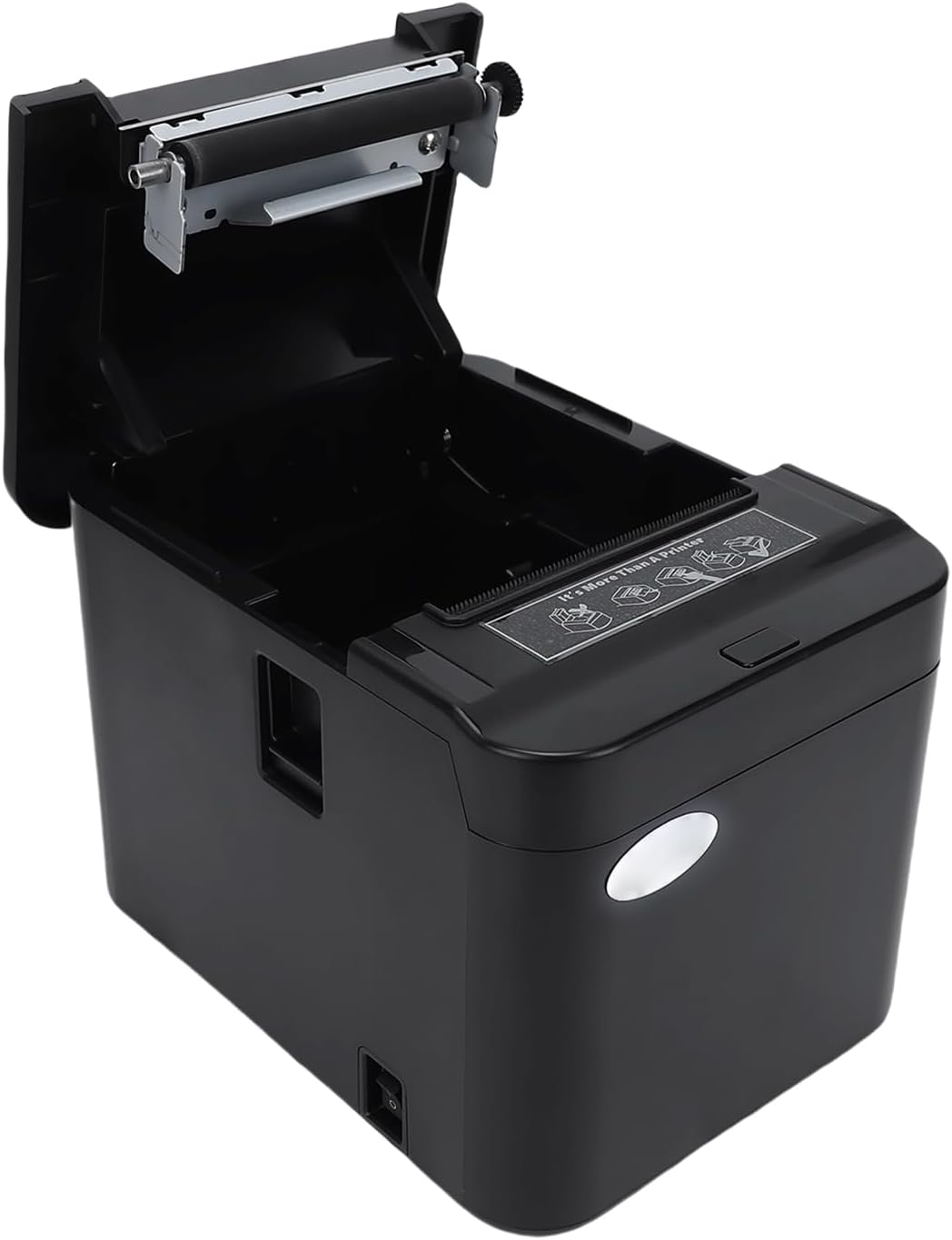
Image: The printer with its top cover open, illustrating the paper loading mechanism and compartment.
3.3 Driver Installation
To ensure proper communication between your computer and the printer, you must install the appropriate drivers. The Bisofice ZY-Q822 is compatible with Windows XP/VISTA/7/8/10/2000/CE/OPOS/JPOS operating systems. SDKs are available for Win 2000/Win CE/OPOS/JPOS/Android/iOS.
Please download the latest drivers from the official support website: http://8.129.44.110:4400/download_en.html. Follow the on-screen instructions for installation.
4. Operating Instructions
4.1 Basic Printing
Once the printer is connected and drivers are installed, you can send print jobs from your application. The printer operates using direct thermal technology, meaning it does not require ink cartridges or ribbons.

Image: The printer demonstrating its inkless thermal printing technology, highlighting the absence of ink cartridges.
4.2 Two-Color Printing
The ZY-Q822 supports two-color printing using specialized thermal paper. This allows for combinations such as red+black or blue+black, enhancing the visibility of important information on receipts. Ensure you are using compatible two-color thermal paper for this feature.
4.3 Automatic Cutter
The integrated automatic cutter provides clean and efficient paper cuts after each receipt is printed. This feature ensures smooth operation and a professional finish for your receipts.

Image: A close-up view of the printer's internal auto-cutter mechanism, emphasizing its sharp and efficient cutting capability.
4.4 Supported Barcodes
The printer supports a wide range of 1D and 2D barcode formats:
- 1D Barcodes: UPC-A, UPC-E, JAN13 (EAN13), JAN8 (EAN8), CODE39, ITF, CODABAR, CODE93, CODE128
- 2D Barcodes: QR Code
5. Maintenance
Regular maintenance ensures the longevity and optimal performance of your Bisofice ZY-Q822 printer.
5.1 Cleaning the Print Head
The print head is a critical component. Clean it periodically to prevent print quality issues.
- Turn off the printer and disconnect the power cable.
- Open the printer cover.
- Gently wipe the print head surface with a soft cloth dampened with isopropyl alcohol. Do not use abrasive materials or excessive force.
- Allow the print head to dry completely before closing the cover and powering on the printer.
5.2 Cleaning the Cutter
Dust and paper debris can accumulate around the auto-cutter. Clean it regularly to prevent paper jams and ensure smooth cuts.
- Turn off the printer and disconnect the power cable.
- Open the printer cover.
- Carefully remove any visible paper dust or debris from the cutter area using a soft brush or compressed air.
- Close the cover and power on the printer.
5.3 General Cleaning
Wipe the exterior of the printer with a soft, dry cloth to remove dust and dirt.
6. Troubleshooting
This section addresses common issues you might encounter with your printer.
| Problem | Possible Cause | Solution |
|---|---|---|
| Printer not printing |
|
|
| Poor print quality |
|
|
| Paper jam |
|
|
| Auto-cutter not working |
|
|
| Printer not detected by computer |
|
|
7. Specifications
Detailed technical specifications for the Bisofice ZY-Q822 Thermal Receipt Printer:
| Feature | Specification |
|---|---|
| Model Name | ZY-Q822 |
| Printing Method | Direct Thermal |
| Resolution | 576 dots/line (203 dpi) |
| Print Width | 72 mm |
| Print Speed | Up to 200 mm/s (MAX) |
| Paper Type | Thermal Paper |
| Paper Width | 80 mm |
| Paper Thickness | 0.06 ~ 0.08 mm |
| Paper Roll Diameter | Max Φ80 mm |
| Interface | USB + Ethernet (LAN) |
| Input Buffer | 128 KB |
| NV-Flash | 256 KB |
| Emulation | ESC/POS |
| Print Head Lifespan | 100 km |
| Cutter Lifespan | 1.0 million cuts |
| Power Input | AC 100-240V, 50/60Hz |
| Power Output | DC 24V 2.5A |
| Dimensions (L x W x H) | 17.3 x 12.8 x 12.7 cm |
| Color | Black |
8. Warranty and Support
For warranty information, please refer to the documentation provided at the time of purchase or contact your retailer. For technical support, driver downloads, and further assistance, please visit the official Bisofice support website or contact their customer service.
Driver Download Link: http://8.129.44.110:4400/download_en.html


