
1. Introduction
The CARPURIDE W125S is an advanced 11.26-inch portable car stereo system designed to enhance your driving experience with seamless smartphone integration and comprehensive dash camera capabilities. It supports wireless Apple CarPlay and Android Auto, providing access to navigation, communication, and entertainment features directly on its HD touchscreen. The device also includes a triple camera system: a 4K front camera, a 1080P infrared cabin camera, and a 1080P rear camera, offering all-around recording for safety and evidence.
This manual provides detailed instructions for the setup, operation, and maintenance of your CARPURIDE W125S device. Please read it thoroughly before use to ensure proper functionality and safety.
2. Product Overview
2.1 Key Features
- 11.26-inch HD IPS Touchscreen: Anti-glare, 1920x720 resolution for clear visibility.
- Wireless CarPlay & Android Auto: Seamless integration with iOS and Android smartphones for navigation, calls, messages, and music.
- Triple Dash Camera System: Includes a 4K front camera, 1080P infrared cabin camera, and 1080P rear camera for comprehensive recording.
- Loop Recording: Automatically overwrites old files to ensure continuous recording.
- Gravity Sensor: Automatically locks video footage during collisions to protect accident evidence.
- Voice Control: Supports Siri and Google Assistant for hands-free operation.
- Multiple Audio Outputs: Bluetooth audio, local speakers, FM radio, and AUX (3.5mm).
- Mirror Link (Super Link): Allows mirroring of smartphone content (videos, games, apps) to the screen.
- Light Sensor Design: Automatically adjusts screen brightness based on ambient light.
- Pre-installed 64GB TF Card: For immediate recording use.
2.2 What's in the Box
- 1 x CARPURIDE W125S Car Stereo
- 1 x Camera (Rear Camera)
- 1 x User Manual
- 1 x Type C Charger
- 2 x Brackets (Suction Cup and Sticker)
- 1 x 3.5mm Audio Cable
- 1 x Rear View Camera & Wire (6-meter cable)
- 1 x 64GB TF Card (pre-installed)

Image: Contents of the CARPURIDE W125S package, showing the main unit, rear camera, power cable, audio cable, and two types of mounting brackets.
2.3 Product Dimensions
The CARPURIDE W125S features an 11.26-inch full screen with a display area of 10.26 inches. The overall dimensions are approximately 26.5 cm (10.43 inches) in width and 10.5 cm (4.13 inches) in height.
Image: Detailed diagram illustrating the dimensions of the main unit and various accessories like the suction cup bracket, sticker bracket, car charger, and audio cable.
3. Setup Guide
3.1 Mounting the Device
- Attach Bracket: Securely lock the Carpuride screen onto your chosen mounting bracket (suction cup or sticker bracket).
- Position Device: Fix the Carpuride screen on the front windshield or dashboard using the suction cup mount. Ensure it does not obstruct your view or interfere with airbags.
- Adjust Front Camera: The front camera can be rotated 350 degrees for optimal coverage. Adjust its angle as needed. Avoid excessive rotation to prevent cable loosening or disconnection.

Image: Visual instructions for mounting the CARPURIDE W125S and adjusting its rotatable front camera.
3.2 Power Connection
Use the provided Type-C 12V power supply. It is compatible with most cars and trucks. Always use the original Carpuride car charger, as it includes a built-in FM antenna. Using other chargers may affect FM performance.

Image: Illustration of the Type-C power input and the car charger with its power button, USB port, and rear camera button.
3.3 Camera Installation
The W125S includes a 4K front camera (integrated), a 1080P infrared cabin camera (integrated), and a 1080P rear camera (external).
- Rear Camera: Connect the external rear camera to the designated 2.5mm jack on the main unit. The 6-meter cable allows for flexible routing to the rear of your vehicle. The display will automatically show the camera feed when reversing.
- Infrared Cabin Camera: Ensure the infrared camera faces the interior of the vehicle. Important: Avoid pointing it directly at windows or reflective surfaces (e.g., dashboards) as reflected infrared light can cause signal interference and image flickering. For optimal performance, use it exclusively for recording the vehicle's interior.
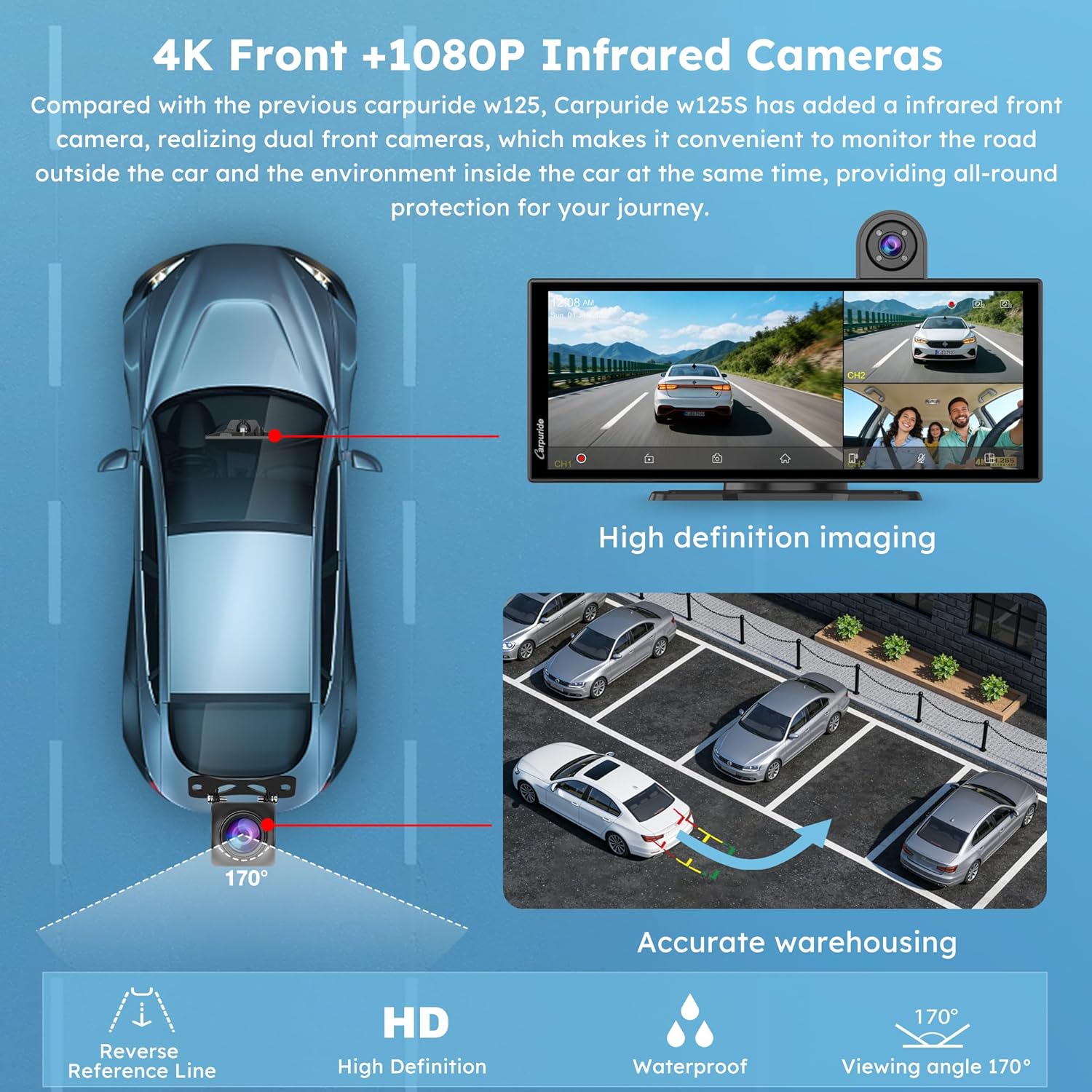
Image: Overview of the three-camera system, showing the front, infrared cabin, and rear cameras with their respective viewing angles and recording capabilities.
3.4 Initial Smartphone Connection (CarPlay/Android Auto)
For Apple CarPlay:
- On your iPhone, open Settings, then turn on Wi-Fi and Bluetooth.
- On the CARPURIDE W125S screen, navigate to the CarPlay icon and tap it.
- On your iPhone, find and select "Carpuride_BT-xxxx" in the Bluetooth devices list.
- Confirm the pairing request on both devices.
- Once connected, CarPlay will launch automatically.

Image: Visual steps demonstrating how to connect an iPhone to the CARPURIDE W125S for Apple CarPlay functionality.
For Android Auto:
- On your Android phone, open Settings, then turn on Wi-Fi and Bluetooth.
- On the CARPURIDE W125S screen, navigate to the Android Auto icon and tap it.
- On your Android phone, find and select "Carpuride_BT-xxxx" in the Bluetooth devices list.
- Confirm the pairing request and allow necessary permissions.
- Once connected, Android Auto will launch automatically.

Image: Visual steps demonstrating how to connect an Android phone to the CARPURIDE W125S for Android Auto functionality.
4. Operation
4.1 User Interface Navigation
The CARPURIDE W125S features an intuitive HD IPS touchscreen. Swipe left or right to navigate between different application screens. Tap icons to open applications or settings.
4.2 Wireless CarPlay and Android Auto
Once connected, your smartphone's interface will be displayed on the W125S screen. You can use touch controls or voice commands (Siri/Google Assistant) to access navigation, make calls, send messages, and play music through compatible apps.

Image: The CARPURIDE W125S screen displaying the Wireless CarPlay and Android Auto interface with various app icons.
4.3 Dash Camera Functions
The device records simultaneously from its 4K front camera, 1080P infrared cabin camera, and 1080P rear camera. Footage is stored on the pre-installed 64GB TF card.
- Loop Recording: The system automatically records in a continuous loop. When the TF card is full, the oldest files are overwritten by new recordings.
- Gravity Sensor (G-Sensor): In the event of a sudden impact or collision, the built-in G-sensor detects the event and automatically locks the current video segment, preventing it from being overwritten. This ensures critical accident evidence is preserved.
- Split Screen Display: The screen can display multiple camera views simultaneously, such as front and rear, or CarPlay/Android Auto with a camera view.

Image: The CARPURIDE W125S displaying various split-screen configurations, including navigation with music, front and rear camera views, and CarPlay/Android Auto with camera feeds. The auto loop recording feature is also highlighted.

Image: A visual explanation of the loop recording function, indicating that the included 64GB TF card supports continuous recording by overwriting the oldest files.

Image: A graphic illustrating the gravity sensor's function, showing how it automatically detects sudden shakes or collisions and locks the corresponding video footage.
4.4 Infrared Camera Usage Guidelines
The 1080P infrared camera is designed for interior vehicle recording, especially in low-light conditions. It automatically switches to black-and-white at night for clear footage.
Important: Ensure the infrared camera is angled towards the vehicle interior and avoid direct exposure to window glass or other smooth, reflective surfaces. Reflected infrared light can cause signal interference and result in flickering images. For best performance, the infrared camera should only be used to record the interior of the vehicle.
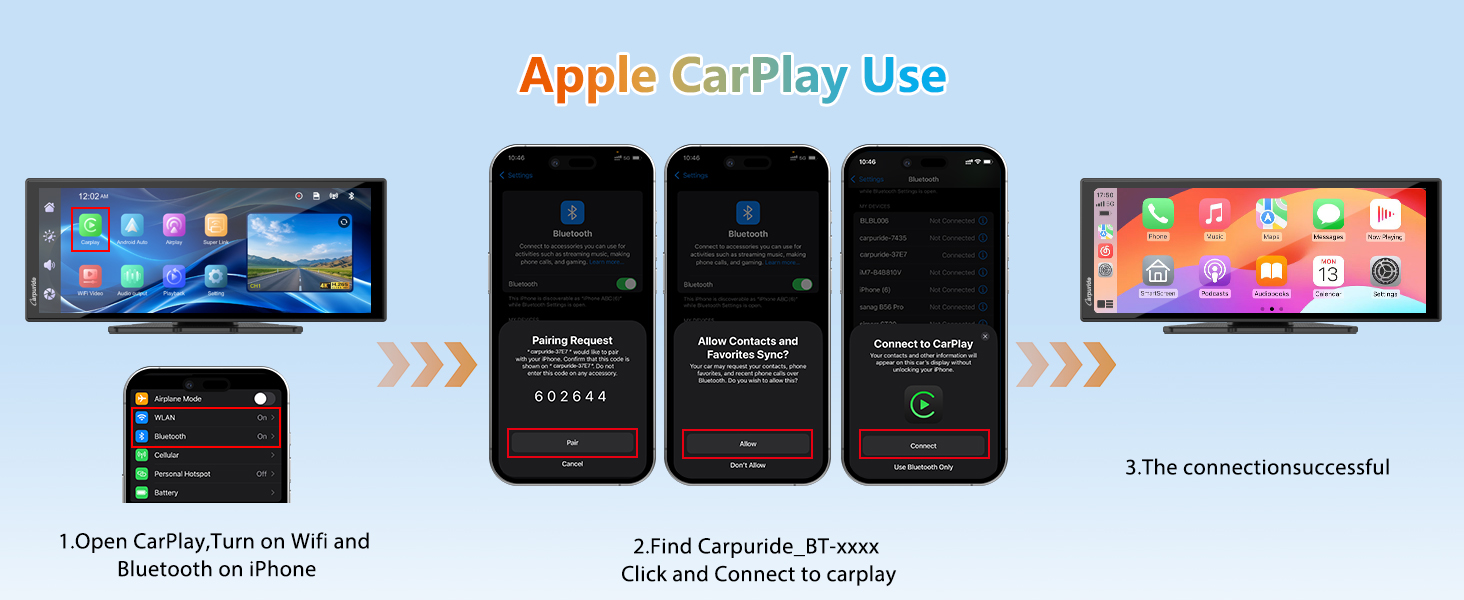
Image: A visual comparison of the 1080P infrared camera's performance during day and night, highlighting its ability to record clearly in low light.
4.5 Mirror Link (Super Link)
The Super Link feature allows you to mirror content from your smartphone to the W125S screen. This includes online videos, downloaded media, and other applications.
For iOS (Airplay):
- Scan the QR code on the W125S screen to download the EveLink app.
- Select the "Wi-Fi Direct" connection mode in the EveLink app. Find and connect to "EVELINK-xxxx".
- On your iPhone, open the Control Center, tap "Screen Mirroring," and select "Smartsreen" for wireless mirroring.
- To watch online video, you can select Settings and click the Lab to play online video.

Image: Visual instructions for using SuperLink (Airplay) with an iOS device, including app download, Wi-Fi Direct connection, and screen mirroring steps.
For Android (Super Link):
- Scan the QR code on the W125S screen to download the EveLink app.
- Select the "Wi-Fi Direct" connection mode in the EveLink app. Find and connect to "EVELINK-xxxx".
- Once connected, you can mirror videos and other content.

Image: Visual instructions for using SuperLink with an Android device, detailing app download and Wi-Fi Direct connection for content mirroring.
Download the EveLink app here: https://camtree.cc/dl?zone=en&id=evelink
4.6 Audio Output Options
The W125S offers several ways to output audio to your car's sound system:
- Bluetooth Audio: Connect your phone via Bluetooth to the W125S, and the W125S will transmit audio to your car's speakers if your car supports Bluetooth audio input.
- Local Speakers: The W125S has built-in speakers for direct audio output.
- FM Radio Transmitter: Transmit audio from the W125S to your car's FM radio by tuning both devices to the same FM frequency.
- AUX (3.5mm): Connect the W125S to your car's AUX input using the provided 3.5mm audio cable for a wired audio connection.

Image: Illustration of the different audio output options available on the CARPURIDE W125S, including Bluetooth, AUX connection to car audio, FM transmission, and the built-in speaker.
4.7 Screen Brightness Adjustment
The CARPURIDE W125S features a light sensor that automatically adjusts screen brightness based on ambient light conditions. This helps reduce glare during the day and prevents the screen from being too bright at night, improving visibility and driving safety. You can also set a custom range (0% to 100%) to limit automatic brightness adjustment.

Image: A visual demonstration of the light sensor design, showing how the screen brightness adjusts automatically for optimal viewing in different lighting conditions, along with icons representing HD IPS, anti-glare, and anti-scratch features.
4.8 Wi-Fi Video Management
The W125S does not offer cloud storage directly. However, when connected via Wi-Fi, all recorded videos can be synced and saved directly to your phone's storage, similar to cloud storage. This allows for easy backup and management of your recordings.
- Scan the appropriate QR code on the W125S screen and download the corresponding Viidure app.
- Connect to the Wi-Fi network: CARPURIDE_WIFI-xxxx. The default password is 12345678.
- Open the downloaded Viidure app, connect the camera-camera Files-Select, and check the required video. Click Download to save.

Image: A step-by-step visual guide on how to connect the CARPURIDE W125S to a smartphone via Wi-Fi and use the Viidure app to manage and download recorded videos.
4.9 Voice Control
Utilize voice commands through Siri or Google Assistant for hands-free control of navigation, phone calls, music playback, and other functions. This enhances safety by allowing you to keep your hands on the wheel and eyes on the road.
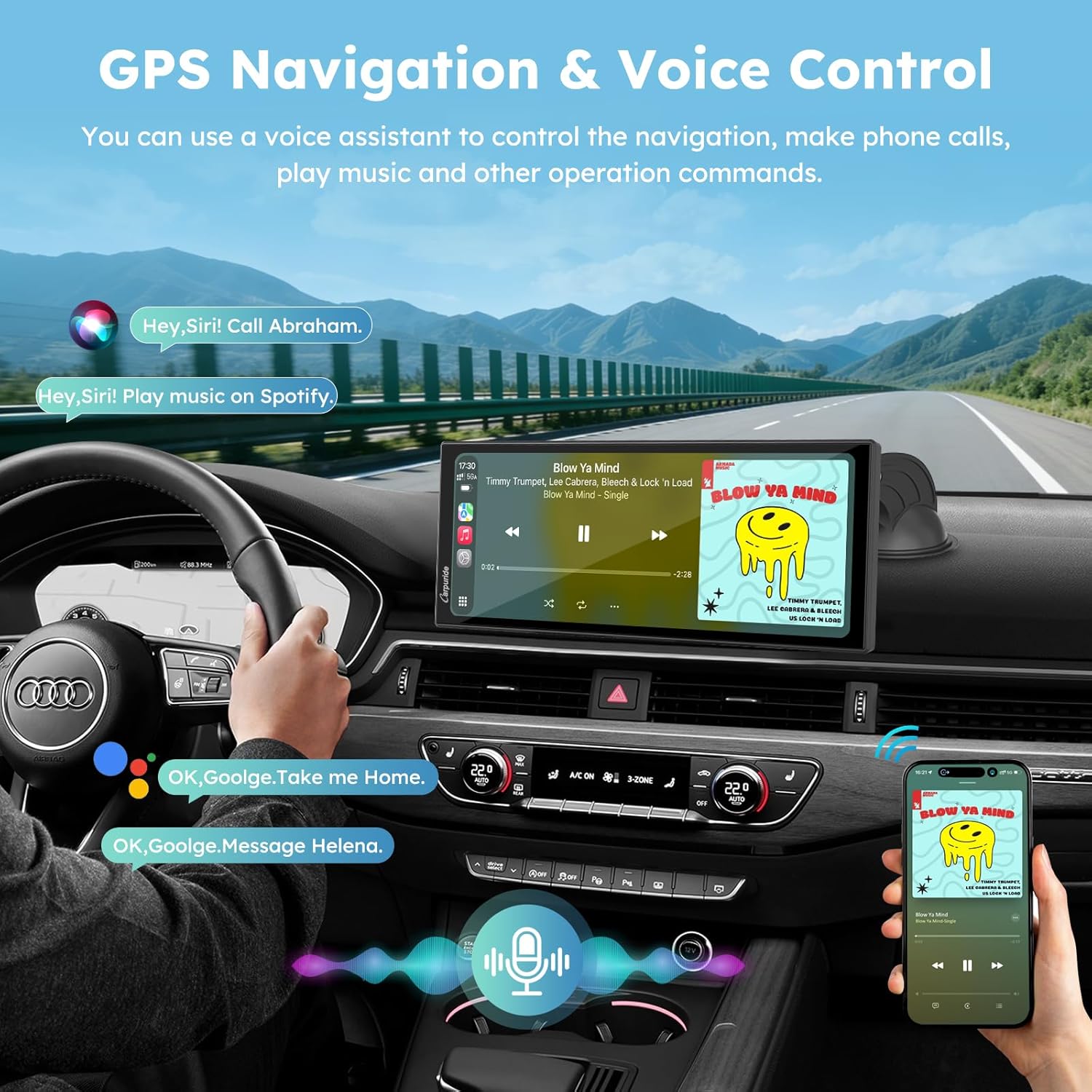
Image: The CARPURIDE W125S screen showing GPS navigation and music playback, with visual cues for voice control activation via Siri and Google Assistant.
5. Maintenance
5.1 General Care
- Keep the device clean using a soft, dry cloth. Avoid abrasive cleaners or solvents.
- Protect the screen from sharp objects to prevent scratches. The screen is designed with anti-scratch properties, but care should still be taken.
- Avoid exposing the device to extreme temperatures or direct sunlight for prolonged periods when not in use.
5.2 TF Card Management
The pre-installed 64GB TF card is essential for dash camera recording. Periodically check the card's health and ensure it is functioning correctly. While loop recording manages space automatically, it is recommended to back up important footage regularly.
The device does not support media playback directly from the TF card.
5.3 Firmware Updates
To ensure optimal performance and compatibility, especially with newer smartphone operating systems (e.g., Android 16), it is recommended to keep the device's firmware updated. Check the official Carpuride website or support resources for the latest firmware versions and update instructions.
6. Troubleshooting
6.1 Connectivity Issues (CarPlay/Android Auto)
- Intermittent Disconnection: For devices running Android 16, intermittent disconnection may occur due to system compatibility. Ensure that the SuperLink on your phone and Carpuride device is updated to the latest version for optimized compatibility. Updating to the latest firmware version can significantly improve stability.
- No Connection: Ensure Wi-Fi and Bluetooth are enabled on your smartphone and the W125S. Restart both devices and attempt to reconnect.
- Pairing Failure: Delete previous Bluetooth pairings on both devices and try pairing again.
6.2 Infrared Camera Flickering
If the infrared camera image flickers, it is likely due to reflected infrared light. Ensure the camera is angled towards the vehicle interior and not directly at windows, windshields, or other reflective surfaces. Adjust the camera's position to minimize reflections.
6.3 Device Lag or Freeze
If the device experiences occasional lag or freezes, try the following:
- Restart the device by pressing the power button on the car charger.
- Ensure the TF card is not full or corrupted. Format the card if necessary (after backing up important data).
- Check for and install any available firmware updates.
7. Specifications
| Feature | Specification |
|---|---|
| Brand | Carpuride |
| Model Name | W125S |
| Screen Size | 11.26 Inches |
| Display Type | LCD (HD IPS) |
| Video Capture Resolution | Front: 4K, Cabin: 1080p, Rear: 1080p |
| Field Of View | 170 Degrees (Front, Cabin, Rear) |
| Frame Rate | 30 FPS |
| Connectivity Technology | Bluetooth, Wi-Fi |
| Control Method | App, Touch, Voice |
| Included Memory Card Size | 64 GB (TF Card) |
| Compatible Devices | Smartphone (iOS 6+, Android 11+) |
| Vehicle Service Type | Car |
| Color | Black |
8. Warranty Information
The CARPURIDE W125S comes with a 1-year warranty from the date of purchase. This warranty covers manufacturing defects and malfunctions under normal use. Please retain your proof of purchase for warranty claims. For specific terms and conditions, refer to the warranty card included in your package or contact Carpuride customer support.
9. Customer Support
For further assistance, technical support, or warranty inquiries, please refer to the following resources:
- Official Carpuride Website: Visit the official Carpuride website for FAQs, troubleshooting guides, and firmware updates.
- Contact Manufacturer: Reach out to Carpuride customer service directly through their website or the contact information provided in your product packaging.
- User Guide: Always refer to this user manual for detailed instructions and information.