
1. Introduction
This manual provides detailed instructions for the installation, operation, and maintenance of your Roinvou 4+64G Android 15 Car Radio. Please read this manual thoroughly before using the product to ensure proper functionality and safety. This car radio is designed to enhance your driving experience with advanced features and seamless connectivity.
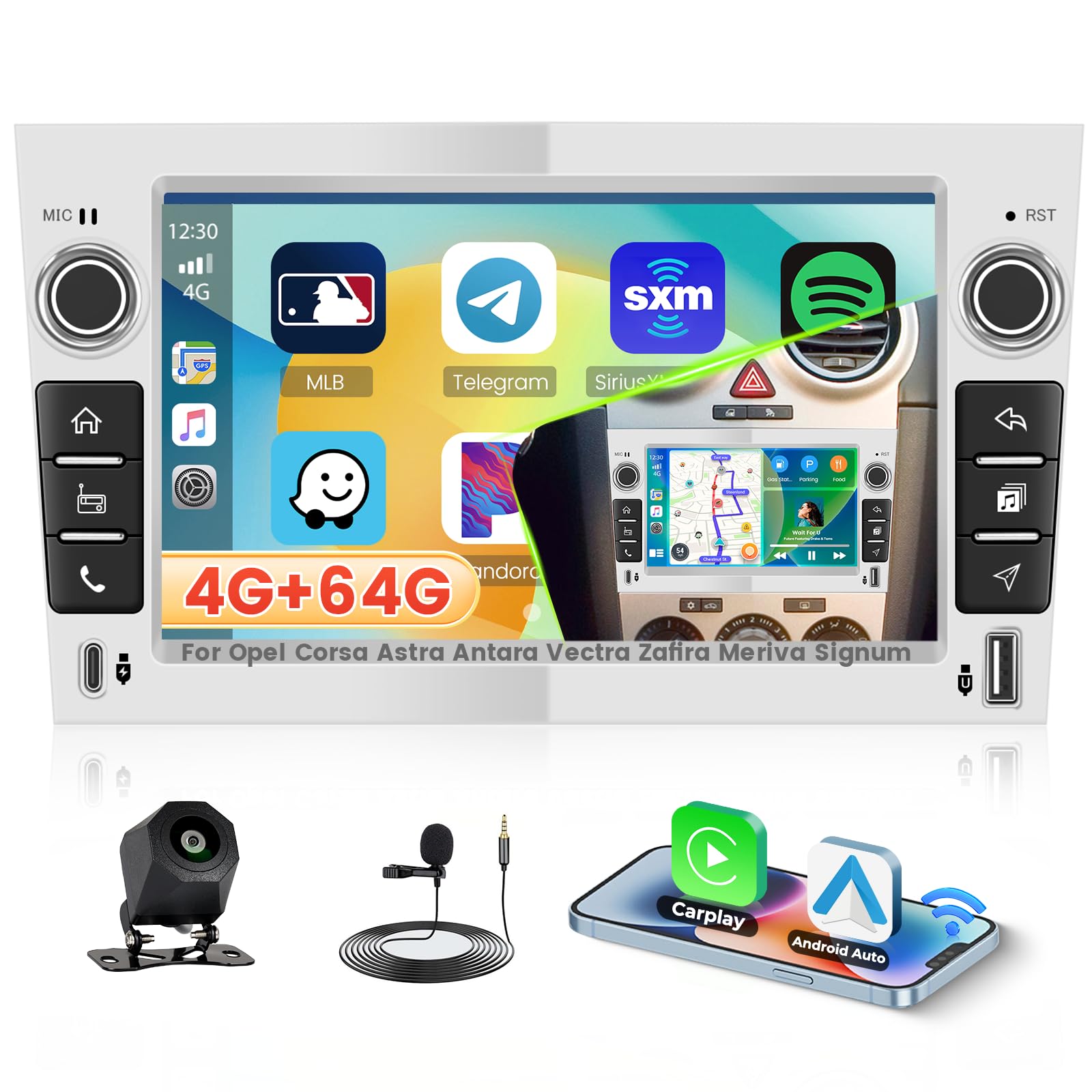
Image 1: Main unit of the Roinvou 4+64G Android 15 Car Radio.
2. Product Overview and Features
The Roinvou Android 15 Car Radio is equipped with a range of features designed for convenience and entertainment:
- Premium In-Cell Touchscreen: Enjoy ultra-fast control and sharp visuals with the 1280x720 In-Cell display, reducing reflections and improving touch sensitivity for smoother navigation and multimedia enjoyment.
- Wireless CarPlay and Android Auto: Seamlessly connect your iPhone or Android smartphone wirelessly for navigation, calls, messages, and music directly through the car radio. Supports both wired and wireless Mirror Link.
- Powerful Performance: Runs on Android 15 with a 4-core processor, 4GB RAM, and 64GB storage for fast and stable performance, allowing multiple applications to run without delay.
- Enhanced Audio: Optimize your listening experience with equalizer settings and FM/RDS radio for clear sound and easy access to favorite stations.
- Safety and Convenience: Includes a rear-view camera for safer parking and reversing. Supports split-screen functionality for simultaneous navigation and other applications.
- Connectivity: Features Bluetooth, GPS, and Wi-Fi to keep you connected on the go.
- Steering Wheel Control (SWC): Compatible with steering wheel controls for added convenience and safe driving.

Image 2: Visual comparison highlighting the benefits of the In-Cell screen with Ultra-HD resolution.
3. Package Contents
Please verify that all items listed below are included in your package:
- Roinvou Car Radio for Opel Corsa Astra Antara Vectra Zafira Meriva Signum
- Power Cable
- CANBUS Decoder
- Radio Antenna
- RCA Cable
- Rear Camera Input Cable
- GPS Antenna
- USB Cable
- Rear View Camera
- External Microphone
- Installation Accessories
- User Manual (this document)
- Installation Tool

Image 3: Visual representation of the package contents and product dimensions.
4. Compatibility
This Roinvou car radio is specifically designed for the following Opel models:
- Opel Corsa (2006-2011)
- Opel Astra (2004-2009)
- Opel Antara (2006-2011)
- Opel Vectra (2006-2011)
- Opel Zafira (2005-2011)
- Opel Meriva (2006-2011)
- Opel Signum (2003-2011)
- Opel Tigra Twin Top (2004-2011)
- Opel Combo (2004-2011)
- Opel Vivaro (2006-2010)
Ensure your vehicle's dashboard matches the compatible configurations shown in the images below. If you are unsure about compatibility, please contact customer support with photos of your car's dashboard.

Image 4: Dashboard comparison for Opel models, indicating fitment.

Image 5: Detailed list and images of compatible Opel vehicle dashboards.
5. Setup and Installation
Professional installation is recommended. Before beginning, ensure the vehicle's battery is disconnected.
5.1 Wiring Connections
Refer to the wiring diagram for correct connections. Ensure all cables are securely connected to prevent malfunctions.

Image 6: Wiring diagram showing various connection ports including power, camera input, GPS antenna, and RCA cables.
5.2 Rear Camera Wiring
Connect the rear camera according to the diagram. The white plug must be connected to the car radio for Bluetooth and Wi-Fi signals. The red wire from the camera power cable connects to the reversing lamp power, and the black wire to ground (GND).

Image 7: Step-by-step diagram for connecting the rear view camera.
5.3 Steering Wheel Control (SWC) Setup
The unit supports steering wheel controls for convenient operation.
- Without CANBUS Decoder: Connect the plugs or steering wheel control wires (Key1/Key2) in the power cable to the corresponding port or wire of your original car. Then, go to 'steeringwheel' settings and manually match to activate the button functions.
- With CANBUS Decoder: Connect the CANBUS before powering on the machine. Then, navigate to Apps > Settings > Factory settings (1234) > CAN Settings to ensure SWC works properly. Select the brand of the CANBUS decoder and the matching model and year according to your vehicle.

Image 8: Steering wheel control setup options, with and without a CANBUS decoder.
6. Operating Instructions
This section covers the basic operation of your Roinvou Android 15 Car Radio.
6.1 Basic Functions
The car radio features an intuitive interface for various functions:
- Radio (FM/RDS): Access FM radio stations with RDS information.
- Music Playback: Play audio files from connected USB devices or internal storage.
- Video Playback: Watch videos from connected USB devices or internal storage.
- Bluetooth: Connect your smartphone for hands-free calling and audio streaming.
- Web Browser: Access the internet via Wi-Fi.
Video 1: Demonstration of various functions including FM radio, DSP settings, music playback, steering wheel control learning, Bluetooth connection, video playback, and web browsing.
6.2 Wireless CarPlay & Android Auto
Connect your smartphone wirelessly to access navigation, communication, and entertainment apps safely while driving.

Image 9: Display of Wireless CarPlay, Android Auto, and Mirror Link features, including GPS, music, calls, and messages.
6.3 Multimedia and Apps
The system supports popular streaming and media applications. Connect to Wi-Fi to download and use your favorite apps.

Image 10: Examples of supported applications on the 1280x720 In-Cell touchscreen.
6.4 User Interface and Split Screen
The device offers multiple user interface options and supports split-screen technology, allowing you to run two applications simultaneously, such as navigation and music.

Image 11: Visualizing different UI themes and the split-screen function.
7. Maintenance
To ensure the longevity and optimal performance of your car radio, follow these maintenance guidelines:
- Cleaning: Use a soft, dry cloth to clean the screen and exterior. Avoid abrasive cleaners or solvents.
- Software Updates: Periodically check for software updates to ensure you have the latest features and bug fixes. Updates can usually be found in the system settings or on the manufacturer's website.
- Temperature: Avoid exposing the unit to extreme temperatures.
- Power: Ensure stable power supply to prevent damage.
8. Troubleshooting
If you encounter issues, refer to the following common troubleshooting steps:
- No Power: Check all power cable connections. Ensure the vehicle's ignition is on.
- No Sound: Verify speaker connections. Check volume levels and mute settings. Ensure the correct audio source is selected.
- Touchscreen Unresponsive: Try restarting the unit. If the issue persists, a factory reset might be necessary (note: this will erase user data).
- Bluetooth Connection Issues: Ensure Bluetooth is enabled on both the car radio and your device. Delete previous pairings and try reconnecting.
- GPS Signal Loss: Ensure the GPS antenna is properly installed and has a clear view of the sky.
- Steering Wheel Controls Not Working: Recheck wiring connections. If using a CANBUS decoder, ensure it is correctly configured in the system settings. If not using CANBUS, perform manual learning for SWC buttons.
For further assistance, please contact customer support.
9. Specifications
| Dimensions | 28 x 21.5 x 17.6 cm; 1.85 kg |
| Manufacturer | Roinvou |
| Operating System | Android 15 |
| Special Features | CarPlay, Android Auto, Mirror Link, Bluetooth, EQ, FM/RDS, WiFi, GPS, UI, SWC, Touchscreen |
| Compatible Devices | Smartphone |
| Audio Output Mode | APE/FLAC/WAV/MP3/WMA |
| Sound Channel Configuration | 4 |
| Video Encoding | MKV/RMVB/AVI/MP4/MDV |
| Wattage | 45 watts |
| Supported Internet Services | Netflix, YouTube, iTunes |
| Wireless Technology | Bluetooth, WiFi, FM RDS |
10. Warranty and Support
Your Roinvou car radio comes with a 24-month warranty. We offer lifetime online support for inquiries, with responses typically within 24 hours.
Frequently Asked Questions (FAQs)
- Is this product compatible with my car? If you have any questions about product compatibility before purchasing, please send us photos of your car's dashboard, and we will help you determine if the product is suitable.
- Good quality? The continuous pursuit of better product quality is our company's philosophy. We are committed to creating a car radio that satisfies customers even more!
- After-sales support? We have a good after-sales team. If you encounter problems during installation and use, good communication will help you solve them.
For direct support, you can contact the seller, wenheyou, through Amazon's messaging system or via the provided email address.

Image 12: Instructions on how to contact customer support for assistance.


