Introduction
This manual provides detailed instructions for the DUDUPET Automatic Cat Feeder with Water, Model F13. This 2-in-1 smart pet feeder and water dispenser is designed to automate your pet's feeding and hydration needs, offering convenience and ensuring a balanced diet. It features a 4L food storage capacity, a 3L water tank, 5G/2.4G WiFi connectivity for app control, voice recording, and precise portion control. Please read this manual thoroughly before use to ensure proper setup and operation.
Package Contents
Before proceeding with setup, please verify that all components are present in the package:
- DUDUPET Automatic Cat Feeder and Water Dispenser Unit
- Power Adapter & Charge Cable
- Water Filter
- Stainless Steel Bowls (2 included)
- Desiccant Bag (pre-installed or included separately)
- User Manual (this document)
Setup Instructions
1. Placement and Power Supply
Place the feeder on a flat, stable surface indoors, away from direct sunlight or heat sources.

Image Description: The image shows the DUDUPET feeder in two modes: "Power Cord Mode" on the left, where it is plugged into a wall outlet, and "Emergency Mode" on the right, showing the feeder operating on battery power. This illustrates the dual power supply feature.
- Connect the power adapter to the feeder and plug it into a wall outlet.
- For uninterrupted operation during power outages, install 3 D-cell batteries (not included) into the battery compartment at the bottom of the unit. Note that remote control features are not available in battery-only mode, but scheduled feedings will continue.
2. App Installation and WiFi Connection
Download the DUDUPET app from your smartphone's app store (iOS or Android).
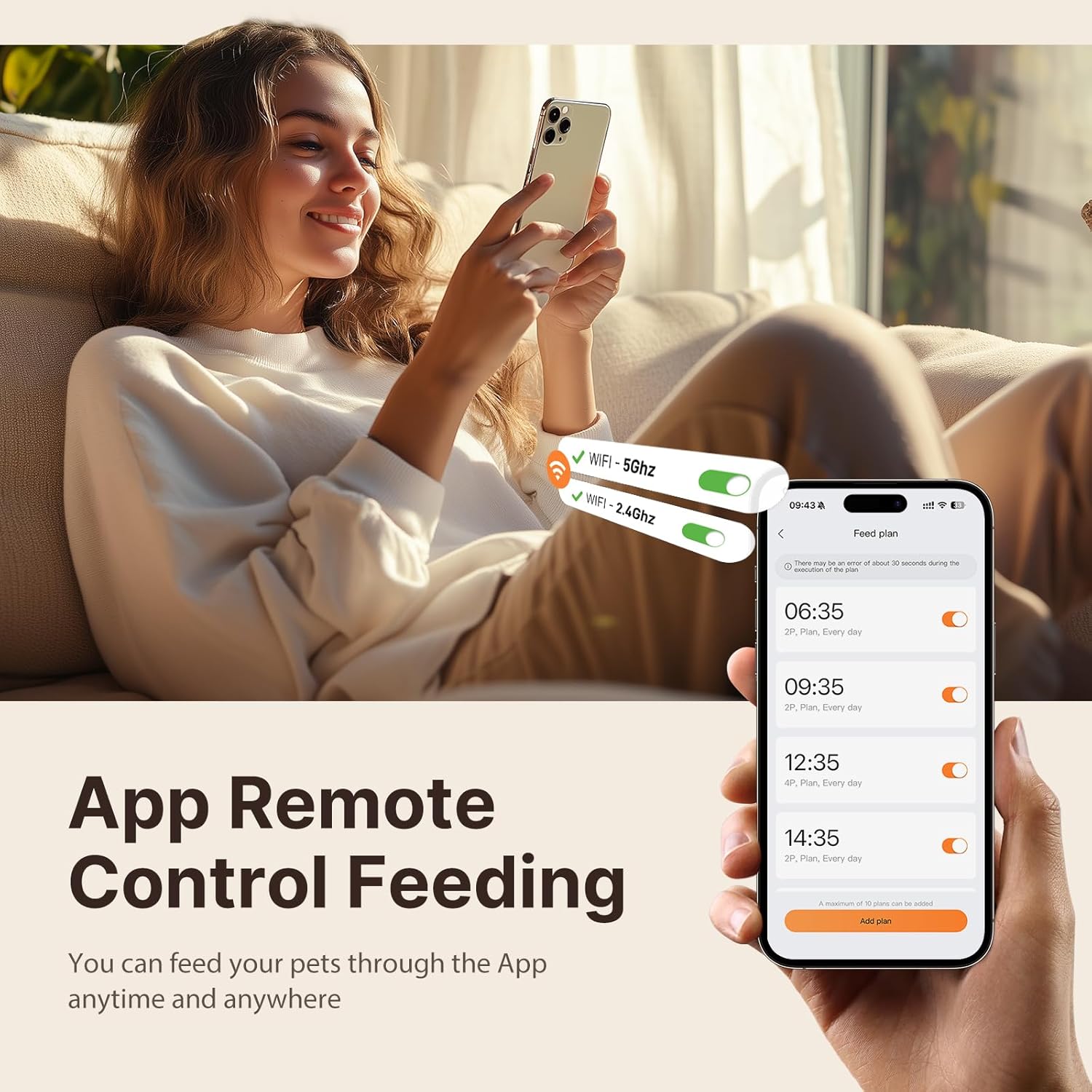
Image Description: A person is shown comfortably using a smartphone with the DUDUPET app interface visible. The app displays options for 5G and 2.4G WiFi connectivity and a feeding schedule, highlighting the remote control capability.
- Open the app and create an account or log in.
- Follow the in-app instructions to add your DUDUPET feeder. Ensure your phone is connected to a 2.4GHz or 5GHz WiFi network during the pairing process.
- The feeder will connect to your home WiFi, enabling remote control and monitoring.
3. Filling Food and Water

Image Description: This image highlights the 2-in-1 design of the DUDUPET feeder, clearly showing the separate 4L food storage compartment and the 3L water dispenser. It also indicates the equivalent capacities in cups and ounces.
- Food: Open the lid of the food storage compartment. Pour dry pet food into the 4L container. Ensure the food kibble size is appropriate (up to 0.55 inches / 14mm in diameter) to prevent clogging. Close the lid securely to maintain freshness.
- Water: Remove the water tank from the base. Fill the 3L tank with clean water. Ensure the water filter is properly installed in the tank. Reattach the water tank to the base, ensuring it is seated correctly for the gravity siphon system to function.
4. Desiccant Installation

Image Description: A three-step visual guide demonstrating how to ensure freshness protection. Step 1 shows folding down a handle, Step 2 shows holding and pressing the lid firmly, and Step 3 shows pushing the silicone ring inward. This process secures the desiccant bag and ensures a tight seal.
The feeder includes a built-in desiccant box to keep food fresh and crispy. If not already installed, place the desiccant bag into its designated compartment under the lid. Ensure the 360° sealed silicone ring is properly positioned around the lid for optimal freshness. Replace the desiccant bag periodically (e.g., monthly) for best results.
Operating Instructions
1. Scheduling Meals via App

Image Description: An orange cat is shown eating from the DUDUPET feeder. In the background, a graphic displays a smartphone screen with a "Customized Feeding Schedule," indicating meal times and portion settings (1-10 meals, 1-15 portions per meal).
Use the DUDUPET app to program your pet's feeding schedule:
- You can schedule up to 10 meals per day.
- Each meal can be set with 1 to 15 portions. Adjust portion sizes based on your pet's dietary needs and veterinarian recommendations.
- The app allows for real-time monitoring of food dispensing and provides alerts for low food levels or dispensing errors.
2. Voice Recording Feature
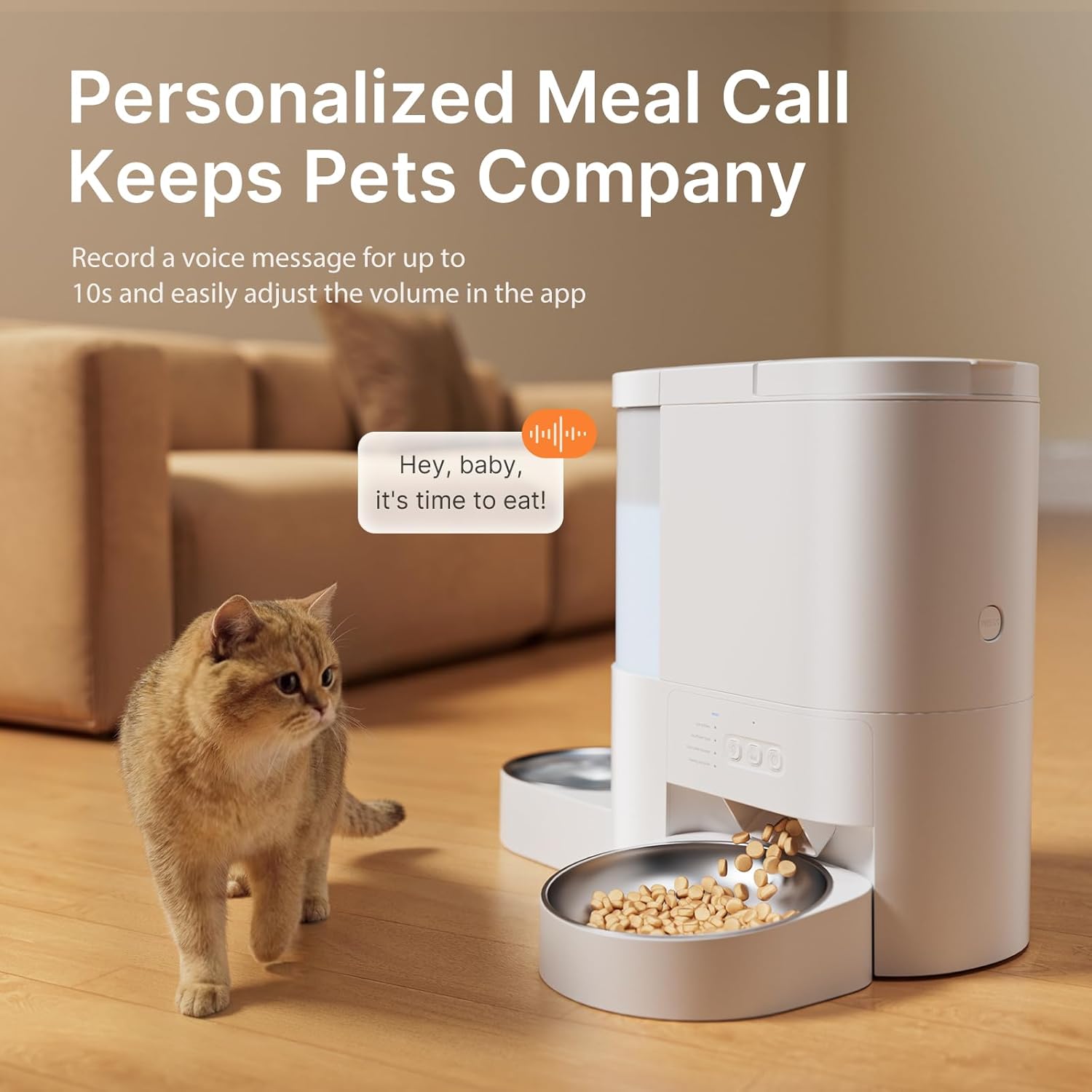
Image Description: A cat is shown attentively looking at the DUDUPET feeder as kibble dispenses. A speech bubble graphic above the feeder indicates a personalized voice message, "Hey, baby, it's time to eat!", highlighting the voice recording feature.
Record a personalized voice message (up to 10 seconds) through the app. This message will play at scheduled meal times to call your pet to eat. You can easily adjust the volume of the voice playback within the app settings.
3. Manual Feeding
To dispense food immediately outside of the scheduled times, use the manual feed option available in the DUDUPET app. This allows you to provide an extra meal or snack as needed.
Maintenance
1. Cleaning the Feeder and Water Dispenser

Image Description: A person is shown hand-washing the removable stainless steel bowl and other detachable components of the DUDUPET feeder in a kitchen sink. A text overlay reminds users that the main base unit should not be submerged or cleaned with water.
- Food Feeder: The food storage tank and dispensing components are hand-wash only. Separate the tank from the base, rinse with cold water, and dry thoroughly before reassembling. Do not submerge the main base unit in water or place it in a dishwasher.
- Water Dispenser: The water tank can be separated and rinsed with cold water.
- Stainless Steel Bowls: The two included stainless steel bowls are dishwasher-safe for easy cleaning.
- Regular cleaning ensures a hygienic feeding environment for your pet.
2. Water Filter Replacement
The water dispenser includes a filter to improve water quality. Replace the filter regularly (e.g., every 2-4 weeks, depending on water quality and usage) to ensure optimal filtration. Replacement filters can be purchased separately.
Troubleshooting
1. Food Dispensing Issues
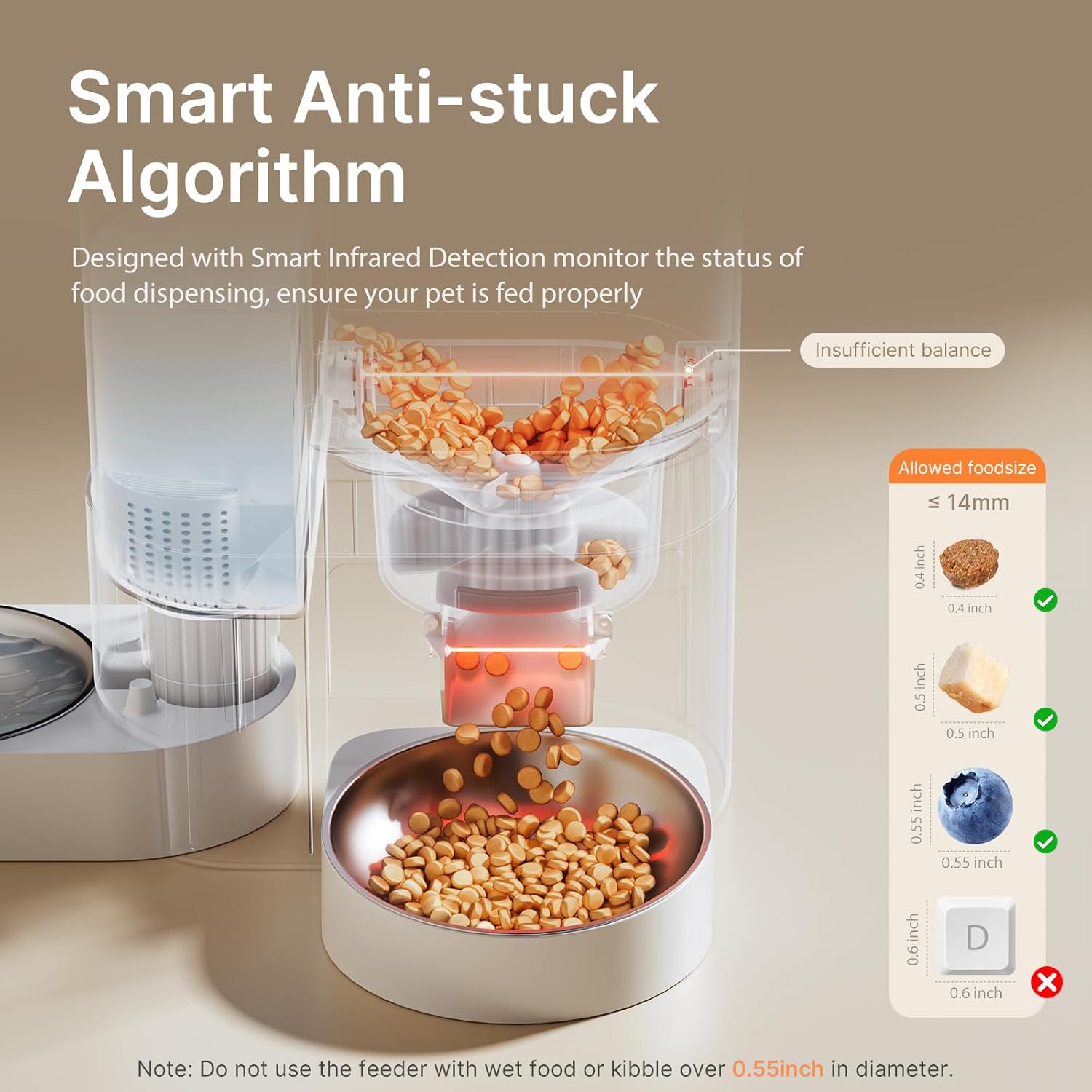
Image Description: A cutaway diagram of the DUDUPET feeder illustrates its "Smart Anti-stuck Algorithm" with infrared detection. It shows the path of food dispensing and provides a visual guide for allowed kibble sizes (up to 14mm or 0.55 inches), warning against larger kibble.
- Clogging: Ensure the kibble size does not exceed 0.55 inches (14mm). Larger kibble or wet food can cause blockages. The feeder has a smart infrared detection system to monitor dispensing and alert you to abnormal conditions.
- No Food Dispensed: Check if the food hopper is empty. Verify that the feeder is powered on and connected to WiFi. Check the app for any error notifications (e.g., "Dispensing Error").
- Incorrect Portions: Review your feeding schedule settings in the app to ensure the correct portion sizes are programmed.
2. WiFi Connection Problems
- Unable to Connect: Ensure your home WiFi network is 2.4GHz or 5GHz. Check your router and internet connection. Try restarting the feeder and your router.
- App Not Responding: Close and reopen the DUDUPET app. Ensure your smartphone has a stable internet connection.
3. Power Issues
- Feeder Not Turning On: Verify the power adapter is securely plugged into both the feeder and a working wall outlet. If using batteries, ensure they are correctly installed and not depleted.
- Scheduled Feedings Not Working in Battery Mode: Remote app control is not available in battery-only mode, but scheduled feedings will continue. If scheduled feedings are not occurring, check battery levels.
Specifications
| Feature | Specification |
|---|---|
| Model Name | F13 |
| Food Storage Capacity | 4 Liters (approx. 17 cups) |
| Water Tank Capacity | 3 Liters (approx. 101 oz) |
| Connectivity | 5G/2.4G WiFi App Controlled |
| Meals Per Day | Up to 10 |
| Portions Per Meal | 1-15 portions |
| Voice Recorder | Up to 10 seconds |
| Power Supply | 5V DC Adapter (included), 3 x D-cell Batteries (not included) |
| Dimensions (LxWxH) | 7 x 9 x 11 inches |
| Item Weight | 1.5 pounds (0.68 Kilograms) |
| Care Instructions | Hand Wash Only (feeder unit), Dishwasher Safe (stainless steel bowls) |
Warranty and Support
Warranty Information
The DUDUPET Automatic Cat Feeder with Water (Model F13) comes with a One Year Warranty from the date of purchase. This warranty covers manufacturing defects and malfunctions under normal use. Please retain your proof of purchase for warranty claims.
Customer Support
For technical assistance, troubleshooting, or warranty inquiries, please contact DUDUPET customer support. Refer to the DUDUPET official website or your purchase platform for the most current contact information.
Important Safety Information
- This appliance is for indoor use only.
- Do not use with wet food or kibble larger than 0.55 inches (14mm) in diameter.
- Keep out of reach of children and pets when not in use or during cleaning.
- Always unplug the feeder before cleaning.
- Do not immerse the main base unit in water.
- Ensure the power cord is not chewed by pets.
Video Resources
No official product videos from the seller were found in the provided data. For visual guides, please refer to the DUDUPET official website or support channels.


