
1. Introduction
This manual provides detailed instructions for the ANTEMPER 10-inch Android Tablet D125. It covers initial setup, operational guidance, maintenance tips, troubleshooting common issues, and full product specifications. Please read this manual thoroughly to ensure proper use and optimal performance of your device.
2. What's in the Box
Upon opening your ANTEMPER D125 tablet package, verify that all the following items are included:
- 1*Android Tablet (ANTEMPER D125)
- 1*USB Cable
- 1*Power Adapter (5V/2A)
- 1*SIM Card Ejector Pin
- 1*Instruction Manual (this document)

Image: Contents of the ANTEMPER D125 tablet box, showing the tablet, packaging box, SIM card ejector pin, power adapter, USB cable, and instruction manual.
3. Product Overview
3.1 Device Layout and Ports

Image: Detailed diagram illustrating the physical layout of the ANTEMPER D125 tablet, highlighting the headphone jack, Micro SD/SIM card slot, Type-C port, power button, volume buttons, reset button, front camera, flash, rear camera, and speakers.
- Power Button: Located on the top edge, used to power on/off or wake/sleep the device.
- Volume Buttons: Located on the top edge, used to adjust audio volume.
- Headphone Jack: Standard 3.5mm audio port on the left side.
- Micro SD/SIM Card Slot: On the left side, for expandable storage and cellular connectivity.
- Type-C Port: On the left side, for charging and data transfer.
- Front Camera: Located above the screen, 8MP for video calls and selfies.
- Rear Camera: Located on the back, 13MP with flash for photos and videos.
- Speakers: Located on the bottom edge for audio output.
3.2 Key Features
- Operating System: Android 14 (GMS Certified) for enhanced performance and privacy.
- Processor: High-speed MTK8786 Octa-Core processor for smooth multitasking.
- Memory & Storage: 16GB RAM (8GB physical + 8GB virtual) and 128GB internal storage, expandable up to 1TB via TF card (not included).
- Display: 10.1-inch Incell FHD display with 1280x800 pixel resolution.
- Battery: 7000mAh battery (Note: Product description states 8000mAh, but specifications and some images show 7000mAh. Please refer to actual device for exact capacity) for extended usage.
- Connectivity: Dual 4G LTE, VoLTE, Dual-band AC WiFi (2.4GHz/5GHz), Bluetooth 5.0, and GPS.
- Cameras: 13MP rear camera and 8MP front camera.
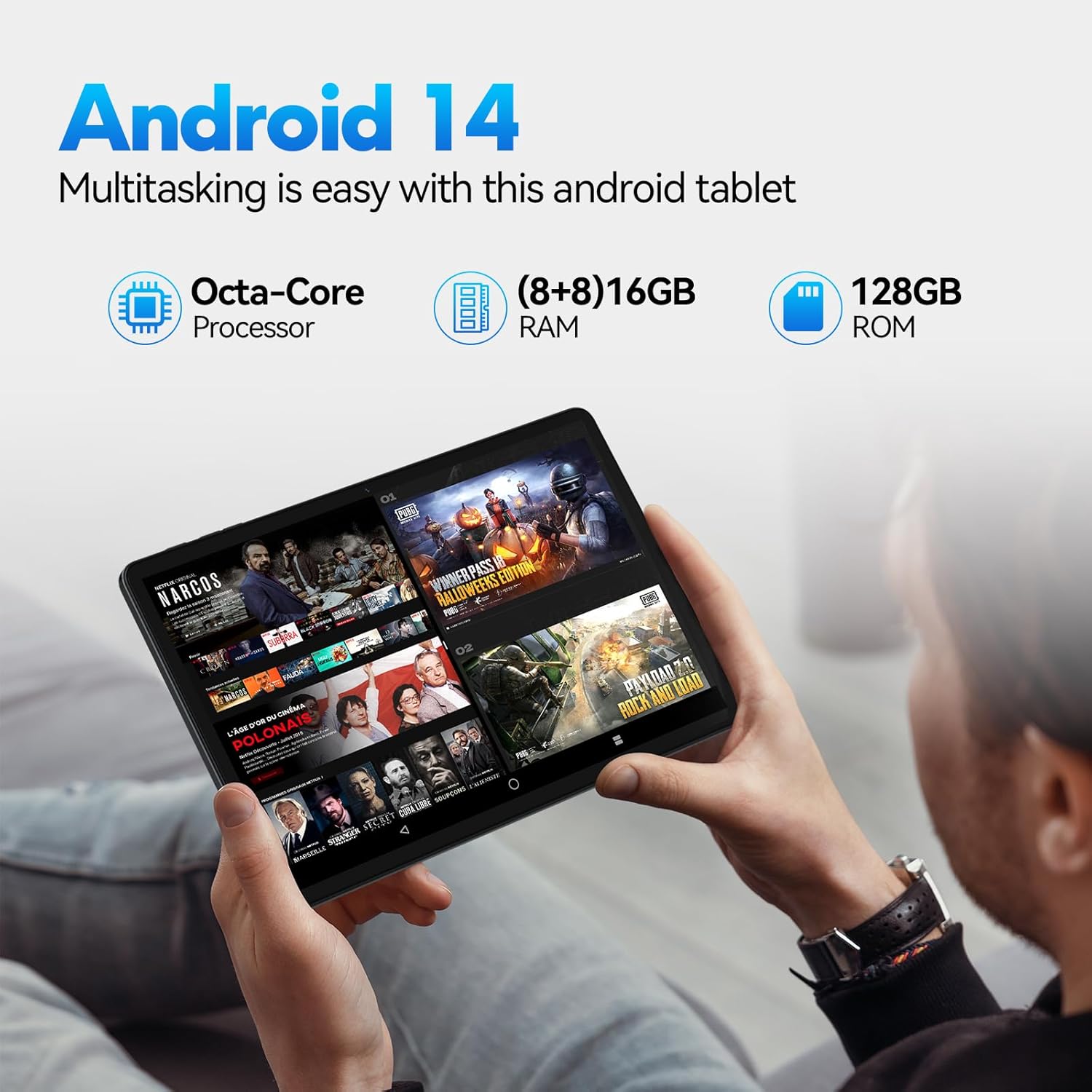
Image: The ANTEMPER D125 tablet showcasing its Android 14 operating system, Octa-Core processor, 16GB RAM, and 128GB ROM capabilities.

Image: The ANTEMPER D125 tablet featuring its 10.1-inch display, emphasizing the 1280x800HD resolution and 16:10 aspect ratio for clear viewing.

Image: The ANTEMPER D125 tablet illustrating its dual Nano SIM card slots and support for 4G cellular and 2.4G/5G WiFi connectivity.

Image: The ANTEMPER D125 tablet showcasing its 8.0 MP front camera and 13.0 MP rear camera for capturing images and videos.

Image: The ANTEMPER D125 tablet highlighting its 7000mAh high-capacity battery and estimated usage times for various activities like gaming, music, video, and browsing.
4. Setup
4.1 Initial Power On and Configuration
- Charge the Tablet: Before first use, connect the tablet to the power adapter and USB cable provided, then plug it into a power outlet. Allow it to charge fully.
- Power On: Press and hold the Power button on the top edge of the tablet until the ANTEMPER logo appears on the screen.
- Initial Setup Wizard: Follow the on-screen instructions to select your language, connect to a Wi-Fi network, set up your Google account, and configure basic settings.
4.2 Inserting SIM and Micro SD Cards
The tablet supports dual Nano SIM cards for cellular connectivity and a Micro SD card for expandable storage.
- Locate the Tray: Find the SIM/Micro SD card slot on the left side of the tablet.
- Eject the Tray: Insert the provided SIM ejector pin into the small hole next to the slot and press gently until the tray pops out.
- Insert Cards: Carefully place your Nano SIM card(s) and/or Micro SD card into the designated slots on the tray. Ensure they are correctly oriented.
- Reinsert Tray: Gently push the tray back into the tablet until it clicks into place.
- Activate Cellular (if applicable): After inserting a SIM card, navigate to Settings > Network & internet > SIMs to configure your cellular data settings.
5. Operating Instructions
5.1 Basic Navigation
- Home Screen: Swipe left or right to access different home screen panels.
- App Drawer: Swipe up from the bottom of the screen to open the app drawer and view all installed applications.
- Notifications & Quick Settings: Swipe down from the top of the screen to access notifications and quick settings toggles (Wi-Fi, Bluetooth, brightness, etc.).
- Recent Apps: Tap the square icon (or swipe up and hold from the bottom if using gesture navigation) to view and switch between recently used applications.
5.2 Connecting to Networks
- Wi-Fi: Go to Settings > Network & internet > Internet. Turn on Wi-Fi, select your desired network, and enter the password if required.
- Bluetooth: Go to Settings > Connected devices > Connection preferences > Bluetooth. Turn on Bluetooth, scan for devices, and pair with your desired accessory.
- Cellular Data: If a SIM card is inserted, go to Settings > Network & internet > SIMs to manage mobile data, calls, and SMS settings.
5.3 Using the Camera
To take photos or record videos:
- Open the "Camera" app from your home screen or app drawer.
- Tap the shutter button to take a photo or the record button to start/stop video recording.
- Switch between front and rear cameras using the camera switch icon.
6. Maintenance
6.1 Battery Care
- Avoid extreme temperatures, as they can degrade battery life.
- Use the provided charger for optimal charging performance.
- Do not let the battery completely drain frequently. Charge it before it reaches very low levels.
6.2 Storage Management
- Regularly check your storage usage in Settings > Storage.
- Delete unnecessary files, apps, and media to free up space.
- Utilize a Micro SD card for additional storage of photos, videos, and documents.
6.3 Software Updates
Keep your tablet's software up to date to ensure optimal performance, security, and access to new features.
- Go to Settings > System > System update.
- Check for available updates and follow the on-screen prompts to install them.
7. Troubleshooting
| Problem | Possible Solution |
|---|---|
| Tablet does not power on. | Ensure the tablet is charged. Connect to the charger and wait a few minutes before attempting to power on again. If unresponsive, try holding the power button for 10-15 seconds. |
| Wi-Fi connection issues. | Check if Wi-Fi is enabled in settings. Restart your router and the tablet. Ensure you are within range of the Wi-Fi signal. Verify the Wi-Fi password. |
| Slow performance or apps crashing. | Close unused apps. Clear app caches (Settings > Apps > [App Name] > Storage & cache > Clear cache). Free up storage space. Restart the tablet. |
| SIM card not detected. | Ensure the SIM card is correctly inserted into the tray. Restart the tablet. Check cellular settings in Network & internet. Contact your service provider if the issue persists. |
| Battery drains quickly. | Reduce screen brightness. Close background apps. Disable unused features like Bluetooth or GPS. Check battery usage in Settings > Battery to identify power-hungry apps. |
8. Specifications
| Feature | Detail |
|---|---|
| Brand | ANTEMPER |
| Model Number | D125-zy |
| Operating System | Android 14 |
| Processor | MTK8786 Octa-Core, 2 GHz |
| RAM | 16GB (8GB physical + 8GB virtual) |
| Internal Storage | 128 GB |
| Expandable Storage | Up to 1TB via TF card (not included) |
| Screen Size | 10.1 Inches |
| Screen Resolution | 1280 x 800 Pixels (HD) |
| Rear Camera | 13MP |
| Front Camera | 8MP |
| Battery Capacity | 7000mAh (Note: Some marketing materials state 8000mAh) |
| Average Battery Life | Up to 480 Hours (Standby) |
| Wireless Type | 802.11ac, 802.11ax (Dual-band 2.4G/5G WiFi) |
| Cellular Connectivity | Dual 4G LTE, VoLTE |
| Bluetooth | Bluetooth 5.0 |
| GPS | Yes |
| Product Dimensions | 9.2 x 6.1 x 0.2 inches |
| Item Weight | 1.85 pounds |
| Color | Gray |
9. Warranty & Support
ANTEMPER provides a 1-year product quality assurance for the D125 tablet. For any questions, technical assistance, or warranty claims, please contact ANTEMPER customer support.
Customer support is available 24/7 to assist you with any inquiries regarding your Android tablet.
Please refer to your purchase documentation or the ANTEMPER official website for specific contact details.