
1. Introduction
This manual provides detailed instructions for the operation and maintenance of your hellibito AI Smart Camera Glasses. These glasses integrate advanced features such as 4K photography, 1080P HD video recording, real-time AI translation, open-ear audio, and a voice assistant, designed for convenience and versatility in daily use.
2. Setup Guide
2.1 Package Contents
- hellibito AI Smart Camera Glasses
- Charging Cable
- User Manual
- Cleaning Cloth
2.2 Charging the Glasses
Before first use, fully charge your glasses. Connect the charging cable to the charging port on the glasses and a compatible USB power source. A full charge typically takes 2-3 hours. The LED indicator will show charging status.
2.3 Powering On/Off
- To Power On: Press and hold the power button located on the frame until the indicator light illuminates.
- To Power Off: Press and hold the power button until the indicator light turns off.
2.4 App Download and Bluetooth Pairing
To access all smart features, download the "HeyCyan" app on your smartphone (compatible with iOS and Android devices).
- Download and install the "HeyCyan" app from your device's app store.
- Ensure your glasses are powered on and in pairing mode (the blue indicator light will flash).
- Enable Bluetooth on your smartphone.
- Open the "HeyCyan" app and register your account.
- Within the app, select "Connect Device" and wait for the search to complete.
- Select your hellibito glasses from the list to complete pairing.

Image: Visual guide for app download and device pairing process.
3. Operating Instructions
3.1 Camera Functions (Photography & Video)
Your glasses are equipped with an 8MP HD camera capable of capturing 4K images and 1080P videos. The upgraded stabilization feature ensures smoother footage.
- Taking Photos: A quick tap on the camera button will capture a 4K resolution photo.
- Recording Videos: Press and hold the camera button to start video recording. Press again to stop. Videos are recorded in 1080P HD.
- Anti-shake Feature: The Electronic Image Stabilization (EIS) algorithm helps reduce blur and shakiness in your recordings, especially useful during movement.
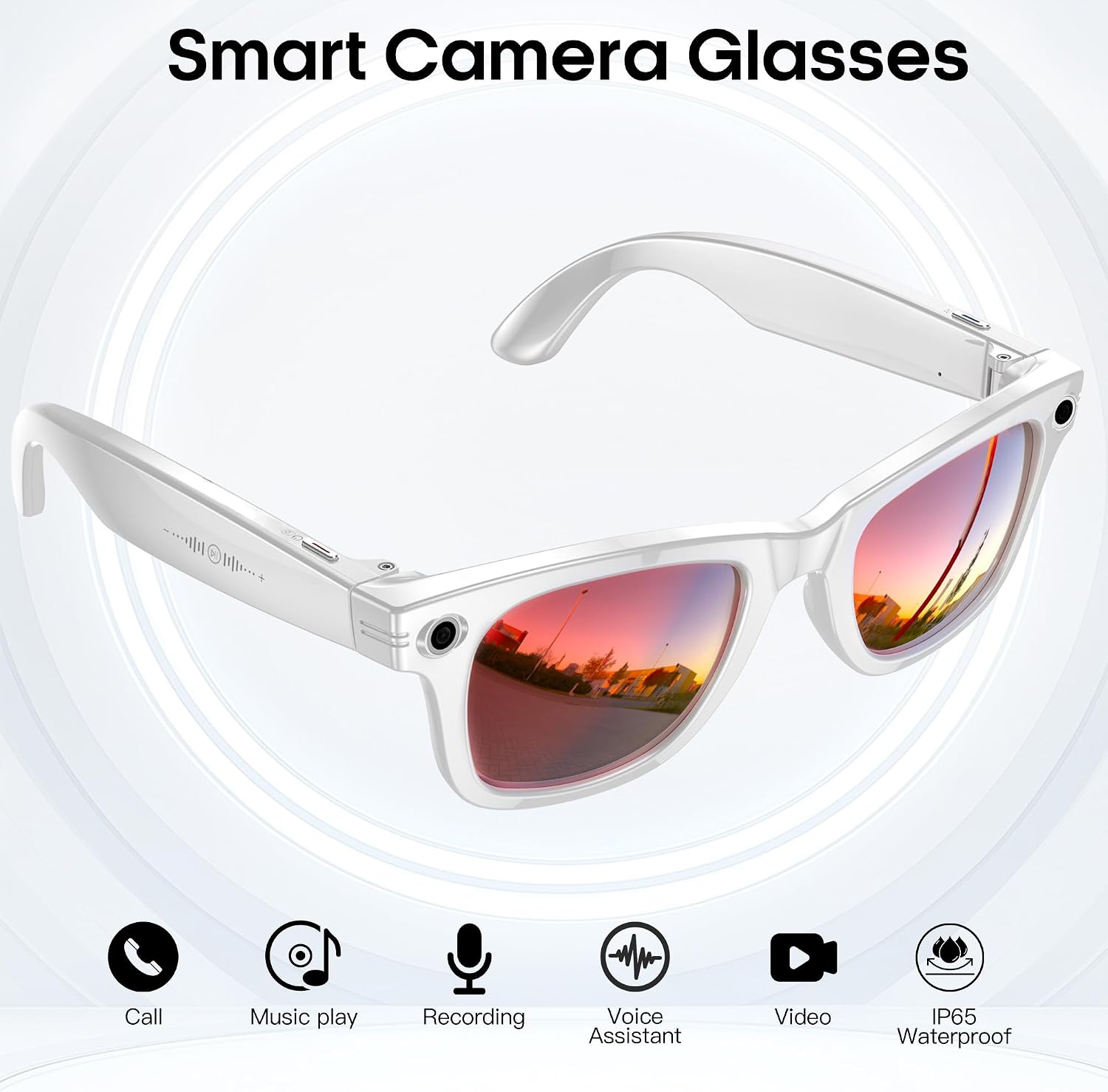
Image: Demonstrates 4K HD recording for capturing moments with friends.

Image: Highlights the ultra-stable anti-shake feature for vivid capturing during activities.

Image: Illustrates 1080P ultra-clear video recording capturing family moments.
3.2 AI Features (Translation, Object Recognition, Voice Assistant)
The integrated AI functions provide real-time voice translation, object recognition, and a smart voice assistant.
- Real-time AI Translation: Use the app to enable real-time voice translation, breaking down language barriers for travel or communication.
- AI Object Recognition: Point your camera at an object, and the AI will identify it, providing information via the app.
- Voice Assistant: Activate the voice assistant for hands-free control and information retrieval.

Image: Depicts the real-time AI translation feature in action.

Image: Illustrates the AI image recognition capability.
3.3 Audio Functions (Music, Calls, Recording)
Connect your glasses to your smartphone via Bluetooth 5.3 for stable audio streaming and communication.
- Music Playback: Tap the designated area on the temple to play/pause music. Enjoy open-ear audio for situational awareness.
- Making/Receiving Calls: Dual microphones with noise reduction ensure clear calls. Tap to answer/end calls.
- Volume Control: Slide your finger along the temple to adjust the volume.
- Audio Recording: Record high-quality audio for meetings, lectures, or personal notes. Recordings can be saved and played back via the app.

Image: Shows the music control feature for enjoying audio.

Image: Highlights the easy recording and HD sound quality feature.

Image: Explains the 360-degree dual stereo sound for balanced audio.
3.4 Data Transfer
Easily transfer your captured photos, videos, and audio recordings to your smartphone via WiFi for sharing and storage. The glasses include 32GB of built-in storage.
4. Maintenance
4.1 Cleaning
Use the provided cleaning cloth to gently wipe the lenses and frame. Avoid using harsh chemicals or abrasive materials that could damage the surfaces.
4.2 Water and Dust Resistance
The glasses feature an IP65 rating, providing resistance against dust and low-pressure water jets. This makes them suitable for daily use and light exposure to rain or sweat. Do not submerge the glasses in water.

Image: Illustrates the IP65 waterproof feature of the glasses.
4.3 Battery Care
To prolong battery life, avoid extreme temperatures and store the glasses in a cool, dry place. Charge the battery regularly, even if not in frequent use.

Image: Details the 270mAh long battery life specifications.
5. Troubleshooting
If you encounter issues with your hellibito AI Smart Camera Glasses, refer to the following common problems and solutions:
- Glasses not powering on: Ensure the battery is charged. Connect to the charger and try again.
- Unable to pair via Bluetooth: Make sure Bluetooth is enabled on your phone and the glasses are in pairing mode. Restart both devices and try again. Ensure no other devices are connected to the glasses.
- Camera not recording/taking photos: Check if the internal storage is full. Transfer files to your phone to free up space.
- Audio quality issues: Ensure the glasses are within Bluetooth range of your connected device. Check for obstructions or interference.
- App not connecting: Verify your phone has an active internet connection. Ensure the app is updated to the latest version.
6. Product Specifications
| Model Number | B0G716TVDN |
| Brand | hellibito |
| Wearable Computer Type | Smart Glasses |
| Memory Storage Capacity | 32 GB (Internal) |
| Battery Capacity | 270 Milliamp Hours |
| Battery Cell Composition | Lithium Polymer |
| Wireless Communication Standard | Bluetooth 5.3, WiFi |
| Compatible Devices | Smartphone (iOS and Android) |
| Human Interface Input | Microphone, Touch Controls |
| Supported Application | Voice Control, AI, Voice Assistant |
| Water Resistance Level | IP65 (Water Resistant) |
| Water Resistance Depth | 3 Meters (Not for submersion) |
| Resolution | 4K Photo, 1080P Video |
| Weight | 42g |
7. Warranty Information
Your hellibito AI Smart Camera Glasses come with a standard manufacturer's warranty. Please refer to your purchase documentation or contact customer support for specific details regarding warranty coverage and duration.
8. Customer Support
For further assistance, technical support, or inquiries, please visit the official hellibito website or contact our customer service team. Contact details can typically be found on our website or in your product packaging.