
1. Overview
The DJI Lito 1 is a compact and foldable drone designed for beginners and enthusiasts, offering advanced features for capturing high-quality aerial footage. It combines omnidirectional obstacle detection, intelligent flight modes like ActiveTrack, and impressive 4K video and 8K photo capabilities. Weighing less than 249g, it is easy to transport and compliant with C0 certification requirements in many regions.
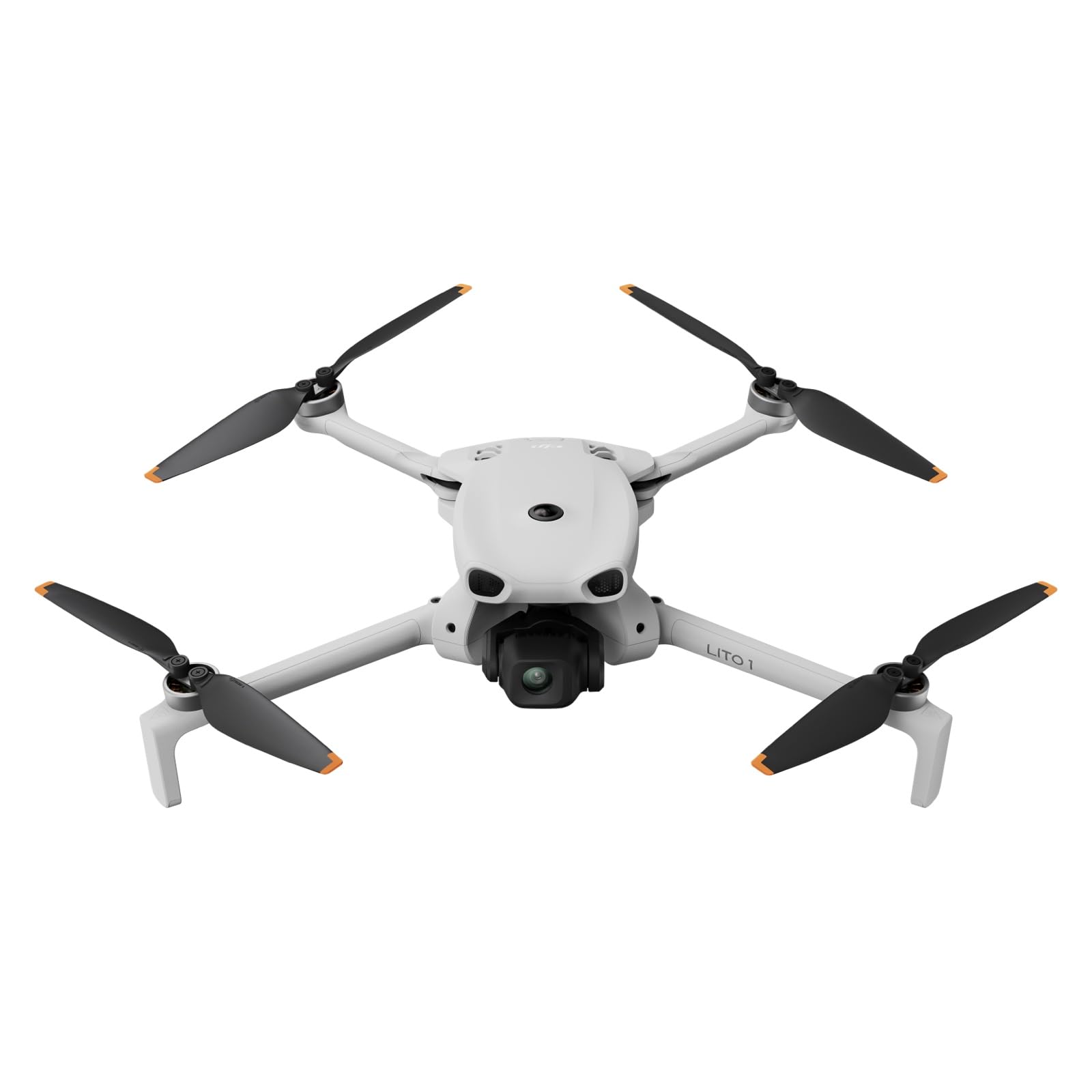
Image: The DJI Lito 1 drone, showcasing its compact design and camera gimbal.
Key Features:
- Omnidirectional Obstacle Detection: Helps the drone detect and avoid obstacles, ensuring safer flights for beginners.
- ActiveTrack: Enables smooth subject tracking for cinematic footage.
- 4K Video & 8K Photos: Records stunning 4K videos and captures sharp 8K photos.
- Lightweight & Foldable: Weighs under 249g, making it portable and easy to carry.
- Extended Flight Time: Enjoy prolonged flight sessions for creative exploration.
- Stable Video Transmission: Reliable video transmission up to 15 km.
2. Setup
2.1 What's in the Box

Image: The main components included in the DJI Lito 1 package: the drone, intelligent flight battery, and DJI RC-N3 remote controller.
Your DJI Lito 1 package includes:
- DJI Lito 1 Aircraft x 1
- DJI RC-N3 Remote Controller x 1
- DJI RC-N Series RC Cable (Lightning Connector) x 1
- DJI Lito 1 Gimbal Protector x 1
- Screwdriver x 1
- Spare Propellers for DJI Mini 3/DJI Lito Series (Pair) x 1
- DJI Lito 1 Intelligent Flight Battery x 1
2.2 Initial Preparation
- Charge Batteries: Fully charge the Intelligent Flight Battery and the remote controller before first use.
- Install Propellers: Attach the propellers according to the markings on the drone arms and propellers. Ensure they are securely fastened.
- Remove Gimbal Protector: Carefully remove the gimbal protector before powering on the drone.
- Download DJI Fly App: Download and install the latest version of the DJI Fly app from the official DJI website. Due to platform compatibility issues, the app may not be available on Google Play.
- Activate Aircraft: Follow the on-screen instructions in the DJI Fly app to activate your drone after connecting it to your mobile device and remote controller.
3. Operation
3.1 Pre-Flight Checklist & Safety
- Ensure all batteries are fully charged.
- Check propellers for damage and ensure they are securely attached.
- Verify the gimbal protector is removed.
- Check local regulations regarding drone flight, especially for night flights. Permits may be required in some regions.
- Fly in open areas, away from people, buildings, and obstacles.
3.2 Basic Flight Controls
Familiarize yourself with the DJI RC-N3 remote controller. Use the control sticks to maneuver the drone. The DJI Fly app provides a simulator to practice takeoff, landing, and camera movements safely.

Image: Two individuals relaxing on a beach, illustrating a typical outdoor setting for drone operation.
3.3 Intelligent Flight Features

Image: The DJI Lito 1 drone in flight, demonstrating its omnidirectional obstacle detection system.
The DJI Lito 1 is equipped with advanced features to enhance your flight and capture experience:
- Omnidirectional Obstacle Detection: The drone's vision system detects obstacles in all directions, allowing it to brake or change course automatically. This feature is particularly beneficial for new pilots.
- ActiveTrack: Select a subject, and the drone will automatically follow it, keeping it centered in the frame for dynamic shots.
- QuickShot: Pre-programmed flight paths that allow the drone to automatically perform complex cinematic maneuvers.
- MasterShot: The drone executes a series of complex flight maneuvers while recording, then automatically edits the footage into a short cinematic video.
- Hyperlapse: Create stunning time-lapse videos with dynamic camera movements.
- Panorama: Capture wide, detailed panoramic photos.

Image: Visual examples of various intelligent flight modes available on the DJI Lito 1, including ActiveTrack and Panorama.
3.4 Camera Operation

Image: A collage demonstrating the DJI Lito 1's imaging capabilities, including 8K photos, 4K video, slow-motion, and vertical video.
- 4K Video Recording: Record smooth and vibrant 4K video at up to 60 frames per second (fps).
- 8K Photo Capture: Take highly detailed 8K still images.
- Slow-Motion Video: Capture dynamic scenes in 4K at 100fps for fluid slow-motion effects.
- Vertical Recording: Optimized vertical video recording in 2.7K for social media platforms.
3.5 Video Transmission
The DJI Lito 1 utilizes O4 video transmission technology, providing a stable and clear video feed up to 15 km. This ensures a reliable connection and crisp imagery during remote flights.
4. Maintenance
4.1 Battery Care
- Always use the official DJI charger and charging hub.
- Do not overcharge or over-discharge batteries.
- Store batteries in a cool, dry place, partially charged (around 50-60%) if not used for extended periods.
- Avoid exposing batteries to extreme temperatures.

Image: A DJI Lito 1 charging hub with multiple intelligent flight batteries, demonstrating efficient parallel charging.
4.2 Propeller & Gimbal Maintenance
- Regularly inspect propellers for cracks, bends, or other damage. Replace damaged propellers immediately.
- Ensure the gimbal protector is used when transporting or storing the drone to prevent damage to the camera and gimbal mechanism.
- Keep the camera lens clean using a soft, lint-free cloth.
4.3 Cleaning the Drone
Use a soft, dry cloth to clean the drone's body. Avoid using liquids or solvents that could damage electronic components. Ensure no dust or debris accumulates in the motor areas.
5. Troubleshooting
5.1 Common Issues & Solutions
| Issue | Possible Cause | Solution |
|---|---|---|
| Drone does not power on | Low battery, battery not inserted correctly | Charge battery, reinsert battery firmly. |
| No video feed in DJI Fly app | Poor connection, app not updated, cable issue | Ensure remote is connected to phone, restart app/drone, check cable, update app. |
| Drone drifts during flight | GPS signal weak, compass interference, IMU calibration needed | Fly in open area, recalibrate compass/IMU via DJI Fly app. |
| Gimbal not stable or level | Gimbal protector still on, calibration needed, physical obstruction | Remove protector, recalibrate gimbal via DJI Fly app, check for obstructions. |
5.2 General Advice
- Always ensure your DJI Fly app and drone firmware are updated to the latest versions.
- If an issue persists, refer to the comprehensive user manual available on the official DJI website.
- Contact DJI Support if you cannot resolve the issue.
6. Specifications
| Feature | Detail |
|---|---|
| Brand | DJI |
| Model Name | Lito 1 |
| Weight | 249 Grams |
| Dimensions (L x W x H) | 25.1L x 7.9W x 18.3H cm |
| Video Capture Resolution | 4K |
| Effective Still Image Resolution | 48 MP (8K photos) |
| Max Range | 15 Kilometers |
| Battery Composition | Lithium Polymer |
| Control Type | Remote Control |
| Special Features | Omnidirectional Obstacle Detection, ActiveTrack, 4K Video, 8K Photos, Lightweight (<249g), Extended Flight Time, Stable 15km Video Transmission |
| Age Range Description | Adults |
| UPC | 190021172524 |
7. Warranty & Support
7.1 Product Warranty
The DJI Lito 1 drone comes with a standard manufacturer's warranty provided by DJI. For detailed information regarding warranty terms, coverage, and duration, please refer to the official DJI website or the warranty card included with your product.
7.2 Customer Support
For further assistance, technical support, or to download the latest user manuals and the DJI Fly app, please visit the official DJI support website:
Visit DJI Official Support Website
It is recommended to regularly check the DJI website for firmware updates and app versions to ensure optimal performance and access to the latest features.


