
Ultrbeka Ultrbeka-BR02
Ultrbeka Bluetooth 6.0 Receiver (Model: Ultrbeka-BR02) Instruction Manual
Model: Ultrbeka-BR02
Introduction
The Ultrbeka Bluetooth 6.0 Receiver (Model: Ultrbeka-BR02) is designed to enable wireless audio streaming from your Bluetooth-enabled devices to your existing home stereo system, amplifier, or speakers. This device utilizes Bluetooth 6.0 technology for a stable and efficient connection, offering an enhanced audio experience with low latency and noise cancellation. This manual provides essential information for proper setup, operation, and maintenance of your receiver.

Image: The Ultrbeka Bluetooth 6.0 Receiver integrates with a home stereo system, allowing wireless audio playback.
Package Contents
Please verify that all items listed below are included in your package:
- One Ultrbeka Bluetooth 6.0 Receiver (Model: Ultrbeka-BR02)
- One Type-C Charging Cable (USB-A to USB-C, 3FT/1M)
- One RCA to 3.5mm Audio Cable (3FT/1M)
- One 3.5mm Audio Cable (3FT/1M)
- One User Manual

Image: The package includes the Bluetooth receiver, a USB-C charging cable, a 3.5mm audio cable, an RCA to 3.5mm cable, and the user manual.
Product Overview
Ports and Connectors
The Ultrbeka Bluetooth 6.0 Receiver features the following ports for connectivity:
- DC 5V (USB-C) Port: For power supply using the provided Type-C charging cable.
- RCA Audio Output Ports (Red/White): Connect to your stereo receiver or amplifier using the RCA to 3.5mm cable.
- 3.5mm Aux Audio Output Port: Connect to speakers or headphones using a 3.5mm audio cable.
Control Buttons
The top panel of the receiver includes several buttons for easy control:
- Power Button (Center): Press and hold for 3 seconds to power on or off. A short press can pause/play music.
- Volume Up / Next Track Button (+): Short press to increase volume. Long press to skip to the next track.
- Volume Down / Previous Track Button (-): Short press to decrease volume. Long press to go to the previous track.
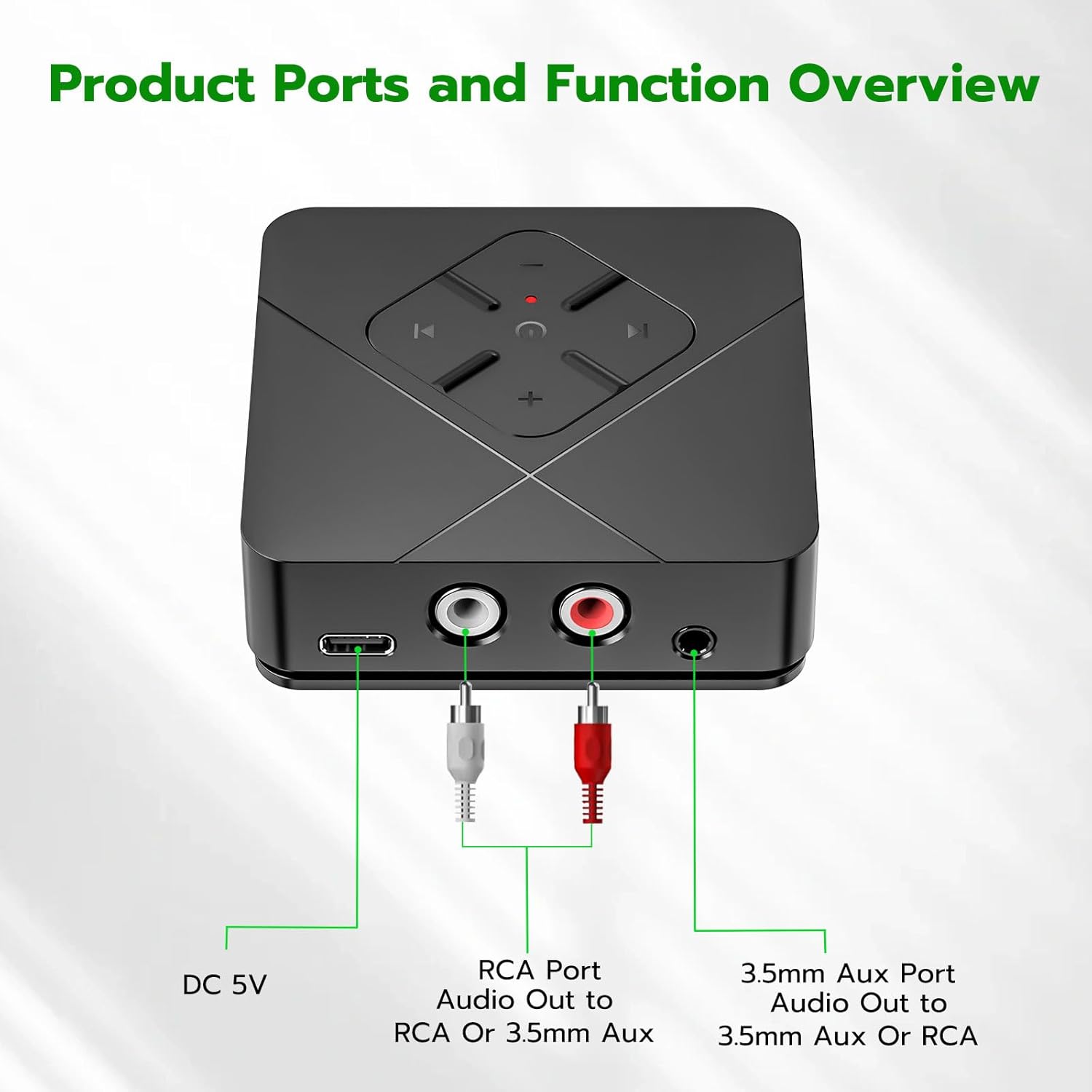
Image: Front view of the receiver highlighting the DC 5V (USB-C) port, RCA audio output ports, 3.5mm Aux audio output port, and the control buttons on top.
Setup Instructions
Follow these steps to set up your Ultrbeka Bluetooth 6.0 Receiver:
- Connect Power: Insert the Type-C charging cable into the DC 5V port on the receiver and connect the other end to a USB power source (e.g., USB wall adapter, computer USB port).
- Connect to Audio System:
- For RCA Input: Use the provided RCA to 3.5mm cable. Connect the RCA plugs (red and white) to the corresponding input jacks on your stereo receiver or amplifier. Connect the 3.5mm end to the 3.5mm Aux Audio Output port on the Bluetooth receiver.
- For 3.5mm Aux Input: Use the provided 3.5mm audio cable. Connect one end to the 3.5mm Aux Audio Output port on the Bluetooth receiver and the other end to the 3.5mm Aux input on your speaker or headphones.
- Power On: Press and hold the power button (center button) on the receiver for 3 seconds. The device will prompt "Power on" and the LED indicator will light up, indicating it is ready for pairing.

Image: Visual guide for connecting the power and audio cables, and initiating Bluetooth pairing.
Operating Instructions
Bluetooth Pairing
To connect your audio source device (e.g., smartphone, tablet) to the Ultrbeka Bluetooth 6.0 Receiver:
- Ensure the receiver is powered on and within a 10-meter (32-foot) transmission range of your audio source device.
- On your audio source device, navigate to the Bluetooth settings.
- Search for available Bluetooth devices. You will find "Ultrbeka-BR02" in the list.
- Select "Ultrbeka-BR02" to initiate pairing. Once connected, you will hear a "Connected" sound prompt from the receiver.
- The receiver features an automatic memory function and can store up to five previously paired devices for quick reconnection.

Image: Step-by-step visual guide for connecting the receiver to a speaker and pairing with a mobile phone.

Image: A smartphone connected to a speaker system through the Ultrbeka Bluetooth receiver, demonstrating wireless music playback.
Music Playback and Control
Once paired, you can control your music directly from your audio source device or using the buttons on the receiver:
- Play/Pause: Short press the power button (center) on the receiver.
- Volume Adjustment: Short press the '+' button to increase volume, or the '-' button to decrease volume.
- Track Navigation: Long press the '+' button for the next track, or the '-' button for the previous track.
Troubleshooting
If you encounter issues with your Ultrbeka Bluetooth 6.0 Receiver, please refer to the following common solutions:
| Problem | Possible Cause / Solution |
|---|---|
| Device does not power on. | Ensure the Type-C charging cable is securely connected to both the receiver and a working USB power source. Verify the power source is active. |
| Cannot find "Ultrbeka-BR02" in Bluetooth settings. |
|
| No sound or poor sound quality. |
|
| Bluetooth connection is unstable or disconnects frequently. |
|
Specifications
| Feature | Detail |
|---|---|
| Model Name | Ultrbeka-BR02 |
| Bluetooth Version | 6.0 |
| Bluetooth Protocol | AVRCP and A2DP |
| Audio Output | 3.5mm Stereo Audio, RCA |
| Transmission Range | Up to 10 meters (32 feet) |
| Power Supply | DC 5V (via Type-C USB port) |
| Dimensions (L x W x H) | 59mm x 59mm x 15mm (2.32" x 2.32" x 0.59") |
| Frequency Response | 20Hz-20KHz |
| Signal-to-Noise Ratio (SNR) | >90dB |
| Total Harmonic Distortion (THD) | <0.1% |
| Audio Codec Support | SBC, AAC |
Maintenance
To ensure the longevity and optimal performance of your Ultrbeka Bluetooth 6.0 Receiver, please follow these maintenance guidelines:
- Keep the device dry and away from moisture.
- Avoid exposing the device to extreme temperatures.
- Clean the device with a soft, dry cloth. Do not use harsh chemicals or abrasive cleaners.
- Store the device in a cool, dry place when not in use.
- Do not attempt to disassemble or repair the device yourself, as this will void the warranty.
Warranty and Support
The Ultrbeka Bluetooth 6.0 Receiver (Model: Ultrbeka-BR02) comes with a 2-Year Manufacturer's Warranty. This warranty covers defects in materials and workmanship under normal use.
For technical support, warranty claims, or any questions regarding your product, please contact Ultrbeka customer service. Refer to the contact information provided on the product packaging or the official Ultrbeka website.
Related documentsUltrbeka-BR02

Ask a question about this manual
Ask about setup, troubleshooting, compatibility, parts, safety, or missing instructions. Manuals+ will review the question and use this page’s manual context to help answer it.