
1. Introduction
The Inateck BCST-48 is a versatile 2D wireless barcode scanner designed for efficient data collection in various environments such as warehouses, retail stores, and inventory management. This compact and lightweight device offers multiple connectivity options and broad compatibility, making it a reliable tool for diverse scanning needs.
Key features include a real-time feedback screen, support for a wide range of 1D and 2D barcodes, and a high-capacity battery for extended operation.
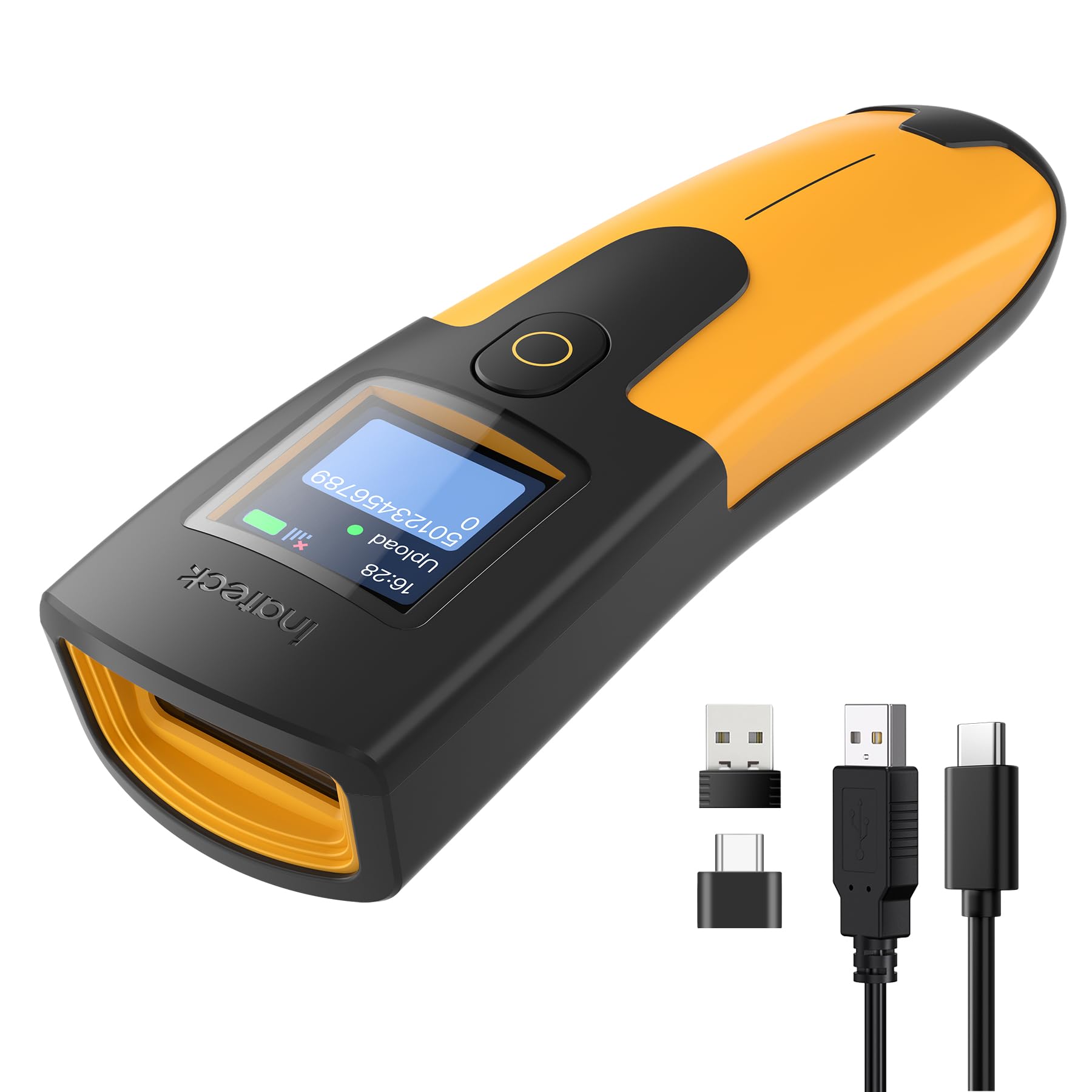
Figure 1: Inateck BCST-48 Barcode Scanner
Package Contents
- Inateck BCST-48 Barcode Scanner
- USB Charging Cable
- 2.4G Wireless Dongle (if applicable)
- User Manual (this document)
2. Setup and Connection
Before using your Inateck BCST-48 scanner, ensure it is adequately charged and connected to your host device using one of the available methods.
2.1 Charging the Scanner
Connect the scanner to a power source using the provided USB cable. The screen will indicate the charging status. A full charge provides up to a week of standby time or 20 hours of continuous scanning.
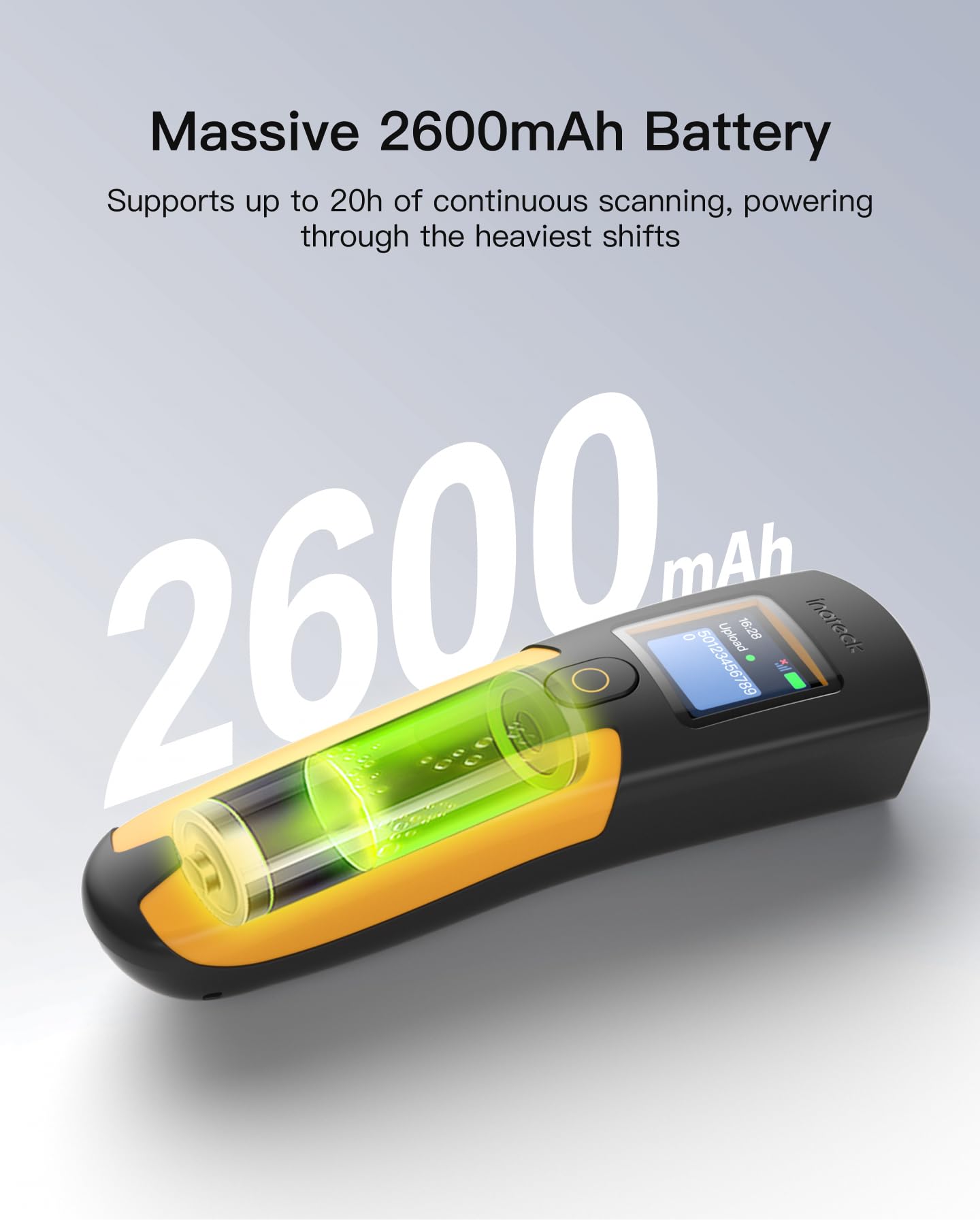
Figure 2: High-capacity 2600mAh battery for extended use.
2.2 Connection Modes
The BCST-48 supports three connection methods: Bluetooth, 2.4G Wireless, and USB Wired.
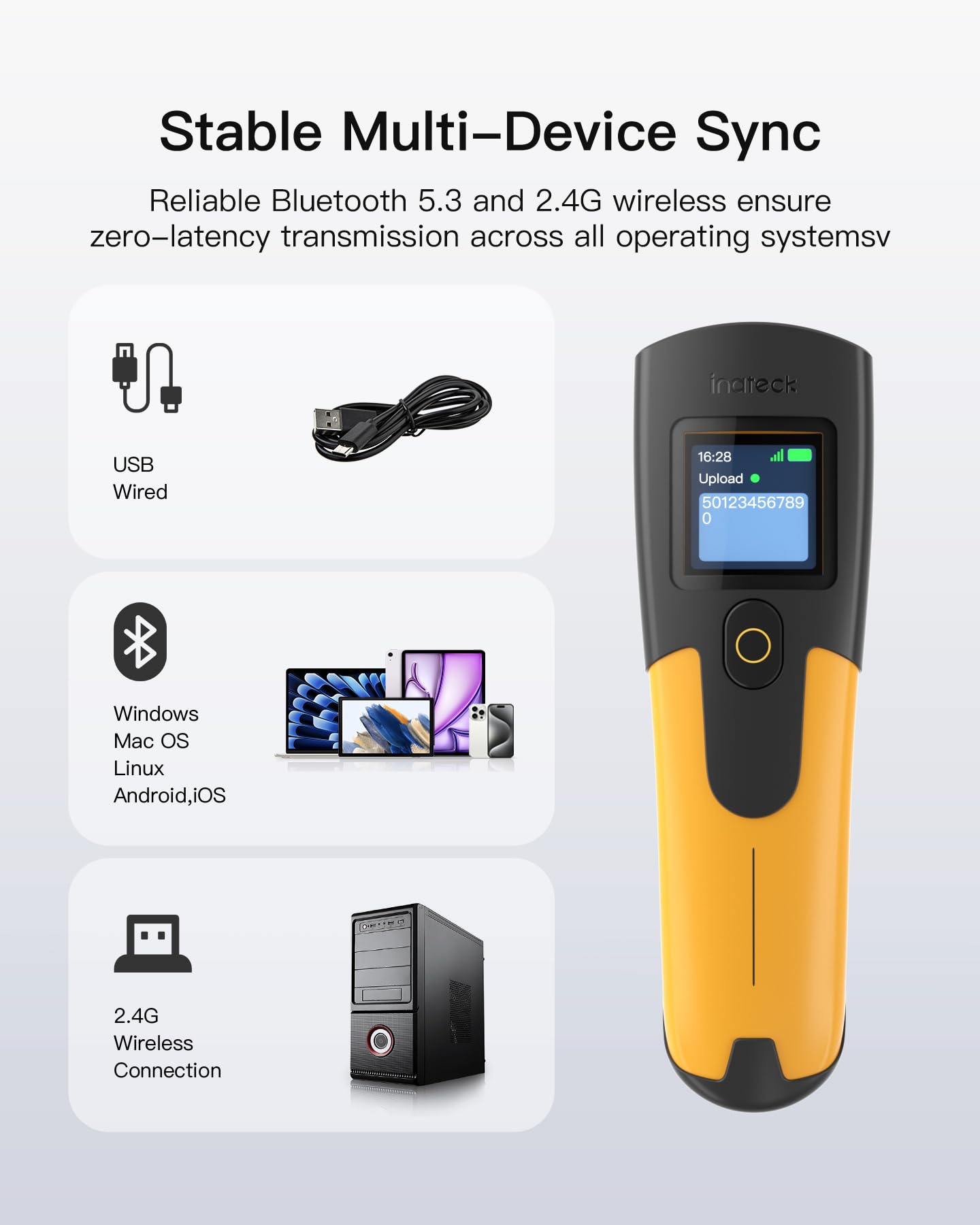
Figure 3: Multiple connectivity options for various devices.
2.2.1 Bluetooth Connection
- Turn on the scanner.
- On the scanner, navigate to the Bluetooth settings and enable pairing mode.
- On your host device (PC, tablet, smartphone), enable Bluetooth and search for available devices.
- Select "Inateck BCST-48" from the list of devices to pair.
- The scanner's screen will confirm a successful connection.
2.2.2 2.4G Wireless Connection
- Insert the 2.4G wireless dongle into a USB port on your host device.
- Turn on the scanner.
- The scanner should automatically connect to the dongle. The screen will indicate the connection status.
2.2.3 USB Wired Connection
- Connect the scanner to your host device using the provided USB cable.
- The scanner will function as a wired device, and the screen will indicate the wired connection status.
3. Operating Instructions
The Inateck BCST-48 is designed for intuitive operation. Familiarize yourself with its scanning capabilities and modes.
3.1 Scanning Barcodes
Point the scanner's window at the barcode you wish to scan and press the trigger button. A successful scan will be indicated by a beep, vibration (if enabled), and the scanned data appearing on the screen.
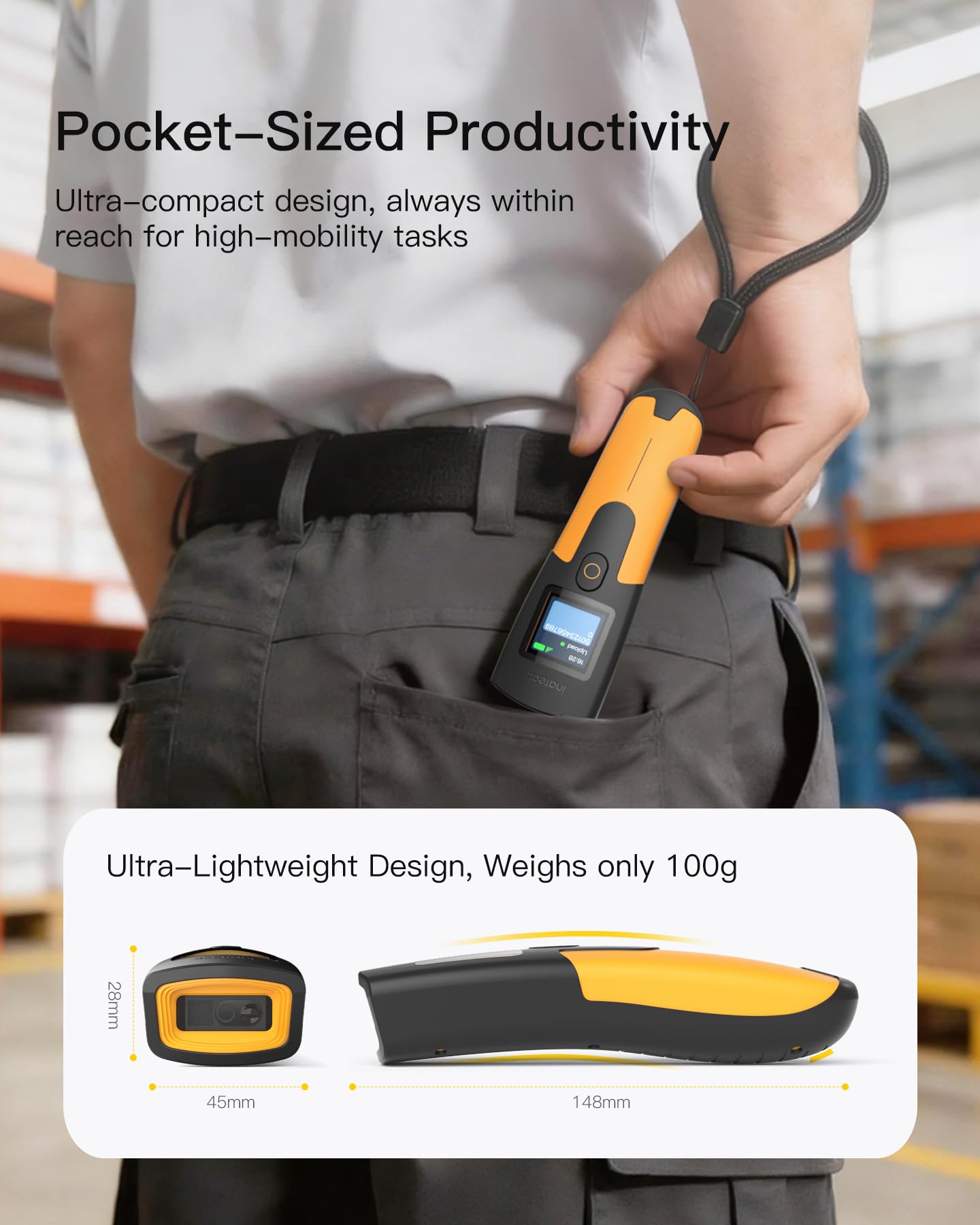
Figure 4: Real-time feedback on the scanner's display shows battery, connection, and scan counts.
3.2 Supported Barcode Types
The scanner supports a wide array of 1D and 2D barcode types, including those on paper and digital screens.
- 1D Barcodes: EAN-8, EAN-13, UPC-A, UPC-E, Code 39, Code 93, Code 128, UCC/EAN 128, Codabar, Interleaved 2 of 5, ITF-6, ITF-14, ISBN, ISSN, MSI-Plessey, GS1 Databar, Code 14.1, Industrial 2 of 5, Standard 25, Matrix 2 of 5.
- 2D Barcodes: QR Code, Data Matrix, PDF417, Aztec, Maxicode.
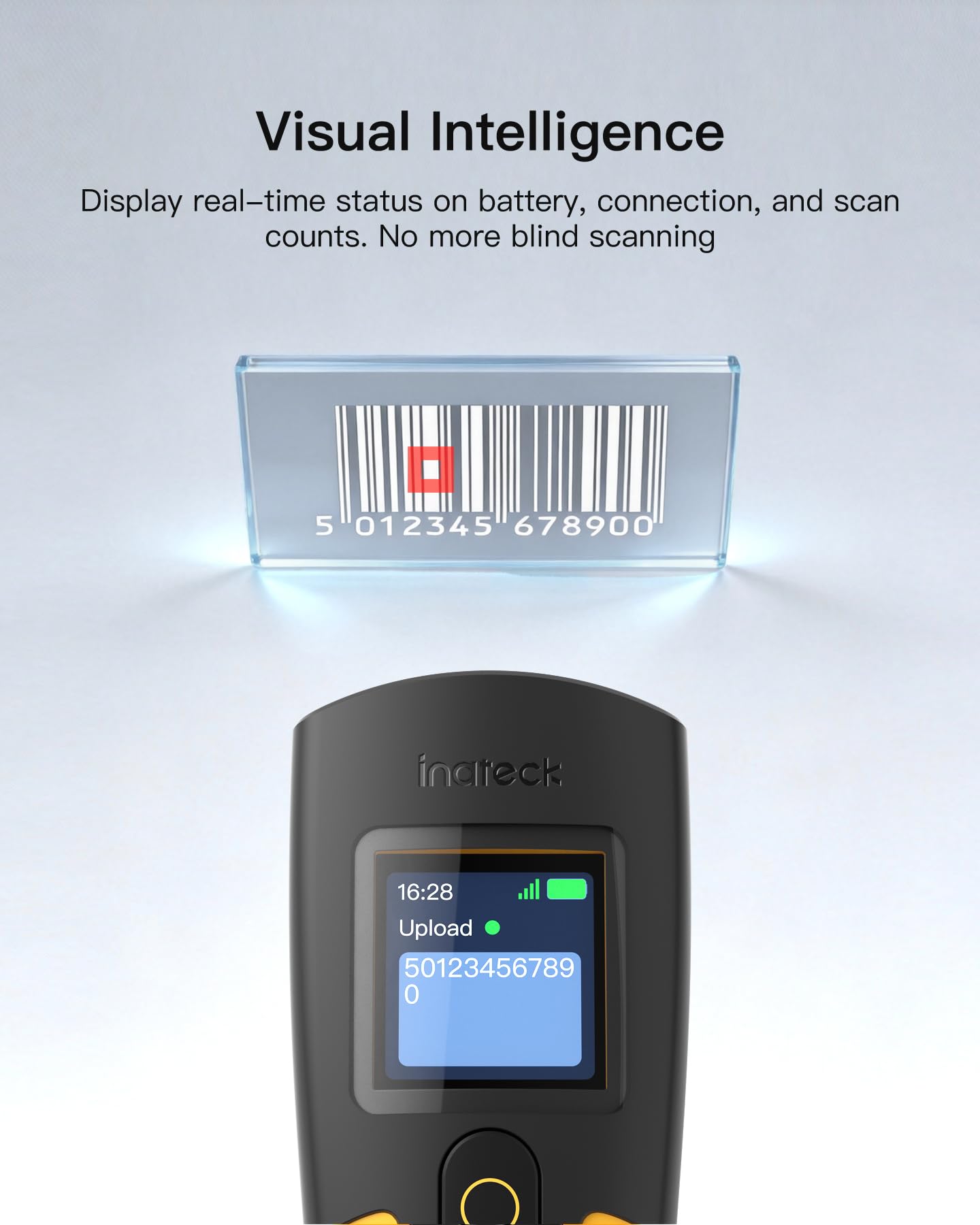
Figure 5: The scanner supports various 1D and 2D barcode formats.
3.3 Scanning Modes
- Manual Scan Mode: Press the trigger button for each scan.
- Auto-Detection Mode: The scanner automatically detects and scans barcodes when presented.
- Continuous Scan Mode: The scanner continuously scans without requiring trigger presses.
Refer to the scanner's on-screen menu or the companion application for switching between these modes.
3.4 Notification Options
The scanner provides feedback through multiple channels:
- Vibration: Tactile feedback for successful scans.
- Sound: Audible beep for successful scans.
- Screen: Visual confirmation of scanned data and status.
These options can be configured via the scanner's settings or the dedicated application.
3.5 Using the Companion App and SDK
The Inateck BCST-48 can be configured and managed using a dedicated application. This app simplifies common functions such as barcode type detection, Bluetooth connection management, battery status display, warning settings, and barcode type settings. An SDK is also available for developers to integrate the scanner's functionalities into custom applications.
4. Maintenance
Proper maintenance ensures the longevity and optimal performance of your scanner.
4.1 Cleaning
- Use a soft, dry cloth to clean the scanner's exterior.
- For the scanning window, use a lens cleaning cloth or a soft cloth lightly dampened with a non-abrasive cleaner.
- Do not use harsh chemicals or abrasive materials, as they can damage the device.
4.2 Battery Care
- Avoid fully discharging the battery frequently.
- Charge the scanner regularly, even if not in constant use, to maintain battery health.
- Store the scanner in a cool, dry place when not in use for extended periods.
4.3 Storage
Store the scanner in a protective environment, away from extreme temperatures, direct sunlight, and moisture. The device's robust design, encased in soft rubber, offers protection against drops up to 1.2 meters.
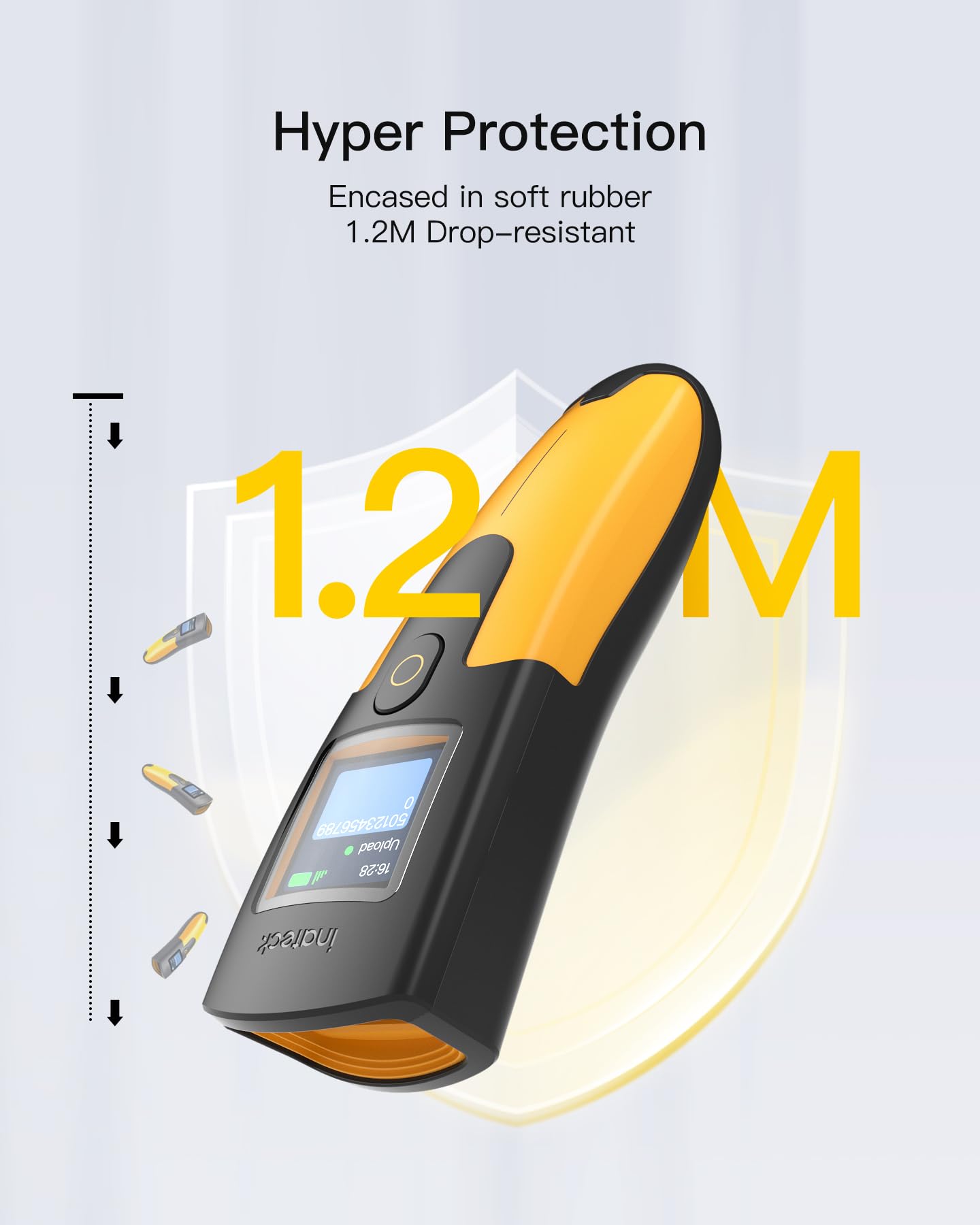
Figure 6: The scanner features a durable, drop-resistant design.
5. Troubleshooting
If you encounter issues with your Inateck BCST-48 scanner, refer to the following common problems and solutions.
5.1 Scanner Not Connecting
- Check Power: Ensure the scanner is turned on and has sufficient battery charge.
- Verify Connection Mode: Confirm the scanner is in the correct pairing mode (Bluetooth, 2.4G, or USB).
- Re-pair Device: For Bluetooth or 2.4G, try unpairing and re-pairing the scanner with your host device.
- USB Connection: If using USB, ensure the cable is securely connected to both the scanner and the host device.
- Driver Installation: For some operating systems, ensure necessary drivers are installed (usually automatic for USB).
5.2 Barcodes Not Scanning
- Barcode Condition: Ensure the barcode is clear, undamaged, and not excessively reflective.
- Distance and Angle: Adjust the distance and angle between the scanner and the barcode.
- Lighting: Ensure adequate lighting, but avoid direct glare on the barcode.
- Barcode Type: Verify that the barcode type is supported by the scanner (refer to Section 3.2).
- Scanner Settings: Check if the scanner's settings (e.g., scanning mode) are appropriate for the barcode type.
5.3 Battery Life Issues
- Full Charge: Ensure the scanner is fully charged before use.
- Usage Patterns: Continuous scanning or frequent use of wireless modes can consume battery faster.
- Battery Health: Over time, battery capacity may decrease. Follow battery care guidelines in Section 4.2.
6. Specifications
| Feature | Detail |
|---|---|
| Model Number | BCST-48 (BCST-N6016-BK) |
| Manufacturer | Inateck |
| Connectivity Technology | Bluetooth, USB, 2.4G Wireless |
| Compatible Devices | Desktop computer, Laptop, Smartphone, Tablet (Windows, Mac OS, Linux, Android, iOS) |
| Power Source | Battery powered (1 Lithium-ion battery included) |
| Battery Capacity | 2600mAh |
| Compliance | CE |
| Drop Resistance | Up to 1.2 meters |
| Display | Real-time feedback screen |
7. Warranty and Support
Inateck products are covered by a manufacturer's warranty. For specific warranty terms and conditions, please refer to the warranty card included with your product or visit the official Inateck website.
For technical support, troubleshooting assistance, or inquiries about your product, please contact Inateck customer service through their official website or the contact information provided in your product packaging.
Official Website: www.inateck.com


