
KCEVE KC-C213DH2
KCEVE KVM Switch for 2 Laptops, 3 Monitors (2 HDMI + 1 DP) with USB-C PD Charging, 4K@60Hz - Instruction Manual
Model: KC-C213DH2
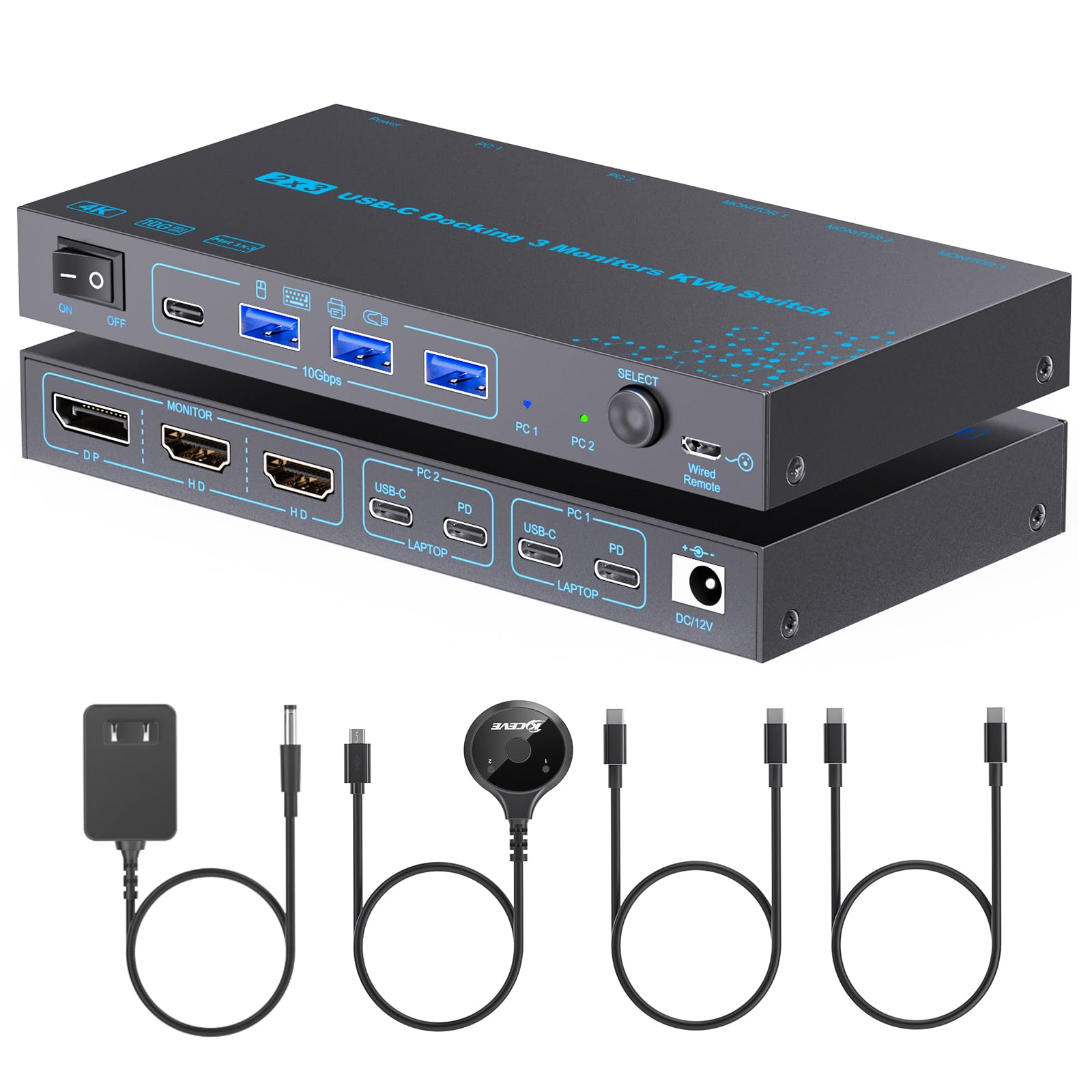
Image: The KCEVE KVM Switch device.
Introduction
This manual provides detailed instructions for the installation, operation, and maintenance of your KCEVE KVM Switch. This device allows two laptops to share three monitors (two HDMI, one DisplayPort) and multiple USB peripherals, supporting resolutions up to 4K@60Hz and USB-C Power Delivery (PD) charging.
Please read this manual thoroughly before use to ensure proper setup and optimal performance.
Package Contents
Verify that all items listed below are included in your package:
- 1x KVM Switch (2 Laptops, 3 Monitors)
- 2x USB-C 3.1 Gen2 Cables
- 1x Wired Remote Control
- 1x 12V Power Cable
- 1x User Manual

Image: KVM Switch, USB-C cables, wired remote, 12V power adapter, and user manual included in the package.
Product Features
- Multi-Stream Transport (MST) / Single-Stream Transport (SST) Support:
- Windows OS: Supports SST and MST for displaying identical or different content across monitors.
- macOS: Supports SST only, meaning all three monitors will display the same picture.
- High Resolution Output:
- Windows Mirror Mode: Up to 4K@60Hz on all three monitors.
- Windows Extended Mode: Two monitors support 4K@60Hz, one monitor supports 1080p@60Hz.
- Efficient Data Transfer & Charging:
- Includes 2 Type-C data cables for laptop connections.
- PD charging port (up to 65W) for laptops. Requires user-supplied laptop power adapter.
- USB-C KVM Switch supports data transfer up to 10Gbps (USB 3.2 Gen2), backward compatible with USB 3.0/2.0/1.1.
- Multiple USB Ports: 3x USB-A ports and 1x USB-C port for connecting keyboard, mouse, printer, scanner, and other USB devices.
- Dual Switching Methods: Switch between connected laptops using a physical button on the KVM or the included 1.5m wired remote control.
- Driver-Free Operation: Plug and Play functionality, no drivers required for most operating systems.
Setup Instructions
Follow these steps to connect your KVM switch:
1. Power Connection
- Connect the provided 12V power adapter to the DC/12V port on the KVM switch and then to a power outlet.

Image: Overview of KVM switch connections for two laptops, three monitors, and four USB devices.
2. Monitor Connections
- Connect your first monitor to the KVM's DisplayPort (DP) output using a DP cable.
- Connect your second monitor to one of the KVM's HDMI outputs using an HDMI cable.
- Connect your third monitor to the remaining HDMI output using an HDMI cable.
3. Laptop/PC Connections
Important: Ensure your laptop's USB-C port supports DP Alt Mode (Video, Data, and PD Transfer) for full functionality.
- For Laptop 1:
- Connect one end of a provided USB-C 3.1 Gen2 cable to the KVM's "PC 1" USB-C port.
- Connect the other end of the USB-C cable to a compatible USB-C port on Laptop 1.
- (Optional) If you need to charge Laptop 1 via the KVM, connect your laptop's power adapter to the KVM's "PD" port for PC 1.
- For Laptop 2:
- Connect one end of the second provided USB-C 3.1 Gen2 cable to the KVM's "PC 2" USB-C port.
- Connect the other end of the USB-C cable to a compatible USB-C port on Laptop 2.
- (Optional) If you need to charge Laptop 2 via the KVM, connect your laptop's power adapter to the KVM's "PD" port for PC 2.

Image: Illustration of connecting laptop power adapters to the KVM's PD ports for charging.
4. Peripheral Connections
- Connect your keyboard, mouse, USB drive, or other USB peripherals to the available USB-A and USB-C ports on the front of the KVM switch.
5. Wired Remote Control (Optional)
- Connect the wired remote control to the "Wired Remote" port on the KVM switch for convenient switching.
Operating Instructions
Switching Between Laptops
You can switch between Laptop 1 and Laptop 2 using two methods:
- Physical Button: Press the "SELECT" button on the front panel of the KVM switch.
- Wired Remote Control: Press the button on the wired remote control.
The LED indicator next to "PC 1" or "PC 2" will illuminate to show which laptop is currently active.

Image: Demonstrates switching between laptops using the physical button on the KVM or the wired remote control.
Display Modes
The KVM switch supports different display configurations depending on your operating system:
- Windows OS (SST/MST):
- Mirror Mode: All three monitors can display the same content at up to 4K@60Hz.
- Extended Mode: Two monitors can display different content at 4K@60Hz, and the third monitor will display at 1080p@60Hz.
- To configure display settings, press "Windows + P" on your keyboard and select the appropriate display mode (Duplicate or Extend).
- macOS (SST Only):
- Due to macOS M1/M2 limitations regarding Multi-Stream Transport (MST), all three monitors will display the same picture (Mirror mode) or one extended screen from the Mac.

Image: Examples of display configurations for Windows OS, including duplicate and extended modes.

Image: Examples of display configurations for Mac OS, showing mirrored displays due to SST limitation.
Maintenance
- Keep the KVM switch in a dry, well-ventilated area, away from direct sunlight and heat sources.
- Clean the device with a soft, dry cloth. Do not use liquid or aerosol cleaners.
- Ensure all cables are securely connected to prevent signal loss or intermittent issues.
- Avoid placing heavy objects on the KVM switch.
Troubleshooting
If you encounter issues with your KVM switch, refer to the following common solutions:
No Display / Incorrect Resolution
- Check Cable Connections: Ensure all HDMI, DisplayPort, and USB-C cables are firmly connected to both the KVM switch and your laptops/monitors.
- Verify DP Alt Mode: Confirm that your laptop's USB-C port supports DP Alt Mode (Video, Data, and PD Transfer). Not all USB-C ports have this capability.
- Power Cycle: Disconnect the KVM's power adapter, wait a few seconds, then reconnect it. Restart your laptops.
- Display Settings: On Windows, press "Windows + P" and select the appropriate display mode (Duplicate, Extend). On macOS, check System Preferences > Displays.
- Resolution Limitations: In Windows Extended Mode, one monitor will be limited to 1080p@60Hz. On macOS, all three monitors will mirror the same content.
USB Peripherals Not Working
- Check USB Connections: Ensure USB devices are securely plugged into the KVM's USB ports.
- Power Supply: Ensure the KVM switch is properly powered.
- Switching Lag: A slight delay (3-5 seconds) is normal when switching between computers as USB devices are re-enumerated.
- USB HID Emulation: This KVM switch does not maintain emulated USB connections. Each switch event is a disconnect/reconnect for the operating system. This is normal behavior.
- External Storage: Avoid plugging flash drives or external hard drives into the KVM if frequent switching is required, as improper ejection can lead to data corruption. Always safely eject devices from the operating system before switching.
Laptops Not Charging
- Connect Laptop Power Adapter: The KVM's PD ports require your laptop's own power adapter to be connected to provide charging. The KVM itself does not supply power for charging without an external adapter.
- Verify PD Compatibility: Ensure your laptop and its power adapter support USB-C Power Delivery.
Minor Freezing/Flickering
- Check Cables: Ensure high-quality, certified HDMI and DisplayPort cables are used. Loose or low-quality cables can cause intermittent issues.
- Re-seat Cables: Disconnect and reconnect all display cables.
- Test Directly: Connect monitors directly to the laptop to rule out monitor or laptop issues.
System Not Waking from Suspend
- The KVM switch may not wake computers from suspend mode if the USB devices were detached during or before that state. You may need to wake your computer manually (e.g., by opening the laptop lid or pressing the power button).
Specifications
| Feature | Detail |
|---|---|
| Model | KC-C213DH2 |
| Brand | KCEVE |
| Connectivity Protocol | USB 3.0 (Data transfer up to 10Gbps via USB-C 3.2 Gen2) |
| Video Output | 2x HDMI, 1x DisplayPort |
| Max Resolution (Mirror Mode) | 4K@60Hz (all 3 monitors, Windows) |
| Max Resolution (Extended Mode) | 2x 4K@60Hz, 1x 1080p@60Hz (Windows) |
| USB Ports | 3x USB-A, 1x USB-C |
| PD Charging | Up to 65W (requires external laptop power adapter) |
| Switching Method | Physical button, Wired remote control |
| Material | Metal |
| Item Dimensions (L x W x H) | 6.22 x 3.2 x 0.76 inches (15.8 x 8.12 x 1.92 cm) |
| Operating Voltage | 5 Volts |
| Wattage | 5 watts |
Warranty Information
For detailed warranty information, please refer to the warranty card included with your product or visit the official KCEVE website. Keep your proof of purchase for warranty claims.
Customer Support
If you require further assistance or have questions not covered in this manual, please contact KCEVE customer support through their official website or the contact information provided in your purchase documentation.
Related documentsKC-C213DH2


Ask a question about this manual
Ask about setup, troubleshooting, compatibility, parts, safety, or missing instructions. Manuals+ will review the question and use this page’s manual context to help answer it.