1. Introduction
Thank you for purchasing the Wielio Smart Projector AE211B. This projector combines advanced imaging technology with a smart Android 14 operating system, offering a versatile and immersive viewing experience. This manual provides essential information for setting up, operating, and maintaining your projector to ensure optimal performance and longevity.
2. Safety Information
- Electrical Safety: Always use the provided power adapter. Do not expose the projector to rain or moisture. Disconnect power during lightning storms or when unused for long periods.
- Heat Management: Ensure adequate ventilation around the projector. Do not block ventilation openings. Avoid placing the projector on soft surfaces that may obstruct airflow.
- Eye Safety: Do not look directly into the projector lens when the lamp is on. The bright light can cause eye damage.
- Placement: Place the projector on a stable, level surface. Avoid areas with excessive dust, vibrations, or extreme temperatures.
- Cleaning: Use a soft, dry cloth for cleaning. For the lens, use a specialized lens cleaning cloth and solution.
3. Package Contents
Please check that all the following items are included in your package:
- Wielio Smart Projector AE211B
- Remote Control
- Power Adapter
- User Manual
- HDMI Cable (may vary by region)
4. Product Overview
The Wielio AE211B is a compact and feature-rich smart projector designed for various entertainment and presentation needs. It boasts a 360° rotatable stand for flexible projection angles, electric focus, and auto keystone correction for easy setup.
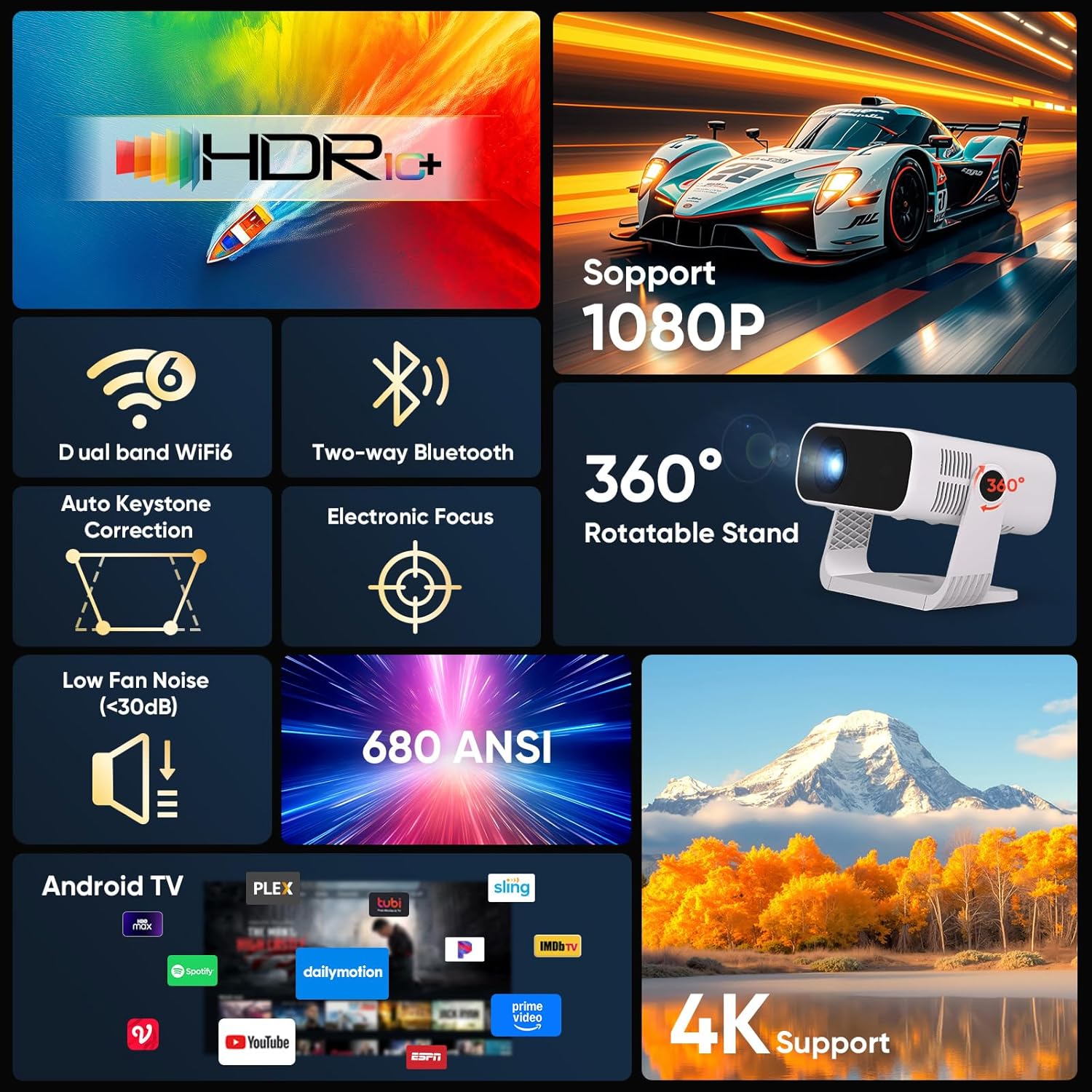
Figure 4.1: Key Features of the Wielio Smart Projector AE211B. This image illustrates the projector's capabilities including HDR10+ compatibility, 1080P native resolution, dual-band Wi-Fi 6, two-way Bluetooth, automatic keystone correction, electronic focus, a 360-degree rotatable stand, low fan noise, 680 ANSI lumens brightness, integrated Android TV, and 4K input support.

Figure 4.2: Preloaded Android TV and Device Compatibility. The projector comes with Android TV preloaded, offering access to over 10,000 apps, movies, and TV shows without needing an external TV stick. It is compatible with various devices such as tablet PCs, phones, laptops, headsets, Bluetooth speakers, DVD players, TV sticks, and game consoles.

Figure 4.3: Mini Portable Design. This image highlights the compact dimensions of the Wielio Smart Projector AE211B, demonstrating its small, lightweight, and easy-to-carry nature, making it highly portable for various uses.
5. Setup
5.1 Placement
The projector's 360° rotatable stand allows for flexible placement. You can project onto walls, ceilings, or even angled surfaces. Ensure the projection surface is smooth and light-colored for the best image quality.

Figure 5.1: 360° Rotatable Stand. The projector features a versatile 360-degree rotatable stand, enabling projection onto ceilings (90°-120°), loft bedrooms (45°), or living room walls, providing maximum flexibility for viewing.
5.2 Power Connection
- Connect the power adapter to the projector's power input port.
- Plug the power adapter into a suitable electrical outlet.
- Press the power button on the projector or remote control to turn it on.
5.3 Focus and Keystone Adjustment
The projector features electric focus and automatic keystone correction for a clear and properly shaped image.
- Electric Focus: Use the 'F-' and 'F+' buttons on the remote control to adjust the image sharpness until it is clear.
- Auto Keystone Correction: The projector will automatically correct distorted images caused by angled projection. For manual adjustment, navigate to the settings menu.

Figure 5.2: Electric Focus & Auto Keystone. This image illustrates how to easily adjust the focus using the remote control's F- and F+ buttons. It also highlights the automatic keystone correction (+30° Auto Keystone, +50° 4-Point Keystone) and 50-100% zoom capabilities, contrasting electric focus with manual focus projectors.
6. Operating Instructions
6.1 Navigating the Android 14 Interface
The projector runs on a Smart Android 14 Ecosystem. Use the remote control's directional buttons and 'OK' button to navigate through menus and select options. The 'Back' button returns to the previous screen, and the 'Home' button takes you to the main Android TV interface.
6.2 Using Built-in Apps
Access pre-installed applications like streaming services and media players directly from the home screen. You can also download additional apps from the integrated app store.
6.3 Zoom Function
Adjust the projection size from 50% to 100% without moving the projector. This feature is accessible through the projector's display settings menu.
6.4 Audio Output
The projector has a built-in speaker for audio playback. For a more immersive experience, you can connect external audio devices via Bluetooth.
7. Connectivity
7.1 Wi-Fi Connection
The projector supports dual-band Wi-Fi (2.4G + 5G) for stable internet access.
- Go to Settings > Network & Internet.
- Turn on Wi-Fi and select your desired network.
- Enter the password if prompted and connect.
7.2 Bluetooth Connection
The two-way Bluetooth feature allows you to connect external Bluetooth speakers/headphones or use the projector as a Bluetooth speaker itself.

Figure 7.1: Share Audio via Bluetooth. This image illustrates the projector's ability to stream audio flawlessly via dual-band Bluetooth, connecting to an external Bluetooth speaker for enhanced sound or receiving audio from a smartphone.
- Go to Settings > Connected Devices > Bluetooth.
- Turn on Bluetooth and search for devices.
- Select your device to pair.
7.3 HDMI and USB Connections
The projector includes HDMI and USB ports for connecting various external devices.
- HDMI: Connect laptops, game consoles, DVD players, or TV sticks for high-definition video and audio.
- USB: Connect USB drives for media playback or other compatible USB accessories.
8. Maintenance
8.1 Cleaning the Lens
Use a soft, lint-free cloth specifically designed for optical lenses. Gently wipe the lens to remove dust or smudges. Avoid using abrasive materials or harsh chemicals.
8.2 Cleaning the Projector Body
Wipe the exterior of the projector with a soft, dry cloth. For stubborn marks, slightly dampen the cloth with water. Do not use solvents or alcohol-based cleaners.
8.3 Dustproof Design and Cooling System
The projector features a dustproof design to minimize internal dust accumulation. Its ultra-quiet cooling system with low fan noise (less than 30dB) helps maintain optimal operating temperature. Ensure ventilation ports are clear and unobstructed.
9. Troubleshooting
If you encounter issues with your Wielio Smart Projector AE211B, refer to the following common problems and solutions:
| Problem | Possible Cause | Solution |
|---|---|---|
| No image or distorted image | Power issue, incorrect input source, focus/keystone not adjusted. | Check power connection. Select correct HDMI/USB input. Adjust electric focus and auto keystone. |
| No sound | Volume too low, external audio device not connected, mute enabled. | Increase volume. Check Bluetooth connection or HDMI audio settings. Disable mute. |
| Wi-Fi connection issues | Incorrect password, out of range, router issues, incompatible security type. | Verify Wi-Fi password. Move projector closer to router. Restart router. Ensure network security is WPA2/WPA3 compatible. |
| Remote control not working | Low batteries, obstructed signal. | Replace batteries. Ensure no obstacles between remote and projector. |
| Apps not updating or incompatible | Outdated app version, regional restrictions, device compatibility. | Check for system updates. Try clearing app cache/data. Some apps may have specific device requirements. |
10. Specifications
| Feature | Detail |
|---|---|
| Brand | Wielio |
| Item Model Number | AE211B |
| Manufacturer | Wielio |
| Form Factor | Portable |
| Screen Resolution | 1920 x 1080 (FHD) |
| Resolution | 1920 x 1080 Pixels |
| Item Weight | 1.28 Kilograms |
| Date First Available | January 29, 2026 |
| Special Feature | Smart Android 14 Ecosystem, 30000 Lumens High Brightness, Electric Focus, Built-in apps, 120° Rotatable Stand, Built-in Wi-Fi, Built-in Bluetooth, 50%-100% Zoom, Full HD 1080P, Built-in Speaker, Portable Size, Dustproof Design, Low Fan Noise (<30dB), Ultra-Quiet Cooling System |
| Connectivity Technology | Bluetooth, HDMI, USB, Wi-Fi |
| Display Resolution | 1920 x 1080 |
| Maximum Display Resolution | 1920 x 1080 Pixels |
| Mounting Type | Tabletop Mount |
| Maximum Image Size | 200 inches |
| Hardware Interface | HDMI, USB, Bluetooth 5 |
| Package Dimensions | 22.6 x 18.4 x 16 cm |
11. Warranty and Support
The Wielio Smart Projector AE211B comes with a standard manufacturer's warranty. For specific warranty details, please refer to the warranty card included in your package or contact Wielio customer support. For technical assistance, troubleshooting beyond this manual, or service inquiries, please visit the official Wielio website or contact their customer service department.
Online Support: www.wielio.com/support (Example Link)
Email Support: support@wielio.com (Example Email)
