
1. Introduction
Thank you for choosing the BenQ EW270Q 27-inch 2K QHD 200Hz IPS Gaming Monitor. This manual provides essential information for setting up, operating, and maintaining your monitor. Please read it thoroughly before use to ensure optimal performance and safety.
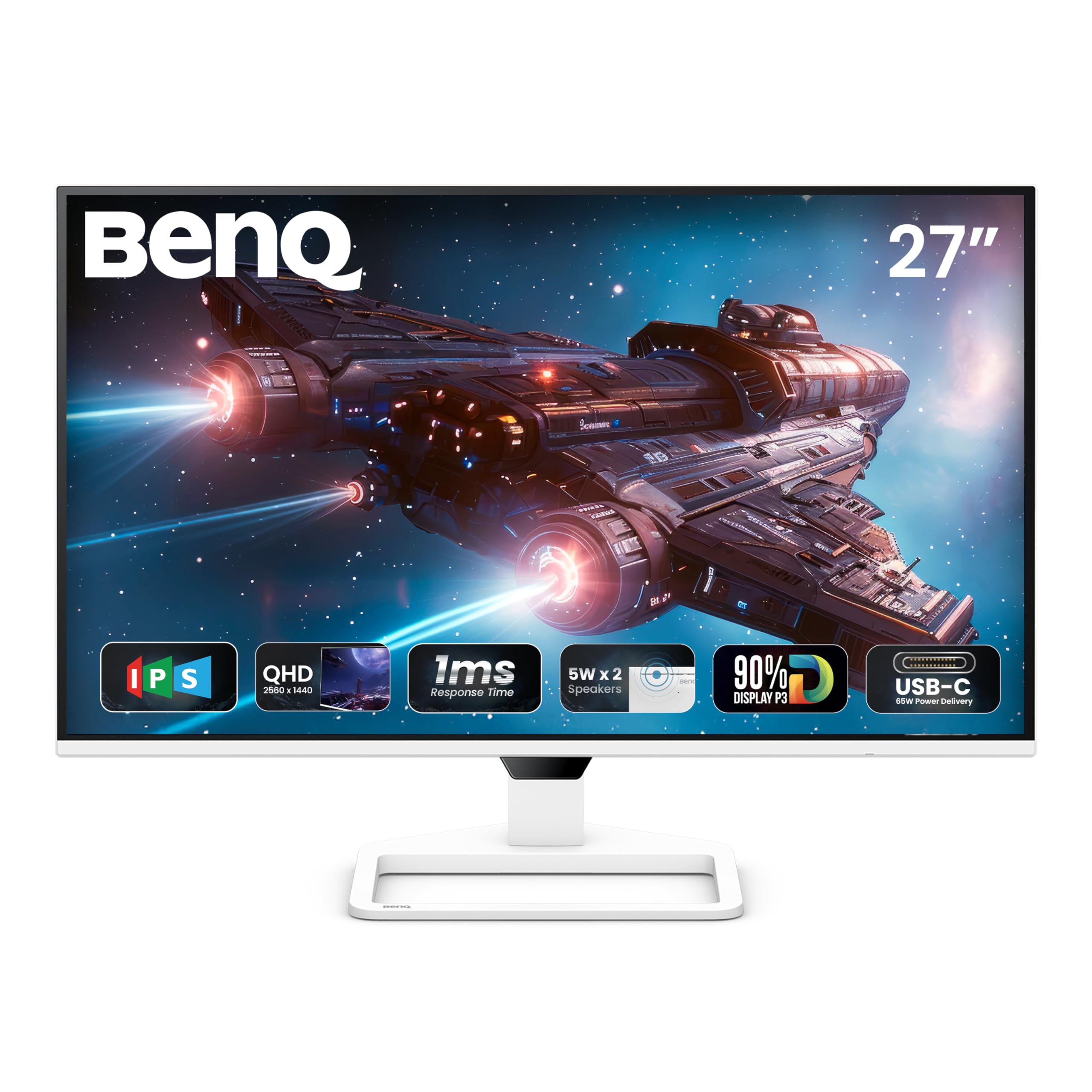
Figure 1: Front view of the BenQ EW270Q monitor.
2. Setup and Assembly
2.1 Package Contents
Ensure all items are present in the package:
- BenQ EW270Q Monitor
- Monitor Stand (Base and Neck)
- 16A Power Cable
- HDMI (v2.0) Cable
- USB-C Cable
- Quick Start Guide (QSG)
- Warranty Card
- Safety Instruction
2.2 Monitor Assembly
Follow these steps to assemble the monitor stand:
- Carefully remove the monitor and stand components from the packaging.
- Attach the stand neck to the monitor panel.
- Secure the stand base to the stand neck.
- Place the assembled monitor on a stable, flat surface.
2.3 Connecting Cables
Connect the necessary cables to the monitor's rear ports:

Figure 2: Available connectivity ports on the BenQ EW270Q monitor.
- Power Cable: Connect the 16A power cable to the monitor's power input and a wall outlet.
- Video Input: Connect your computer or gaming console using one of the following:
- HDMI (v2.0): For standard video and audio connection.
- DisplayPort (v1.4): For high-resolution and high-refresh-rate video.
- USB-C (65W Power Delivery): For video, data, and charging compatible devices (e.g., laptops) with up to 65W power.
- Audio Output: Connect headphones or external speakers to the 3.5mm headphone jack.
Video 1: This video demonstrates the physical connections and initial power-on sequence for the BenQ EW270Q monitor, including plugging in the power cable and connecting input sources.
2.4 Powering On
After connecting all cables, press the power button located on the rear of the monitor to turn it on. The BenQ logo will appear, indicating the monitor is starting up.

Figure 3: Location of the power button and other control buttons on the rear of the monitor.
3. Operating Instructions
3.1 On-Screen Display (OSD) Navigation
The monitor features a 5-way controller and dedicated hotkeys on the rear for navigating the OSD menu and quick access to settings.
- 5-way Controller: Press to open the OSD menu. Use up/down/left/right to navigate and press to confirm selections.
- Scenario Hotkey: Quickly switch between customized or preset optimal monitor settings for various uses (work, gaming, movies).
- Input Key: Directly select the input source (HDMI, DisplayPort, USB-C).

Figure 4: The Display Pilot 2 software provides an alternative way to manage monitor settings from your computer.
3.2 Key Features
The BenQ EW270Q monitor offers several features to enhance your viewing and gaming experience:
- 200Hz Refresh Rate & AMD FreeSync Premium: Experience smoother motion and reduced screen tearing, especially in fast-paced gaming. The 200Hz refresh rate ensures quick adaptation to on-screen changes for a fluid visual experience.

Figure 5: Visual comparison demonstrating the improved smoothness with a 200Hz refresh rate.
- HDRi Technology: BenQ's exclusive HDRi technology intelligently optimizes HDR content for improved detail, contrast, and color performance. It adapts to ambient lighting conditions for comfortable viewing.

Figure 6: Illustration of HDRi enhancing image quality with more uniform color and contrast.
- High Pixel Contrast: This feature intelligently adjusts contrast based on the displayed content, enhancing dark and bright areas without affecting other parts of the image.

Figure 7: Demonstrates the effect of High Pixel Contrast on image detail and depth.
- Built-in Speakers (5W x 2): The monitor includes two 5W treVolo speakers for an integrated audio experience.

Figure 8: Location of the integrated 5W speakers.
- BenQ Eye-Care Technology: Features like Brightness Intelligence, Low Blue Light, and Flicker-Free technology are designed to reduce eye strain during prolonged use. Brightness Intelligence automatically adjusts screen brightness based on ambient light.

Figure 9: BenQ Eye-Care technology helps maintain visual comfort.
3.3 Physical Adjustments
The monitor offers the following physical adjustments:
- Tilt: Adjust the screen angle from -5° to 20°.
- Swivel: Rotate the screen horizontally 20° to the left and 20° to the right.
- VESA Mount: Compatible with 100 x 100 mm VESA wall mounts for alternative mounting options.
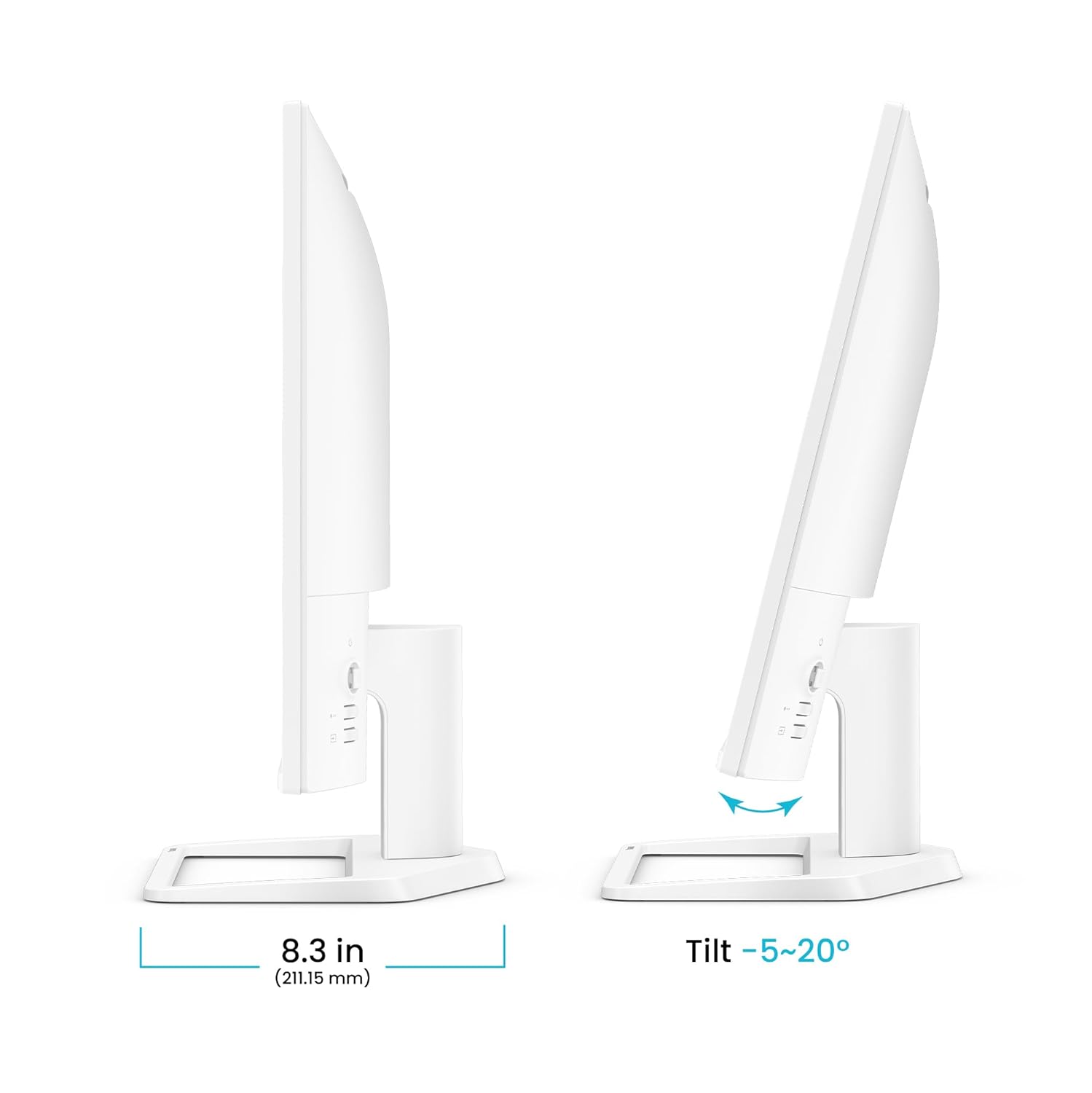
Figure 10: Monitor tilt adjustment range.

Figure 11: Monitor swivel adjustment range.

Figure 12: VESA wall mount compatibility.
4. Maintenance
To ensure the longevity and optimal performance of your BenQ EW270Q monitor, follow these maintenance guidelines:
- Cleaning the Screen: Gently wipe the screen with a soft, lint-free cloth. For stubborn marks, lightly dampen the cloth with water or a non-ammonia, non-alcohol based screen cleaner. Do not spray liquid directly onto the screen.
- Cleaning the Casing: Use a soft, dry cloth to wipe the monitor casing. Avoid abrasive cleaners or solvents.
- Ventilation: Ensure the ventilation openings on the monitor are not blocked. Do not place the monitor in an enclosed space without adequate airflow.
- Power Off: Always turn off the monitor and unplug the power cable before cleaning or if it will be unused for an extended period.
5. Troubleshooting
If you encounter issues with your monitor, refer to the following common troubleshooting steps:
| Problem | Possible Solution |
|---|---|
| No image on screen | Ensure the power cable is securely connected and the monitor is turned on. Check that the video input cable (HDMI, DisplayPort, USB-C) is properly connected to both the monitor and your device. Select the correct input source using the Input Key. |
| Image is blurry or distorted | Check the display resolution settings on your computer to ensure they match the monitor's native resolution (2560 x 1440). Ensure the video cable is not damaged. |
| No sound from speakers | Verify the audio cable (if using a separate one) is connected, or that audio is being transmitted via HDMI/USB-C/DisplayPort. Check the monitor's volume settings in the OSD and your computer's audio output settings. |
| Screen flickering | Ensure the refresh rate is set correctly in your computer's display settings. Enable AMD FreeSync Premium if your graphics card supports it. Check for external interference. |
| Buttons not responding | Power cycle the monitor by unplugging and replugging the power cable. |
6. Specifications
| Feature | Detail |
|---|---|
| Model Number | 9H.LP7LA.TBA |
| Screen Size | 27 Inches |
| Panel Type | IPS |
| Resolution | 2560 x 1440 (2K QHD) |
| Refresh Rate | 200Hz |
| Response Time | 1 ms |
| Contrast Ratio | 1200:1 |
| Brightness | 350 nits |
| Color Gamut | 90% P3 |
| HDR Support | HDR10, Display HDR10, HDRi |
| Viewing Angle | 178°/178° |
| Aspect Ratio | 16:9 |
| Speakers | 5W x 2 treVolo Speakers |
| Connectivity | 1x HDMI (v2.0), 1x DisplayPort (v1.4), 1x USB-C (65W Power Delivery), 1x Headphone Jack |
| Adjustments | Tilt (-5° to 20°), Swivel (20°/20°) |
| VESA Wall Mount | 100 x 100 mm |
| Dimensions (WxHxD) | 61.4 x 43.6 x 21.2 cm |
| Weight | 4.64 kg |
7. Warranty and Support
7.1 Warranty Information
The BenQ EW270Q monitor comes with a 3 Years Manufacturer Warranty. Please refer to the included Warranty Card for detailed terms and conditions.
7.2 Customer Support
For technical assistance, product inquiries, or warranty claims, please contact BenQ customer support through their official website or the contact information provided on your Warranty Card.


