
1. Product Overview
The Ziweo External DVD Drive is a portable optical disc drive designed for devices without a built-in CD/DVD drive. It offers both USB 3.0 and USB-C connectivity, providing high-speed data transfer for reading and writing CDs and DVDs. Its slim and lightweight design makes it ideal for on-the-go use.
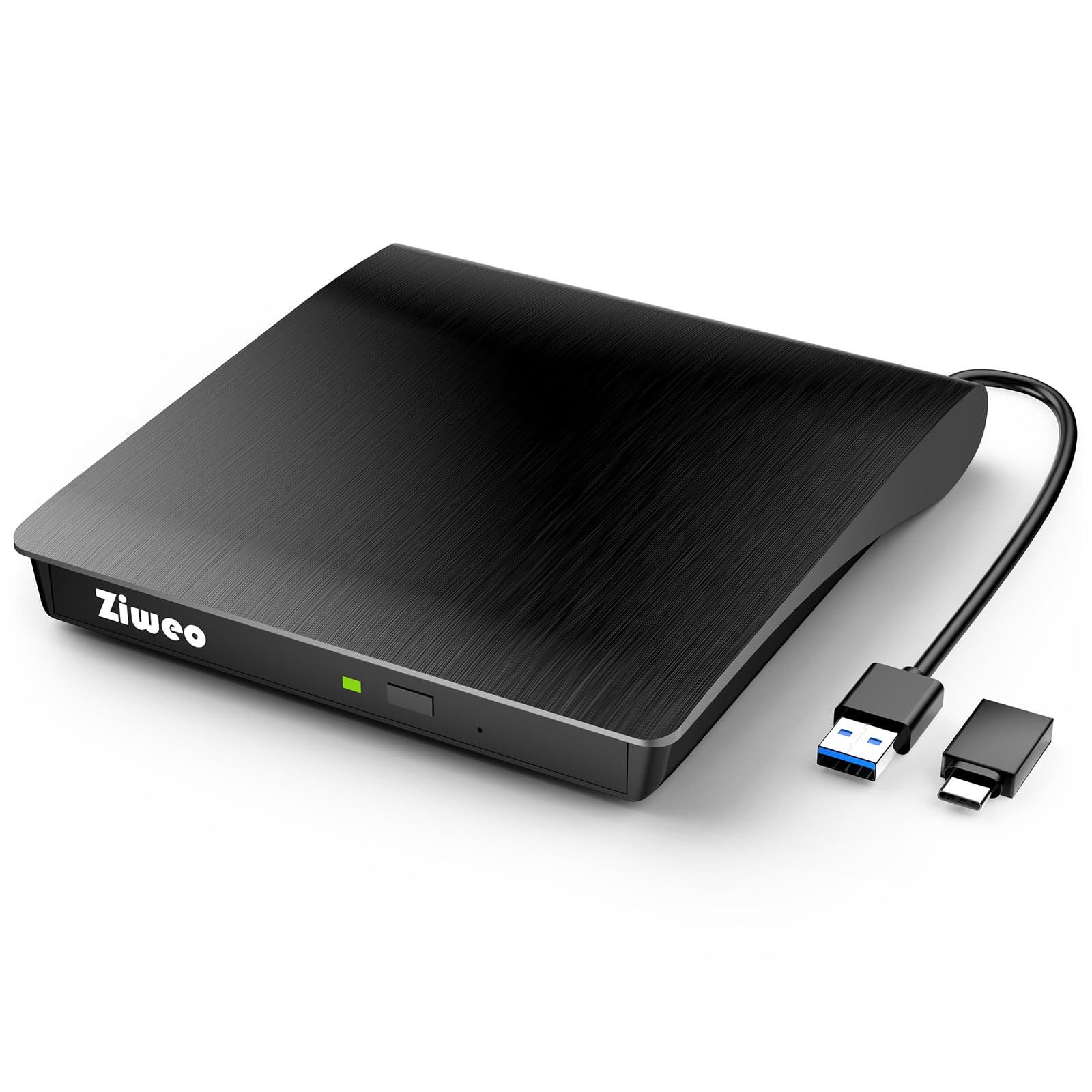
Image 1: The Ziweo External DVD Drive with its integrated USB 3.0 and USB-C cable, connected to a laptop.
2. Package Contents
- 1 x Ziweo External USB CD/DVD Drive
- User Manual (this document)
3. Setup Instructions
The Ziweo External DVD Drive features plug-and-play functionality, requiring no external drivers or power supply for most operating systems.
- **Connect the Drive**: Locate an available USB 3.0 or USB-C port on your laptop or desktop computer.
- **Plug In**: Connect the integrated USB cable from the external DVD drive directly into the chosen port. The drive is equipped with a 2-in-1 connector that supports both USB 3.0 (standard USB-A) and USB-C ports.

Image 2: The drive's integrated cable with both USB-A and USB-C adapters for versatile connection.
- **Automatic Detection**: Your computer should automatically detect the drive. No additional software installation is typically required.
Note: The integrated cable is non-detachable to prevent loss. Ensure a secure connection for optimal performance.
4. Operating Instructions
4.1 Inserting and Ejecting Discs
- **Open the Tray**: Press the eject button located on the front of the drive to open the disc tray.
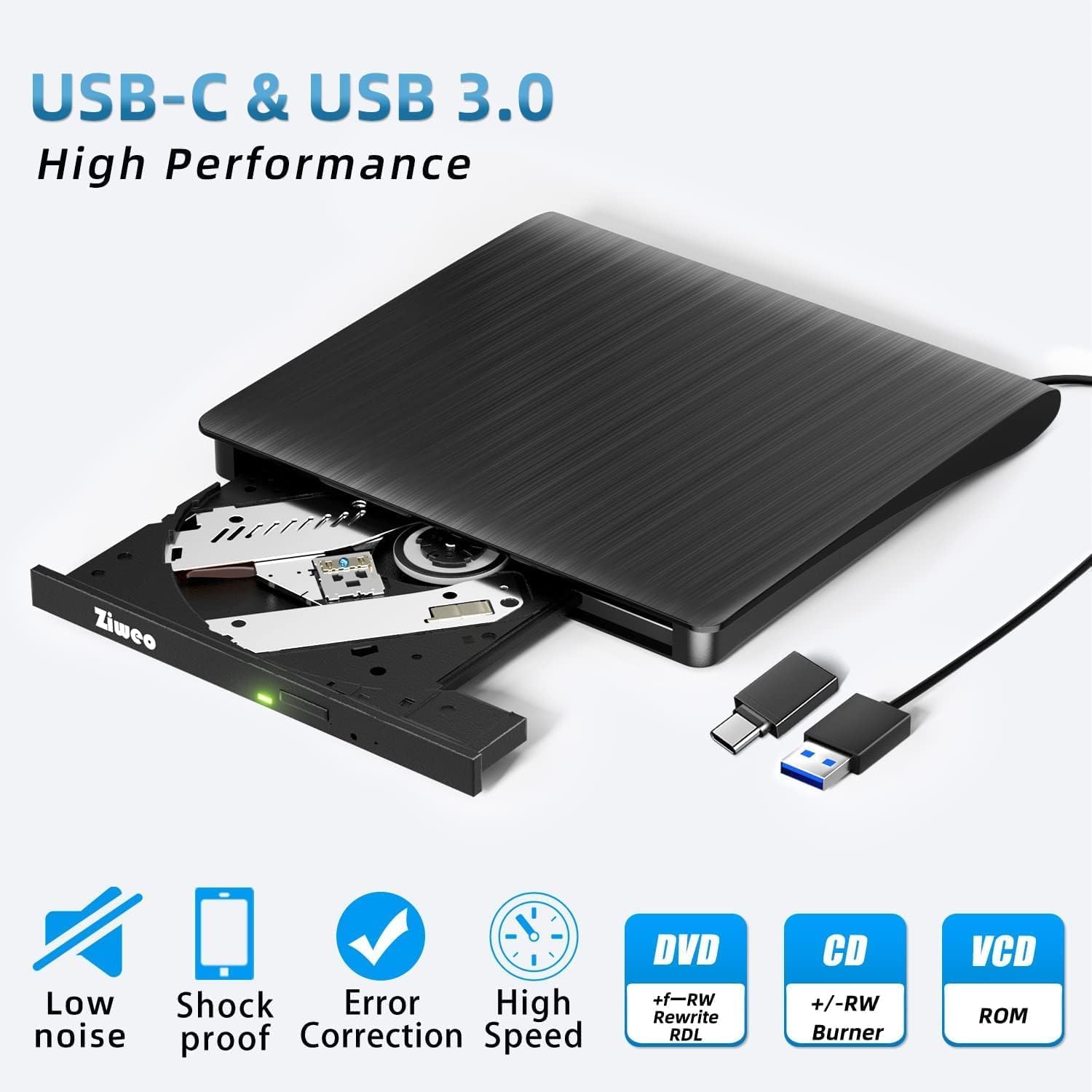
Image 3: The drive with its tray open, illustrating the eject button and internal mechanism.
- **Place Disc**: Carefully place your CD or DVD onto the tray, ensuring it is centered on the spindle.
- **Close the Tray**: Gently push the tray back into the drive until it clicks shut.
- **Access Disc**: Your computer's operating system should recognize the disc. You can then access its contents through File Explorer (Windows) or Finder (Mac).
- **Eject Disc**: To eject the disc, press the eject button again or use the software eject function in your operating system.
4.2 Supported Functions
This external drive supports a variety of functions:
- **Play Movie DVDs**: Watch your favorite DVD movies directly on your computer.
- **Burn/Rip CDs**: Create audio CDs, data CDs, or extract audio tracks from CDs.
- **Install Software or Systems**: Use physical media to install operating systems or software applications.
- **Run DVD Games**: Play DVD-based games on compatible systems.
- **Back Up Data**: Store important files and data on CD/DVD discs for backup purposes.

Image 4: Visual representation of the multi-function capabilities of the external DVD drive.
4.3 Compatibility
The drive is widely compatible with various operating systems:
- Windows XP/2003/Vista/7/8/10/11
- Linux OS
- All versions of Mac OS
**Important Compatibility Notes:**
- Not compatible with cars, TVs, or mobile phones.
- Does not support Blu-ray discs.
- Not supported for use with Chromebooks or Surface Pro devices.

Image 5: Overview of supported and unsupported devices and operating systems.
5. Maintenance and Care
To ensure the longevity and optimal performance of your Ziweo External DVD Drive, follow these maintenance guidelines:
- **Keep Clean**: Regularly wipe the exterior of the drive with a soft, dry cloth. Avoid using harsh chemicals or abrasive materials.
- **Handle Discs Carefully**: Always handle discs by their edges to prevent fingerprints and scratches, which can affect reading and writing performance.
- **Avoid Dust**: Keep the drive in a clean, dust-free environment when not in use.
- **Prevent Physical Shock**: The drive is designed to be shockproof, but excessive force or drops can still cause damage. Handle with care.
- **Proper Storage**: When transporting, consider using a protective case to prevent damage. The slim and portable design allows for easy storage in a travel bag.

Image 6: The compact design of the drive, suitable for travel and easy storage.
6. Troubleshooting
If you encounter issues with your Ziweo External DVD Drive, please refer to the following common solutions:
- **Drive Not Detected**:
- Ensure the USB cable is securely connected to both the drive and your computer's USB or Type-C port.
- Try connecting the drive to a different USB port on your computer.
- Restart your computer and try connecting the drive again.
- For some older or low-power USB ports, an external power adapter (not included) might be necessary, though typically not required for this model.
- **Disc Not Reading/Writing**:
- Check the disc for any visible scratches, dirt, or damage. Clean the disc if necessary.
- Ensure the disc is placed correctly on the drive's spindle.
- Verify that the disc type (CD-R, DVD-R, etc.) is supported by the drive and your software.
- Try a different disc to rule out a faulty disc.
- Ensure your operating system has the necessary codecs or software to play/burn the specific media type.
- **Slow Performance**:
- Ensure the drive is connected to a USB 3.0 port for optimal speed (if your computer has one). USB 2.0 ports will operate at slower speeds.
- Close any unnecessary applications running in the background that might be consuming system resources.
If these steps do not resolve the issue, please contact Ziweo customer support for further assistance.
7. Specifications
| Feature | Description |
|---|---|
| Model Number | 6979131191168 |
| Interface | USB 3.0, Type-C (2-in-1 integrated cable) |
| DVD Read Speed | Up to 8x |
| CD Read Speed | Up to 24x |
| DVD Write Speed | Up to 8x |
| CD Write Speed | Up to 24x |
| Data Transfer Rate | Up to 5Gbps (USB 3.0) |
| Operating System Compatibility | Windows XP/2003/Vista/7/8/10/11, Linux OS, Mac OS |
| Dimensions | Approximately 6.57 x 6.54 x 1.14 inches (16.7 x 16.6 x 2.9 cm) |
| Weight | Approximately 11.3 ounces (320 grams) |
| Special Features | Plug & Play, Backward Compatible, Lightweight, Slip Resistant, Low Noise Operation, Strong Fault Tolerance |
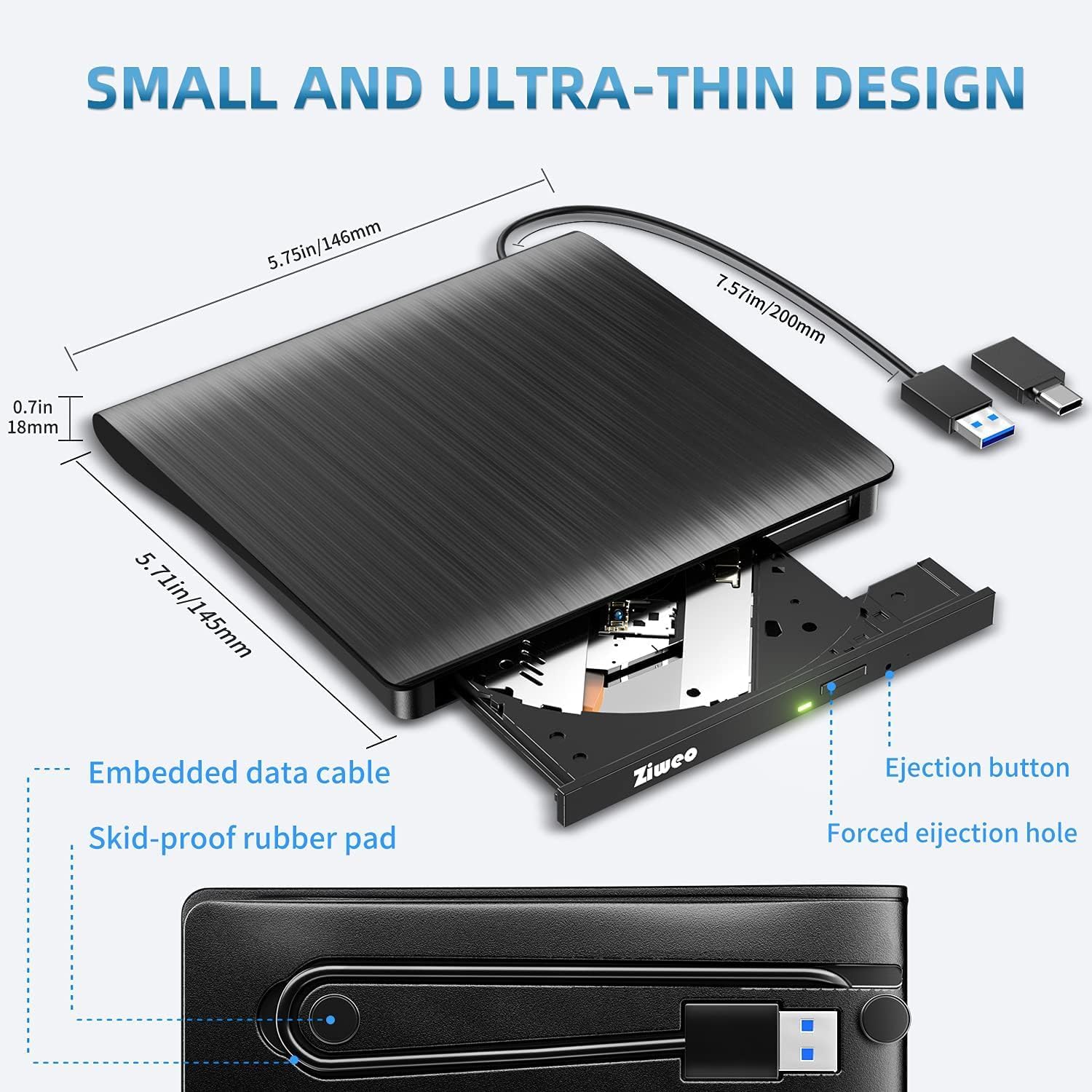
Image 7: Detailed view of the drive's dimensions and key physical features.
8. Warranty and Support
Ziweo stands by the quality of its products. This external DVD drive comes with a hassle-free shopping guarantee, backed by years of professional optical drive manufacturing expertise.
- **Customer Service**: If you encounter any issues after purchase, please contact Ziweo customer support for prompt assistance or a free replacement.
- **Contact Information**: Refer to the product packaging or the official Ziweo website for the most up-to-date customer support contact details.
9. Product Videos
Watch these official product videos for a visual guide on using your Ziweo External DVD Drive.
9.1 Ziweo External DVD Drive Overview
Video 1: This video provides a general overview of the Ziweo External DVD Drive, demonstrating its compact design, integrated cable storage, and plug-and-play functionality with a laptop. It shows the process of inserting a DVD and playing a movie.
9.2 External CD DVD Drive USB 3.0 Type-C CD DVD Player Burner
Video 2: This video highlights the key features of the external CD/DVD drive, including its USB 3.0 and USB-C compatibility, pop-up design, and various applications such as playing movies, burning discs, and installing software.