
Introduction
This manual provides comprehensive instructions for the Aramox 5G WiFi 6 Mobile Hotspot, Model Aramoxy9tu034nvw. Please read this manual carefully before using the device to ensure proper operation and to maximize its performance and lifespan. Keep this manual for future reference.
Product Overview
Key Features
- High-Speed Connectivity: Supports download speeds up to 2.77Gbps and upload speeds up to 1.25Gbps for efficient internet access.
- Extended Battery Life: Equipped with a 6100mAh lithium battery for prolonged usage, suitable for travel and outdoor activities.
- Robust Design: Features a durable, water-resistant, and drop-proof construction, ideal for various environments.
- Multiple Device Support: Allows connectivity for up to 16 devices simultaneously.
- Wide Network Compatibility: Compatible with various 5G and 4G networks, ensuring reliable performance across different regions (check local band compatibility).
Package Contents
Verify that all items are present in the package:
- 1 x Aramox 5G WiFi 6 Mobile Hotspot Router
- 1 x USB Cable (Type-C)
- 1 x User Manual

Image: The Aramox 5G WiFi 6 Mobile Hotspot shown alongside its included USB Type-C charging cable.
Device Layout
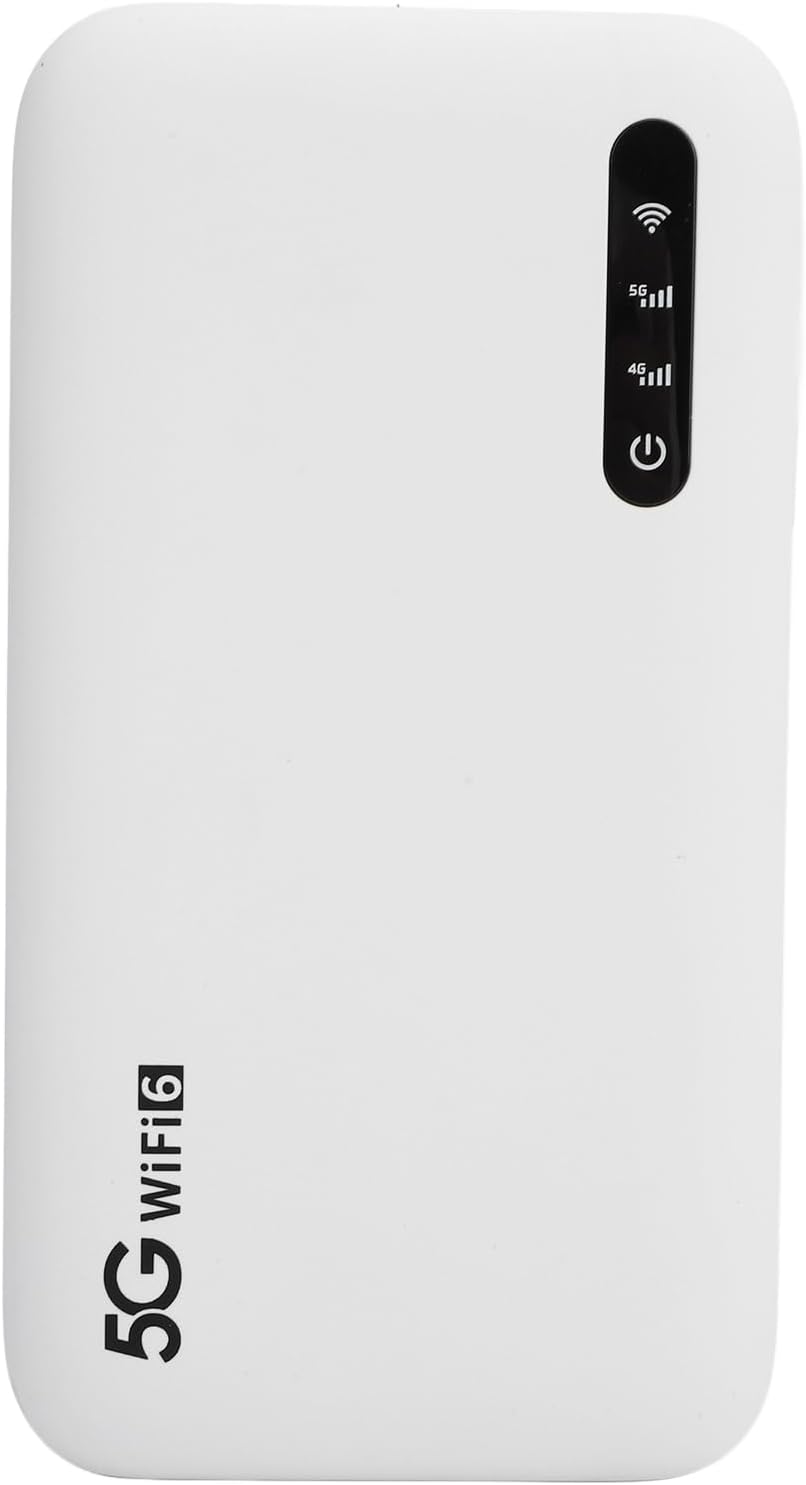
Image: Front view of the Aramox 5G WiFi 6 Mobile Hotspot. The device is white with a black indicator panel at the top, displaying icons for WiFi, 5G, 4G, and a power button.
- Power Button: Located on the front panel, used to turn the device on/off.
- Indicator Lights: Display status for WiFi, 5G network, and 4G network connectivity.
- Charging Port: Type-C port for charging the device.
- SIM Card Slot: For inserting a Nano SIM card (not visible externally in this view, typically on the side or under a cover).
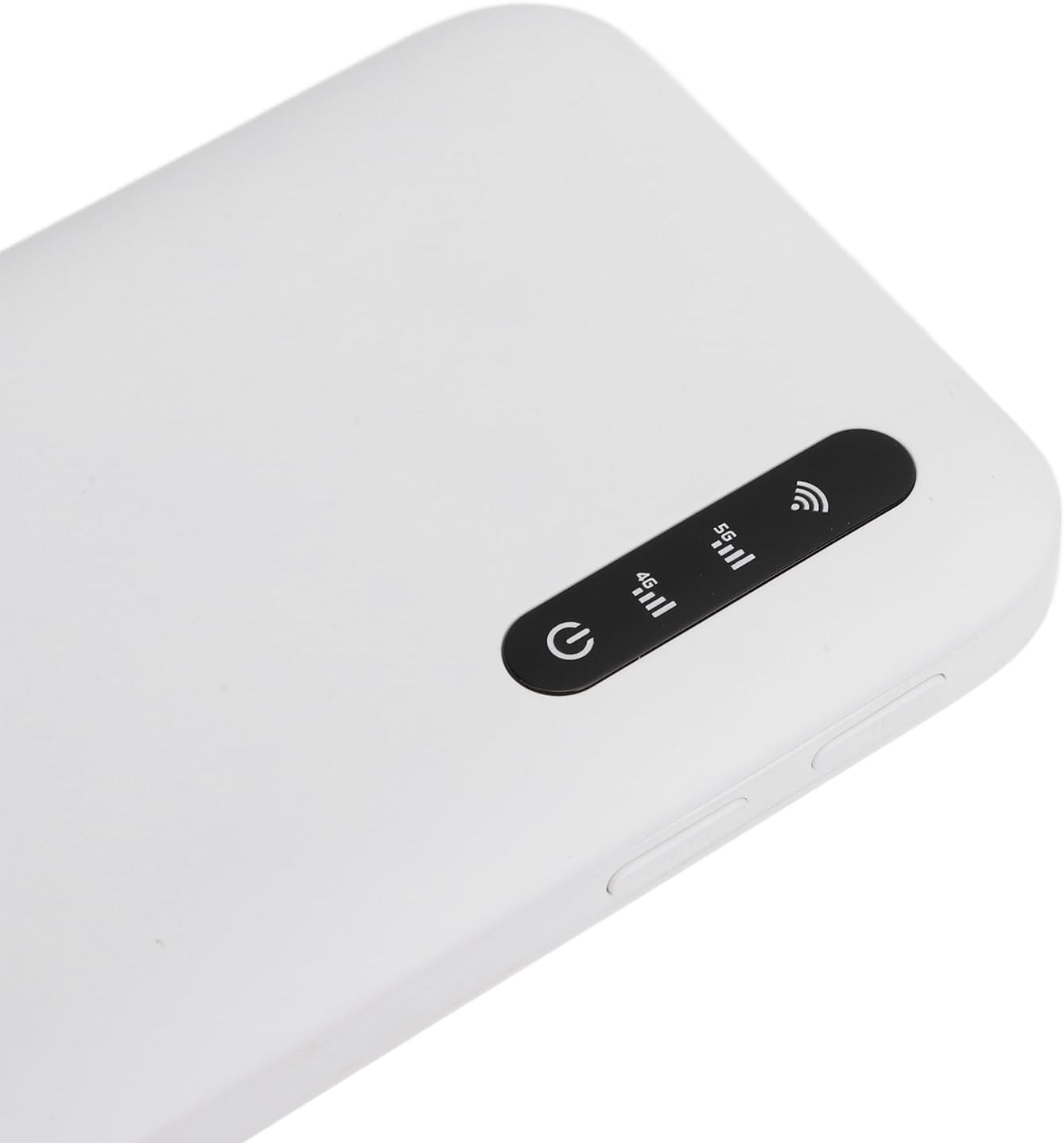
Image: A close-up view of the indicator panel on the Aramox 5G WiFi 6 Mobile Hotspot, showing the WiFi signal icon, 5G network strength bars, 4G network strength bars, and the power button with its indicator light.
Setup
1. Insert SIM Card
- Locate the SIM card slot on the device. This is typically on the side or under a removable cover.
- Insert a Nano SIM card into the slot with the gold contacts facing down and the notched corner aligned correctly. Ensure it clicks into place.
- Close any covers securely.
Important: A Nano SIM card is required and is not included with the device. Ensure your SIM card's network signal band is compatible with the product's supported frequency bands before use.
2. Charge the Device
- Connect the provided USB Type-C cable to the charging port on the hotspot.
- Connect the other end of the USB cable to a compatible USB power adapter (not included) or a computer's USB port.
- The device will begin charging. The power indicator light may change to show charging status.

Image: A close-up view of the USB Type-C charging port located on the side of the Aramox 5G WiFi 6 Mobile Hotspot.
3. Power On/Off
- To Power On: Press and hold the Power button on the front panel until the indicator lights illuminate.
- To Power Off: Press and hold the Power button until the indicator lights turn off.
Operating Instructions
Connecting Devices to the Hotspot
- Ensure the hotspot is powered on and has established a network connection (5G or 4G indicator is active).
- On your device (smartphone, tablet, laptop), go to your WiFi settings.
- Search for available WiFi networks. The hotspot's network name (SSID) will appear in the list.
- Select the hotspot's SSID.
- Enter the WiFi password (usually found on a sticker inside the SIM card compartment or on the device itself).
- Your device should now be connected to the internet via the hotspot.
The hotspot supports up to 16 devices simultaneously.
Network Compatibility Note
This product is not supported for use in South America, Japan, and Korea. Before purchasing or traveling, ensure that the local network signal band and the band of the SIM card used are compatible with the frequency bands supported by this product. Incompatible bands will prevent network connection.
Maintenance
- Cleaning: Use a soft, dry cloth to clean the device. Avoid liquid cleaners or abrasive materials.
- Storage: Store the device in a cool, dry place away from direct sunlight and extreme temperatures.
- Battery Care: To prolong battery life, avoid fully discharging the battery frequently. Charge the device regularly.
- Environmental Protection: The device is designed to be water-resistant and drop-proof, but avoid intentional exposure to harsh conditions.
Troubleshooting
No Network Connection
- Check SIM Card: Ensure the Nano SIM card is correctly inserted and activated.
- Network Compatibility: Verify that your SIM card's network bands are compatible with the hotspot's supported bands in your current location. Refer to the "Network Compatibility Note" in the Operating Instructions.
- Signal Strength: Move to an area with better 5G or 4G signal coverage.
- Reboot Device: Power off the hotspot, wait a few seconds, then power it back on.
Slow Internet Speed
- Signal Strength: Ensure the hotspot has a strong 5G or 4G signal.
- Number of Connected Devices: Too many devices connected simultaneously can reduce speed. Disconnect unnecessary devices.
- Network Congestion: Internet speeds can vary based on network traffic in your area.
- Data Plan: Check if your SIM card's data plan has any speed limitations or if you have exceeded your data allowance.
Device Not Powering On
- Battery Level: Ensure the device is sufficiently charged. Connect it to a power source using the provided USB cable.
- Charging Cable/Adapter: Try a different USB cable or power adapter to rule out faulty accessories.
Specifications
| Model | Aramoxy9tu034nvw |
| Dimensions | Approx. 136 x 72 x 16mm / 5.35 x 2.83 x 0.63in |
| Weight | 9.8 ounces |
| Battery | 6100mAh Lithium Battery (Included) |
| Memory | LPDDR4X 4GB RAM, NAND 2GB ROM |
| Charging Port | Type C |
| SIM Type | Nano SIM (Not Included) |
| 5G NR Bands | FDD: N1/N3/N28; TDD: N41/N78 |
| 4G Bands | FDD: B1/B3/B5/B8; TDD: B34/38/39/40/41 |
| 3G Bands | B1 |
| WiFi Bands | WiFi 6 2.4GHz, 5.8GHz |
| WiFi Protocol | 802.11 a/b/g/n/ac/ax |
| NR Rate | 2.77Gbps (DL) / 1.25Gbps (UL) |
| Max WiFi Connections | Up to 16 devices simultaneously |
| Manufacturer | Aramox |
Warranty and Support
For warranty information or technical support, please refer to the documentation included with your purchase or contact Aramox customer service directly. Keep your purchase receipt for warranty claims.
For further assistance, visit the official Aramox website or contact their support channels.