
1. Important Safety Information
Please read all safety and operating instructions carefully before using this television. Keep these instructions for future reference.
- Power Source: Connect the TV only to the specified power supply.
- Ventilation: Ensure proper ventilation. Do not block ventilation openings.
- Water and Moisture: Do not expose the TV to rain or moisture. Do not place objects filled with liquids on the TV.
- Cleaning: Unplug the TV from the wall outlet before cleaning. Use a soft, dry cloth.
- Wall Mounting: If wall mounting, use a VESA 200x100 compatible bracket and ensure proper installation.
- Batteries: Dispose of used batteries responsibly. Do not mix old and new batteries.
2. Package Contents
Verify that all items are present in the package:
- Smart Tech 40FN01K Full HD LED TV
- Remote Control
- TV Stand (2 pieces)
- User Manual (this document)
- Power Cable
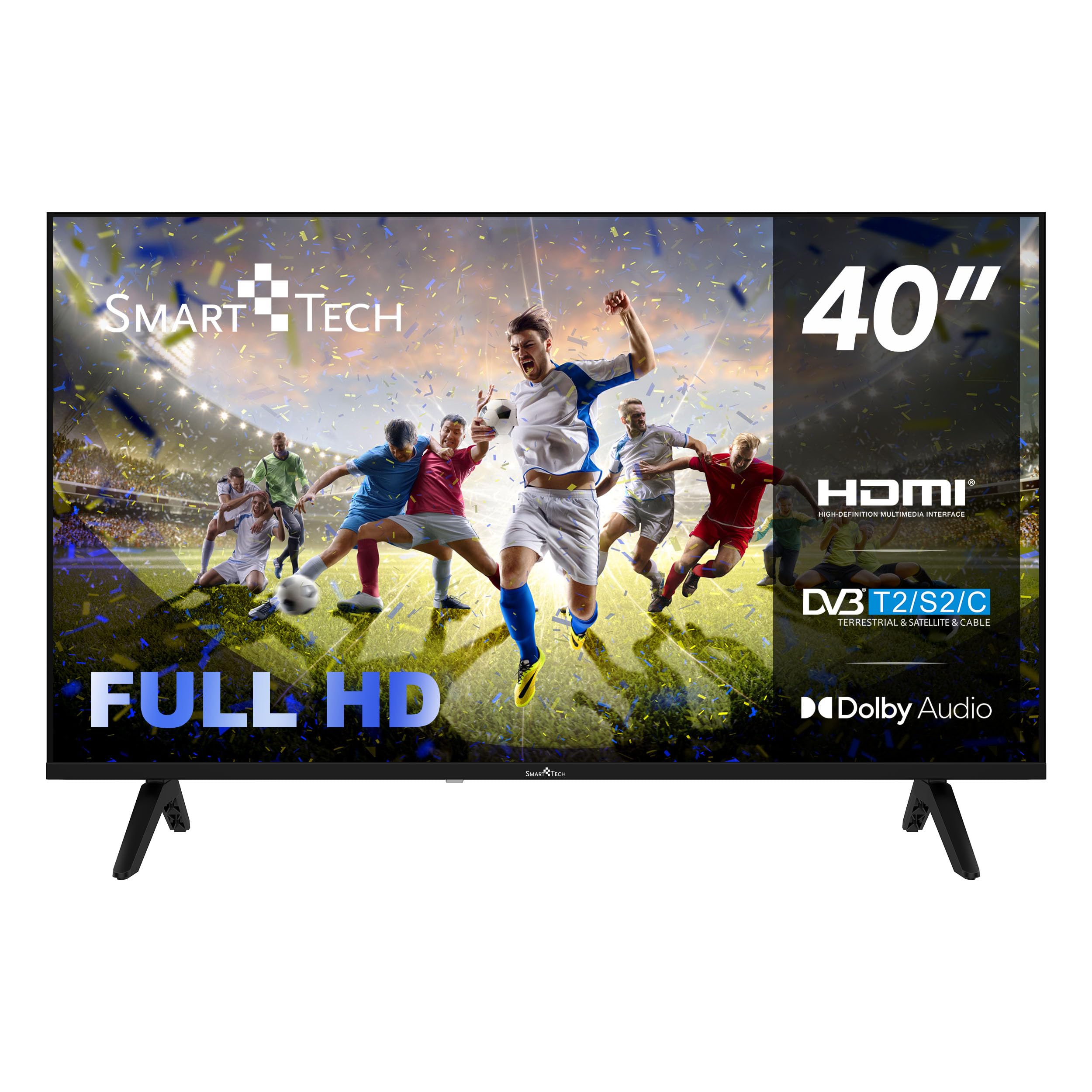
Image: Smart Tech 40FN01K Full HD LED TV with included remote control and stand.
3. Product Overview
The Smart Tech 40FN01K is a 40-inch Full HD LED TV designed for clear visuals and immersive audio. It features a frameless design for a modern aesthetic and includes a Triple Tuner for versatile signal reception.

Image: Overview of key features including Bezel-less design, Triple Tuner, Full HD resolution, Dolby Audio, Hotel Mode, and One-button control.
Key Features:
- Full HD Resolution (1920x1080): Delivers sharp and detailed images.
- Triple Tuner: Integrated DVB-T2/S2/C tuner for terrestrial, satellite, and cable reception.
- Dolby Audio: Enhanced sound experience.
- Frameless Design: Modern and sleek appearance.
- Multiple Connectivity: 3 HDMI ports and 2 USB ports for various devices.
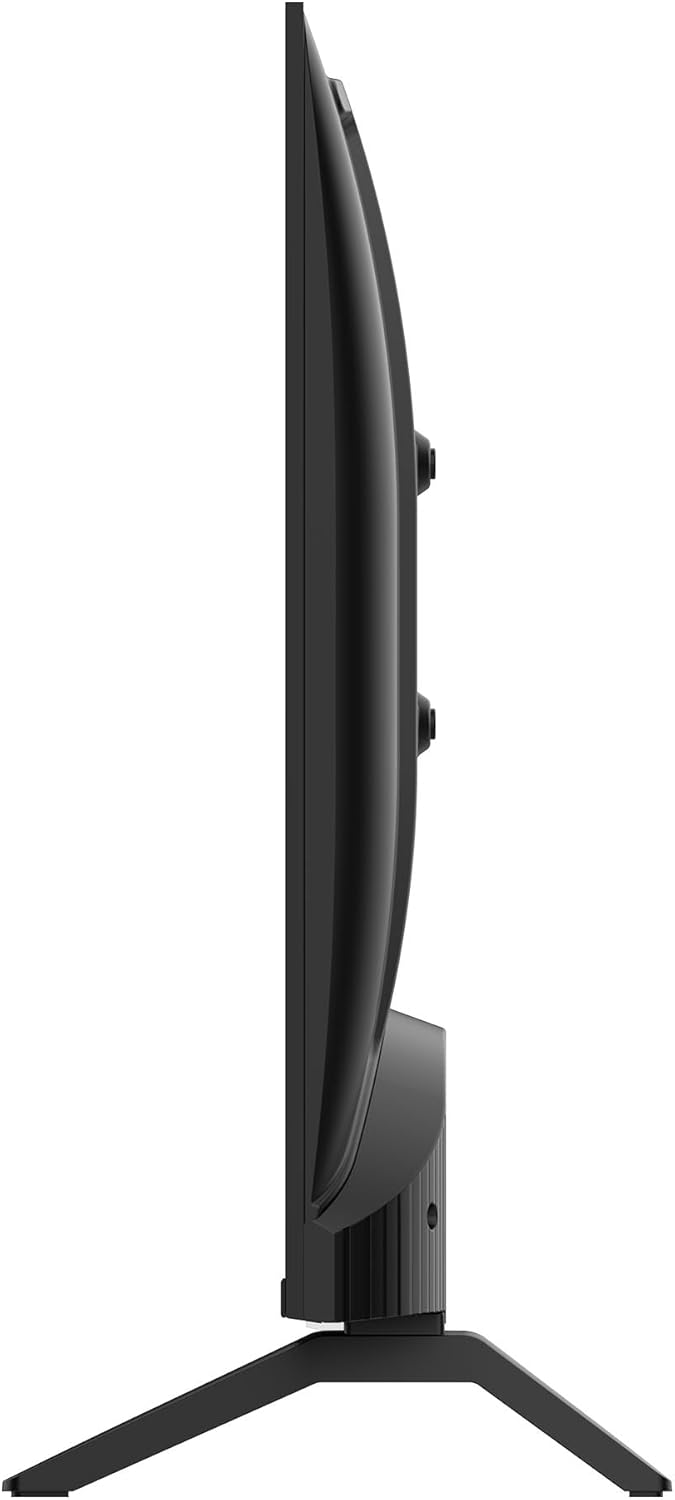
Image: Visual comparison illustrating the difference between HD (1366x768px) and Full HD (1920x1080px) resolutions.

Image: Dolby Audio logo, indicating enhanced sound processing capabilities.
4. Setup
4.1 Attaching the TV Stand
- Carefully place the TV face down on a soft, flat surface to prevent screen damage.
- Align the stand pieces with the corresponding slots on the bottom of the TV.
- Secure the stand pieces using the provided screws. Do not overtighten.
- Place the TV upright on a stable, level surface.
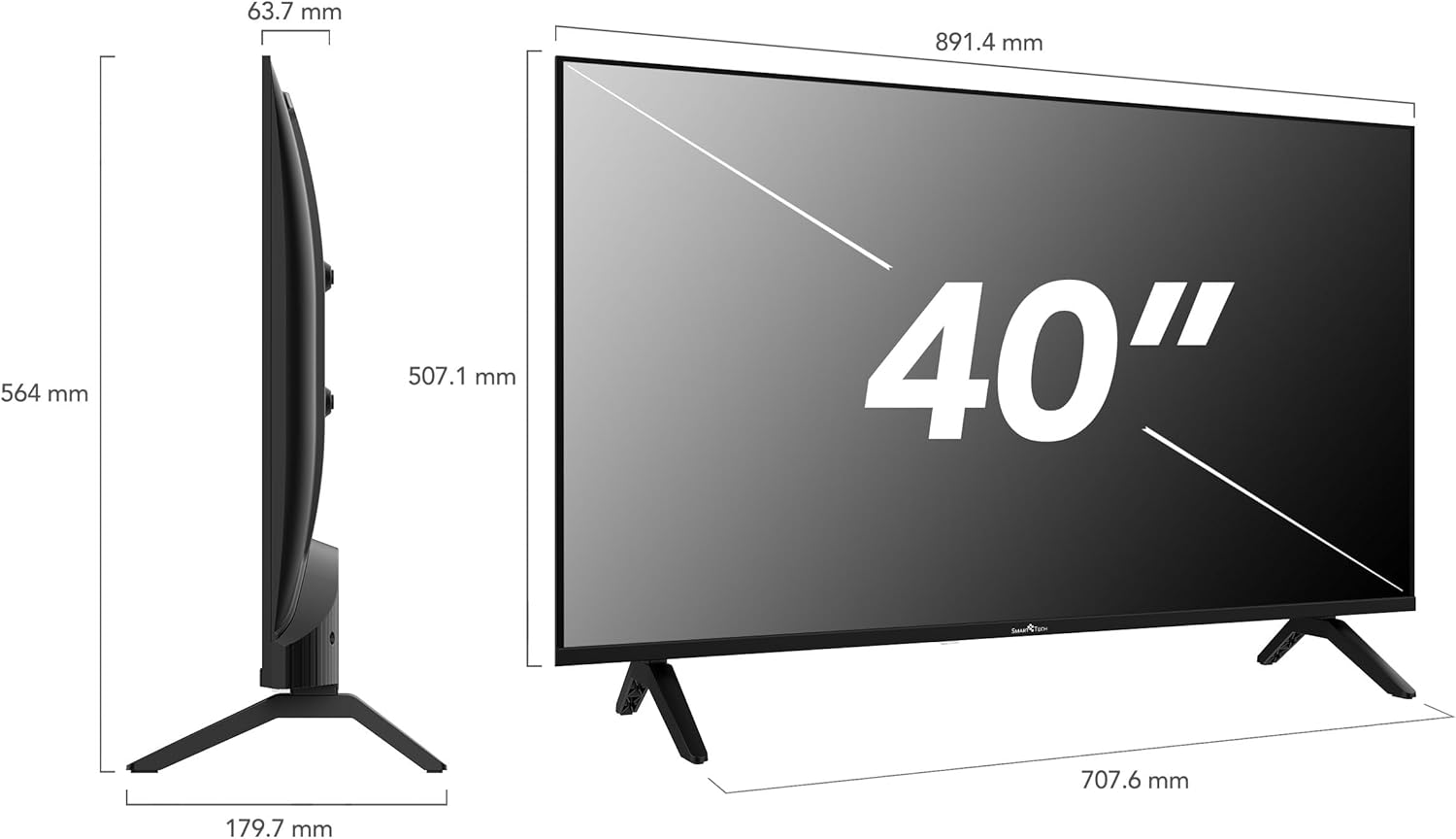
Image: The Smart Tech 40FN01K TV with its two-piece stand correctly installed.
4.2 Wall Mounting (Optional)
This TV is compatible with VESA 200x100 wall mounts. Follow the instructions provided with your wall mount bracket. Ensure the wall can support the weight of the TV and the mount.
4.3 Connecting External Devices
The TV offers various connection ports for external devices:
- HDMI (x3): For connecting Blu-ray players, game consoles, set-top boxes, etc.
- USB (x2): For connecting USB storage devices to play media files.
- CI+ Slot: For inserting a Conditional Access Module (CAM) and smart card for encrypted digital channels.
- Mini AV IN: For older devices using composite video and stereo audio.
- Earphone: For connecting headphones.
- Optical: For digital audio output to a soundbar or home theater system.
- DVB-S2 / DVB-T2: Antenna inputs for satellite and terrestrial/cable signals.
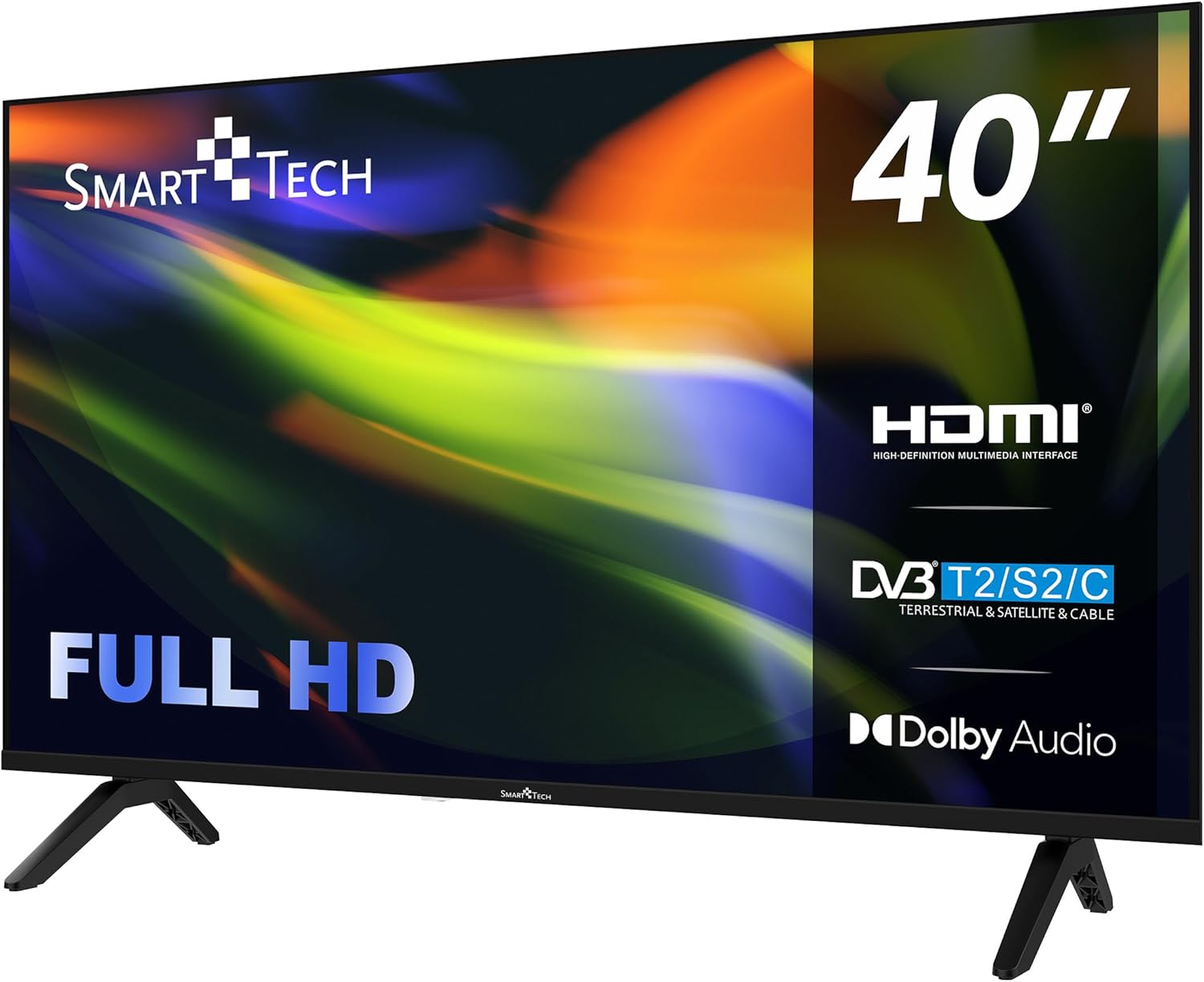
Image: Detailed view of the TV's rear connection panel, showing ports for USB, CI slot, Mini AV IN, Earphone, Optical audio, HDMI, and antenna inputs (DVB-S2, DVB-T2).
4.4 Initial Power On
- Connect the power cable to the TV and then to a wall outlet.
- Press the power button on the TV or the remote control to turn on the TV.
- Follow the on-screen instructions for initial setup, including language selection, country, and channel scanning.
5. Operating the TV
5.1 Remote Control Functions
The remote control allows you to access all TV functions. Insert 2 AAA batteries (not included) into the remote control.

Image: Layout of the Smart Tech TV remote control, showing power, number buttons, navigation, volume, channel, and special function buttons.
- Power Button: Turns the TV on or off.
- Number Buttons (0-9): Select channels directly.
- Volume Up/Down (V+/V-): Adjusts the volume level.
- Channel Up/Down (P+/P-): Changes channels.
- Mute Button: Mutes or unmutes the sound.
- Navigation Buttons (Up/Down/Left/Right): Navigate through menus.
- OK Button: Confirms selections.
- EXIT Button: Exits the current menu or function.
- INFO Button: Displays information about the current program.
- Source Button: Selects input source (HDMI, AV, USB, TV).
- Color Buttons (Red, Green, Yellow, Blue): Access specific functions in menus or teletext.
5.2 Channel Tuning
After initial setup, the TV will automatically scan for available channels. If you need to rescan or adjust settings:
- Press the MENU button on the remote.
- Navigate to the Channel or Setup menu.
- Select Auto Scan or Manual Scan and follow the on-screen prompts.
5.3 Input Source Selection
To switch between connected devices (e.g., Blu-ray player, game console, USB drive):
- Press the Source button on the remote control.
- Use the navigation buttons to select the desired input (e.g., HDMI 1, USB, AV).
- Press OK to confirm.
5.4 Audio Settings
The TV supports Dolby Audio for enhanced sound. You can adjust audio settings in the menu:
- Press the MENU button.
- Navigate to the Sound or Audio menu.
- Adjust settings such as sound mode (Standard, Music, Movie, User), equalizer, and balance.
5.5 Hotel Mode
The TV includes a Hotel Mode feature, which allows for customization of settings suitable for hotel environments, such as limiting volume, setting a default channel, and disabling certain functions. Consult the advanced settings menu for Hotel Mode activation and configuration.
6. Maintenance
6.1 Cleaning the TV
- Always unplug the TV before cleaning.
- Use a soft, dry cloth to wipe the screen and cabinet.
- For stubborn marks, use a screen cleaning solution specifically designed for TVs, applied to the cloth, not directly to the screen.
- Do not use abrasive cleaners, waxes, or solvents.
6.2 Storage
If storing the TV for an extended period, disconnect it from the power supply and store it in a cool, dry place, preferably in its original packaging.
7. Troubleshooting
If you encounter issues with your TV, refer to the following common problems and solutions:
| Problem | Possible Cause / Solution |
|---|---|
| No power | Ensure the power cable is securely connected. Check the wall outlet with another device. Press the power button on the TV or remote. |
| No picture, but sound is present | Check the input source selection. Ensure external devices are powered on and connected correctly. |
| No sound, but picture is present | Check volume level and mute status. Verify audio cables for external devices. Check TV audio settings. |
| Poor picture quality | Check antenna/cable connection. Adjust picture settings (brightness, contrast, sharpness). If using an external device, check its output resolution. |
| Remote control not working | Check batteries and replace if necessary. Ensure there are no obstructions between the remote and the TV's IR sensor. |
If the problem persists after trying these solutions, contact customer support.
8. Specifications
Detailed technical specifications for the Smart Tech 40FN01K Full HD LED TV:
| Feature | Specification |
|---|---|
| Model Number | 40FN01K |
| Screen Size | 40 Inches (101 cm) |
| Display Technology | LED |
| Resolution | 1080p (1920 x 1080) |
| Refresh Rate | 60 Hz |
| Aspect Ratio | 16:9 |
| HDMI Ports | 3 |
| USB Ports | 2 |
| Special Features | Frameless Design, Triple Tuner, Dolby Audio |
| Wall Mount Compatibility | VESA 200x100 |
| Product Dimensions (D x W x H) | 25 cm x 89 cm x 57 cm |
| Color | Black |

Image: Diagram showing the dimensions of the Smart Tech 40FN01K TV, including width, height, and depth.
9. Warranty and Support
This Smart Tech television comes with a manufacturer's warranty. Please refer to the warranty card included in your package for specific terms and conditions.
Spare Parts Availability: Spare parts for this model are guaranteed to be available for 11 years from the date of purchase.
For technical support or service inquiries, please refer to the contact information provided on your warranty card or the official Smart Tech website.


