
Introduction
This manual provides essential instructions for setting up, operating, and maintaining your LG 24-inch FHD IPS Monitor (Model: 24GM79G-B). Please read this manual thoroughly before using the product to ensure proper and safe operation. This monitor features a 1920x1080 resolution, 120Hz refresh rate, 1ms Motion Blur Reduction (MBR), AMD FreeSync Premium, and HDR10 support for an enhanced visual experience.
Safety Information
- Always use the power cord and adapter supplied with the monitor.
- Do not block ventilation openings. Ensure adequate space around the monitor for proper airflow.
- Keep the monitor away from water, moisture, and direct sunlight.
- Handle the screen with care. Avoid touching the screen with sharp objects.
- Disconnect the power cable from the wall outlet if the monitor will not be used for an extended period.
Package Contents
Verify that all components are present in the package:
- LG 24-inch FHD IPS Monitor
- Monitor Stand (Base and Neck)
- Power Cord
- HDMI Cable
- User Manual (this document)
- Other documentation (e.g., warranty card)
Setup
1. Physical Assembly
Carefully remove the monitor and all components from the packaging. Follow these steps to assemble the stand or prepare for VESA mounting.

Image: The LG 24-inch monitor featuring a slim design and stand, displayed on a desk. This image illustrates the monitor's aesthetic and how it appears when fully assembled with its included stand.
Attaching the Stand:
- Attach the stand neck to the monitor panel until it clicks into place.
- Secure the stand base to the stand neck using the provided screw.
- Place the assembled monitor on a stable, flat surface.
Adjusting the Monitor Tilt:
The monitor supports tilt adjustment from -5° to 20° for optimal viewing comfort. Gently hold both sides of the monitor and adjust it to your desired angle.
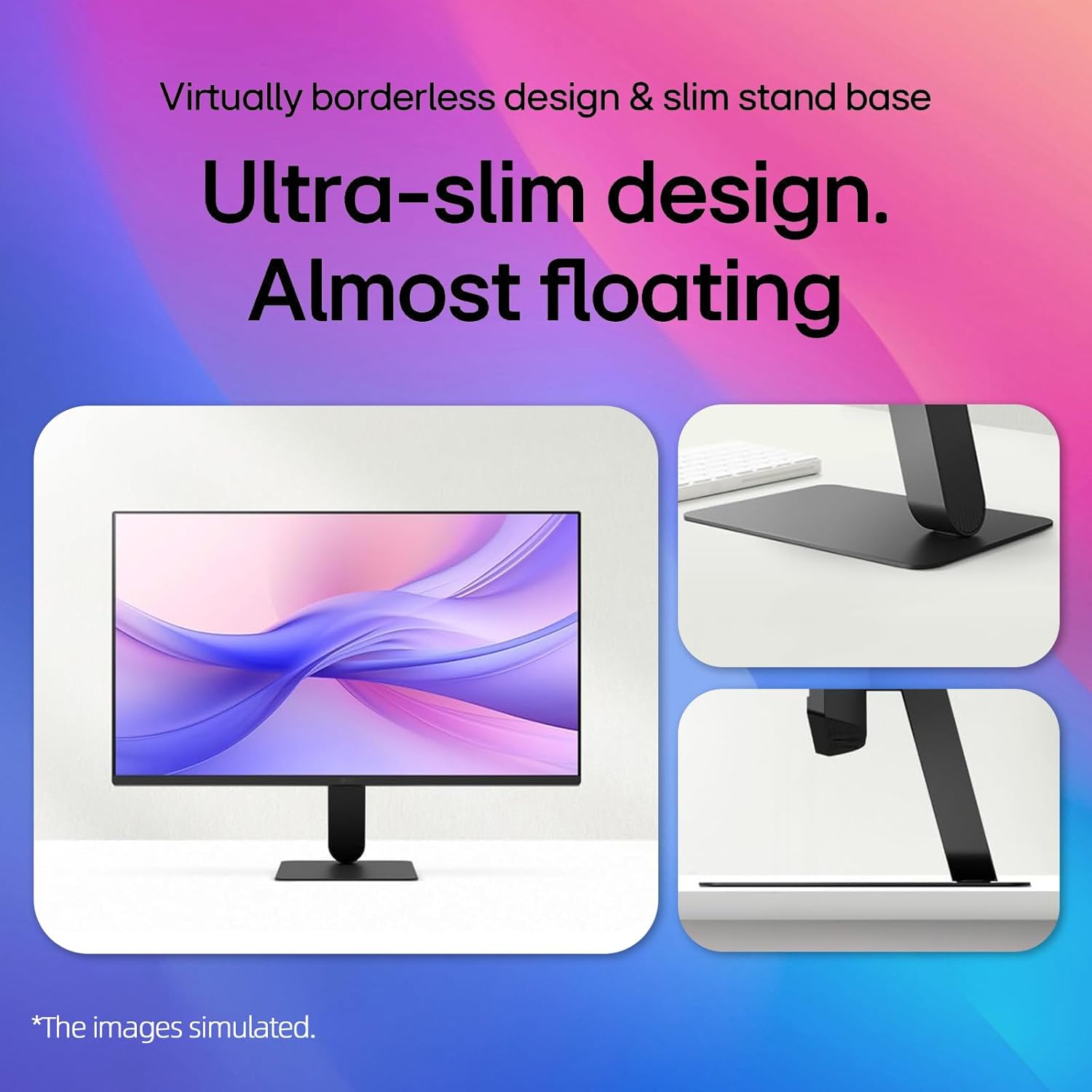
Image: A visual representation demonstrating the monitor's adjustable tilt feature, ranging from -5 degrees backward to 20 degrees forward, allowing users to customize their viewing angle.
VESA Wall Mount:
This monitor is VESA mount compatible (100 x 100mm). If using a VESA mount, remove the stand and attach the monitor to a compatible VESA bracket (sold separately) according to the bracket's instructions.
2. Connectivity
Connect the monitor to your computer or other devices using the appropriate cables.

Image: A close-up of the monitor's rear panel, highlighting the available input ports including HDMI, VGA, and an audio jack, for connecting various devices.
- HDMI Connection: Connect one end of the HDMI cable to the HDMI port on your computer and the other end to the HDMI IN port on the monitor.
- VGA Connection: Connect one end of the VGA cable to the VGA port on your computer and the other end to the VGA IN port on the monitor.
- Power Connection: Connect the power cord to the monitor's power input and then to a wall outlet.
Video: This video demonstrates the key features and connectivity options of the LG 24-inch FHD IPS Monitor, including its 120Hz refresh rate, 1ms response time, AMD FreeSync, HDMI, and VGA ports.
Operating Instructions
1. Power On/Off
Press the power button located on the bottom center of the monitor to turn it on or off. The power indicator light will illuminate when the monitor is on.
2. On-Screen Display (OSD) Menu
Use the joystick button on the bottom center of the monitor to navigate the OSD menu. Press the joystick to open the menu, then move it up/down/left/right to select and adjust settings.
3. Display Settings
Refresh Rate (120Hz):
The monitor supports a 120Hz refresh rate for smoother motion. Ensure your graphics card and operating system settings are configured to output at 120Hz for optimal performance.

Image: A visual demonstrating the smooth and fluid motion achieved with the monitor's 120Hz refresh rate, ideal for fast-paced content and gaming.
1ms Motion Blur Reduction (MBR):
Activate 1ms MBR in the OSD menu to reduce motion blur in fast-moving scenes, providing clearer and sharper images. Note that some features like Adaptive Sync may be disabled when MBR is active.
Image: A dynamic scene from a racing game on the monitor, illustrating the effect of 1ms Motion Blur Reduction (MBR) in delivering sharp, clear visuals during high-speed action.
AMD FreeSync Premium:
This technology synchronizes the monitor's refresh rate with your AMD graphics card's frame rate to eliminate screen tearing and stuttering. Enable FreeSync Premium in your graphics card settings and the monitor's OSD menu.
HDR10 & 99% sRGB:
The monitor supports HDR10 for enhanced contrast and color depth, and covers 99% of the sRGB color gamut for accurate and vibrant colors. Ensure your content and system settings are configured for HDR to utilize this feature.
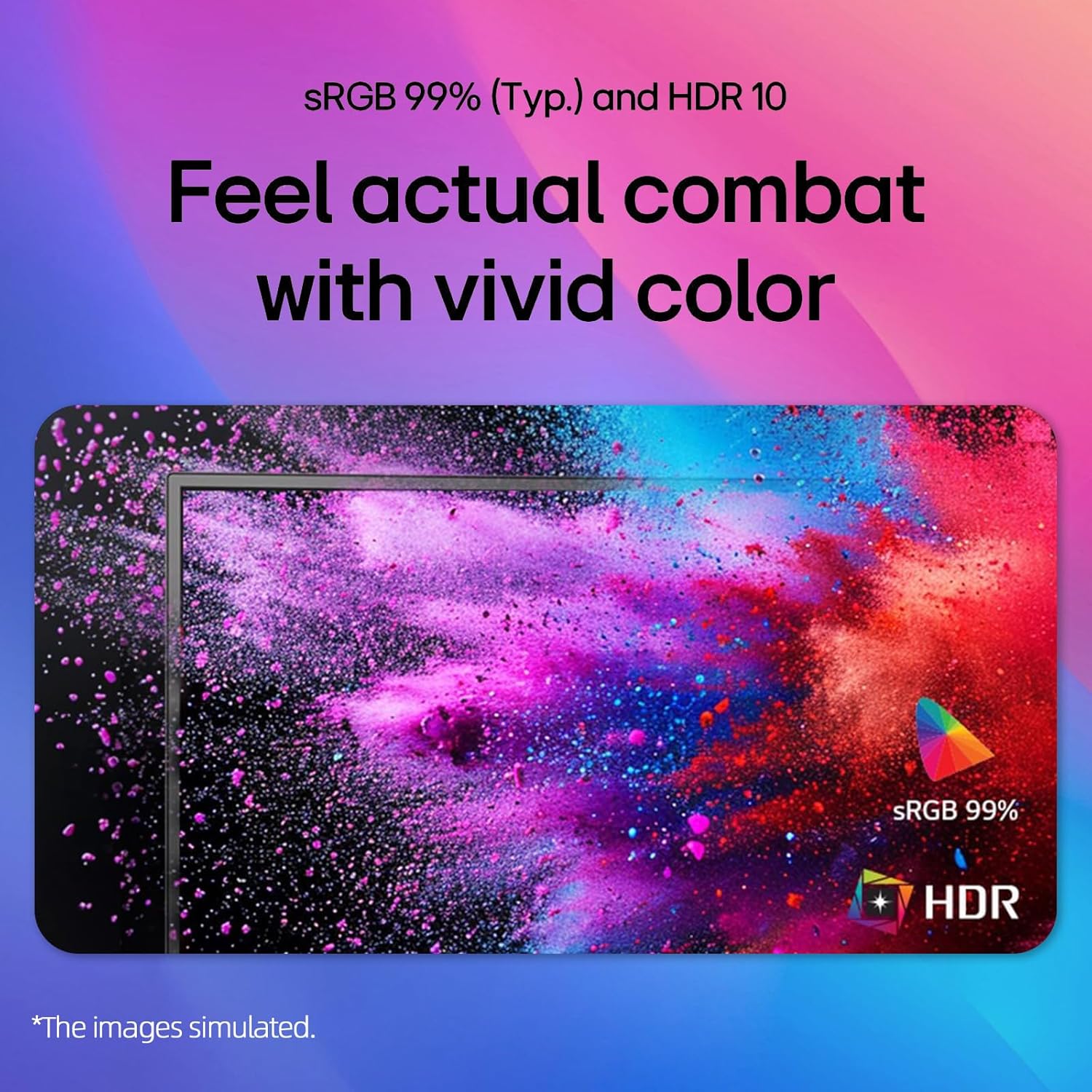
Image: A colorful abstract image displayed on the monitor, highlighting the rich and accurate color reproduction achieved with 99% sRGB coverage and HDR10 support.
Reader Mode & Flicker Safe:
To reduce eye strain during long viewing sessions, activate Reader Mode to adjust color temperature and brightness for a paper-like viewing experience. Flicker Safe technology minimizes screen flicker, further enhancing eye comfort.

Image: An illustration detailing the benefits of Reader Mode, which reduces blue light, and Flicker Safe technology, which minimizes screen flicker, both designed to enhance user eye comfort.
4. LG Switch App
The LG Switch app (available for download from LG.com) provides additional functionalities such as virtual wallpaper, smart screen split, schedule management, and quick video call launching. Refer to the app's documentation for detailed usage instructions.

Image: Multiple screenshots showcasing the LG Switch app's interface and features, including virtual wallpaper customization, smart screen splitting for multitasking, and tools for managing schedules and launching video calls.
Maintenance
- Cleaning the Screen: Gently wipe the screen with a soft, lint-free cloth. For stubborn marks, dampen the cloth with a small amount of water or a non-abrasive screen cleaner. Do not spray cleaner directly onto the screen.
- Cleaning the Casing: Use a soft, dry cloth to wipe the monitor casing. Avoid using strong detergents or abrasive cleaners.
- Ventilation: Ensure the ventilation holes on the back of the monitor are not blocked by dust or debris.
Troubleshooting
| Problem | Possible Solution |
|---|---|
| No power | Check if the power cord is securely connected to the monitor and the wall outlet. Ensure the power outlet is functioning. |
| No image on screen | Verify that the video cable (HDMI/VGA) is correctly connected to both the monitor and the computer. Select the correct input source using the OSD menu. Ensure the computer is powered on and not in sleep mode. |
| Image is blurry or distorted | Adjust the display resolution on your computer to the monitor's native resolution (1920x1080). Check the video cable for damage. |
| Screen tearing or stuttering (gaming) | Ensure AMD FreeSync Premium is enabled in both your graphics card settings and the monitor's OSD menu. Update your graphics card drivers. |
Specifications
| Feature | Detail |
|---|---|
| Brand | LG |
| Model Number | 24GM79G-B |
| Screen Size | 24 Inches |
| Display Resolution Maximum | 1920 x 1080 Pixels (FHD 1080p) |
| Refresh Rate | 120 Hz |
| Response Time | 1 Millisecond (MBR) / 5 Milliseconds (GTG) |
| Panel Type | IPS |
| Aspect Ratio | 16:9 |
| Brightness | 250 cd/m² |
| Contrast Ratio | 3000:1 |
| Viewing Angle | 178° (Horizontal) / 178° (Vertical) |
| Color Gamut | sRGB 99% |
| Connectivity | 1x HDMI, 1x VGA |
| Adaptive Sync Technology | AMD FreeSync Premium |
| HDR Support | HDR10 |
| Special Features | 1ms MBR, Flicker Safe, Reader Mode, 3-Side Borderless Design, Tilt Adjustment, VESA Mount Compatible (100x100mm) |
| Dimensions (W x D x H) | 21.1" x 8.7" x 16.3" (with stand) |
Warranty and Support
For warranty information, please refer to the warranty card included in your product package or visit the official LG website. For technical support, product registration, or service inquiries, please contact LG customer support through their official channels.
Online Support: www.lg.com/us/support