1. Introduction
The Valeton GP-50 is a compact yet powerful multi-effects processor designed for guitarists. It integrates a wide array of effects, amplifier models, cabinet simulations, and advanced features like SnapTone technology and IR (Impulse Response) loading, providing a versatile solution for practice, recording, and live performance. This manual will guide you through the setup, operation, and maintenance of your GP-50 to ensure optimal performance.

Figure 1: Front view of the Valeton GP-50 Multi-Effects Processor, showing the screen and footswitches.
2. Getting Started (Setup)
2.1 Unpacking
Carefully remove all components from the packaging. Ensure the following items are present:
- Valeton GP-50 Multi-Effects Processor
- 9V DC Power Adapter
- USB Type-C Cable
- User Manual (this document)
2.2 Power Connection
Connect the included 9V DC power adapter to the 9V 500mA input jack on the rear of the GP-50. Plug the adapter into a suitable power outlet. The unit can also be powered via the USB-C port (5V).
2.3 Audio Connections
Refer to Figure 2 and Figure 3 for connection points.
- Input: Connect your guitar to the INPUT jack (1/4" unbalanced TS) on the right side of the unit.
- Output: Connect the OUT L (MONO) and OUT R jacks (1/4" unbalanced TS) to your amplifier, mixer, or audio interface. Use OUT L (MONO) for mono output.
- Headphones: For silent practice, connect your headphones to the PHONES jack (1/4" stereo TRS) on the rear.
- EXP/FS: An external expression pedal or footswitch (1/8" TRS) can be connected to the EXP/FS jack for additional control.
- MIDI: Use the MIDI IN and MIDI THRU ports for MIDI control.
- USB: Connect the USB Type-C port to your computer for audio interface functionality, patch editing, and firmware updates.
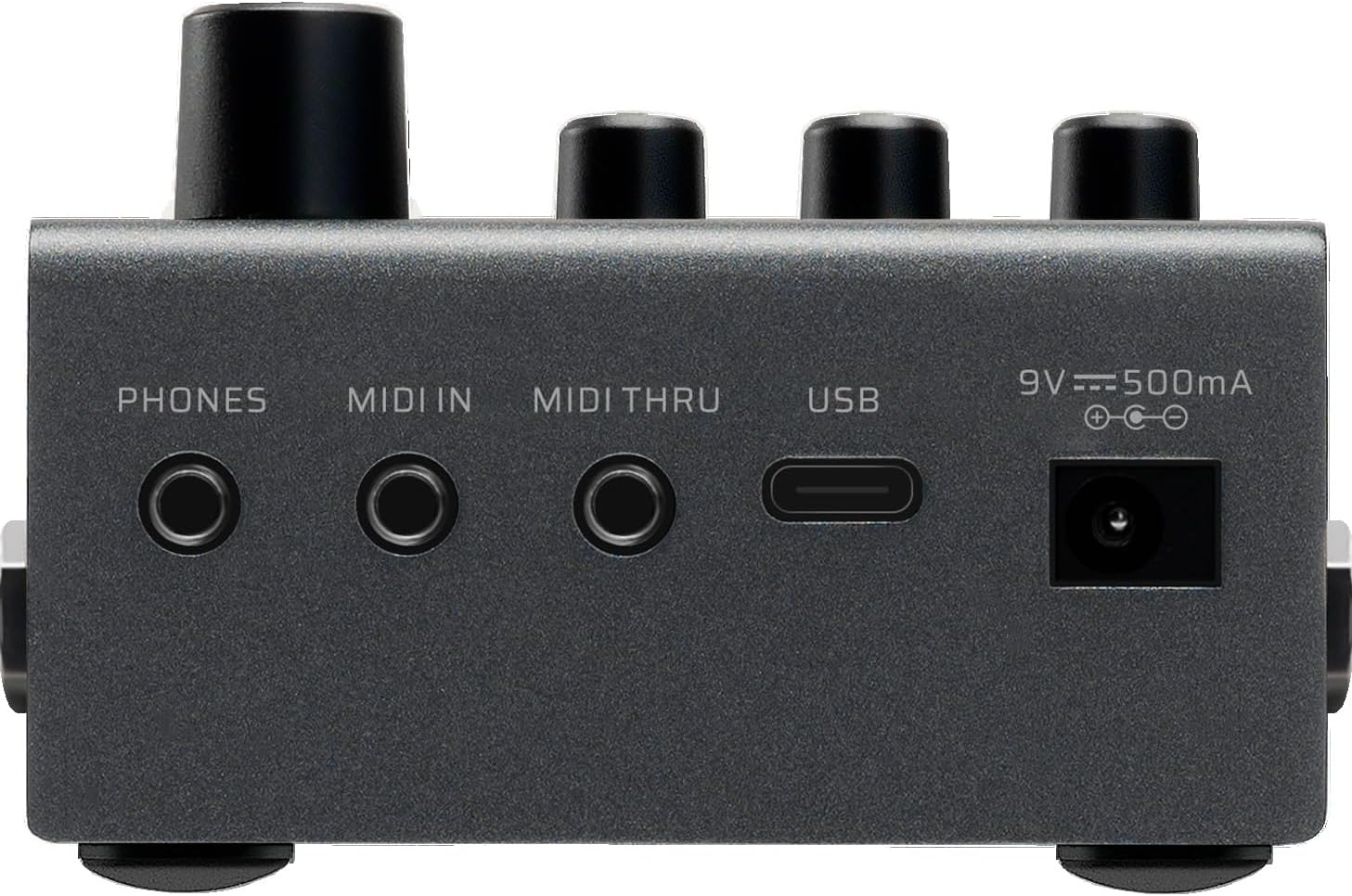
Figure 2: Rear view of the Valeton GP-50, showing PHONES, MIDI IN, MIDI THRU, USB, and power input.

Figure 3: Right side view of the Valeton GP-50, showing EXP/FS and INPUT jacks.

Figure 4: Left side view of the Valeton GP-50, showing OUT L (MONO) and OUT R jacks.
3. Operating the GP-50
3.1 User Interface and Navigation
The GP-50 features a 1.77-inch LCD screen for clear visual feedback. Navigation is primarily done using the three quick-access knobs (PARAM/P-VOL/GLOBAL) and the two footswitches (A and B).
- Footswitches A and B: Used for switching between patches or engaging/disengaging effects within a patch.
- Tuner/Looper Footswitch: Hold down the footswitch labeled "Tuner" to activate the tuner. Hold it again to activate the looper function.
- Knobs: Rotate to adjust parameters displayed on the screen. Press to confirm selections.
Figure 5: Close-up of the GP-50 screen, displaying patch information and parameters.
3.2 Patch Management
The GP-50 offers 100 patches (50 factory presets and 50 user-definable slots). You can easily switch between patches using the footswitches. To edit a patch, select it and use the knobs to adjust individual effect parameters. Press the SAVE button to store your changes.
3.3 Effects Modules
The unit features over 100 effect types and allows for up to 9 simultaneous effect modules in an effect chain. These include Noise Reduction (NR), Preamp (PRE), Distortion (DST), Noise Gate & Sustainer (N+S), Amplifier (AMP), Cabinet (CAB), Equalizer (EQ), Modulation (MOD), Delay (DLY), and Reverb (RVB).

Figure 6: Visual representation of different effect types available on the GP-50.
3.4 SnapTone & IR Loader
The GP-50 incorporates SnapTone technology, allowing you to capture and save up to 50 files (max 83 saved) of your favorite amp tones. It also supports third-party cabinet IRs, with space for up to 20 saved IRs, offering extensive tonal customization.
3.5 Looper and Tuner
The built-in looper and tuner functions are accessible via the dedicated footswitch. The looper allows for on-the-fly phrase recording and playback, while the tuner provides accurate pitch detection for your instrument.
3.6 Bluetooth Connectivity
The GP-50 features Bluetooth 5.0 Dual-Mode (BLE & audio), enabling wireless audio streaming from your mobile device for practice or backing tracks. It also allows connection to the companion mobile app for remote control and editing.
3.7 Companion Software
Utilize the dedicated mobile app or PC software to manage patches, edit effects, and perform firmware updates. This software provides a more visual and detailed interface for deep editing.

Figure 7: The Valeton GP-50 connected to its companion software for editing.
4. Maintenance
To ensure the longevity and optimal performance of your Valeton GP-50, follow these maintenance guidelines:
- Cleaning: Use a soft, dry cloth to clean the unit. Avoid abrasive cleaners or solvents that could damage the finish or electronic components.
- Battery Care: The internal 1450mAh battery provides approximately 4 hours of operation. For best battery life, avoid fully discharging the unit frequently and store it in a cool, dry place when not in use for extended periods.
- Firmware Updates: Periodically check the official Valeton website for firmware updates. Updates can improve performance, add new features, or fix bugs. Follow the instructions provided with the update carefully.
- Storage: Store the GP-50 in a protective case when transporting or not in use to prevent physical damage.
5. Troubleshooting
If you encounter issues with your Valeton GP-50, refer to the following common problems and solutions:
- No Power:
- Ensure the 9V DC power adapter is securely connected to both the unit and a working power outlet.
- If using USB power, ensure the USB-C cable is connected to a powered USB port (e.g., computer, USB charger).
- Check if the internal battery is charged.
- No Sound Output:
- Verify all audio cables (input, output, headphones) are correctly and securely connected.
- Check the master volume on the GP-50 and the volume on your amplifier/headphones.
- Ensure no effects are bypassed or muted within the current patch.
- Confirm the correct output mode is selected if applicable (e.g., mono/stereo).
- Distorted Sound:
- Adjust the input gain of your guitar and the output level of the GP-50 to avoid clipping.
- Check individual effect parameters within the patch for excessive gain or drive settings.
- Bluetooth Connection Issues:
- Ensure Bluetooth is enabled on your mobile device and the GP-50 is in pairing mode.
- Try unpairing and re-pairing the devices.
- Move closer to the GP-50 to ensure a strong signal.
- Companion Software Not Connecting:
- Ensure the USB-C cable is properly connected between the GP-50 and your computer.
- Install the necessary drivers if prompted by the software.
- Restart both the GP-50 and the computer/software.
If problems persist, please contact Valeton customer support for further assistance.
6. Specifications
| Screen | 1.77-inch LCD |
| A/D/A Converter | 24-bit high-performance audio, 44.1kHz sampling rate |
| SNR | 108dB |
| Drum Machine | Yes |
| Effects Modules | Max 9 simultaneous |
| Effect Types | 100+ |
| SnapTone Files | 50 files, max 83 saved |
| IR Support | 3rd party cabinet IR support, max 20 saved |
| Patches | 100 (50 factory, 50 user) |
| Input | 1/4" unbalanced (TS) |
| Output | 1/4" unbalanced (TS), 1/4" stereo (TRS) |
| Headphones | 1/4" stereo (TRS) |
| Bypass Mode | Analog bypass, DSP bypass |
| EXP/FS | 1/8" (TRS) |
| MIDI | MIDI IN/THRU |
| USB | USB 2.0 Type-C, 2-in/2-out, 5.0 Dual-Mode (BLE & audio) |
| Companion Software | Mobile app & PC software |
| Battery | 1450mAh internal battery, approx. 4 hours operation |
| Power | DC 9V Center Negative, or USB 5V |
| Dimensions (L x W x H) | 12.2 cm x 8.2 cm x 5.4 cm |
| Weight | 430 grams |
7. Warranty and Support
Valeton products are designed for reliability and performance. For warranty information, technical support, or service inquiries, please refer to the warranty card included with your product or visit the official Valeton website. Keep your purchase receipt as proof of purchase for warranty claims.


