
1. Introduction
This manual provides essential information for setting up, operating, and maintaining your ECOPAD T5 Android 15 Tablet. Please read it thoroughly to ensure proper use and to maximize your device's potential. Keep this manual for future reference.
2. Package Contents
Verify that all items listed below are included in your package:
- ECOPAD T5 Android 15 Tablet
- Protective Case
- Bluetooth Keyboard
- Wireless Mouse
- Stylus Pen
- Charger (Power Adapter)
- USB-C Cable
- User Manual (this document)

Figure 2.1: Included Package Contents. The image displays the tablet, protective case, keyboard, mouse, stylus, user manual, charger, and USB-C cable, each numbered for identification.
3. Device Overview
Familiarize yourself with the physical components of your ECOPAD T5 tablet:

Figure 3.1: Tablet Component Diagram. This diagram illustrates the tablet's layout, including the 3.5mm Audio Jack, Volume buttons, Power button, Front Camera, TF Card Slot, USB-C Port, Microphone, Rear Camera, and Loudspeaker.
4. Setup Guide
4.1 Initial Charging
Before first use, fully charge your tablet. Connect the USB-C cable to the tablet's USB-C port and the charger to a power outlet. The battery indicator on the screen will show charging status.
4.2 Power On/Off
- To Power On: Press and hold the Power button until the ECOPAD logo appears.
- To Power Off: Press and hold the Power button, then select "Power off" from the options on the screen.
- To Restart: Press and hold the Power button, then select "Restart" from the options.
4.3 Initial Setup Wizard
Upon first power-on, the tablet will guide you through an initial setup process. Follow the on-screen prompts to:
- Select your language.
- Connect to a Wi-Fi network.
- Sign in with your Google account or create a new one.
- Set up screen lock (PIN, pattern, password, or Face Unlock).
4.4 Connecting Accessories (Keyboard & Mouse)
Your ECOPAD T5 tablet comes with a Bluetooth keyboard and a wireless mouse for enhanced productivity.
4.4.1 Bluetooth Keyboard Pairing
- Ensure the keyboard is charged and powered on. Look for a small switch or button on the keyboard to turn it on.
- On your tablet, go to Settings > Connected devices > Bluetooth.
- Turn on Bluetooth. The tablet will search for available devices.
- On the keyboard, press the "Connect" button (often labeled "Fn+C" or a dedicated Bluetooth button) to make it discoverable.
- Select the keyboard from the list of available devices on your tablet.
- Follow any on-screen prompts to complete the pairing process (e.g., entering a code).
4.4.2 Wireless Mouse Connection
The wireless mouse typically connects via a USB dongle. Insert the USB dongle into the tablet's USB-C port using an appropriate adapter if necessary (adapter not included). The tablet should automatically detect and configure the mouse.

Figure 4.1: Tablet in 2-in-1 Laptop Mode. The image shows the ECOPAD T5 tablet with its Bluetooth keyboard and wireless mouse, demonstrating its versatility for efficient work and typing.
5. Basic Operation
5.1 Touchscreen Gestures
- Tap: Select an item or open an app.
- Tap & Hold: Access contextual menus or move items.
- Swipe: Scroll through lists, switch screens, or dismiss notifications.
- Pinch In/Out: Zoom in or out on photos, maps, or web pages.
5.2 Navigation Bar
The navigation bar at the bottom of the screen typically includes:
- Back: Returns to the previous screen.
- Home: Returns to the home screen.
- Recent Apps: Shows recently used applications for quick switching.
5.3 Notifications and Quick Settings
Swipe down from the top of the screen to access the notification panel and quick settings toggles (Wi-Fi, Bluetooth, brightness, etc.).
6. Key Features
6.1 Display
- Size: 11-inch IPS Touchscreen
- Resolution: 1280x800 Pixels
- Aspect Ratio: 16:9
- Features: Eye Protection Screen, Multi-touch support, Widevine L1 Certified for Full HD streaming.

Figure 6.1: 11-inch HD Display. The image showcases the tablet's expansive 11-inch screen, ideal for immersive visuals with 1280x800 resolution and eye protection features.

Figure 6.2: Widevine L1 Certification. This image highlights the tablet's Widevine L1 certification, enabling Full HD playback on major streaming platforms like YouTube, Netflix, Prime Video, Hulu, and HBO GO.
6.2 Performance & Storage
- Processor: Octa-Core Unisoc T606 (1.6 GHz)
- RAM: 20GB (6GB Physical + 14GB Virtual Memory)
- Internal Storage: 128GB ROM
- Expandable Storage: Up to 2TB via Micro SD card (TF card slot)

Figure 6.3: Massive RAM and ROM. This image emphasizes the tablet's 20GB RAM and 128GB ROM, powered by Android 15 and an Octa-Core processor for smooth multitasking.

Figure 6.4: Unisoc T606 Octa-core Processor. This image highlights the Unisoc T606 Octa-core Processor, providing reliable power for daily tasks and responsive split-screen performance.

Figure 6.5: Expandable Storage. This image illustrates the tablet's capability to boost speed with 20GB RAM and store thousands of photos in 128GB ROM, with expansion up to 2TB via TF card.
6.3 Battery
- Capacity: 8000mAh Lithium Polymer
- Charging: 18W Fast Charging (USB-C)
- Average Life: Up to 8 hours of general use, 6 hours of video playback.
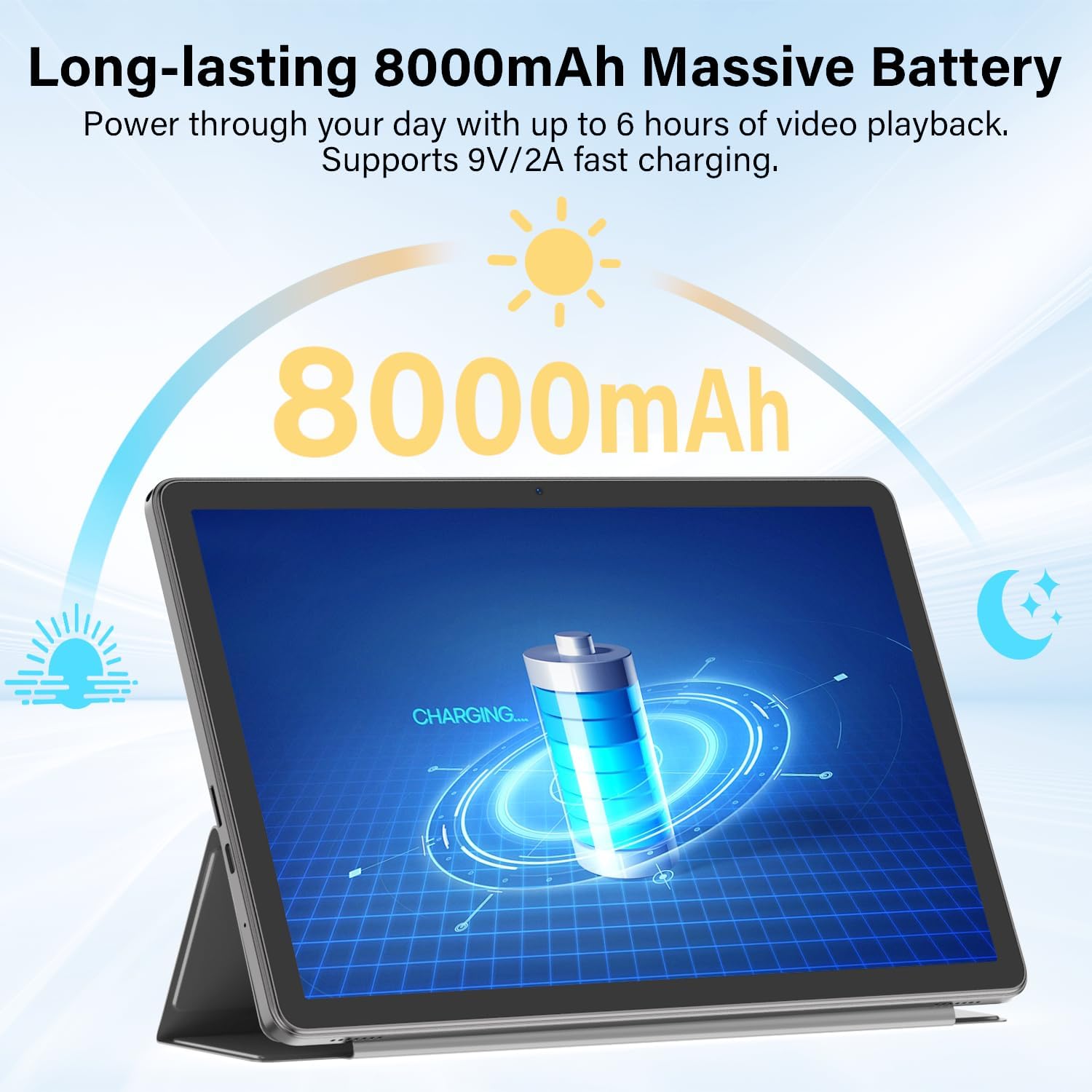
Figure 6.6: Long-lasting Battery. This image highlights the tablet's 8000mAh battery, providing power for up to 6 hours of video playback and supporting 9V/2A fast charging.
6.4 Operating System
- OS: Android 15
- Features: Enhanced privacy, fluid multitasking, smarter notifications, optimized performance, adaptive security.

Figure 6.7: Android 15 OS. The image displays the tablet running Android 15, showcasing its modern interface and capabilities.

Figure 6.8: Latest Android 15 OS Features. This image outlines key benefits of Android 15, including enhanced privacy, fluid multitasking, smarter notifications, optimized performance, and adaptive security.

Figure 6.9: AI Capable. This image highlights the tablet's compatibility with leading AI apps like Gemini, ChatGPT, and Grok, enabling complex tasks and accelerating creativity.
6.5 Connectivity
- Wi-Fi: Dual-Band WiFi 6 (2.4G/5Ghz, 802.11ac, 802.11ax)
- Bluetooth: Bluetooth 5.0
- Navigation: GPS
- Ports: 3.5mm Audio Jack, USB Type-C
- Audio: Dual Stereo Speakers, Microphone Inside

Figure 6.10: Connectivity Features. This image displays the tablet's connectivity options, including Dual Stereo Speakers, 3.5mm Audio Jack, Bluetooth 5.0, GPS Navigation, 2.4/5Ghz WiFi 6, and an internal Microphone.
6.6 Cameras
- Rear Camera: 8.0 MP
- Front Camera: 5.0 MP
- Video Capture: FHD 1080p

Figure 6.11: Dual Cameras. This image highlights the tablet's 8MP rear and 5MP front cameras, suitable for clear video calls, quick photos, and document scanning.
6.7 Security
- Face Unlock: Secure and instant facial recognition for unlocking the device.

Figure 6.12: Instant Face Unlock. This image illustrates the tablet's secure, hands-free facial recognition feature for instant unlocking.
7. Maintenance
7.1 Cleaning Your Tablet
Use a soft, lint-free cloth to clean the screen and body of the tablet. Avoid abrasive materials or harsh chemicals. For stubborn smudges, slightly dampen the cloth with water or a screen cleaner designed for electronics.
7.2 Software Updates
Regularly check for and install software updates to ensure optimal performance, security, and access to new features. Go to Settings > System > System update to check for updates.
7.3 Battery Care
- Avoid exposing the tablet to extreme temperatures.
- Do not let the battery completely drain frequently.
- Use the provided charger and cable for optimal charging.
7.4 Storage Management
Periodically review and delete unnecessary files, apps, and media to free up storage space and maintain performance. Utilize the expandable storage option with a Micro SD card for large files.
8. Troubleshooting
If you encounter issues with your tablet, refer to the following common problems and solutions:
| Problem | Solution |
|---|---|
| Tablet does not power on | Ensure the battery is charged. Connect the charger and wait a few minutes before attempting to power on again. If unresponsive, press and hold the Power button for 10-15 seconds to force a restart. |
| Cannot connect to Wi-Fi | Check if Wi-Fi is enabled in Quick Settings or Settings > Network & internet > Internet. Ensure the Wi-Fi password is correct. Restart your router and the tablet. |
| Bluetooth keyboard/mouse not pairing | Ensure the accessory is charged and in pairing mode. On the tablet, go to Settings > Connected devices > Bluetooth and ensure Bluetooth is on. Forget and re-pair the device if it was previously connected. |
| Apps are slow or crashing | Close unnecessary background apps. Clear app cache (Settings > Apps > [App Name] > Storage & cache > Clear cache). Ensure sufficient storage space is available. Restart the tablet. |
| Screen is unresponsive | Restart the tablet by holding the Power button. If the issue persists, perform a factory reset (data will be lost, back up important files). |
9. Specifications
| Feature | Specification |
|---|---|
| Brand | ECOPAD |
| Model Name | T5 Android Tablet |
| Operating System | Android 15 |
| Processor | Octa-Core Unisoc T606, 1.6 GHz |
| RAM Memory | 20 GB (6GB Physical + 14GB Virtual) |
| Storage Capacity | 128 GB ROM |
| Expandable Storage | Up to 2 TB (Micro SD/TF Card) |
| Screen Size | 11 Inches |
| Display Resolution | 1280x800 Pixels |
| Aspect Ratio | 16:9 |
| Battery Capacity | 8000 mAh Lithium Polymer |
| Battery Average Life | 8 Hours |
| Charging | 18W Fast Charging (USB-C) |
| Wireless Technology | Wi-Fi 6 (802.11ac, 802.11ax), Bluetooth 5.0 |
| Connectivity Technology | Bluetooth, Wi-Fi |
| Hardware Interface | 3.5mm Audio Jack, USB Type-C |
| Front Camera | 5.0 MP |
| Rear Camera | 8.0 MP |
| Video Capture Resolution | FHD 1080p |
| Human-Interface Input | Touchscreen with Stylus Support |
| Item Dimensions (L x W x Thickness) | 9.6"L x 5.4"W x 0.25"Th |
10. Warranty and Support
10.1 Product Warranty
Your ECOPAD T5 Android 15 Tablet comes with a 2 Years Warranty from the date of purchase. This warranty covers manufacturing defects and malfunctions under normal use. Please retain your proof of purchase for warranty claims.
10.2 Customer Support
For technical assistance, warranty claims, or any questions regarding your ECOPAD T5 tablet, please contact ECOPAD customer support. Refer to the contact information provided with your product packaging or visit the official ECOPAD website for support details.