
Introduction
Thank you for choosing the Bettdow Dual Foldable Portable Monitor. This device is designed to enhance your productivity and provide a versatile display solution for various applications. It features two 15.6-inch Full HD 1080P IPS screens, offering an expanded workspace and flexible viewing options. This manual provides essential information for setting up, operating, maintaining, and troubleshooting your new monitor.
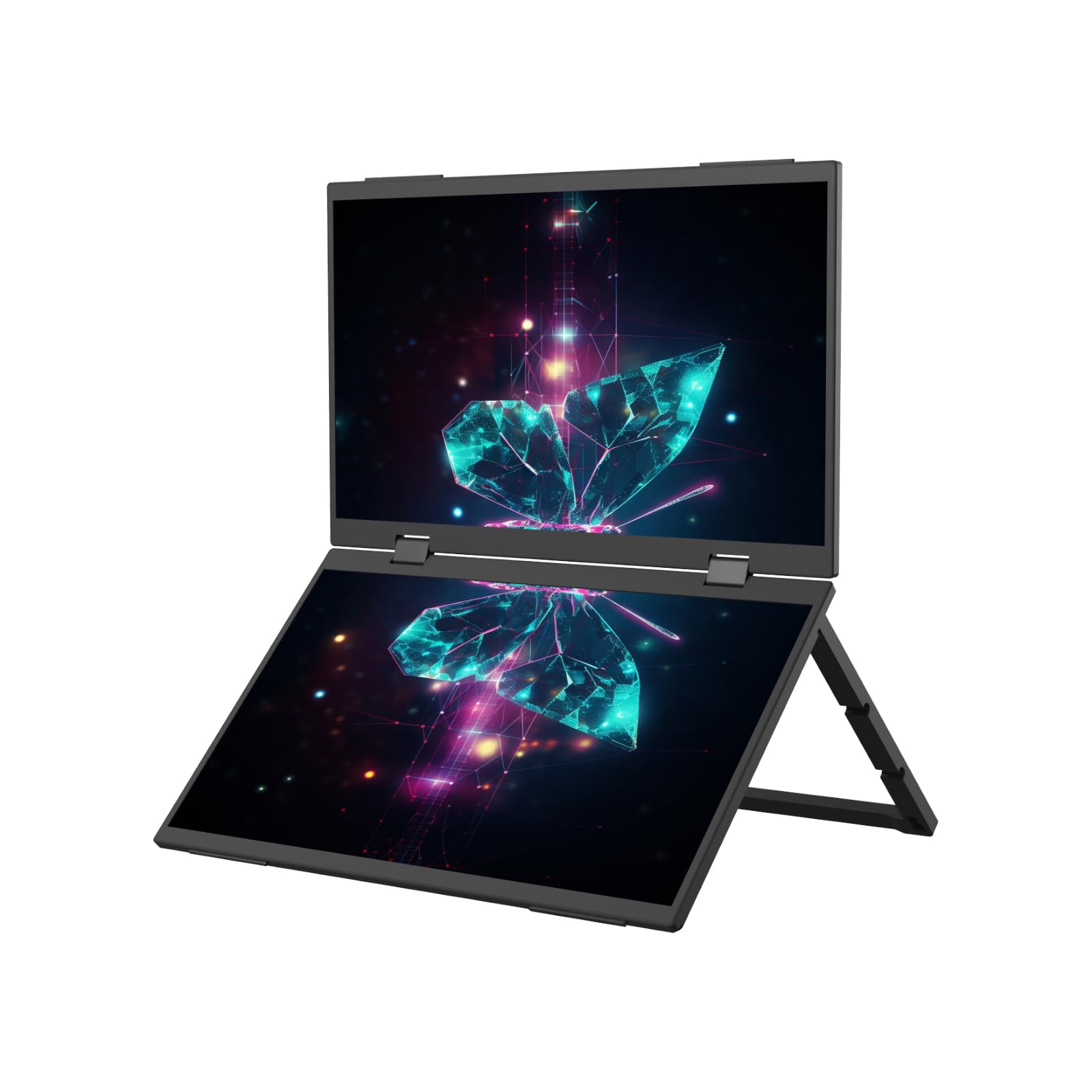
Image: Overview of the Bettdow Dual Foldable Portable Monitor highlighting its main features.
Setup
1. Unpacking and Initial Inspection
- Carefully remove the monitor from its packaging.
- Inspect the monitor and all accessories for any signs of damage.
- Ensure all components listed in the packing list are present.
2. Connecting the Monitor
The Bettdow monitor supports single-cable connectivity for data, video, and charging via a full-featured USB-C port. For devices without a full-featured Type-C port, an external power source is required.

Image: Illustration of the monitor's single-cable USB-C connection capability.
- USB-C Connection: Connect a USB-C cable from your device (laptop, tablet, phone) to the monitor's full-featured USB-C port. This single cable can transmit video, audio, and power.
- HDMI Connection: If your device uses HDMI, connect a Mini-HDMI cable from your device to the monitor's Mini-HDMI port. An additional USB-C cable may be required for power.
- Power: For devices without full-featured USB-C, connect the monitor to an external power source using a USB-C power adapter (not always included, check product contents).
3. Adjusting the Stand and Screen Angles
The monitor features a 180° adjustable stand and screens that can rotate from 0 to 315°, allowing for various ergonomic and collaborative setups.

Image: Examples of flexible screen angles and configurations.
- Gently unfold the monitor and adjust the integrated kickstand to your desired viewing angle.
- Rotate the individual screens to achieve optimal positioning for personal use, presentations, or collaborative work.
4. VESA Mounting
The monitor is compatible with 75x75 mm VESA mounts, allowing for wall or arm mounting to save desk space.
- Locate the VESA mounting holes on the back of the monitor.
- Attach the monitor to a compatible VESA mount using appropriate screws (mount and screws sold separately).
Operating Instructions
1. Powering On/Off
- Press and hold the power button (usually located on the side or back of the monitor) to turn the monitor on or off.
2. Display Modes
The monitor offers six display modes to suit various multitasking needs:
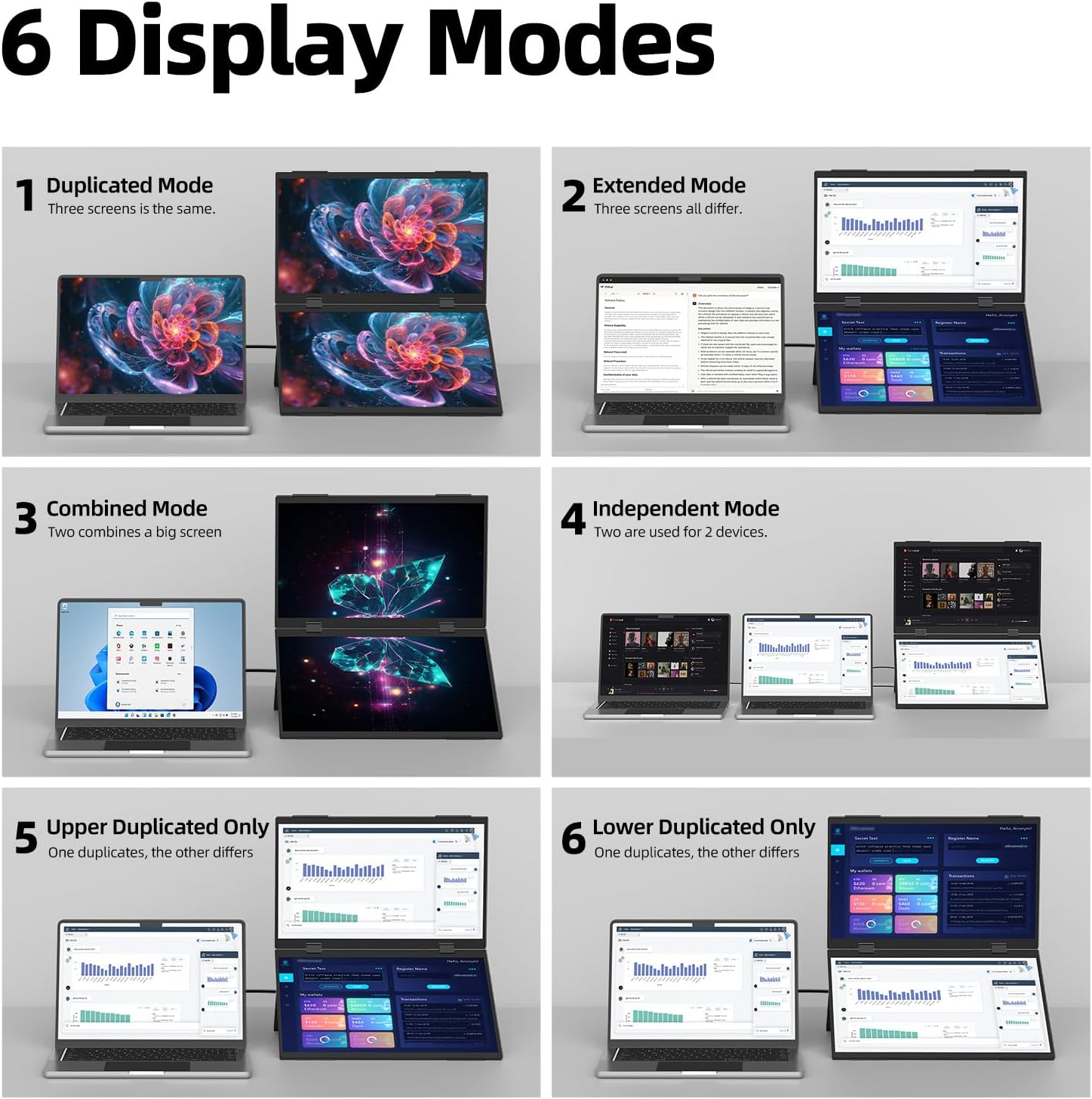
Image: Visual representation of the six available display modes.
- Duplicated Mode: All three screens (laptop + dual monitor) display the same content.
- Extended Mode: All three screens display different content, expanding your desktop.
- Combined Mode: The two portable screens combine to form one large display, separate from the laptop.
- Independent Mode: The two portable screens are used for two separate devices.
- Upper Duplicated Only: The upper portable screen duplicates the laptop display, while the lower screen is extended.
- Lower Duplicated Only: The lower portable screen duplicates the laptop display, while the upper screen is extended.
You can switch between these modes using your operating system's display settings (e.g., Windows Display Settings, macOS System Preferences) or the monitor's multi-function wheel key.

Image: Demonstrating efficient multitasking with the dual portable monitor.
3. Using the Multi-function Wheel Key
The monitor features a multi-function wheel key for navigating the On-Screen Display (OSD) menu and adjusting settings such as brightness, contrast, and input source.
- Press the wheel key to access the OSD menu.
- Roll the wheel up or down to navigate through menu options.
- Press the wheel key again to select an option or confirm a setting.
- Use the return button (often integrated with the power button or a separate button) to go back or exit the menu.
4. Automatic Screen Rotation
The integrated gravity sensor allows for automatic screen rotation when the monitor is physically reoriented, facilitating easy sharing of your screen.

Image: The monitor's portability for mobile work environments.
Maintenance
1. Cleaning the Monitor
- Always power off and unplug the monitor before cleaning.
- Use a soft, lint-free cloth slightly dampened with water or a non-abrasive screen cleaner to wipe the screens.
- For the exterior, use a soft, dry cloth. Avoid using harsh chemicals, alcohol, or abrasive materials.
2. Storage
- When not in use, fold the monitor to its compact form for easy storage.
- Store the monitor in a cool, dry place, away from direct sunlight and extreme temperatures.
- Use the provided smart magnetic sleeve or a similar protective case to prevent scratches and damage during transport or storage.
Troubleshooting
If you encounter issues with your Bettdow monitor, please refer to the following common troubleshooting steps:
No Display / Black Screen
- Ensure the monitor is powered on and the power indicator light is active.
- Check all cable connections (USB-C, HDMI) between the monitor and your device. Ensure they are securely plugged in.
- Verify that your device's display output is enabled and configured correctly (e.g., extended or duplicated mode).
- If using a non-full-featured USB-C port, ensure the monitor is receiving external power.
- Try connecting the monitor to a different device or using different cables to rule out device or cable issues.
Flickering or Unstable Display
- Check the cable connections for looseness or damage.
- Ensure your device's graphics drivers are up to date.
- Reduce the display resolution or refresh rate in your device's display settings to see if the issue resolves.
- Ensure the monitor is receiving stable power.
No Audio from Headphones
- Ensure your headphones are correctly plugged into the 3.5mm headphone jack on the monitor.
- Check the audio output settings on your connected device to ensure audio is routed to the monitor.
- Adjust the volume using the monitor's multi-function wheel key or your device's volume controls.
Specifications
Below are the technical specifications for the Bettdow Dual Foldable Portable Monitor:

Image: Detailed specifications and dimensions of the 15.6-inch IPS screen.
| Feature | Specification |
|---|---|
| Screen Size | Dual 15.6 inches |
| Resolution | FHD 1080P (1920 x 1080) |
| Panel Type | IPS |
| Aspect Ratio | 16:9 |
| Brightness | 300 cd/m² |
| Contrast Ratio | 1000:1 |
| Refresh Rate | 60Hz |
| Color Gamut | 45% NTSC |
| Connectivity | Full-featured USB-C (x2), Mini-HDMI (x2), 3.5mm Headphone Jack (x2) |
| Foldable Angle | 0-315° |
| Kickstand Adjustment | 180° |
| VESA Compatibility | 75x75 mm |
| Special Features | Low Blue Light Mode, Dual Speakers, Gravity Sensor for Auto-Rotation |
| Color | Black |
| Country of Origin | China |

Image: Detailed view of the monitor's connectivity ports and control buttons.
Warranty Information
The Bettdow Dual Foldable Portable Monitor comes with a standard 12-month warranty from the date of purchase. This warranty covers manufacturing defects and malfunctions under normal use. Please retain your proof of purchase for warranty claims.
The warranty does not cover damage caused by:
- Accidental damage, misuse, abuse, or neglect.
- Unauthorized repairs or modifications.
- Improper installation or operation not in accordance with this manual.
- Natural disasters or external causes.
Support
For further assistance, technical support, or warranty inquiries, please contact Bettdow customer service through the retailer where you purchased the product or visit the official Bettdow website for contact information.
Please have your product model number and purchase details ready when contacting support.