
1. Introduction
Thank you for choosing the SANSUI 24 inch Smart WebOS TV. This manual provides essential information for setting up, operating, and maintaining your new television. Please read this manual thoroughly before using the product to ensure proper and safe operation. Keep this manual for future reference.

Image: The SANSUI 24 inch Smart WebOS TV integrated into a modern living space, displaying a vibrant gaming scene. This illustrates the TV's capability for entertainment and its sleek design.
2. Product Overview
Key Features
- Display: 24 inch 720P LED VA Panel (1366x768 resolution) with 200 Nits brightness and 1200:1 contrast ratio. Features Dolby Video and 178° viewing angles.
- Smart Platform: WebOS hub for access to popular streaming services like Netflix, Prime Video, Hulu, Disney+, and HBO Max.
- Connectivity: Airplay support for screen mirroring, Bluetooth 5.2, Wi-Fi, 3 HDMI 1.4 ports, 2 USB 2.0 ports, Audio Video port, RJ45 Ethernet port, TV Tuner (ATSC), and RF Antenna Input.
- Audio: Immersive Dolby Atmos Stereo Sound with dual 8W cinematic speakers and 5 sound Equalizers.
- Design: Compact 4-Side Bezel-Less Design with a twin footing stand.
- Processor: Powered by a 1.4GHz ARM Cortex A55*4 CPU and Mali-G31 MP2 GPU, with 1GB DDR RAM and 8GB eMMC Flash storage for smooth performance.
- Smart Home Integration: Compatible with Apple HomeKit.
- Additional Features: Parental control, Wide Viewing Angle.

Image: A visual summary of the SANSUI Smart WebOS TV's core features, highlighting its smart capabilities, display brightness, internal hardware, audio technology, and connectivity options.
What's in the Box
- SANSUI 24 inch Smart WebOS TV
- Remote Control
- Remote Batteries
- Twin Footing Stand
- User Manual (this document)
- Power Cable
- Wall-mount Bracket (optional, may be sold separately or included depending on package)

Image: This diagram illustrates the physical dimensions of the 24-inch SANSUI TV and lists the accessories typically included in the product package, such as the remote control, batteries, user manual, stand, and wall-mount bracket.
3. Setup
3.1 Unpacking and Placement
- Carefully remove the TV from its packaging. Retain the packaging materials for potential future transport or service.
- Place the TV on a stable, flat surface or mount it on a wall using a compatible VESA 100x100mm wall mount bracket (sold separately). Ensure adequate ventilation around the TV.
- If using the stand, attach the twin footing stands securely to the bottom of the TV using the provided screws.
3.2 Connecting Power
- Connect the power cable to the TV's power input port.
- Plug the other end of the power cable into a suitable electrical outlet.
3.3 Connecting External Devices
Your SANSUI TV offers various connectivity options:
- HDMI: Use HDMI cables to connect devices such as Blu-ray players, gaming consoles, or set-top boxes to the HDMI 1.4 ports (x3).
- USB: Insert USB drives into the USB 2.0 ports (x2) to play media files.
- RF Antenna: Connect a coaxial cable from your antenna or cable TV wall outlet to the RF Antenna Input for over-the-air or cable channels.
- AV In: Use an AV cable to connect older devices.
- RJ45: Connect an Ethernet cable for a wired internet connection.
- Optical Audio Output: Connect to an external sound system or soundbar for enhanced audio.
- Earphone: Connect headphones for private listening.

Image: A detailed view of the TV's side panel, labeling each port for USB, RF Antenna, HDMI, Earphone, AV IN, RJ45, and Optical Audio Output, indicating their functions for connecting various devices.
3.4 Initial Power On and Setup Wizard
- Press the Power button on the remote control or on the TV.
- Follow the on-screen instructions of the setup wizard to select your language, country, and connect to your Wi-Fi network.
- Agree to the WebOS terms and conditions to access smart features.
- Perform a channel scan if you have connected an antenna.
4. Operating Instructions
4.1 Remote Control Functions
The remote control allows you to navigate the TV's features. Familiarize yourself with the buttons:
- Power: Turns the TV on/off.
- Number Buttons: Direct channel selection.
- Input: Selects input sources (HDMI, USB, AV, etc.).
- Navigation Pad (Up/Down/Left/Right/OK): Navigates menus and confirms selections.
- Back: Returns to the previous screen.
- Home: Accesses the WebOS Hub.
- Volume Up/Down: Adjusts volume.
- Channel Up/Down: Changes channels.
- Streaming Shortcuts: Dedicated buttons for popular apps like Netflix, Prime Video, Disney+, etc.
- Quick Access: Displays the quick access edit screen.
- Guide: Displays the channel guide (if available).

Image: A visual guide to the SANSUI TV remote control, detailing the layout and function of each button for easy navigation and control of the television's features.
4.2 Using WebOS Hub
Press the Home button on your remote to access the WebOS Hub. From here, you can:
- Launch pre-installed streaming applications (Netflix, YouTube, Prime Video, etc.).
- Access connected input sources.
- Manage TV settings.
- Browse and install new apps from the content store.

Image: A clear display of the WebOS Hub interface, showcasing a selection of popular streaming applications available for direct access, emphasizing the TV's smart capabilities.
4.3 Airplay and Screen Mirroring
The TV supports Apple Airplay for effortless screen mirroring from your compatible Apple devices (iPhone, iPad, Mac). Ensure your device and the TV are connected to the same Wi-Fi network. Select the Airplay option on your device and choose your SANSUI TV from the list.
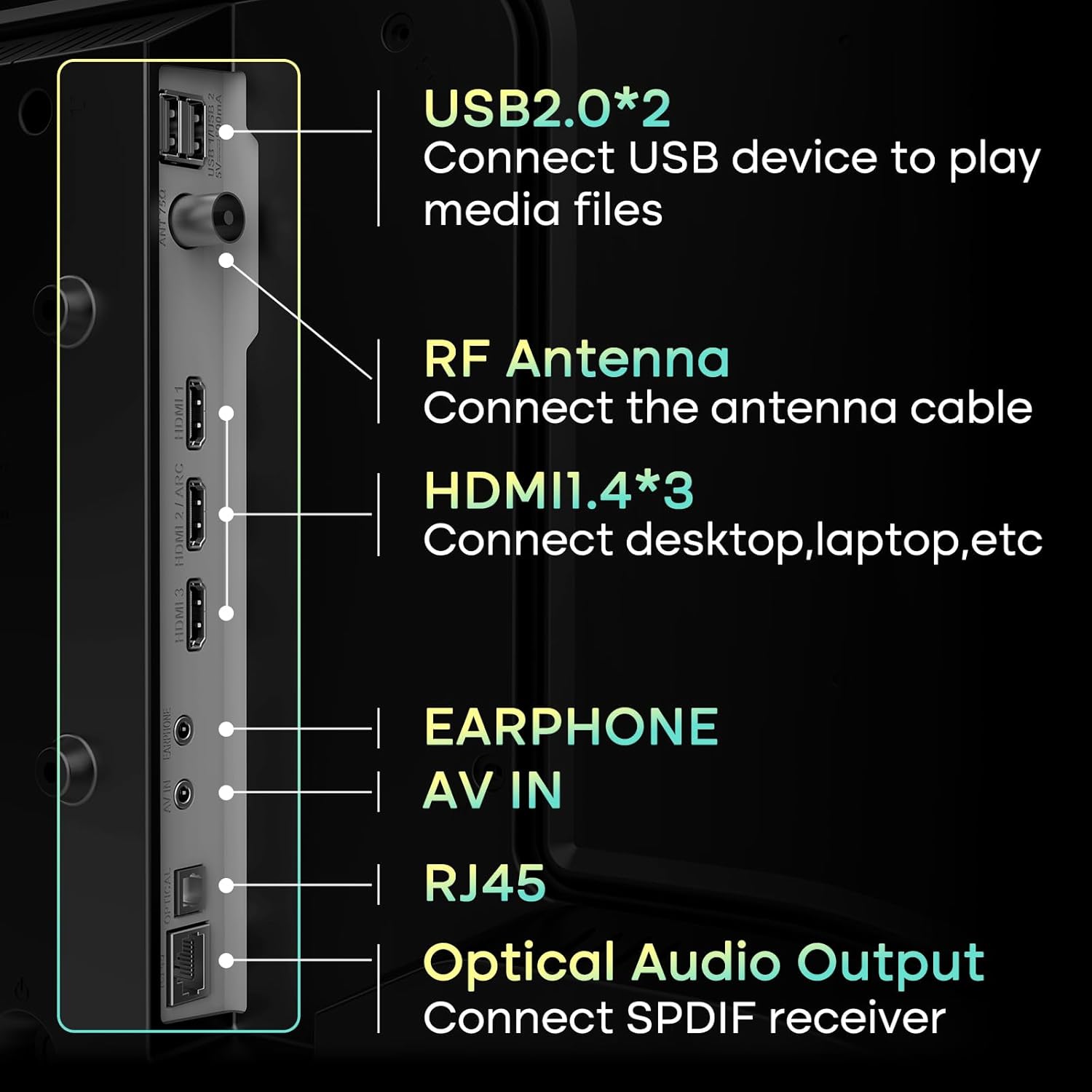
Image: This image illustrates the Airplay feature, showing a smartphone's content being wirelessly mirrored onto the SANSUI TV, highlighting its convenience for sharing media.
4.4 Bluetooth Connectivity
Connect Bluetooth 5.2 compatible devices such as headphones, soundbars, or game controllers to your TV for a wireless experience. Navigate to the TV's settings menu, select Bluetooth, and pair your device.

Image: This visual demonstrates the TV's Bluetooth 5.2 capabilities and its 2*8W speakers, showing a user connecting a smartphone to the TV for audio playback, enhancing the sound experience.
4.5 Picture and Sound Settings
Access the TV's settings menu to customize picture and sound to your preference. Options include:
- Picture Modes: Standard, Vivid, Sports, Movie, Game, Energy Saving.
- Brightness, Contrast, Color, Sharpness: Fine-tune display quality.
- Sound Modes: Standard, Music, Cinema, Sports, Game.
- Equalizer: Adjust audio frequencies.

Image: A screenshot of the TV's picture settings menu, demonstrating the various customizable options available to users for optimizing their viewing experience, such as different picture modes.
4.6 Parental Control
Utilize the parental control features to restrict access to certain channels or content based on ratings. This helps ensure a safe viewing environment for children. Access these settings through the TV's main menu.
5. Maintenance
5.1 Cleaning the TV
- Screen: Gently wipe the screen with a soft, dry, lint-free cloth. For stubborn marks, lightly dampen the cloth with water or a specialized screen cleaner. Avoid harsh chemicals or abrasive materials.
- Body: Wipe the TV's frame and stand with a soft, dry cloth.
- Ventilation: Ensure the ventilation openings on the back of the TV are not blocked to prevent overheating.
5.2 Software Updates
Your SANSUI TV may receive software updates to improve performance and add new features. It is recommended to enable automatic updates or periodically check for updates in the TV's settings menu to ensure optimal functionality.
6. Troubleshooting
If you encounter issues with your TV, refer to the following common solutions:
| Problem | Possible Solution |
|---|---|
| No power | Check if the power cable is securely connected to both the TV and the electrical outlet. Ensure the outlet is working. Try pressing the power button on the TV itself. |
| No picture, but sound is present | Check the input source. Ensure the connected device is powered on and functioning correctly. Try a different HDMI cable or port. |
| No sound, but picture is present | Check the volume level and ensure the TV is not muted. Verify audio output settings (e.g., internal speakers vs. external sound system). Check audio cables for external devices. |
| Remote control not working | Replace the batteries in the remote control. Ensure there are no obstructions between the remote and the TV's IR sensor. |
| Cannot connect to Wi-Fi | Ensure your Wi-Fi router is on and working. Re-enter the Wi-Fi password carefully. Try restarting both the TV and your router. Move the TV closer to the router if possible. |
| Smart apps not loading or slow | Check your internet connection speed. Close and reopen the app. Clear the app's cache (if available in settings). Restart the TV. |
7. Specifications
| Feature | Detail |
|---|---|
| Brand | SANSUI |
| Model Number | ES-24VA1-CA-1 / ES-24VA1-US-1 |
| Screen Size | 24 inches |
| Display Technology | LED VA Panel |
| Resolution | 768p (1366x768) |
| Refresh Rate | 60Hz |
| Brightness | 200 Nits |
| Contrast Ratio | 1200:1 |
| Viewing Angle | 178° |
| Operating System | WebOS Hub |
| Processor | 1.4GHz ARM Cortex A55*4 CPU |
| GPU | Mali-G31 MP2 |
| RAM | 1GB DDR |
| Storage | 8GB eMMC Flash |
| Audio Output | 2 x 8W Speakers, Dolby Atmos Stereo Sound |
| Connectivity | Wi-Fi, Bluetooth 5.2, 3x HDMI 1.4, 2x USB 2.0, 1x AV In, 1x RJ45, 1x RF Antenna, 1x Optical Audio Out, 1x Earphone |
| Product Dimensions (D x W x H) | 4.72 x 16.14 x 24.41 inches (with stand) |
| Item Weight | 7.09 pounds |
| VESA Mount Compatible | 100x100mm |
8. Warranty and Support
8.1 Warranty Information
SANSUI products are manufactured to high-quality standards and are warranted against manufacturing defects. Please refer to the warranty card included with your product for specific terms, conditions, and duration of the warranty. Keep your purchase receipt as proof of purchase.
8.2 Customer Support
For technical assistance, troubleshooting beyond this manual, or warranty claims, please contact SANSUI customer support. You can typically find contact information (phone number, email, or website) on the product packaging, the warranty card, or by visiting the official SANSUI website.
When contacting support, please have your TV model number (ES-24VA1) and purchase information readily available.


