
Introduction
The OBSBOT Tiny 3 is an advanced AI-powered 4K PTZ webcam designed for high-quality video conferencing, streaming, and content creation. It features a compact design, spatial audio capabilities, and intelligent tracking modes to enhance your visual and auditory experience. This manual provides essential information for setting up, operating, and maintaining your device.

Figure 1: OBSBOT Tiny 3 AI-Powered 4K Webcam.
What's in the Box
Upon unboxing your OBSBOT Tiny 3, ensure all the following items are present:
- OBSBOT Tiny 3 Camera
- USB-C Cable
- USB-C to USB-A Adapter
- OBSBOT Tiny 3 Adjustable Mount
- Storage Case
- User Manual
- Warranty Card
Video 1: OBSBOT Tiny 3 Quick Start Guide (Unboxing segment).
Setup
Mounting
The OBSBOT Tiny 3 can be mounted in several ways to suit your workspace:
- On a Monitor/Laptop: Use the included adjustable mount to securely attach the webcam to the top of your computer monitor or laptop screen. Adjust the height and tilt as needed for optimal framing.
- On a Tripod: For more versatile positioning, the webcam can be mounted onto a tripod using a standard 1/4-inch screw thread (tripod and ball head sold separately).
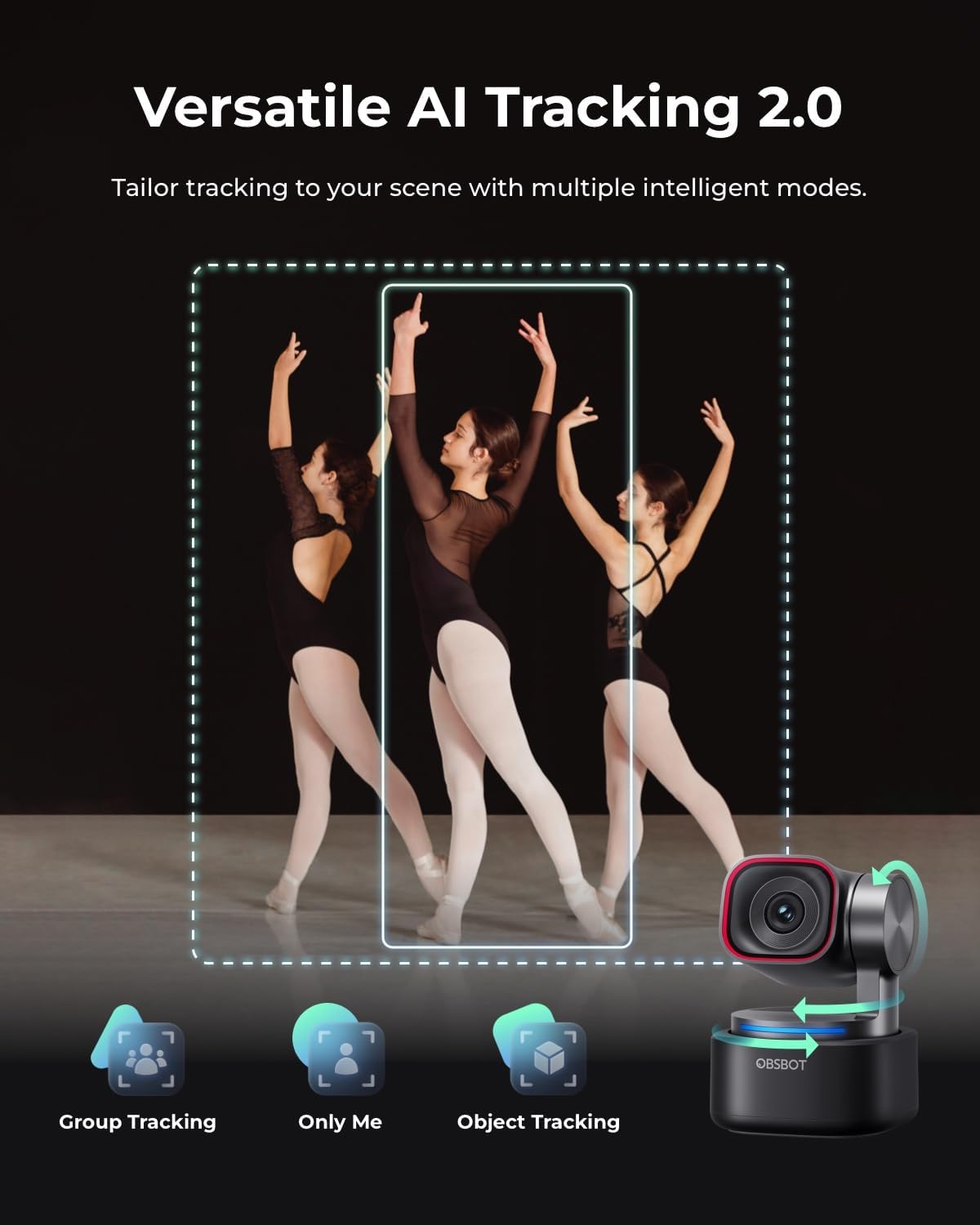
Figure 2: OBSBOT Tiny 3 mounted on a laptop screen using the adjustable mount.
Connection
Connect the OBSBOT Tiny 3 to your computer using the official USB-C cable. If your computer only has USB-A ports, use the included USB-C to USB-A adapter. Once connected, the indicator light on the webcam will turn solid green after a few seconds, indicating it is ready for use.

Figure 3: Connecting the OBSBOT Tiny 3 to a laptop via USB-C cable.
Software Installation & Usage
To unlock the full potential of your OBSBOT Tiny 3, it is recommended to install the OBSBOT Center software on your computer. This software provides advanced controls and features not available through standard webcam interfaces.
- Download: Visit the official OBSBOT website to download the latest version of OBSBOT Center for Windows or macOS.
- Installation: Follow the on-screen instructions to install the software.
- Mobile App: The OBSBOT Live app is available for Android and iOS devices (note: iOS support for Tiny 3 Series may be limited).
Video 2: OBSBOT Tiny 3 Quick Start Guide (Software section).
Operating Instructions
View and Gimbal Control
The Tiny 3 features a two-axis gimbal for precise pan and tilt movements. You can control the gimbal's movement speed for smoother or faster transitions using the joystick in the OBSBOT Center software. Alternatively, you can directly drag and move the gimbal within the video preview window.
Preset Mode
The Tiny 3 supports up to three preset positions. Once you've adjusted the PTZ to a desired view, simply click the corresponding button in the software to save your current view. This allows for quick switching between different camera angles.
AI Tracking
The upgraded AI Tracking 2.0 allows the webcam to identify and lock onto various targets. You can choose between single-person tracking, group tracking, or object tracking. Auto-zoom levels (Full Body, Upper Body, Close-up, Headless, Lower Body) ensure precise framing. Three tracking speeds (Slow, Standard, Fast) are available.
Video 3: OBSBOT Tiny 3 Demo Video Object Tracking.
Gesture & Voice Control
Command your webcam effortlessly using gestures or voice commands. You can turn tracking on/off, zoom to a fixed level, adjust zoom dynamically, and execute various operations by simply saying the corresponding commands (e.g., "Hi, Tiny" to wake up, "Track Me" to enable tracking).
Audio Modes
The Tiny 3 features a tri-mic array for professional spatial audio, including one omnidirectional mic and two MEMS directional mics. This array supports five specialized audio modes:
- Pure Audio Mode
- Spatial Audio Mode
- Smart Omni Mode
- Directional Mode
- Dual-Directional Mode
These modes ensure superior noise reduction and clear audio quality tailored to your specific environment. You can also use the OBSBOT Vox SE as an external microphone, configuring its settings via the OBSBOT Center software.
Video 4: How Good is the OBSBOT Tiny 3 Microphone.
AI Modes
Explore additional intelligent tools built into the OBSBOT Tiny 3:
- Desk Mode: Provides a one-click overhead view for perfect tabletop demonstrations.
- Whiteboard Mode: Intelligently enhances and auto-corrects whiteboard content.
- Hand Tracking: Sensitively captures and follows hand movements.
- Virtual Avatar: Design a unique digital persona with a custom VR avatar and voice for virtual streaming and engaging content.
Video 5: Testing OBSBOT Tiny 3 Virtual Character Creator.
Specifications
| Brand Name | OBSBOT |
| Item Model Number | Tiny 3 |
| Item Weight | 10.9 ounces |
| Package Dimensions | 5.24 x 3.98 x 3.03 inches |
| Photo Sensor Technology | CMOS |
| Video Capture Resolution | Up to 4K@30FPS, 1080p@120FPS |
| Maximum Focal Length | 24 Millimeters |
| Maximum Aperture | 1.8 f |
| Video Capture Format | MJPEG, YUV |
| Supported Audio Format | AAC, MP3, PCM |
| Connectivity Technology | USB |
| Special Features | AI-Powered Spatial Audio System, Multiple AI Tracking Modes, Voice Control, Compact Size, Adaptive Dual Focus Mode |
Maintenance
To ensure the longevity and optimal performance of your OBSBOT Tiny 3, follow these maintenance guidelines:
- Cleaning: Use a soft, dry cloth to clean the camera lens and body. Avoid using harsh chemicals or abrasive materials.
- Storage: When not in use, store the webcam in its provided storage case to protect it from dust and physical damage.
- Handling: Handle the device with care to prevent drops or impacts that could damage the internal components or gimbal mechanism.
Troubleshooting
If you encounter issues with your OBSBOT Tiny 3, try the following steps:
- Connection Issues: Ensure the USB-C cable is securely connected to both the webcam and your computer. Try a different USB port or cable.
- Software Not Detecting: Restart the OBSBOT Center software and your computer. Ensure the webcam's indicator light is solid green.
- Tracking Problems: Check lighting conditions. Ensure there are no obstructions between the camera and the subject. Recalibrate tracking in the OBSBOT Center software.
- Firmware Update: Regularly check for and install firmware updates via the OBSBOT Center software to ensure optimal performance and access to new features.
Warranty and Support
Your OBSBOT Tiny 3 comes with a warranty. Please refer to the included Warranty Card for detailed information regarding coverage and terms. For further assistance, technical support, or to access the latest user manuals and FAQs, please visit the official OBSBOT website or contact their customer service.