
1. Introduction
The ALEENFOON AF-WFSH Tuya WiFi SOS Call Button is a personal emergency alarm designed for individuals who may require immediate assistance, such as the elderly, patients, children, or pregnant women. This rechargeable device connects to your home's 2.4G Wi-Fi network and sends instant alerts to designated contacts via the Tuya Smart or Smart Life mobile application when the SOS button is pressed. Its waterproof design allows for use in various environments, including bathrooms, ensuring safety and peace of mind.
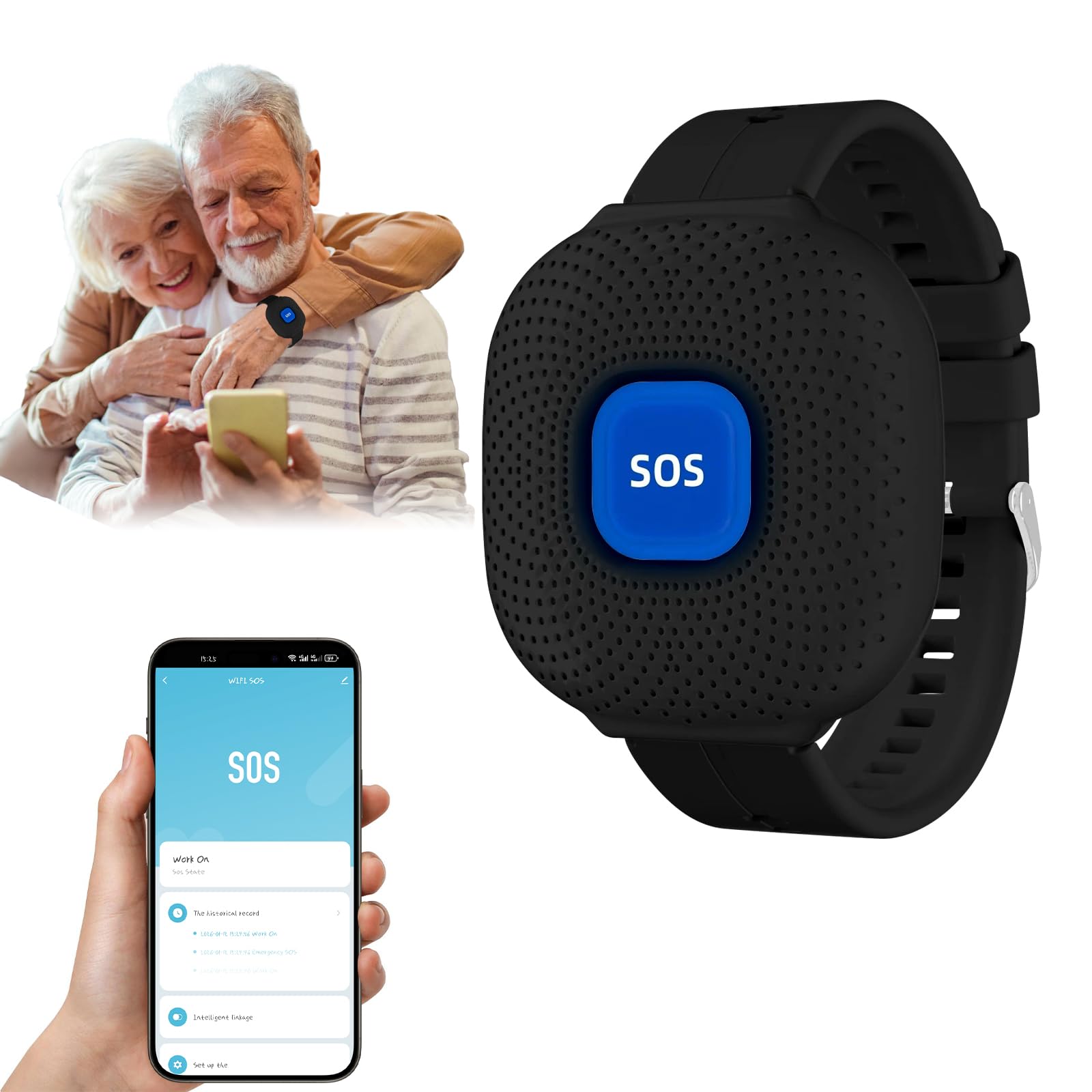
Figure 1: Overview of the ALEENFOON AF-WFSH Tuya WiFi SOS Call Button and its key features.
2. Key Features
- WiFi Connectivity: Connects to 2.4G Wi-Fi networks for remote alerts.
- Mobile App Monitoring: Compatible with Tuya Smart and Smart Life applications for remote monitoring and alert reception.
- Multi-User Sharing: Allows sharing of device alerts with multiple family members or caregivers through the app.
- Portable Design: Wearable on the wrist for easy access in emergencies.
- Long Battery Life: Up to six months of standby time on a single one-hour charge.
- IP55 Waterproof: Suitable for use in wet environments like bathrooms.
- Rechargeable: Built-in rechargeable battery for convenience.
3. Package Contents
Please check the box for the following items:
- SOS Call Button (AF-WFSH)
- Charging Cable (USB)
- User Manual
4. Setup Guide
4.1. Charging the Device
Before initial use, fully charge the SOS Call Button. Connect the provided USB charging cable to the device and a standard USB power adapter (not included). A full charge typically takes about one hour and provides up to six months of standby battery life.
4.2. Connecting to Wi-Fi and Tuya Smart App
- Download the "Tuya Smart" or "Smart Life" application from your smartphone's app store (available for iOS and Android).
- Register or log in to your account within the application.
- Ensure your smartphone is connected to a 2.4G Wi-Fi network. The device only supports 2.4G Wi-Fi.
- On the app, tap the "+" icon to add a new device.
- Follow the in-app instructions to put the SOS Call Button into pairing mode (usually by pressing and holding the SOS button until an indicator light flashes).
- Select the device type (e.g., "Sensor" or "Security & Video Surveillance" then "SOS Button") and complete the pairing process.
- Once successfully paired, you will receive a confirmation in the app.

Figure 2: Alarm operating range and Wi-Fi considerations. The device requires a 2.4G Wi-Fi network.
5. Operating Instructions
5.1. Sending an SOS Alert
In an emergency, simply press the large SOS button on the device. Upon activation, the device will send an immediate notification to all linked smartphones via the Tuya Smart or Smart Life application. This alert will be received regardless of your location, as long as your phone has an internet connection.

Figure 3: How an SOS alert is triggered and received on the mobile application.
5.2. Multi-User Sharing
To ensure multiple family members or caregivers receive emergency alerts, utilize the multi-user sharing feature within the Tuya Smart or Smart Life app. The primary account holder can share access to the device with other registered accounts. When the SOS button is pressed, all shared users will receive the alert notification, enhancing the care network for the individual.

Figure 4: Multiple users receiving alerts simultaneously through the sharing feature.
6. Maintenance
6.1. Cleaning
To clean the device, gently wipe it with a soft, damp cloth. Do not use harsh chemicals or abrasive cleaners, as these can damage the device's surface or internal components. Ensure the charging port is dry before charging.
6.2. Battery Care
Recharge the device when the battery indicator (if present) shows low power or if you notice a decrease in performance. Regular charging helps maintain optimal battery health. Avoid exposing the device to extreme temperatures, which can affect battery life.
6.3. Waterproof Information
The device has an IP55 waterproof rating, meaning it is protected against dust ingress and low-pressure water jets from any direction. This makes it suitable for use in environments like bathrooms, but it should not be submerged in water.

Figure 5: The IP55 waterproof design allows for use in wet environments.
7. Troubleshooting
| Problem | Possible Cause | Solution |
|---|---|---|
| Device not connecting to Wi-Fi | Incorrect Wi-Fi band (only 2.4G supported); weak signal; physical obstructions. | Ensure your router is broadcasting a 2.4G signal. Move the device closer to the router. Avoid placing the device near thick walls or metal objects that can interfere with the signal. |
| Alerts not received on phone | App notifications disabled; device not paired correctly; no internet connection on phone. | Check your phone's notification settings for the Tuya Smart/Smart Life app. Verify the device is correctly paired in the app. Ensure your phone has an active internet connection. |
| Short battery life | Incomplete charging; frequent alerts; extreme temperatures. | Ensure the device is fully charged for one hour. While the battery lasts up to six months on standby, frequent alerts may reduce this. Avoid exposing the device to very hot or cold environments. |
8. Product Specifications
| Model Number | AF-WFSH |
| Brand | ALEENFOON |
| Dimensions (L x W x H) | 13 x 2 x 4 cm |
| Weight | 50 grams |
| Color | Black |
| Power Source | Rechargeable Battery Powered |
| Compatible Devices | Tuya Systems |
| Control Method | Application (Tuya Smart / Smart Life) |
| Smart Home Compatibility | Compatible with Smart Home ecosystems |
9. Warranty Information
Specific warranty details for the ALEENFOON AF-WFSH Tuya WiFi SOS Call Button are not provided in this manual. Please refer to the product packaging or contact the retailer/manufacturer for warranty terms and conditions.
10. Customer Support
For technical assistance, troubleshooting, or further inquiries regarding your ALEENFOON AF-WFSH Tuya WiFi SOS Call Button, please contact ALEENFOON customer support through their official website or the contact information provided with your purchase.