
Introduction
This manual provides essential information for the safe and efficient use of your LG 27GX790B-B 27-inch Ultragear QHD OLED Gaming Monitor. Please read this manual thoroughly before operating the product and retain it for future reference. The LG 27GX790B-B is designed for high-performance gaming, featuring a 4th Generation OLED QHD display, dual-mode refresh rates (QHD 540Hz / HD 720Hz), and a rapid 0.02ms response time.
What's in the Box
Verify that all components are present in the packaging:
- Monitor
- Power Cable
- Display Port 2.1 Cable
- HDMI 2.1 Cable
Note: A USB-C cable is not included and may be required for full functionality with certain devices.
Setup
1. Assembling the Stand
Carefully remove the monitor and stand components from the packaging. Attach the stand base to the stand neck, then secure the assembled stand to the back of the monitor. Ensure all screws are tightened securely.
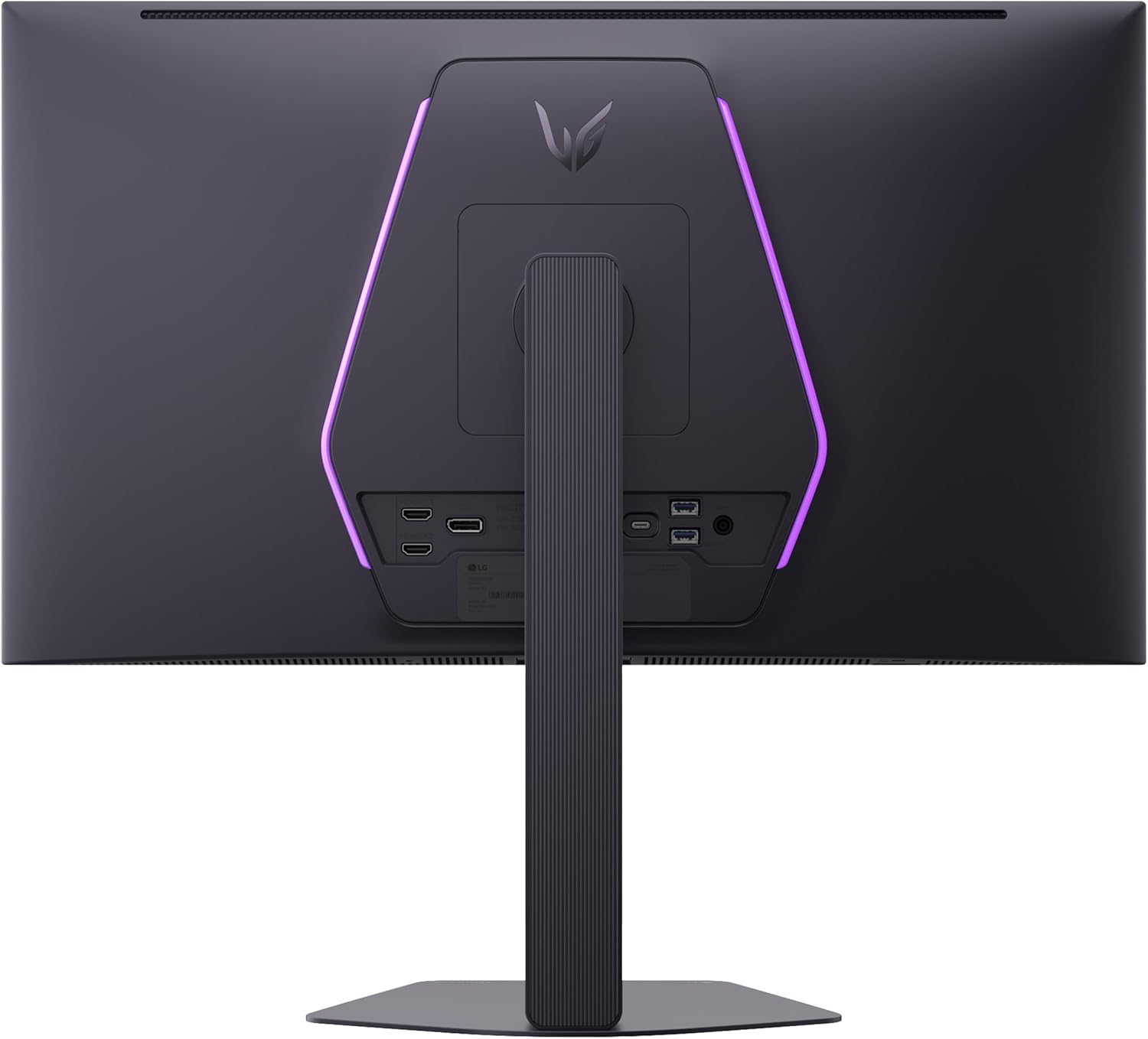
Image: Rear view of the LG 27GX790B-B monitor with its ergonomic stand fully assembled.
Alternatively, the monitor supports VESA mounting for wall or arm installation. VESA screws are included in the back of the monitor.
2. Connecting Cables
Connect the necessary cables to the monitor's rear ports. The monitor features DisplayPort 2.1, HDMI 2.1, and USB-C inputs.

Image: Detailed view of the monitor's rear input ports, including HDMI, DisplayPort, and USB-C connections.
- DisplayPort 2.1: For optimal performance and high refresh rates up to 720Hz (HD) or 540Hz (QHD).
- HDMI 2.1: For connecting to compatible consoles and devices.
- USB-C: For single-cable connectivity, supporting video, data, and power delivery (if supported by the source device).
- Power Cable: Connect the power cable to the monitor and a wall outlet.
3. Powering On
Press the power button, typically located on the bottom center of the monitor, to turn on the display. The On-Screen Display (OSD) menu can be accessed via the joystick control.
Operating Instructions
On-Screen Display (OSD) Menu
The OSD menu allows you to adjust various monitor settings. Use the joystick button located on the bottom of the monitor to navigate the menu. Press the joystick to open the menu, move it up/down/left/right to select options, and press again to confirm.
- Picture Mode: Select predefined display settings optimized for different content types (e.g., Gamer 1, FPS, RTS, Vivid, Reader).
- Game Adjust: Configure game-specific settings like Black Stabilizer, Dynamic Action Sync, and Crosshair.
- Input: Select the active input source (DisplayPort, HDMI 1, HDMI 2, USB-C).
- General: Access settings for language, OSD lock, power indicator, and factory reset.
Dual Mode Refresh Rate
The monitor supports a unique Dual Mode feature, allowing you to switch between two performance profiles:
- QHD (3440 x 1440) at 540Hz: Provides high resolution with an extremely fast refresh rate for detailed visuals.
- HD (1920 x 1080) at 720Hz: Offers the absolute fastest refresh rate for competitive gaming where maximum speed is critical, at a reduced resolution.
This mode can typically be toggled via a hotkey or through the OSD menu. Ensure your graphics card supports these refresh rates at the respective resolutions.

Image: Visual representation of the Dual Mode feature, illustrating the choice between QHD 540Hz for detail and HD 720Hz for speed.
Ergonomic Adjustments
The monitor stand allows for various adjustments to optimize your viewing comfort:
- Height: Adjust the monitor's vertical position.
- Tilt: Angle the screen up or down.
- Swivel: Rotate the screen horizontally.
- Pivot: Rotate the screen to a portrait orientation.

Image: Illustrations demonstrating the ergonomic adjustments available: swivel, tilt, height, and pivot.
Key Features
OLED Display Technology
The 27GX790B-B features a 4th Generation OLED panel with Primary RGB Tandem technology, delivering exceptional visual quality. It achieves 335 nits typical brightness, UL Verified Perfect Black, and Perfect Color with 100% Color Fidelity. VESA DisplayHDR True Black 500 ensures deep contrast and nuanced shadow detail.

Image: A game scene demonstrating the stunning OLED picture quality, including 99.5% DCI-P3 color gamut and VESA DisplayHDR True Black 500.
Ultra-Fast Response Time
Experience a virtually instantaneous 0.02ms Gray-to-Gray (GtG) response time. This minimizes motion blur and ghosting, providing clear and fast visuals crucial for competitive gaming.

Image: A visual comparison highlighting the clarity provided by the 0.02ms GtG response time, reducing motion blur in fast-paced scenes.
Advanced Connectivity
The monitor is equipped with DisplayPort 2.1 for maximum bandwidth and high refresh rates, dual HDMI 2.1 ports for console compatibility, and a USB-C port for streamlined connections.

Image: A graphic illustrating the DisplayPort 2.1 connection, signifying its capability for next-generation gaming speeds.
Adaptive Sync Technologies
NVIDIA G-SYNC Compatible and AMD FreeSync Premium Pro technologies ensure tear-free, low-latency gaming by synchronizing the monitor's refresh rate with your graphics card's frame rate.

Image: A split image demonstrating the visual improvement when NVIDIA G-SYNC Compatible and AMD FreeSync Premium Pro are enabled, eliminating screen tearing.
Eye Comfort Certifications
The display holds five UL certifications for eye comfort, including Anti-Glare, Flicker-Free, Low Blue Light, Reduced Blue Light, and Reduced Circadian Stimulating Blue Light. This helps reduce eye strain during extended use.

Image: A gaming desk setup featuring the monitor, with icons indicating its five UL certifications for eye comfort, such as Flicker-Free and Low Blue Light.
ClearMR 21000 Motion Clarity
VESA Certified ClearMR 21000 ensures elite motion clarity, minimizing motion blur and keeping fast-moving images sharp and distinct.

Image: A racing game scene displayed on the monitor, illustrating the VESA Certified ClearMR 21000 for superior motion clarity.
DTS:X Headphone Support
The monitor includes a 4-pole headphone jack that supports DTS:X Headphone technology, providing immersive spatial audio for an enhanced gaming experience.

Image: A close-up of the monitor's headphone jack, highlighting its DTS:X Headphone compatibility for enhanced audio.
Maintenance
Cleaning the Monitor
- Always unplug the monitor from the power outlet before cleaning.
- Use a soft, lint-free cloth slightly dampened with water or a mild, non-abrasive screen cleaner.
- Do not spray cleaner directly onto the screen. Apply it to the cloth first.
- Avoid using benzene, alcohol, or abrasive cleaners, as these can damage the screen surface.
General Care
- Avoid placing heavy objects on the monitor or its cables.
- Do not block the ventilation openings on the monitor.
- Keep the monitor away from direct sunlight, heat sources, and excessive moisture.
Troubleshooting
If you encounter issues with your monitor, refer to the following common solutions:
No Power / No Display
- Ensure the power cable is securely connected to both the monitor and a working power outlet.
- Check if the power indicator light on the monitor is on.
- Verify that the power button has been pressed.
No Signal / Blank Screen
- Confirm that the video cable (DisplayPort, HDMI, or USB-C) is securely connected to both the monitor and your computer/device.
- Use the OSD menu to manually select the correct input source.
- Ensure your computer/device is powered on and not in sleep mode.
- Test with a different video cable if possible.
Image Flickering or Tearing
- Enable NVIDIA G-SYNC Compatible or AMD FreeSync Premium Pro in your graphics card settings and on the monitor's OSD menu.
- Ensure your graphics drivers are up to date.
- Check if the video cable is rated for the desired refresh rate and resolution. A high-quality DisplayPort 2.1 or HDMI 2.1 cable is essential for optimal performance.
Cannot Achieve Max Refresh Rate (540Hz QHD / 720Hz HD)
- Verify that your graphics card supports the required DisplayPort 2.1 or HDMI 2.1 standard and the specific refresh rates.
- Ensure you are using a certified high-bandwidth DisplayPort 2.1 or HDMI 2.1 cable. For USB-C, a high-performance cable is crucial.
- Check your operating system's display settings and your graphics card control panel to ensure the desired refresh rate and resolution are selected.
- Activate "Dual Mode" in the monitor's OSD if you intend to use the 720Hz HD setting.
Specifications
| Feature | Specification |
|---|---|
| Brand | LG |
| Model Number | 27GX790B-B.AUS |
| Screen Size | 27 Inches |
| Screen Resolution | 3440 x 1440 (QHD) |
| Max Screen Resolution | 3440 x 1440 Pixels |
| Panel Type | OLED (4th Gen Primary RGB Tandem) |
| Refresh Rate (QHD) | Up to 540Hz |
| Refresh Rate (HD) | Up to 720Hz (via Dual Mode) |
| Response Time (GtG) | 0.02ms |
| Contrast Ratio | 1.5 Million:1 |
| Color Gamut | 99.5% DCI-P3 (typical) |
| HDR Support | VESA DisplayHDR True Black 500 |
| Adaptive Sync | NVIDIA G-SYNC Compatible, AMD FreeSync Premium Pro |
| Connectivity | 2x HDMI 2.1, 1x DisplayPort 2.1, 1x USB-C, 2x USB 3.0, 1x Headphone Out (4-pole) |
| Ergonomics | Height, Tilt, Swivel, Pivot |
| Item Weight | 15 pounds |
| Product Dimensions (LxWxH) | 8.7 x 23.8 x 20.8 inches |
| Manufacturer | LG Electronics Inc. |
Warranty and Support
For warranty information, please refer to the warranty card included with your product or visit the official LG website. For technical support, product registration, or service inquiries, please contact LG Customer Service through their official channels. Keep your purchase receipt and product serial number handy when contacting support.
LG Customer Support: https://www.lg.com/us/support