
1. Introduction
Thank you for choosing the Pisichen 27-inch 2K 100Hz Touchscreen Monitor. This monitor is designed to provide a superior visual and interactive experience with its QHD 2560x1440 IPS display, 100Hz refresh rate, and responsive 10-point touch functionality. It offers versatile connectivity options including USB-C, HDMI, and DisplayPort, along with built-in speakers for a complete multimedia solution.
This manual provides essential information for the proper setup, operation, and maintenance of your monitor. Please read it thoroughly before use and retain it for future reference.
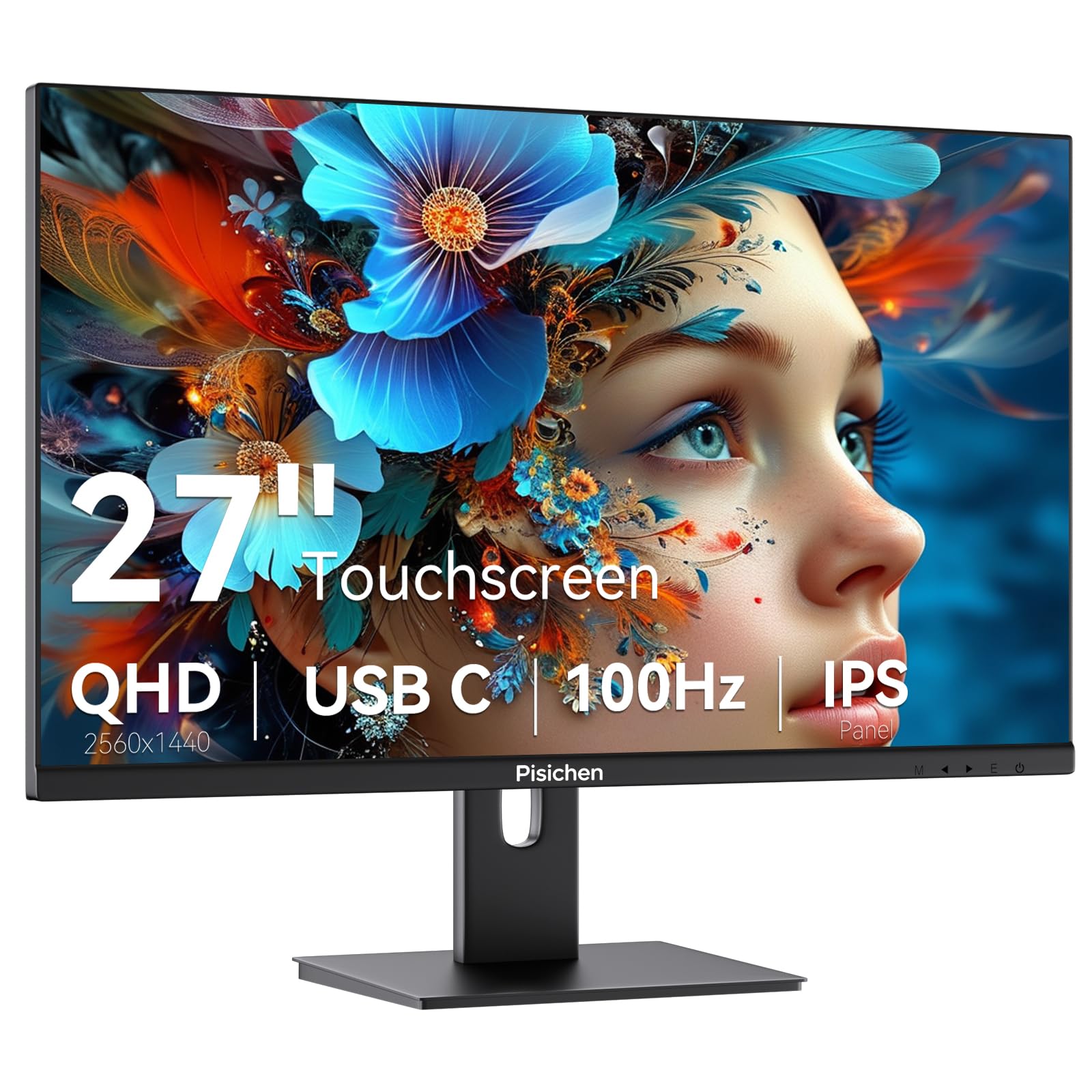
Image: The Pisichen 27-inch 2K 100Hz Touchscreen Monitor, showcasing its sleek design.
2. Package Contents
Please check the package for the following items. If any items are missing or damaged, please contact customer support.
- Pisichen 27" 2K 100Hz Touchscreen Monitor
- Monitor Base
- User Manual (this document)
- DC Power Adapter
- USB-C to USB-C Cable
- HDMI Cable

Image: All accessories included with the Pisichen monitor, laid out for inspection.
3. Setup
3.1 Physical Setup
- Attach the Monitor Base: Carefully place the monitor face down on a soft, clean surface. Align the monitor base with the mounting slot on the back of the monitor and secure it with the provided screws.
- VESA Mounting (Optional): The monitor supports VESA 100x100mm mounting. If you prefer to mount the monitor on a wall or an adjustable arm, remove the stand and attach the monitor to your VESA-compatible mount using appropriate screws (not included).

Image: The monitor demonstrating its tilt adjustment range and VESA mounting points.
3.2 Connectivity
The monitor offers multiple ports for connecting to various devices. Ensure your device supports the necessary output for display and touch functionality.

Image: A detailed view of the monitor's rear panel, highlighting the USB-C, HDMI, DisplayPort, DC Power, and Audio ports.
- USB-C Port: For devices supporting DisplayPort Alternate Mode (DP Alt Mode). This single cable can transmit video, audio, and touch signals, and can also provide power to the monitor if the connected device supports power delivery. Important: A separate power adapter connection is required to supply power to the monitor for full functionality.
- HDMI Ports (x2): Connect to devices using an HDMI cable for video and audio transmission. Touch functionality requires an additional USB-A to USB-B cable connection to your computer.
- DisplayPort (DP): Connect to devices using a DisplayPort cable for video and audio transmission. Touch functionality requires an additional USB-A to USB-B cable connection to your computer.
- 3.5mm Audio Jack: For connecting external headphones or speakers.
- DC Power Input: Connect the provided power adapter to supply power to the monitor.

Image: A laptop connected to the monitor using a single USB-C cable for video, data, and touch.
4. Operating Instructions
4.1 Power On/Off
Press the power button, usually located on the side or back of the monitor, to turn the monitor on or off. The power indicator light will illuminate when the monitor is on.
4.2 Touchscreen Functionality
The Pisichen monitor features a responsive 10-point capacitive multi-touch screen, optimized for Windows operating systems. Touch functionality depends on the connected device and the cables used.
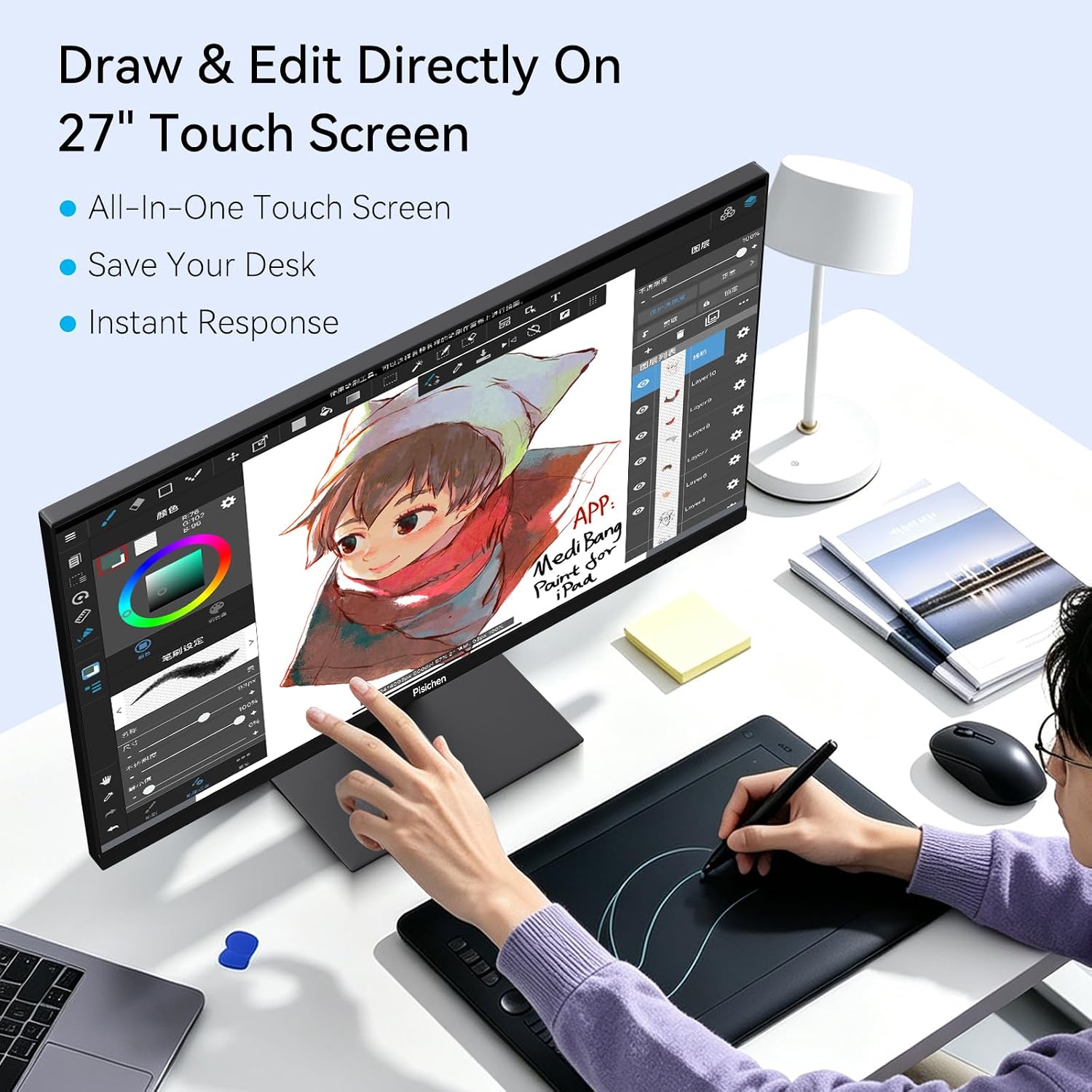
Image: A user interacting with the touchscreen monitor for creative work, demonstrating direct input capabilities.
Touch Monitor Connection Quick Reference

Image: A reference table outlining cable requirements and touch support for various device types.
| Device Type | Required Cables | Touch Support | Notes |
|---|---|---|---|
| Desktop Devices | Power + HDMI/DP + USB A-C | Full 10-point touch | Only HDMI/DP connected results in no touch |
| Windows/Android Full-Function USB-C Devices | Power + Full-Function USB-C to C | Full 10-point touch | Charging-only cable cannot transmit video & touch |
| Android Devices with Non-Full-Function USB-C | Connection unavailable | No signal / Black screen | Port without DP Alt Mode hardware cannot output video & touch |
| Apple Devices (Thunderbolt 3 / 4 Port) | Power + Full-Function / Thunderbolt C-C Cable | Single tap only | Multi-touch gestures limited by macOS/iPadOS system |
| Apple Devices (Standard Full-Function USB-C Port) | Power + Full-Function USB-C to C | Single tap only | Same touch limit as Thunderbolt Apple devices |
| Game Consoles & Players (Switch / PS / Xbox / DVD / TV Stick, etc.) | Power + HDMI/DP | Unsupported | Systems do not support external touch input |
Notes:
- Touch function compatibility depends on the connected device and system; some devices may not be compatible.
- Connect the USB-C cable to both your computer and the monitor to enable the touch feature. (Connect the USB-C end to this monitor.)
- Power adapter must be connected at all times.
- If your device is not listed, please provide the product's model and operating system and contact the seller or the support team.

Image: The touchscreen monitor being used in a business setting for easy interaction with applications.

Image: A team using the touchscreen monitor as an interactive whiteboard for collaborative meetings.

Image: A classroom scenario where a teacher and students engage with the monitor for interactive teaching.
4.3 On-Screen Display (OSD) Menu
The OSD menu allows you to adjust various display settings. Typically, buttons for OSD navigation are located on the back or bottom edge of the monitor. Use these buttons to:
- Adjust Brightness and Contrast
- Select Input Source (HDMI1, HDMI2, DP, USB-C)
- Adjust Color Settings (Color Temperature, Gamma)
- Control Audio Volume
- Access other advanced settings
4.4 Display Features
- 2K QHD Resolution (2560x1440): Experience stunning sharpness and lifelike detail with 77% more pixels than Full HD.

Image: A visual comparison demonstrating the enhanced detail of QHD 2560x1440 resolution compared to FHD 1920x1080.
- 100Hz Refresh Rate: Enjoy fluid motion and reduced blur, providing a smoother experience for gaming and fast-paced content, 65% smoother than standard 60Hz displays.

Image: A visual representation illustrating the difference in smoothness between a 100Hz and a 60Hz refresh rate.
- Low Blue Light Mode: Equipped with a low blue light mode, this feature reduces blue light radiation by adjusting brightness and color temperature, effectively relieving eye fatigue and promoting a more comfortable viewing experience.

Image: The monitor showcasing its low blue light feature, designed to reduce eye strain during extended use.
5. Maintenance
To ensure the longevity and optimal performance of your monitor, follow these maintenance guidelines:
- Cleaning the Screen: Gently wipe the screen with a soft, lint-free cloth. For stubborn marks, lightly dampen the cloth with water or a screen-cleaning solution specifically designed for monitors. Do not spray liquid directly onto the screen.
- Cleaning the Casing: Use a soft, dry cloth to clean the monitor casing. Avoid using abrasive cleaners or solvents.
- Ventilation: Ensure the ventilation openings on the monitor are not blocked to prevent overheating.
- Power Off When Not in Use: Turn off the monitor when not in use for extended periods to save energy and prolong its lifespan.
6. Troubleshooting
If you encounter issues with your monitor, please refer to the following common solutions:
6.1 No Power / No Display
- Ensure the power adapter is securely connected to both the monitor and a working power outlet.
- Check if the power indicator light on the monitor is on. If not, press the power button.
- Verify that the video cable (HDMI, DP, or USB-C) is securely connected to both the monitor and your source device.
- Try a different video cable or port on your source device.
- Ensure your source device is powered on and outputting a signal.
6.2 No Touch Functionality
- Refer to the "Touch Functionality Compatibility" table in Section 4.2 to ensure your device and connection method support touch.
- For HDMI/DP connections, ensure the USB-A to USB-C cable is connected from your computer to the monitor.
- For USB-C connections, ensure you are using a full-function USB-C to USB-C cable that supports video, data, and touch.
- Ensure the monitor's power adapter is connected, as touch functionality requires sufficient power.
- Restart your computer and the monitor.
- Check your operating system's settings for touch screen calibration or driver issues.
6.3 Image Quality Issues
- Adjust brightness, contrast, and color settings via the OSD menu.
- Ensure the display resolution and refresh rate are correctly set in your computer's display settings.
- Check for bent pins on video cables or try a different cable.
6.4 No Audio from Built-in Speakers
- Increase the volume on both the monitor (via OSD) and your source device.
- Ensure the correct audio output device is selected in your computer's sound settings.
- If using HDMI or DisplayPort, ensure your source device is sending audio through the cable.
- Test with external headphones or speakers connected to the monitor's 3.5mm audio jack.
7. Specifications
| Feature | Specification |
|---|---|
| Brand | Pisichen |
| Model Number | 27IN2K100HZ-QHD |
| Screen Size | 27 inches |
| Resolution | 2K QHD 2560x1440 |
| Aspect Ratio | 16:9 |
| Screen Surface Description | Glossy |
| Contrast Ratio | 1500:1 |
| Refresh Rate | 100 Hz |
| Display Type | LED |
| Display Technology | IPS |
| Brightness | 400 cd/m² |
| Color Gamut | 99% |
| Item Dimensions (D x W x H) | 0.7"D x 24"W x 14.1"H |
| Native Resolution | 2560x1440 |
| Connectivity Technology | DisplayPort, HDMI, USB Type C |
| Hardware Connectivity | 3.5mm Audio, DisplayPort, HDMI, USB 3.1 Type C |
| Additional Features | Built-In Speakers, Tilt Adjustment, Touchscreen |
| Color | Black |
| Compatible Devices | Desktop, Laptop |
| Response Time | 3 milliseconds |
| Total Number of HDMI Ports | 2 |
| Total USB Ports | 1 (USB-C) |
| VESA Mount Compatible | Yes (100x100mm) |
8. Warranty and Support
8.1 Warranty Information
This product comes with a standard manufacturer's warranty. Please refer to the warranty card included in your package or contact customer support for detailed warranty terms and conditions.
8.2 Customer Support
For technical assistance, troubleshooting, or any inquiries regarding your Pisichen monitor, please contact our support team:
- Email: support_2308@163.com
When contacting support, please provide your monitor's model number (27IN2K100HZ-QHD) and a detailed description of the issue.