
1. Introduction
This manual provides detailed instructions for the installation, operation, and maintenance of your JOYING JY-TT193N12 Car Radio. This advanced car stereo system is specifically designed for Toyota Camry models from 2015 to 2017, offering a 10.4-inch 2K QLED touchscreen, Android 13 operating system, wireless CarPlay, Android Auto, GPS navigation, Bluetooth, and 5G WiFi connectivity. Please read this manual thoroughly before installation and use to ensure proper functionality and safety.

Image: JOYING JY-TT193N12 Car Radio seamlessly integrated into a Toyota Camry dashboard.
2. Safety Information
To prevent injury, damage to the unit, or damage to your vehicle, observe the following safety precautions:
- Professional Installation Recommended: Due to the complexity of car electrical systems, professional installation is highly recommended.
- Electrical Safety: Ensure the vehicle's ignition is off and the battery is disconnected before beginning any installation work to prevent electrical shorts or damage.
- Driving Safety: Do not operate the unit in a way that distracts you from driving. Always prioritize road safety.
- Ventilation: Ensure adequate ventilation around the unit to prevent overheating.
- Liquid and Moisture: Keep the unit away from liquids and moisture.
3. Package Contents
Verify that all components are present in the package before proceeding with installation:
- 10.4" Car Radio Unit
- Single DIN Cage
- WiFi Antenna (x1)
- GPS Antenna (x1)
- 4G Antennas (x2)
- External Microphone (x1)
- USB Cables (x2)
- AR Cable (x1)
- Screen Ribbon Cable (x1)
- Power Cable (x1)
- User Manual (x1)

Image: All components included in the JOYING JY-TT193N12 Car Radio package.
4. Setup and Installation
This section outlines the general steps for installing your JOYING car radio. Specific vehicle wiring may vary. If you are unsure, consult a professional installer.
4.1 Pre-Installation Checks
- Vehicle Compatibility: Confirm your vehicle is a Toyota Camry (2015-2017 model).
- Dashboard Configuration: Compare your vehicle's dashboard with product images to ensure the correct wiring harness option has been selected. Contact support with a photo of your dashboard if uncertain.
- Disconnect Battery: Before starting, disconnect the negative terminal of your vehicle's battery.
4.2 Component Identification and Connections
Familiarize yourself with the rear interfaces of the head unit and the provided cables.

Image: Detailed view of the head unit's rear interfaces, including HDMI, USB, and antenna ports.
- Power Cable: Connect the main power cable to the vehicle's wiring harness. Ensure all connections are secure.
- GPS Antenna: Connect the GPS antenna and mount it in a location with a clear view of the sky (e.g., dashboard, under the windshield).
- WiFi Antenna: Connect the WiFi antenna for optimal wireless connectivity.
- 4G Antennas: Connect both 4G antennas for cellular data connectivity.
- External Microphone: Connect the external microphone for improved call quality and voice commands. Position it near the driver for best performance.
- USB Cables: Connect the USB cables for external storage, wired CarPlay/Android Auto, or other USB devices.
- AR Cable: Connect the AR cable as needed for specific accessory functions.
- Screen Ribbon Cable: Ensure the screen ribbon cable is securely connected between the display and the main unit.
4.3 Retaining Original Vehicle Features
The JOYING JY-TT193N12 is designed to retain several original features of your Toyota Camry:
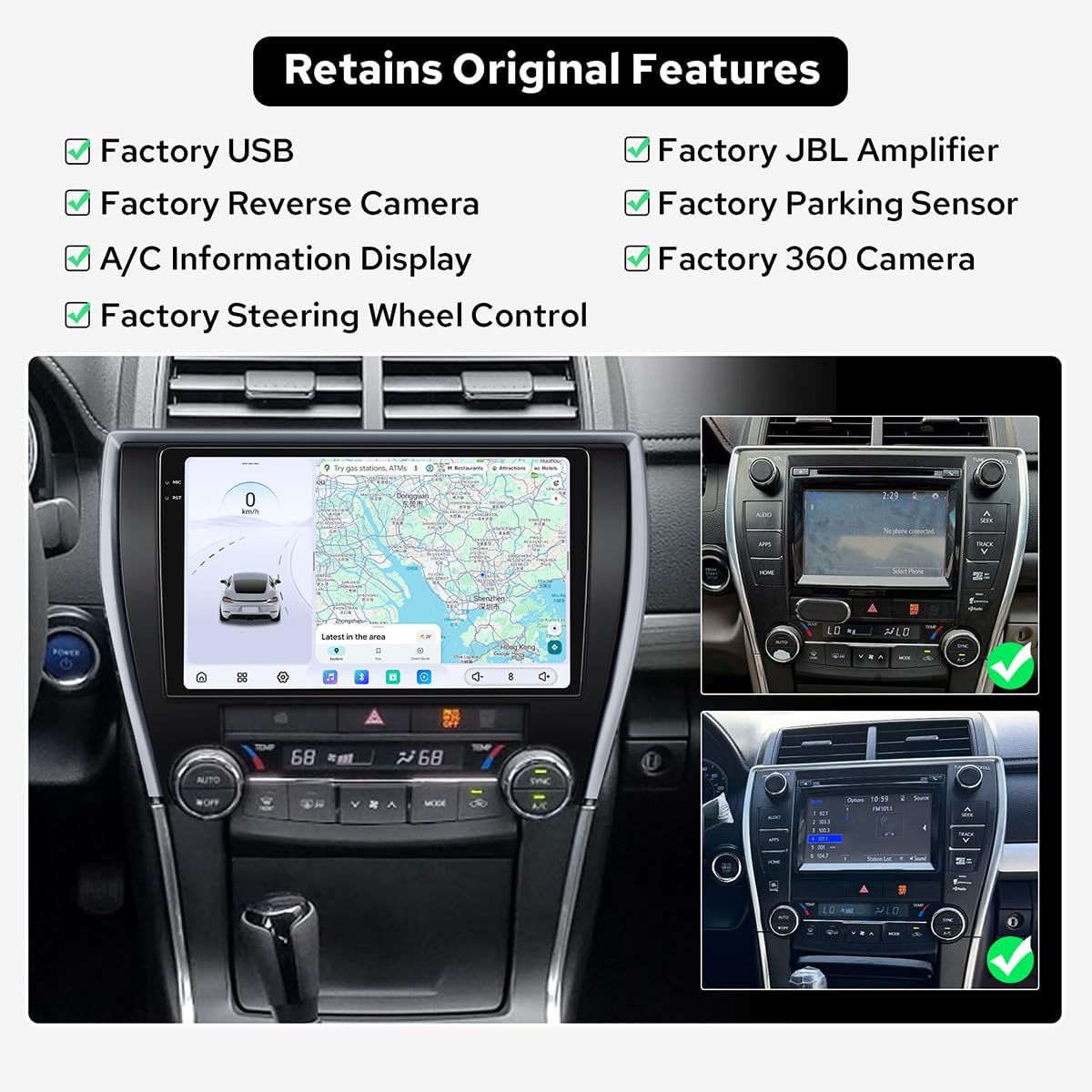
Image: Overview of original vehicle features maintained after installing the JOYING car radio.
- Factory USB
- Factory Reverse Camera
- A/C Information Display
- Factory Steering Wheel Control
- Factory JBL Amplifier
- Factory Parking Sensor
- Factory 360 Camera
4.4 Initial Power On
After all connections are made and the unit is securely mounted, reconnect the vehicle battery. Turn on the ignition. The unit should power on and display the JOYING logo. Follow any on-screen prompts for initial setup.
Video: An overview of the JOYING Car Radio features and operation, including wireless CarPlay and Android Auto.
5. Operating Instructions
This section details the various functions and features of your JOYING JY-TT193N12 Car Radio.
5.1 Basic Operation
- Power On/Off: Press and hold the power button (if available) or turn the vehicle ignition on/off.
- Touchscreen: Navigate the interface by tapping, swiping, and pinching on the 10.4-inch QLED display.
- Volume Control: Adjust audio volume using the on-screen controls or steering wheel controls.
5.2 Navigation, Entertainment, and Third-Party Apps
The Android 13 operating system allows access to various applications for navigation, entertainment, and more. Tap the "--- icon" to switch between app interfaces.
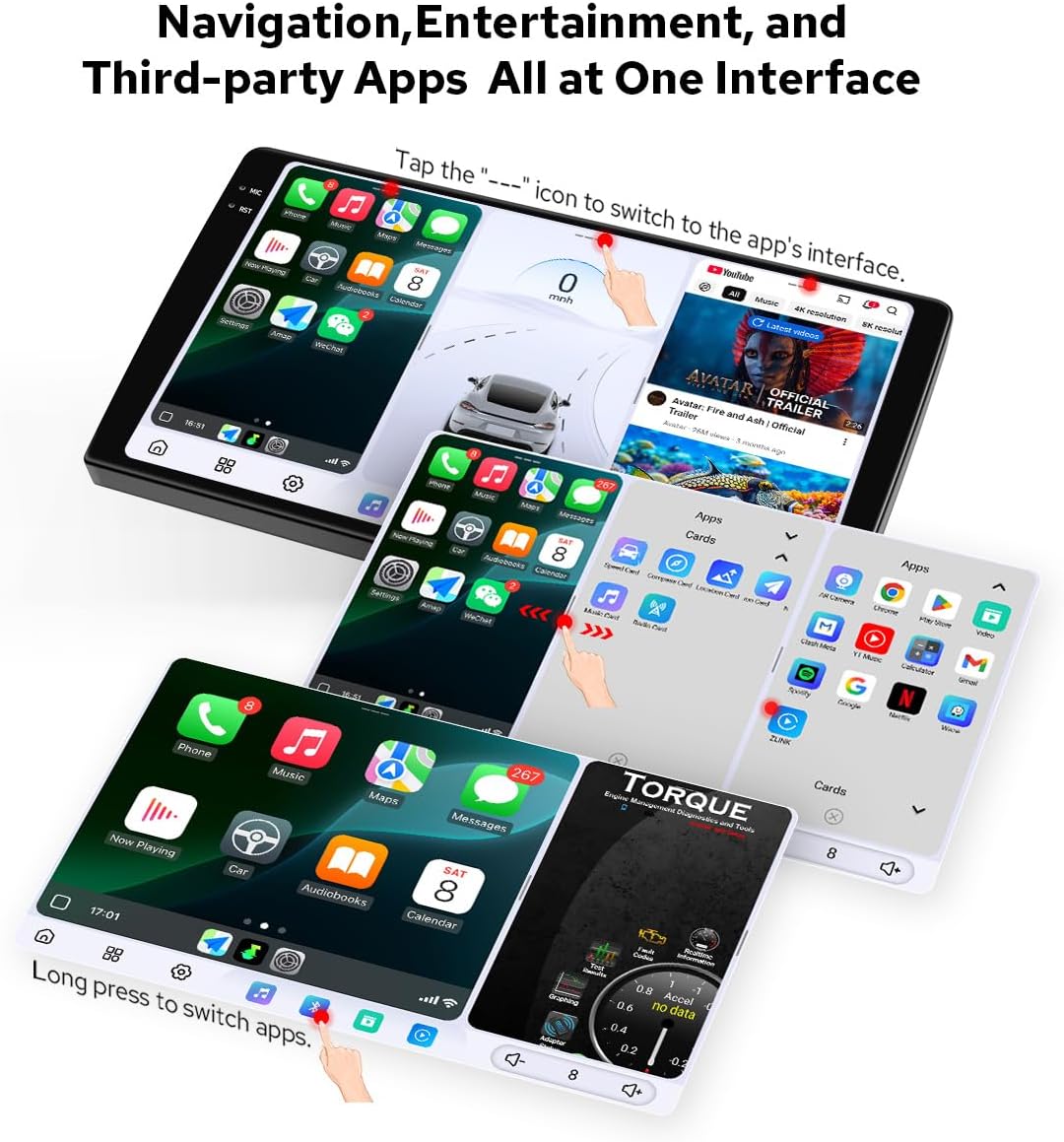
Image: The car radio display showcasing navigation, entertainment, and other applications.
5.3 CarPlay & Android Auto
The unit supports both wired and wireless CarPlay and Android Auto. Connect your compatible smartphone to access phone contacts, maps, music, messages, and voice control (Siri or OK Google).
5.4 Bluetooth Connectivity
The dual-mode Bluetooth supports simultaneous connections to two smartphones or a combined link between a phone and an OBD diagnostic dongle.
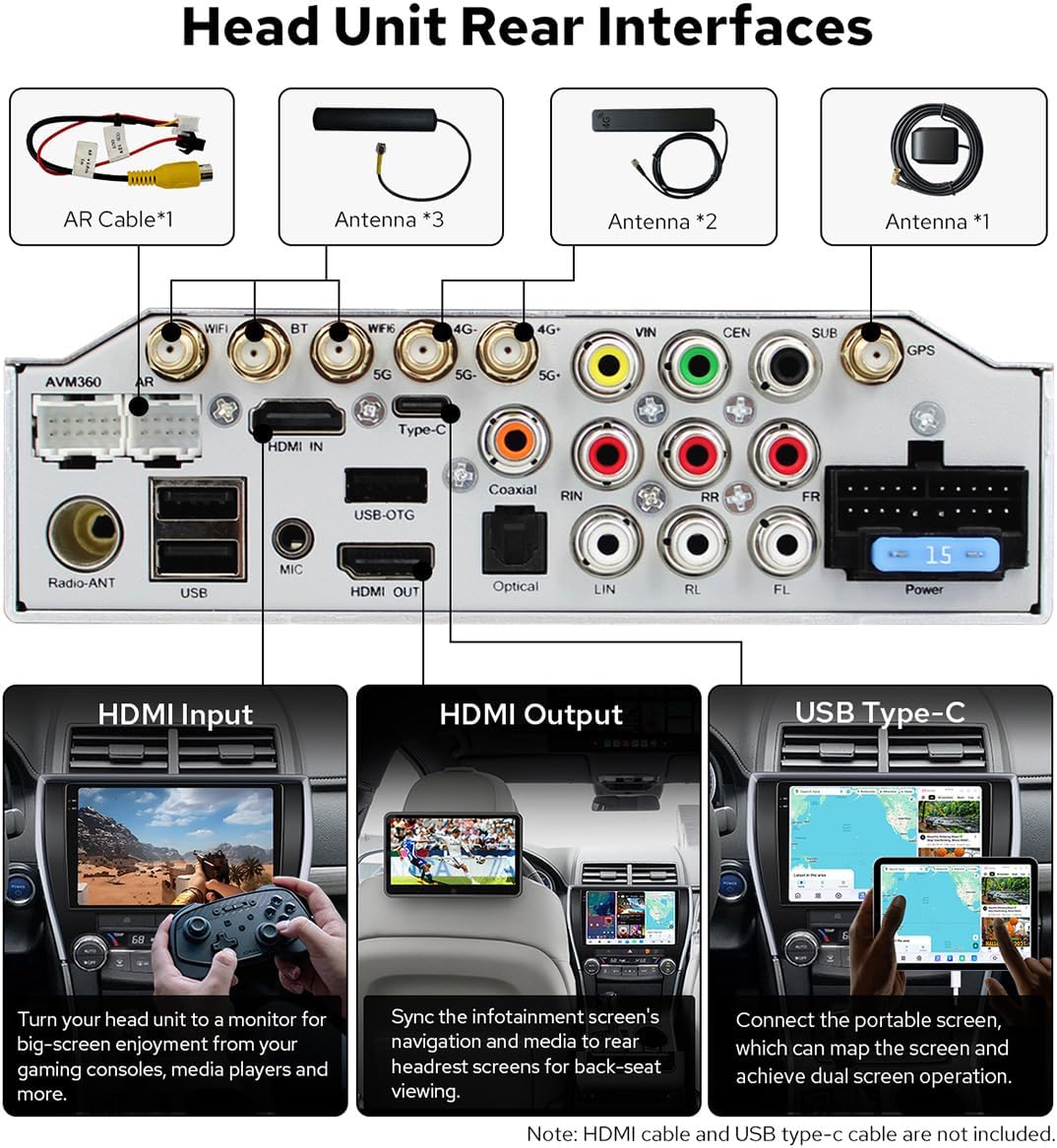
Image: The car radio interface demonstrating dual-mode Bluetooth functionality.
- Pairing: Go to Bluetooth settings on the unit and your phone to pair devices.
- Hands-Free Calling: Make and receive calls directly from the unit.
- Audio Streaming: Play music from your phone via Bluetooth.
5.5 Network Connectivity (5G WiFi & 4G Module)
- WiFi: Connect to available WiFi networks (2.4G, 5G, 6GHz) for internet access and app updates.
- 4G Module: Insert a SIM card into the designated slot for mobile internet access. Note: This module supports internet access only and cannot make phone calls or send SMS.
5.6 AM/FM Radio
Access the built-in AM/FM radio tuner. Preset up to 18 FM stations for quick access to news, music, and talk shows.
5.7 Display Modes
The unit supports Light and Dark modes, which can be switched manually or set to automatic based on time or ambient light.

Image: Comparison of the car radio interface in light mode (daytime) and dark mode (nighttime).
6. Maintenance
Proper maintenance ensures the longevity and optimal performance of your car radio.
- Screen Cleaning: Use a soft, lint-free cloth slightly dampened with water or a screen cleaner. Avoid harsh chemicals or abrasive materials.
- Software Updates: Periodically check for software updates through the unit's settings or the manufacturer's website to ensure you have the latest features and bug fixes.
- General Care: Avoid exposing the unit to extreme temperatures, direct sunlight for prolonged periods, or excessive moisture.
7. Troubleshooting
If you encounter issues with your JOYING car radio, refer to the following common problems and solutions:
- No Power:
- Check all power cable connections.
- Verify the vehicle's fuse for the radio is intact.
- Ensure the vehicle battery is properly connected and charged.
- No Sound:
- Check volume levels on the unit and any connected devices.
- Verify speaker wire connections.
- Ensure the correct audio output source is selected.
- GPS Signal Issues:
- Ensure the GPS antenna is properly connected and has a clear view of the sky.
- Move the vehicle to an open area away from tall buildings or dense foliage.
- Bluetooth Connection Problems:
- Ensure Bluetooth is enabled on both the car radio and your mobile device.
- Delete previous pairings and attempt to re-pair.
- Restart both devices.
- Touchscreen Unresponsive:
- Restart the unit.
- If the issue persists, contact customer support.
For issues not covered here, please refer to the support section.
8. Specifications
| Feature | Description |
|---|---|
| Brand | JOYING |
| Model Number | JY-TT193N12 |
| Operating System | Android 13 |
| Screen Size | 10.4 inches |
| Display Type | 2K QLED Capacitive Touchscreen |
| Processor | Qualcomm QCM6490 (8-Core) |
| RAM | 12GB |
| Storage | 256GB |
| Connectivity | Bluetooth (Dual-mode), Wi-Fi (2.4G/5G/6GHz), 4G Module, USB, Ethernet |
| Navigation | GPS, GLONASS, BeiDou, Galileo (North America Map Type) |
| Special Features | Wireless/Wired CarPlay & Android Auto, AM/FM Radio, DSP, HDMI Input/Output |
| Audio Output Mode | Stereo |
| Compatible Vehicle Type | Toyota Camry 2015-2017 |
9. Warranty Information
The JOYING JY-TT193N12 Car Radio comes with a 2 Years Warranty from the date of purchase. This warranty covers manufacturing defects and malfunctions under normal use. Please retain your proof of purchase for warranty claims. For detailed terms and conditions, refer to the warranty card included in your package or contact JOYING customer support.
10. Support
For further assistance, technical support, or warranty inquiries, please contact JOYING customer service through their official website or the platform where the product was purchased. When contacting support, please have your model number (JY-TT193N12) and proof of purchase ready.

