
1. Introduction
This manual provides detailed instructions for the setup, operation, and maintenance of your EDJO Wireless Keyboard, model TK577G-CK211. This full-sized, ergonomic keyboard is designed for comfortable and efficient typing, featuring a 2.4G wireless connection for seamless use with compatible devices.
2. What's in the Box
Please check the package contents to ensure all items are present:
- EDJO Wireless Keyboard
- USB Receiver
- User Manual (this document)
3. Setup Instructions
3.1. Battery Installation
The EDJO Wireless Keyboard requires one AA battery (not included) for operation. The USB receiver is conveniently stored within the battery compartment.
- Turn the keyboard over to access the battery compartment on the underside.
- Open the battery compartment cover.
- Remove the USB receiver from its storage slot.
- Insert one AA battery, ensuring correct polarity (+/-).
- Close the battery compartment cover securely.

Image: Underside of the keyboard, indicating the location of the USB receiver within the battery compartment and the requirement for one AA battery (not included).
3.2. Connecting to Your Computer
The keyboard uses a 2.4 GHz wireless connection via the provided USB receiver.
- Plug the USB receiver into an available USB port on your computer (desktop, laptop, PC, Chromebook).
- The computer should automatically detect and install the necessary drivers. No additional software download is required.
- The keyboard is now ready for use.
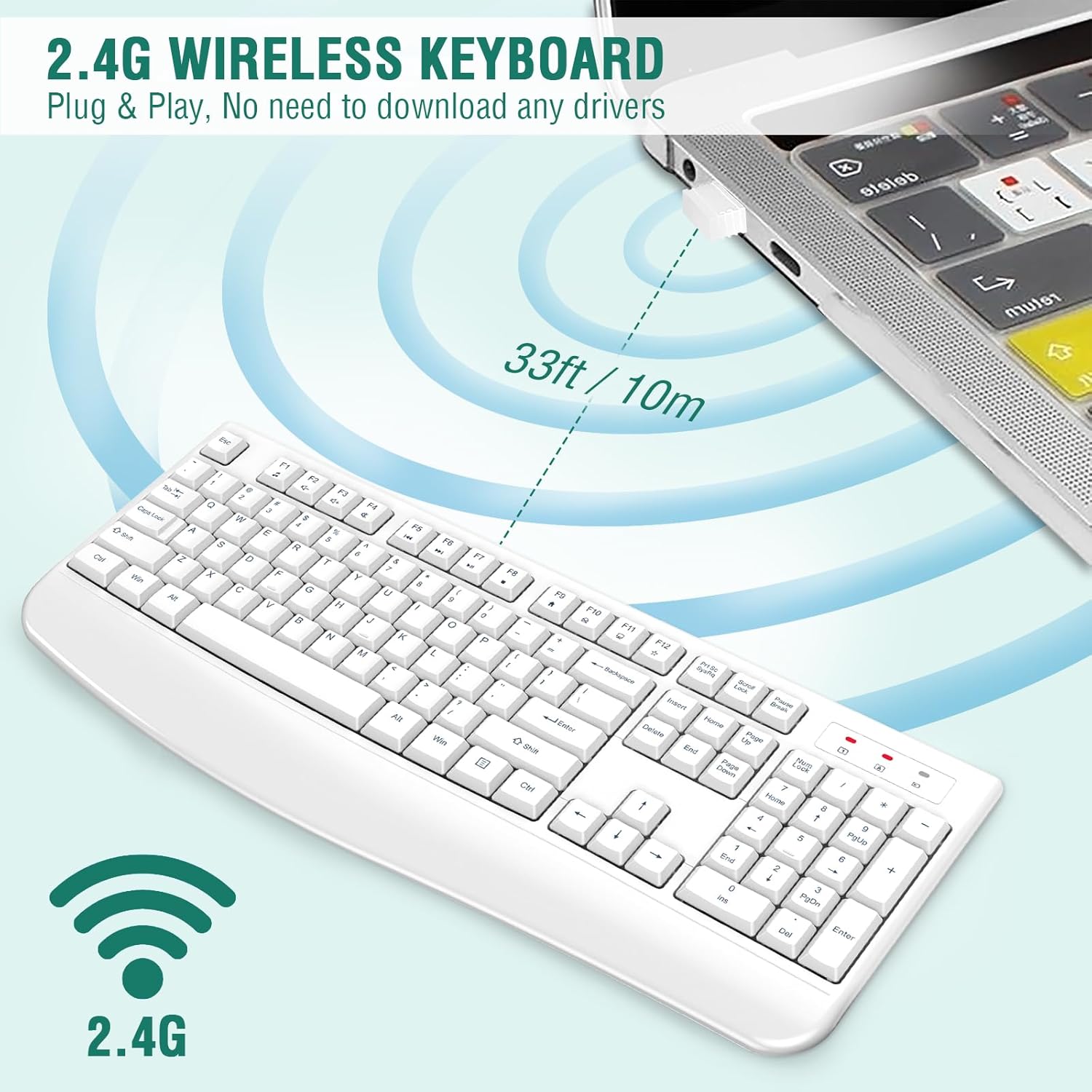
Image: The 2.4G wireless keyboard connected to a laptop via a USB receiver, illustrating a 33ft/10m effective range.
4. Operating Instructions
4.1. Ergonomic Design and Features
The keyboard is ergonomically designed for comfort during long typing sessions.
- Palm Rest: An integrated palm rest supports your wrists, reducing strain.
- Foldable Stand: Adjustable folding holders on the underside allow you to set the keyboard at an optimum slope for typing.
- Anti-Slide Pads: Ensures the keyboard remains stable on your desk.
- Crater-Switch Keys: Provides a responsive and comfortable typing experience.

Image: Ergonomically designed keyboard with palm rest, anti-slip rubber feet, foldable stand, and crater-switch key mechanism. Highlights Number Lock, Caps Lock, and Power indicators.
4.2. Indicator Lights
The keyboard features three indicator lights in the upper right corner:
- Number Lock Indicator: Illuminates when Number Lock is active.
- Caps Lock Indicator: Illuminates when Caps Lock is active.
- Power Indicator: Illuminates when the battery level is low.
4.3. Automatic Power Saving Function
To conserve battery life, the keyboard will automatically enter a sleep mode after 30 minutes of inactivity. To reactivate the keyboard, simply press any key.

Image: Automatic power saving function, showing the keyboard entering sleep mode after 30 minutes of inactivity, contributing to an extended battery life of up to 15 months.
4.4. Compatibility
The EDJO Wireless Keyboard is compatible with a wide range of operating systems and devices:
- Operating Systems: Windows XP/Vista/7/8/10/X, Mac OS.
- Devices: Desktops, Chromebooks, PCs, Laptops, Computers.
Note: Some multimedia functions may not be fully available or supported on Mac OS.
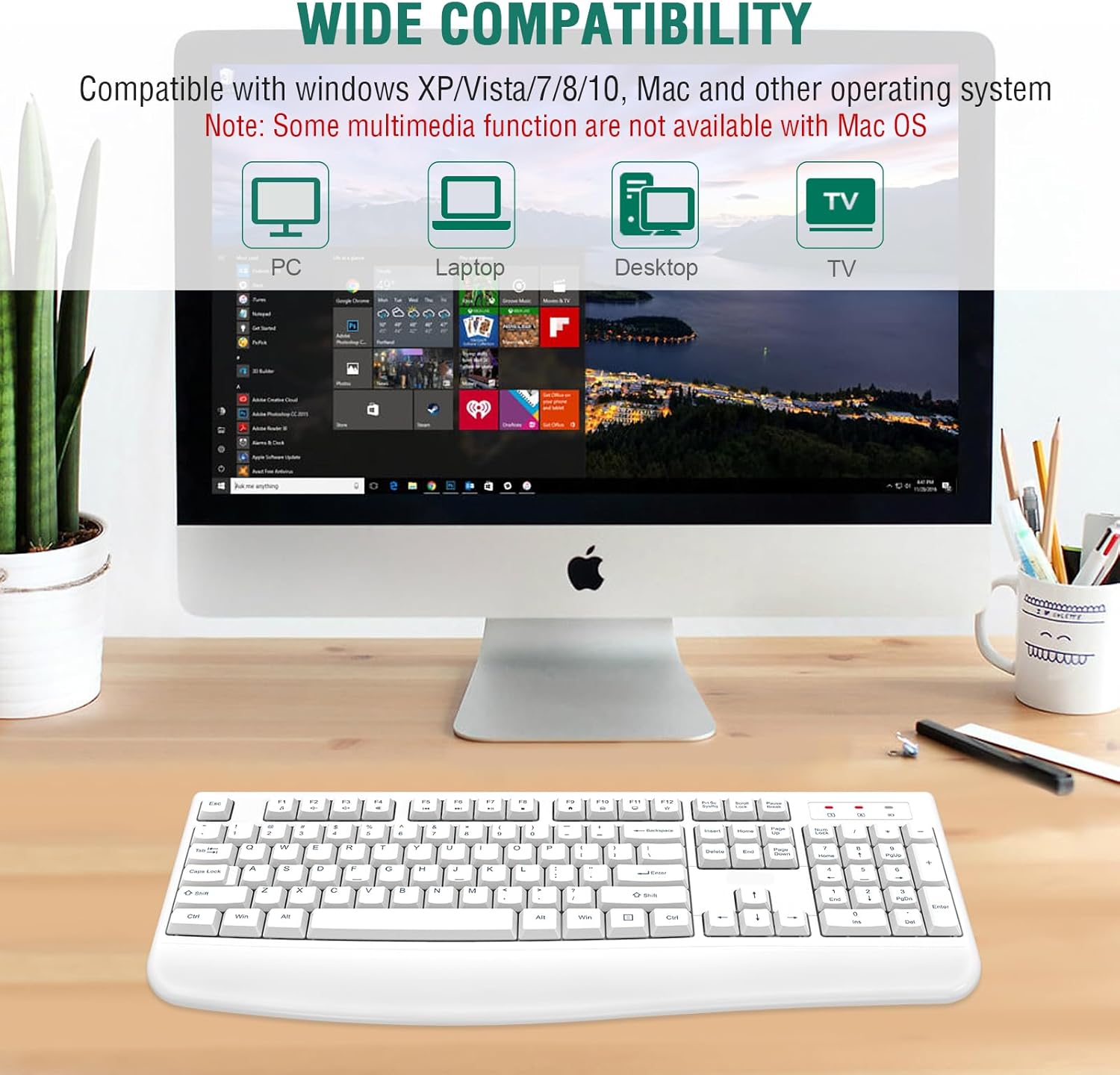
Image: Wide compatibility of the keyboard with various operating systems and devices, including PC, laptop, desktop, and TV, noting some multimedia functions may not be available on Mac OS.
5. Maintenance
To ensure the longevity and optimal performance of your keyboard:
- Cleaning: Use a soft, dry cloth to clean the keyboard surface. For deeper cleaning, a slightly damp cloth with mild soap can be used, ensuring no liquid enters the key mechanisms.
- Battery Replacement: Replace the AA battery when the power indicator light illuminates or when keyboard performance degrades.
- Storage: Store the keyboard in a cool, dry place away from direct sunlight and extreme temperatures.
6. Troubleshooting
If you encounter issues with your EDJO Wireless Keyboard, please refer to the following common solutions:
- Keyboard not responding:
- Ensure the AA battery is correctly installed and not depleted. Replace if necessary.
- Verify the USB receiver is securely plugged into a working USB port on your computer.
- Try plugging the USB receiver into a different USB port.
- Move the keyboard closer to the USB receiver to ensure it's within the 33-foot (10m) range.
- Restart your computer.
- Keys not typing correctly or delayed response:
- Check battery level and replace if low.
- Ensure there are no obstructions between the keyboard and the USB receiver.
- Avoid using the keyboard on metal surfaces, which can interfere with the wireless signal.
- Indicator lights not working:
- The power indicator only lights up when the battery is low.
- Ensure Num Lock or Caps Lock is actually engaged for their respective lights to illuminate.
7. Specifications
| Brand | EDJO |
| Model Number | TK577G-CK211 |
| Connectivity Technology | 2.4G Wireless USB |
| Compatible Devices | Laptop, PC, Desktop, Chromebook |
| Keyboard Description | Membrane |
| Special Features | Ergonomic, Wrist Rest |
| Color | White |
| Product Dimensions (L x W x H) | 17.52" x 7.35" x 0.79" (44.5cm x 18.68cm x 2cm) |
| Material | Plastic |
| Power Source | 1 x AA Battery (not included) |
| Keyboard Layout | QWERTY |
| Number of Keys | 104 |

Image: Dimensions of the 104-key full-size wireless keyboard: 17.52 inches (44.5 cm) length, 7.35 inches (18.68 cm) width, and 0.79 inches (2 cm) height.
8. Warranty and Support
Your EDJO Wireless Keyboard comes with a 12 Months Warranty from the date of purchase.
If you encounter any problems during use or require technical assistance, please contact EDJO customer support. Refer to the product packaging or the official EDJO website for contact information.
