
1. Product Overview
The ORICO K5Mini-VB-480GB-OR is a compact and portable magnetic external Solid State Drive (SSD) designed for expanding storage on various devices, including smartphones, tablets, and laptops. Featuring a durable aluminum alloy construction and a strong magnetic attachment, it offers high-speed data transfer and reliable performance.
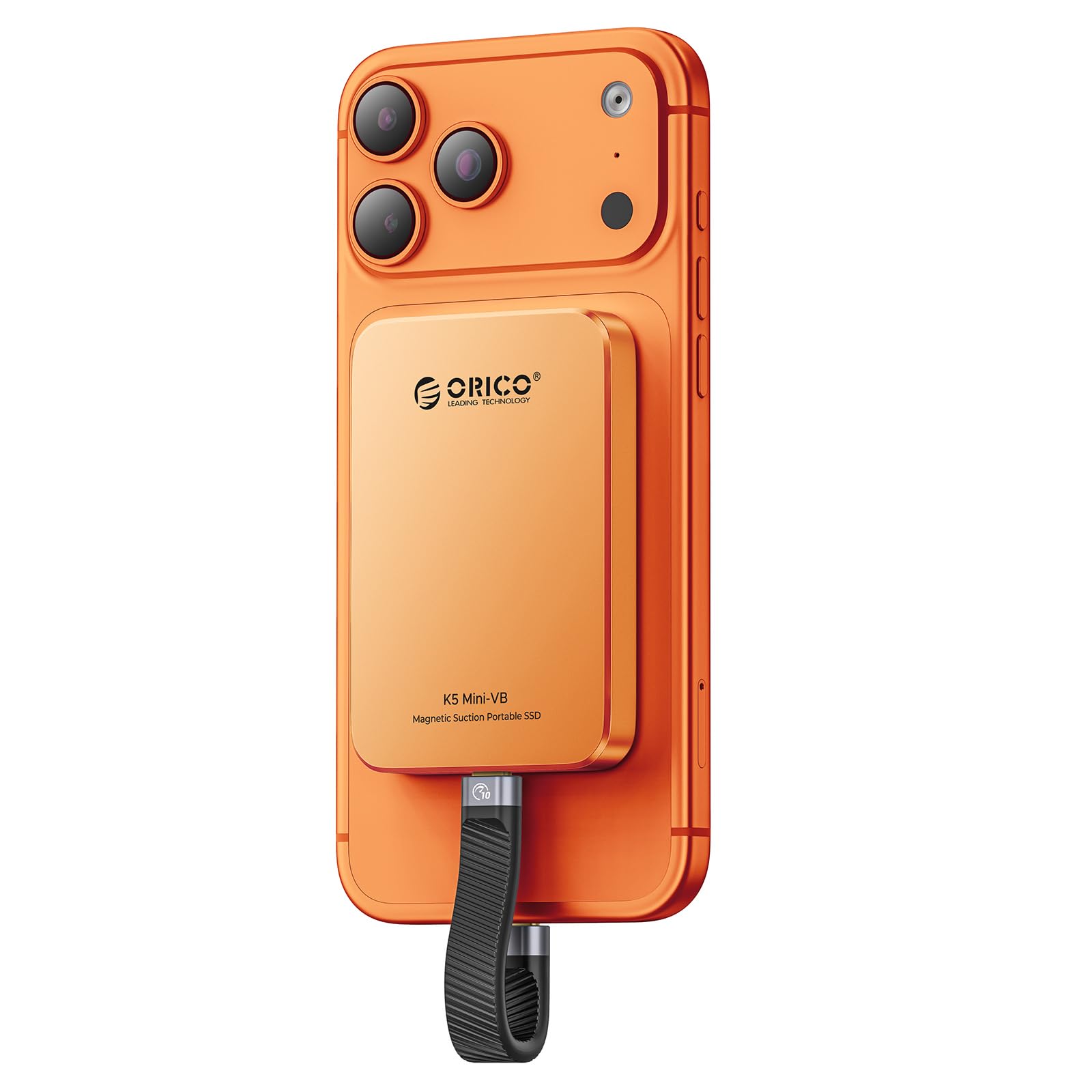
Image 1.1: The ORICO K5Mini-VB-480GB-OR Magnetic External SSD in Cosmic Orange.
Key Features:
- Strong Magnetic Attachment: Securely attaches to compatible devices, including MagSafe-enabled iPhones, and can be used with other devices via an included magnetic ring.
- High-Speed Data Transfer: Offers read speeds up to 460MB/s and a data transfer rate of 5Gbps (USB 3.0 interface) for quick file transfers.
- Compact and Portable Design: Ultra-small (2.4 x 3.55 x 0.42 inches) and lightweight (0.13 lbs) for easy portability.
- Durable Construction: Aluminum alloy body facilitates rapid heat dissipation and ensures data security.
- Wide Compatibility: Compatible with iPhone 15/16 series, USB-C Android smartphones, laptops, and tablets.
2. Setup Instructions
Follow these steps to set up your ORICO Magnetic External SSD with your device.
2.1 Attaching the SSD
The SSD features a strong magnetic design for easy attachment to compatible devices.

Image 2.1: The magnetic ring included with the SSD allows for magnetic attachment to devices without built-in magnetic capabilities, such as non-MagSafe iPhone cases or Android phones.
- For MagSafe-compatible iPhones (iPhone 15/16 series): Simply align the SSD with the back of your iPhone. The magnetic attraction will secure it in place.
- For other devices (e.g., non-MagSafe iPhones, Android phones): Use the included magnetic attraction ring. Attach the ring to the back of your phone or phone case. Ensure the ring is centered for optimal magnetic hold. Once the ring is attached, the SSD can be magnetically secured to it.
2.2 Connecting the SSD
Connect the SSD to your device using the provided USB-C cable.
- Connect one end of the USB-C cable to the ORICO SSD.
- Connect the other end of the USB-C cable to the USB-C port on your smartphone, tablet, or laptop.
- Note for iPhone 14 and earlier models: These models require a Lightning adapter. The ORICO LC10 Lightning adapter is recommended. Adapters from other brands may not be supported.
3. Operating Instructions
Once connected, the ORICO SSD functions as an external storage device. It is plug-and-play, meaning no special drivers are typically required.
3.1 Data Transfer with iPhone (iPhone 15/16 Series)
To transfer photos and videos from your iPhone to the SSD:

Image 3.1: Step-by-step guide for connecting and saving files from an iPhone 15/16 series to the ORICO SSD.
- Step 1: Connect the SSD to your iPhone 15/16 Series.
- Step 2: Open your Photos app, select the photos/videos you wish to transfer.
- Step 3: Tap the Share icon (usually a square with an arrow pointing up) and select "Save to Files".
- Step 4: In the Files app, tap "Browse".
- Step 5: Select "ORICO" from the locations.
- Step 6: Tap "Save" to complete the transfer.
Note: This process is not applicable for iPhone 14 and earlier models (iPhone 13, iPhone 12, iPhone 11, iPhone XS, iPhone XR, iPhone X, iPhone SE).
3.2 Data Transfer with Android Phone
To transfer files from your Android phone to the SSD:

Image 3.2: Step-by-step guide for connecting and copying files from an Android phone to the ORICO SSD.
- Step 1: Connect the SSD to your Android phone.
- Step 2: Open your phone's "Files" or "File Manager" application.
- Step 3: Navigate to the location of the files you wish to transfer (e.g., "Images").
- Step 4: Select the files you want to copy.
- Step 5: Choose the "ORICO" drive as the destination.
- Step 6: Tap "Copy" or "Move" to complete the transfer.
3.3 Usage with Laptops and Tablets
The SSD can be used with laptops and tablets that have a USB-C port. Connect the SSD using the provided cable. The device will appear as an external drive in your operating system's file explorer (e.g., File Explorer on Windows, Finder on macOS, Files app on iPadOS/Android tablets). You can then drag and drop files to and from the SSD.
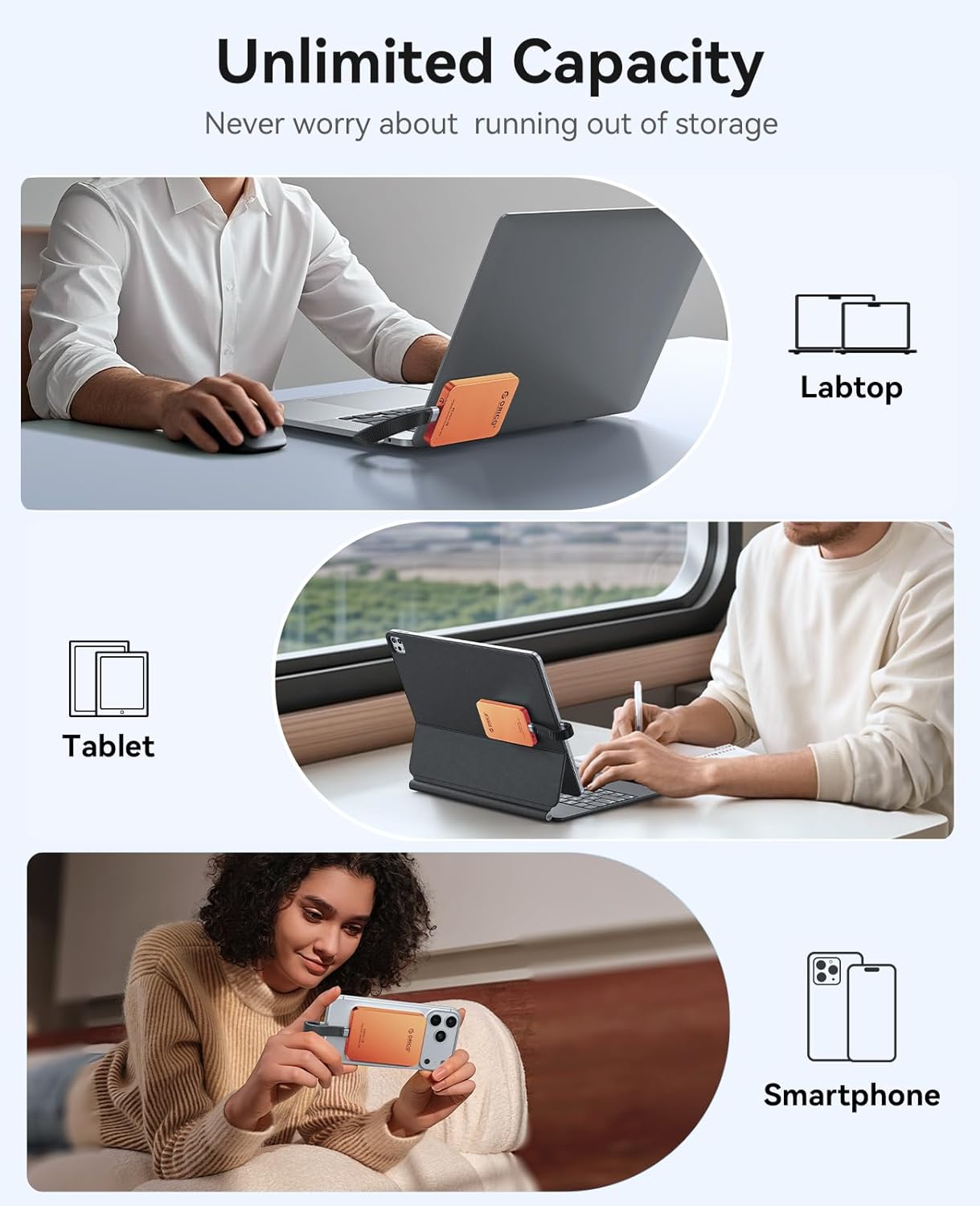
Image 3.3: The ORICO SSD can be used to expand storage for laptops, tablets, and smartphones.
4. Maintenance
Proper maintenance ensures the longevity and optimal performance of your ORICO SSD.
- Cleaning: Use a soft, dry, lint-free cloth to clean the exterior of the SSD. Avoid using liquid cleaners or solvents, as they may damage the device.
- Storage: Store the SSD in a cool, dry place away from direct sunlight, extreme temperatures, and strong magnetic fields when not in use.
- Handling: While the aluminum alloy body is durable, avoid dropping the SSD or subjecting it to strong impacts.
- Eject Safely: Always safely eject the SSD from your computer or device before disconnecting it to prevent data corruption.
5. Troubleshooting
If you encounter issues with your ORICO SSD, refer to the following common troubleshooting steps.
- SSD Not Detected:
- Ensure the USB-C cable is securely connected to both the SSD and your device.
- Try using a different USB-C port on your device.
- Test with a different USB-C cable to rule out cable issues.
- Restart your device and try connecting again.
- For iPhones 14 and earlier, ensure you are using a compatible Lightning adapter (ORICO LC10 recommended).
- Slow Transfer Speeds:
- Ensure your device's USB port supports USB 3.0 or higher for optimal speeds. Older USB 2.0 ports will result in slower transfers.
- Verify the cable used is a high-quality USB 3.0 (or higher) compatible cable.
- Close other applications that might be using system resources or performing background data transfers.
- Magnetic Attachment Issues:
- Ensure the magnetic ring (if used) is properly centered and securely attached to your device or case.
- Check for any obstructions or thick cases that might weaken the magnetic connection.
- Data Corruption:
- Always safely eject the SSD before disconnecting it from your device.
- If data corruption occurs, you may need to reformat the drive (this will erase all data). Back up important data regularly.
6. Specifications
Detailed technical specifications for the ORICO K5Mini-VB-480GB-OR Magnetic External SSD.

Image 6.1: The ORICO K5Mini SSD is designed to be light, small, and thin.
| Feature | Detail |
|---|---|
| Model Number | K5Mini-VB-480GB-OR |
| Digital Storage Capacity | 480 GB |
| Hard Disk Interface | USB 3.0 |
| Connectivity Technology | USB |
| Brand | ORICO |
| Special Feature | Portable, Magnetic Attachment |
| Hard Disk Description | Solid State Drive |
| Compatible Devices | Smartphone, Tablet, Laptop |
| Color | Cosmic Orange |
| Read Speed | 460 Megabytes Per Second |
| Data Transfer Rate | 5 Gigabits Per Second |
| Enclosure Material | Aluminum Alloy |
| Dimensions (L x W x H) | 3.55 x 2.4 x 0.42 inches (approx.) |
| Weight | 0.13 lbs (approx.) |

Image 6.2: The ORICO SSD offers high-speed data transmission for efficient file handling.
7. Warranty and Support
ORICO provides comprehensive support for its products.
7.1 Warranty Information
This product comes with an 18-month manufacturer's warranty. Please retain your proof of purchase for warranty claims. The warranty covers defects in materials and workmanship under normal use.
7.2 Customer Support
For technical assistance, troubleshooting, or warranty inquiries, please contact ORICO customer support through their official website or the retailer where the product was purchased. You may find contact information on the ORICO official website or within the product packaging.
When contacting support, please have your product model number (K5Mini-VB-480GB-OR) and purchase details readily available.


