
1. Introduction
Thank you for choosing the FREEWOLF M87V2 Wireless Membrane Keyboard. This manual provides essential information for setting up, operating, and maintaining your keyboard. Please read it thoroughly to ensure optimal performance and longevity of your device.
2. Package Contents
- FREEWOLF M87V2 Wireless Membrane Keyboard
- USB-C to USB-A Cable (detachable)
- 2.4GHz USB Receiver
- User Manual
3. Product Overview
The FREEWOLF M87V2 is an 87-key Tenkeyless (TKL) layout keyboard designed for versatility and comfort. It features tri-mode connectivity, RGB backlighting, and durable PBT keycaps.
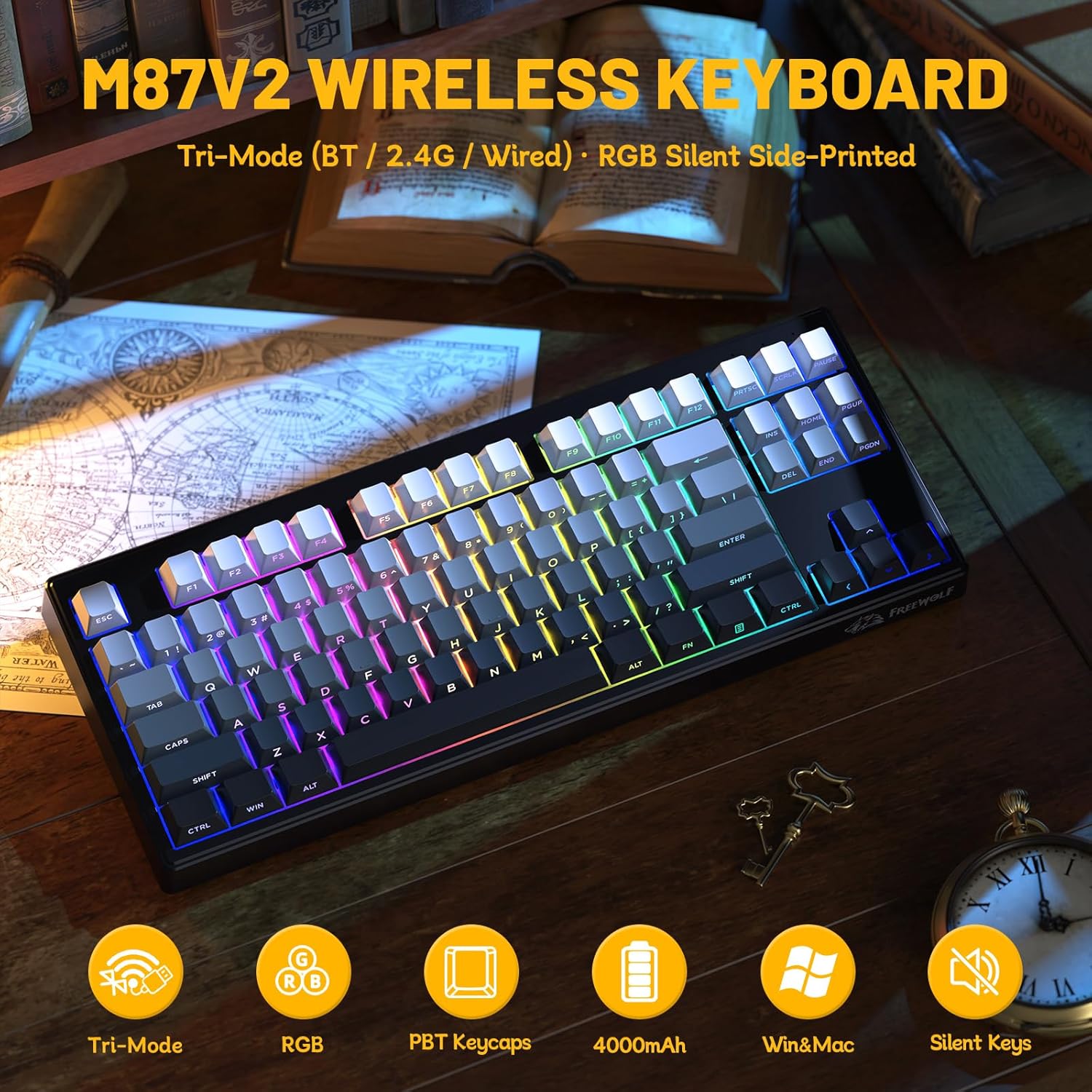
Image 3.1: Overview of the FREEWOLF M87V2 keyboard, showcasing its 87-key layout and RGB backlighting.
3.1 Key Features
- 87-Key TKL Layout: Compact design without the numeric keypad, saving desk space.
- Tri-Mode Connectivity: Supports 2.4GHz wireless, Bluetooth, and USB-C wired connections.
- RGB Backlighting: Customizable 16.8 million color RGB lighting with various effects.
- 4000mAh Battery: High-capacity rechargeable battery for extended wireless use.
- PBT Keycaps: Durable, fade-resistant PBT keycaps with side-printed legends.
- 26-Key Anti-Ghosting: Ensures accurate registration of multiple simultaneous key presses.
- Silent Structure: Advanced silicone dampening for a quiet typing experience.

Image 3.2: Detail of the PBT side-printed keycaps, highlighting their durability and ergonomic Cherry profile.
3.2 Physical Dimensions
- Length: Approximately 36 cm (14.2 inches)
- Width: Approximately 14 cm (5.5 inches)
- Height: Approximately 2 cm (0.8 inches)
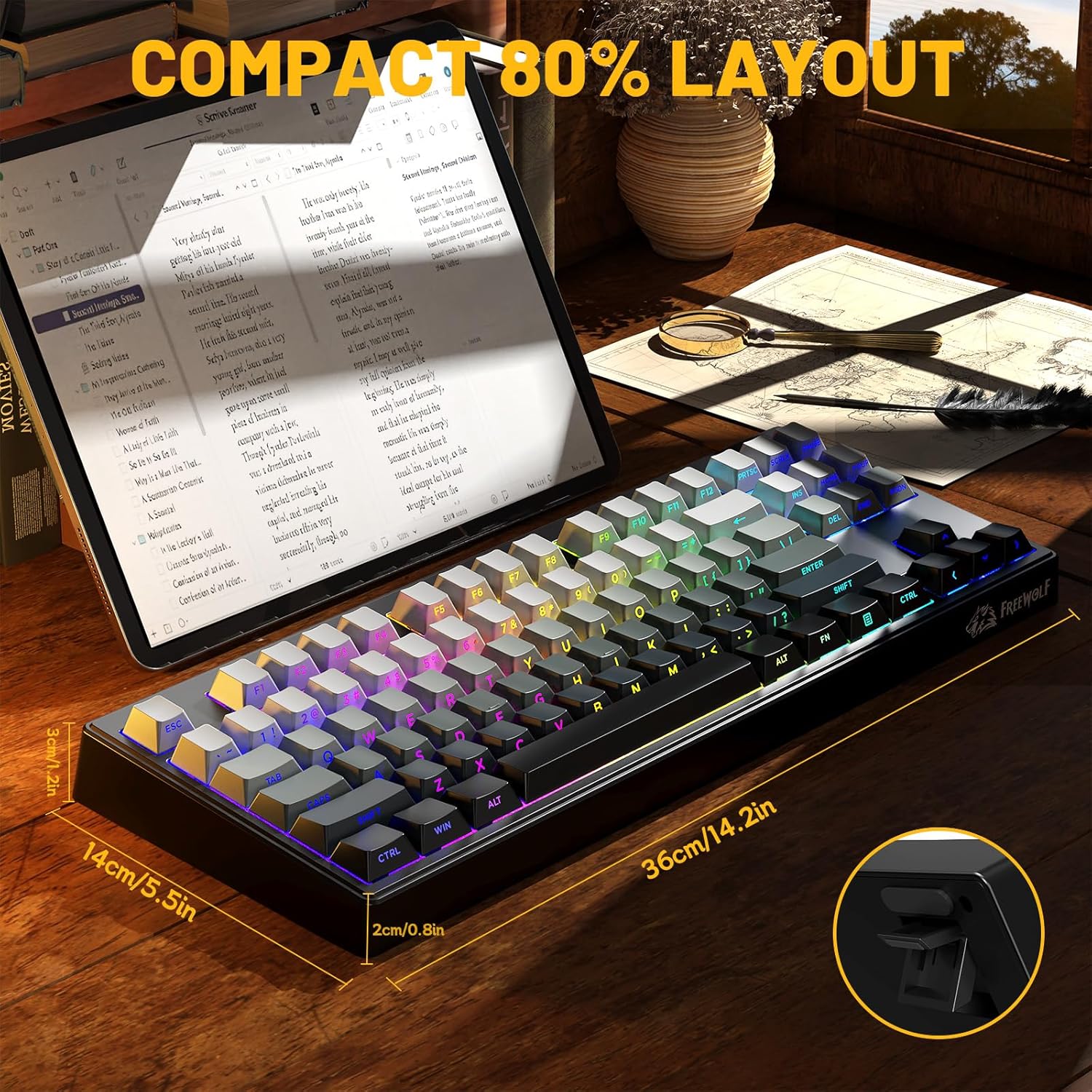
Image 3.3: The M87V2 keyboard displaying its compact 80% layout and approximate dimensions.
4. Setup
4.1 Charging the Keyboard
Before first use, it is recommended to fully charge the keyboard. Connect the provided USB-C cable to the keyboard's USB-C port and the other end to a USB power source (e.g., computer USB port, wall adapter). The indicator light will show charging status.
- Low Battery: Red flashing M-LED.
- Charging: Solid red M-LED.
- Fully Charged: M-LED turns off or changes color (refer to specific indicator behavior).

Image 4.1: The M87V2 keyboard highlighting its 4000mAh battery capacity.

Image 4.2: Battery life estimates: approximately 210 hours with backlight off, and 32 hours with backlight on.
4.2 Connectivity Modes
The M87V2 keyboard supports three connection modes: 2.4GHz Wireless, Bluetooth, and USB-C Wired. Use the mode switch located on the back of the keyboard to select your desired connection type.

Image 4.3: The M87V2 keyboard illustrating its capability to connect via Bluetooth, 2.4GHz wireless, or USB-C wired modes.
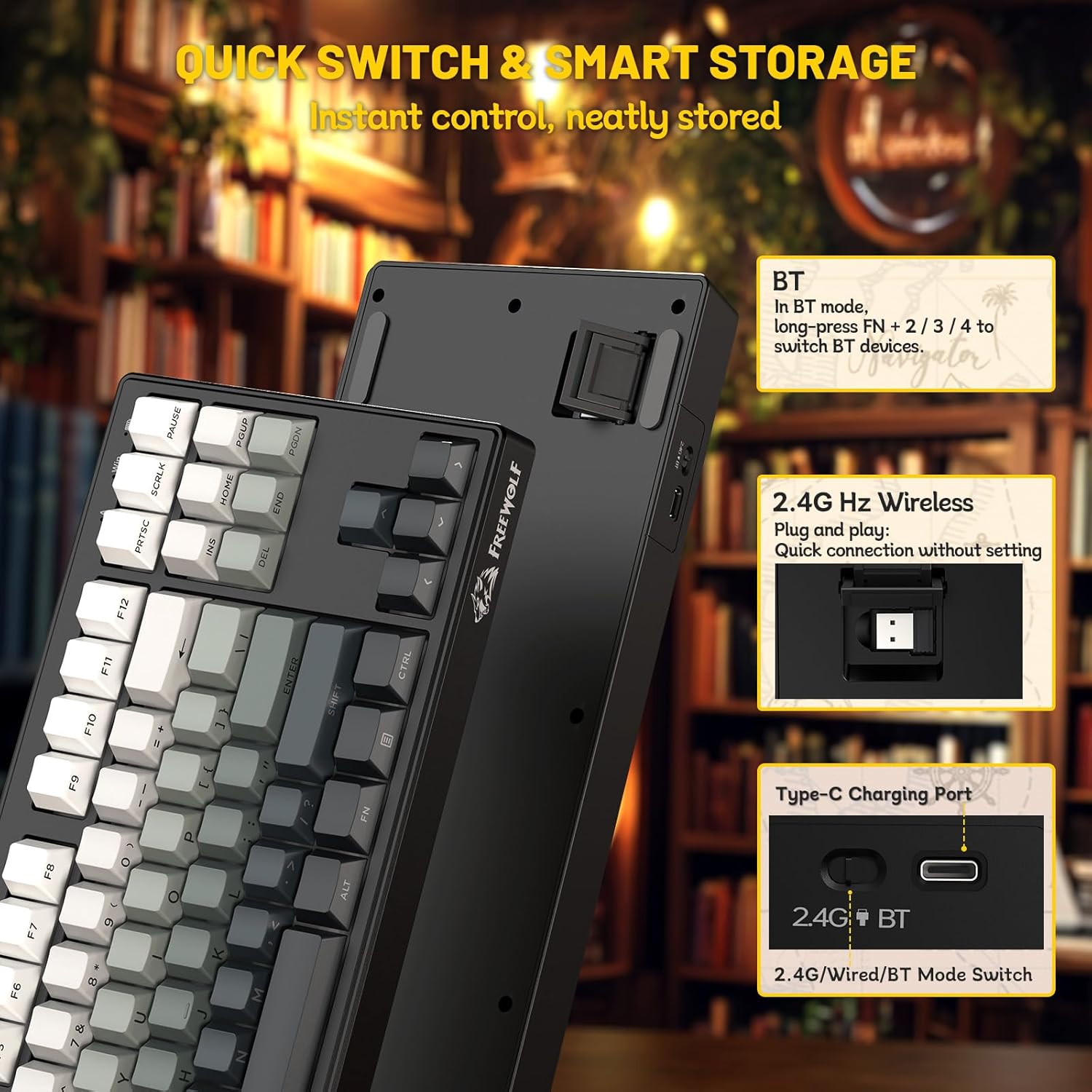
Image 4.4: Close-up of the keyboard's underside, showing the 2.4G/Wired/BT mode switch, the storage slot for the 2.4GHz receiver, and the USB-C charging port.
4.2.1 2.4GHz Wireless Connection
- Locate the 2.4GHz USB receiver stored in the slot on the back of the keyboard.
- Plug the USB receiver into an available USB port on your computer.
- Set the mode switch on the back of the keyboard to the '2.4G' position.
- The keyboard should connect automatically.
4.2.2 Bluetooth Connection
- Set the mode switch on the back of the keyboard to the 'BT' position.
- On the keyboard, long-press FN + 2, FN + 3, or FN + 4 to enter pairing mode for Bluetooth device 1, 2, or 3 respectively. The indicator light will flash rapidly.
- On your device (computer, tablet, smartphone), enable Bluetooth and search for new devices.
- Select 'FREEWOLF M87V2' from the list of available devices to pair.
- Once paired, the indicator light on the keyboard will stop flashing.
- To switch between paired Bluetooth devices, short-press FN + 2, FN + 3, or FN + 4.
4.2.3 USB-C Wired Connection
- Connect the provided USB-C cable to the keyboard's USB-C port.
- Connect the USB-A end of the cable to an available USB port on your computer.
- Set the mode switch on the back of the keyboard to the 'Wired' position.
- The keyboard will be recognized as a standard USB keyboard and is ready for use.
5. Operating Instructions
5.1 RGB Backlight Control
The M87V2 keyboard features customizable RGB backlighting. Use the following FN (Function) key combinations to control the lighting effects:
- FN + INS: Cycle through 15 different backlight effects.
- FN + DEL: Cycle through 7 single-color modes.
- FN + ↑ / ↓: Adjust backlight brightness.
- FN + ← / →: Adjust backlight speed/direction (for dynamic effects).
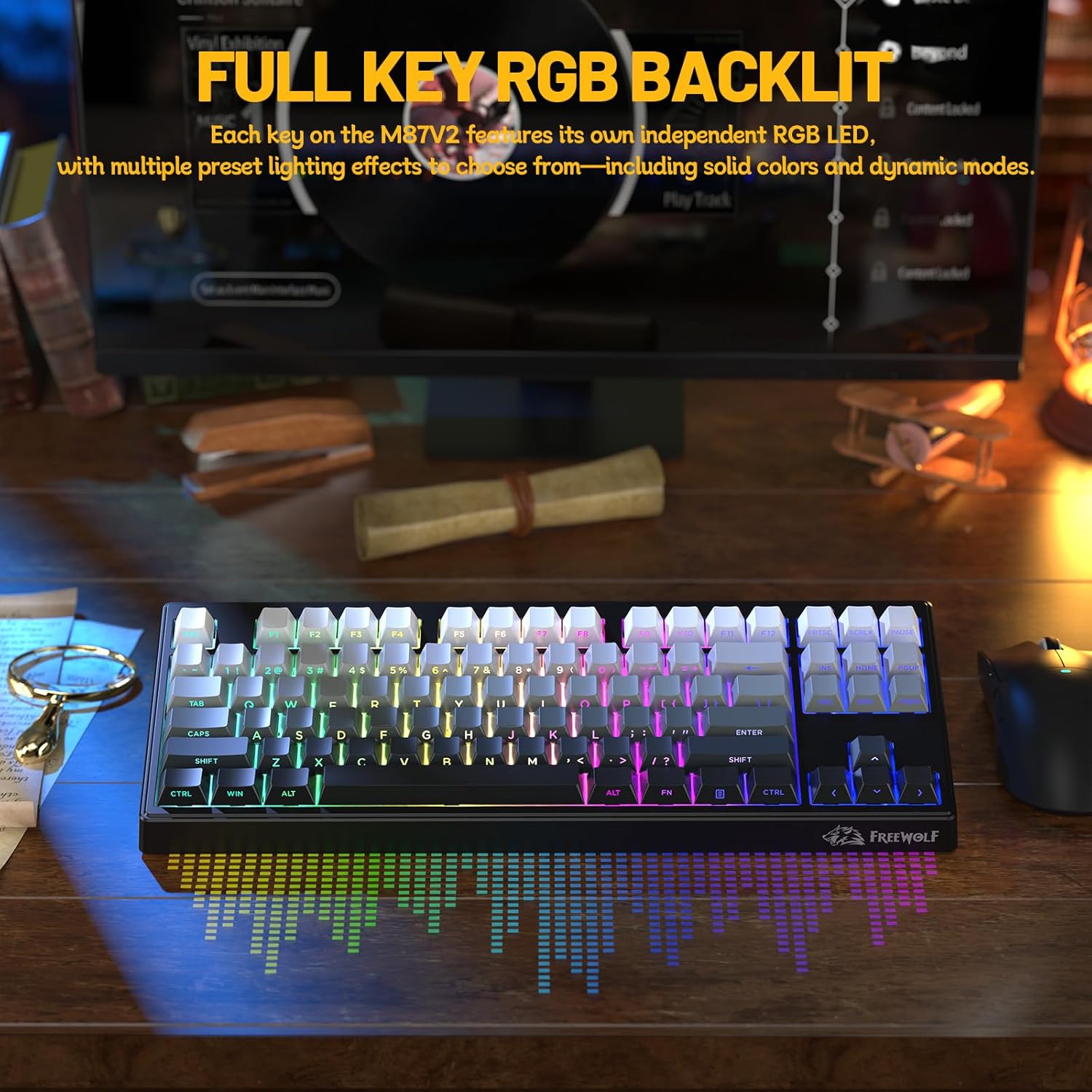
Image 5.1: The M87V2 keyboard displaying its vibrant full key RGB backlighting.

Image 5.2: Visual guide for controlling RGB backlight effects using FN + INS and FN + DEL keys.
5.2 Anti-Ghosting
The M87V2 keyboard features 26-key anti-ghosting, ensuring that up to 26 simultaneous key presses are registered accurately. This is particularly beneficial for fast typing and gaming scenarios where multiple keys are often pressed at once.

Image 5.3: Representation of the 26-key anti-ghosting capability, showing multiple key presses being registered simultaneously.
5.3 Special Key Functions (FN Combinations)
The keyboard utilizes the FN key to access secondary functions printed on certain keycaps. Refer to the keycap legends for specific functions, which may include media controls, volume adjustment, and application shortcuts.
6. Maintenance
6.1 Cleaning
- Disconnect the keyboard from all power sources before cleaning.
- Use a soft, lint-free cloth slightly dampened with water or a mild cleaning solution to wipe the keycaps and surface.
- Avoid using harsh chemicals, abrasive cleaners, or spraying liquids directly onto the keyboard.
- Use compressed air to remove dust and debris from between the keycaps.
6.2 Storage
When not in use for extended periods, store the keyboard in a cool, dry place away from direct sunlight and extreme temperatures. Ensure the keyboard is fully charged before storing to maintain battery health.
7. Troubleshooting
7.1 Keyboard Not Responding
- Check Power: Ensure the keyboard is charged or connected via USB-C cable.
- Mode Switch: Verify the mode switch on the back of the keyboard is set to the correct position (2.4G, BT, or Wired).
- 2.4GHz Connection: Ensure the USB receiver is securely plugged into your computer and the keyboard is in 2.4G mode. Try a different USB port.
- Bluetooth Connection: Re-pair the keyboard with your device. Ensure Bluetooth is enabled on your device and the keyboard is in BT mode and pairing correctly (FN+2/3/4).
- Wired Connection: Try a different USB-C cable or USB port on your computer.
7.2 Backlight Not Working or Incorrect
- Brightness: Adjust brightness using FN + ↑ / ↓.
- Effect Cycle: Cycle through effects using FN + INS or FN + DEL.
- Battery Level: Low battery can affect backlight performance. Charge the keyboard.
7.3 Intermittent Connectivity
- Interference: Move the keyboard closer to the receiver/device, or away from other wireless devices that might cause interference.
- Battery: Ensure the keyboard has sufficient charge.
- Drivers: For PC, ensure your operating system's Bluetooth or USB drivers are up to date.
8. Specifications
| Feature | Detail |
|---|---|
| Model | M87V2 |
| Layout | 87-Key (Tenkeyless) |
| Keycap Material | PBT (Side-Printed) |
| Connectivity | 2.4GHz Wireless, Bluetooth, USB-C Wired |
| Battery Capacity | 4000mAh |
| Backlight | RGB |
| Anti-Ghosting | 26-Key Rollover |
| Compatibility | Windows, macOS, Linux, iOS, Android |
| Dimensions (L x W x H) | 14.2 x 5.5 x 0.8 inches (36 x 14 x 2 cm) |
| Item Weight | 1.83 pounds |
9. Warranty and Support
The FREEWOLF M87V2 keyboard comes with a standard manufacturer's warranty. For detailed warranty information, please refer to the warranty card included in your package or contact FREEWOLF customer support.
If you encounter any issues not covered in this manual, or require further assistance, please contact FREEWOLF customer support through their official website or the retailer where the product was purchased.


