
1. Introduction
The Phomemo M260 is a versatile Bluetooth thermal label printer designed for various labeling needs, from small business applications to home organization. Utilizing thermal printing technology, it requires no ink or toner, offering a clean and efficient labeling solution. This manual provides detailed instructions for setting up, operating, and maintaining your M260 label printer to ensure optimal performance.
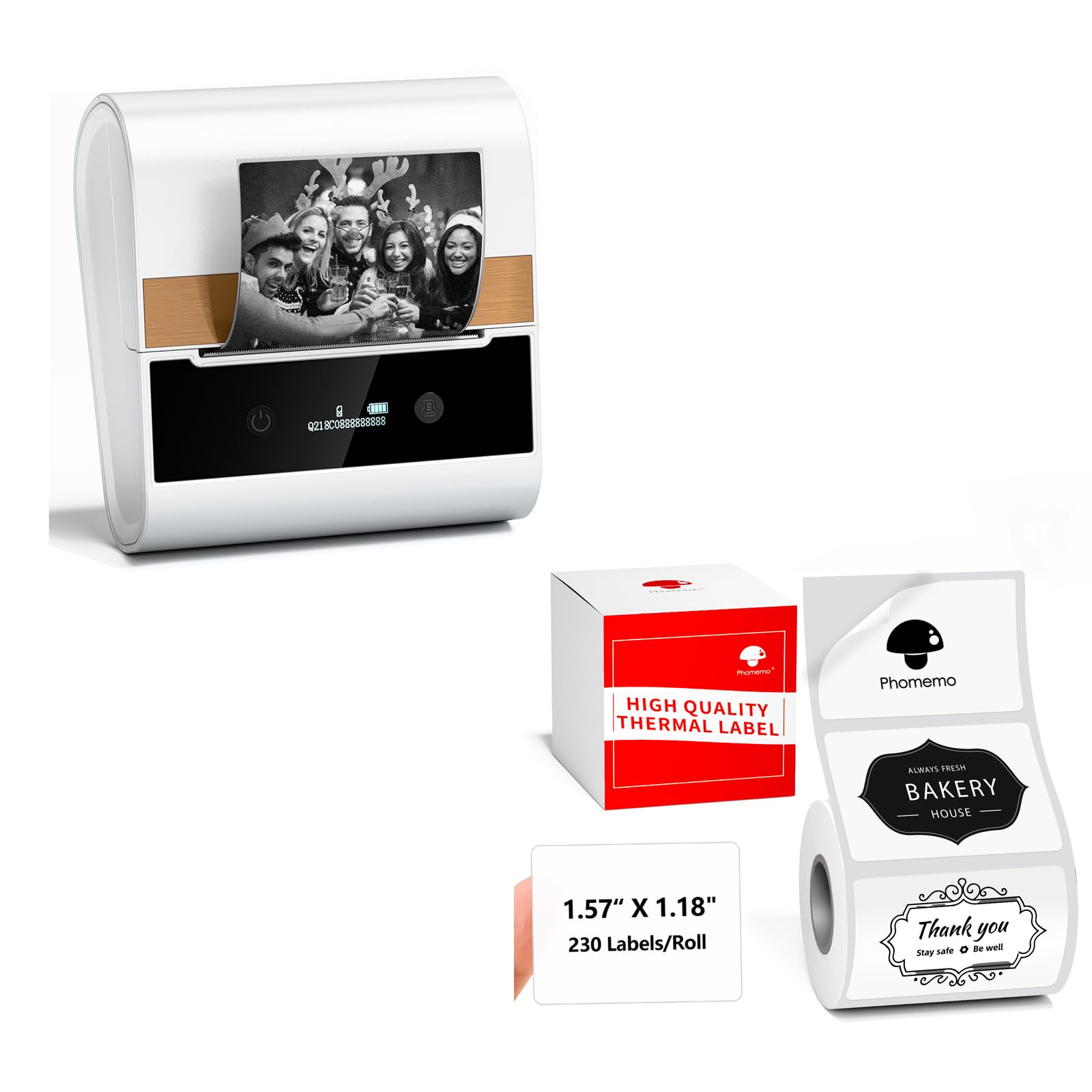
Phomemo M260 label printer in use, printing a price tag for a cookie in a bakery setting.
2. What's in the Box
Upon unboxing your Phomemo M260 label printer, please verify that all the following items are included:
- 1 x Phomemo M260 Label Maker (White)
- 1 x Roll of White Thermal Label Paper (1.57"x1.18" / 40mm x 30mm, 230 labels per roll)
- 1 x USB Charging Cable
- 1 x User Manual

Diagram showing the dimensions of the thermal self-adhesive labels: 40x30mm (1.57"x1.18"), highlighting waterproof, oil-proof, scratch-proof, strong sticky, and easy-to-tear features.
3. Product Overview
The Phomemo M260 is a compact and efficient thermal label printer. Key features include:
- Thermal Printing Technology: No ink or toner required, ensuring clean and cost-effective printing.
- Bluetooth Wireless Connection: Seamlessly connect to your smartphone or tablet.
- Wide Label Compatibility: Supports label widths from 0.78 inches to 2.95 inches (20mm to 75mm).
- High Resolution: Prints at 203 DPI for clear and crisp labels.
- Durable Labels: Labels are waterproof, oil-proof, scratch-proof, strong sticky, and easy to tear.
- Long-lasting Battery: Equipped with a 2200mAh built-in rechargeable battery for portability.
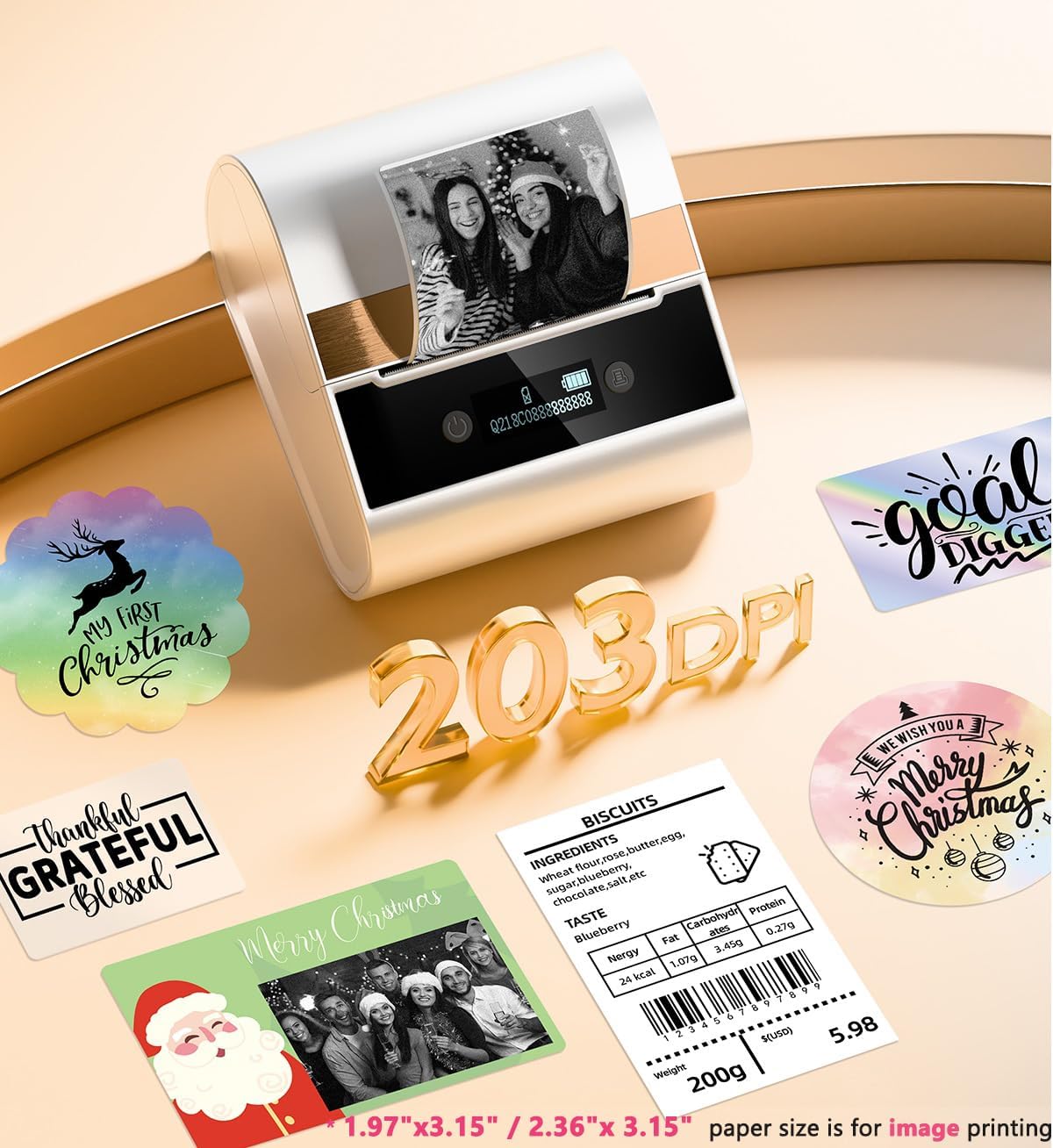
Phomemo M260 label maker displaying various creative label designs, including images and text, with a '203 DPI' resolution indicator.

Close-up images demonstrating the durability of Phomemo labels: waterproof, strong viscosity, tear resistant, and scratch resistant properties.
4. Setup
4.1 Charging the Printer
Before initial use, fully charge the Phomemo M260 printer. Connect the provided USB charging cable to the printer's charging port and a suitable USB power adapter (not included). The charging indicator light will show the charging status. A full charge ensures optimal performance and portability.

Phomemo M260 label printer connected to a charging cable, highlighting its 2200mAh built-in rechargeable battery.
4.2 Loading Label Paper
To load the thermal label paper:
- Open the printer cover by gently pressing the release button or lifting the designated area.
- Insert the label roll into the paper compartment, ensuring the printing side of the labels faces upwards and the roll is aligned correctly.
- Pull a small length of label paper out past the print head.
- Close the printer cover firmly until it clicks into place.
4.3 App Installation and Bluetooth Connection
The Phomemo M260 operates via a dedicated mobile application:
- Install the App: Download the "Print Master" app from the Apple App Store (for iOS 8.0 or above) or Google Play Store (for Android 4.0 or above).
- Turn On Printer: Power on your M260 printer.
- Enable Bluetooth: Ensure Bluetooth is enabled on your smartphone or tablet.
- Connect in App: Open the "Print Master" app, navigate to the device connection section, and select the M260 printer model from the list to establish a Bluetooth connection.
Official video demonstrating the Phomemo M260 label maker in action, showcasing its label printing capabilities, smartphone Bluetooth connection, and various applications for small businesses.
5. Operating Instructions
5.1 Creating and Printing Labels
Once connected, use the "Print Master" app to design and print your labels:
- Select Template or Design: Choose from a variety of pre-designed templates or create your own custom label.
- Customize Content: The app offers various fonts, filter effects, and themes. Add text, images, barcodes, or QR codes as needed.
- Preview and Print: Review your label design in the app. Adjust settings like printing density or number of copies if necessary. Use the "one-click printing" feature to send the label to the M260 printer.
The M260 is suitable for a wide range of applications, including mailing address labels, price tags, shipping labels, food ingredient labels, and personalized gift tags.

Phomemo M260 label maker printing a price tag for a cookie, demonstrating its use in a small business setting.

Phomemo M260 labels applied to clear containers of candy, demonstrating use for product identification and pricing in a retail setting.

Woman using the Phomemo M260 label maker to create a personalized gift tag for a present.
6. Maintenance
Proper maintenance ensures the longevity and optimal performance of your Phomemo M260 printer:
- Cleaning the Print Head: Regularly clean the thermal print head with an alcohol swab or a specialized cleaning pen to prevent print quality issues. Ensure the printer is off and cooled down before cleaning.
- Cleaning the Exterior: Wipe the exterior of the printer with a soft, dry cloth. Avoid using harsh chemicals or abrasive materials.
- Label Storage: Store thermal labels in a cool, dry place away from direct sunlight and heat to prevent premature fading or damage.
- Battery Care: For long-term storage, charge the printer to about 50% every three months to maintain battery health.
7. Troubleshooting
If you encounter issues with your Phomemo M260, refer to the following common problems and solutions:
- Printer Not Connecting via Bluetooth:
Solution: Ensure the printer is powered on and within range. Restart both the printer and your mobile device. Check if Bluetooth is enabled on your device and try reconnecting through the "Print Master" app. - Poor Print Quality (Faint or Missing Lines):
Solution: Clean the print head as described in the Maintenance section. Ensure the label paper is loaded correctly and is suitable for thermal printing. Adjust the printing density settings in the app. - Paper Jam:
Solution: Turn off the printer. Open the cover and carefully remove any jammed paper. Ensure the label roll is inserted correctly and not too tight. - Printer Not Responding:
Solution: Check if the battery is charged. If the printer is unresponsive, try resetting it by pressing and holding the power button for several seconds.
8. Specifications
| Model | Phomemo M260 |
| Printing Technology | Direct Thermal |
| Connectivity | Bluetooth |
| Resolution | 203 DPI |
| Label Width Range | 0.78" - 2.95" (20mm - 75mm) |
| Battery Capacity | 2200mAh Rechargeable Lithium Battery |
| System Compatibility | Android 4.0 or above, iOS 8.0 or above |
| Included Label Size | 1.57"x1.18" (40mm x 30mm) |
| Label Features | Waterproof, Oil-Proof, Scratch-Proof, Strong Viscosity, Tear Resistant, BPA Free |
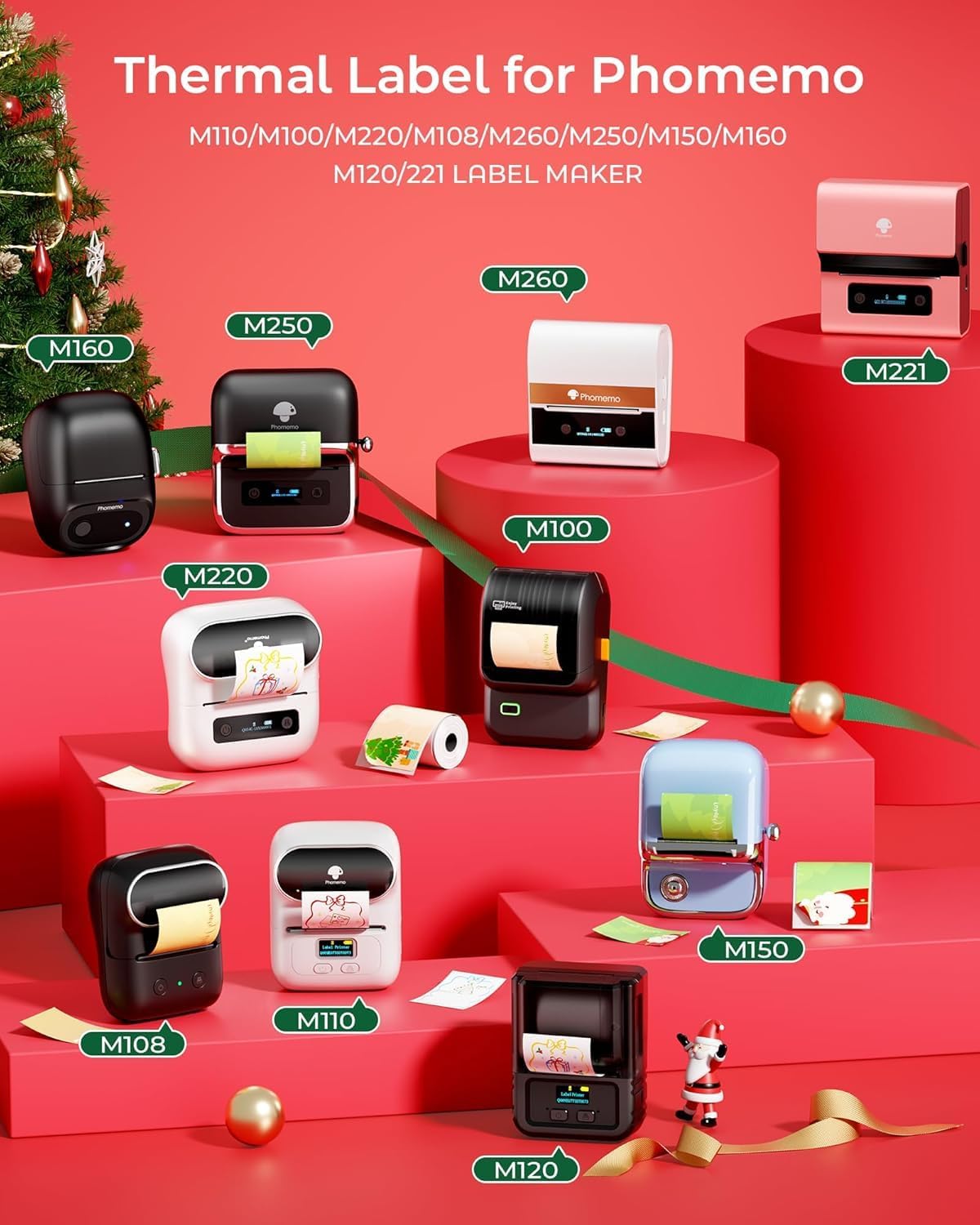
This image shows the compatibility of thermal labels with various Phomemo label maker models, including M110, M100, M220, M108, M260, M250, M150, M160, M120, and M221.
9. Warranty and Support
Phomemo products are designed for reliability and performance. For specific warranty details, please refer to the warranty card included with your product or visit the official Phomemo website. If you require technical assistance, troubleshooting, or have questions regarding your M260 label printer, please contact Phomemo customer support through their official channels.


