
1. Introduction
Product Overview
The 3DMakerpro Toucan Standard 3D Scanner is an all-in-one handheld device designed for comprehensive 3D scanning, editing, modeling, and exporting. This device operates independently without requiring a computer connection, offering enhanced portability for use in various environments.
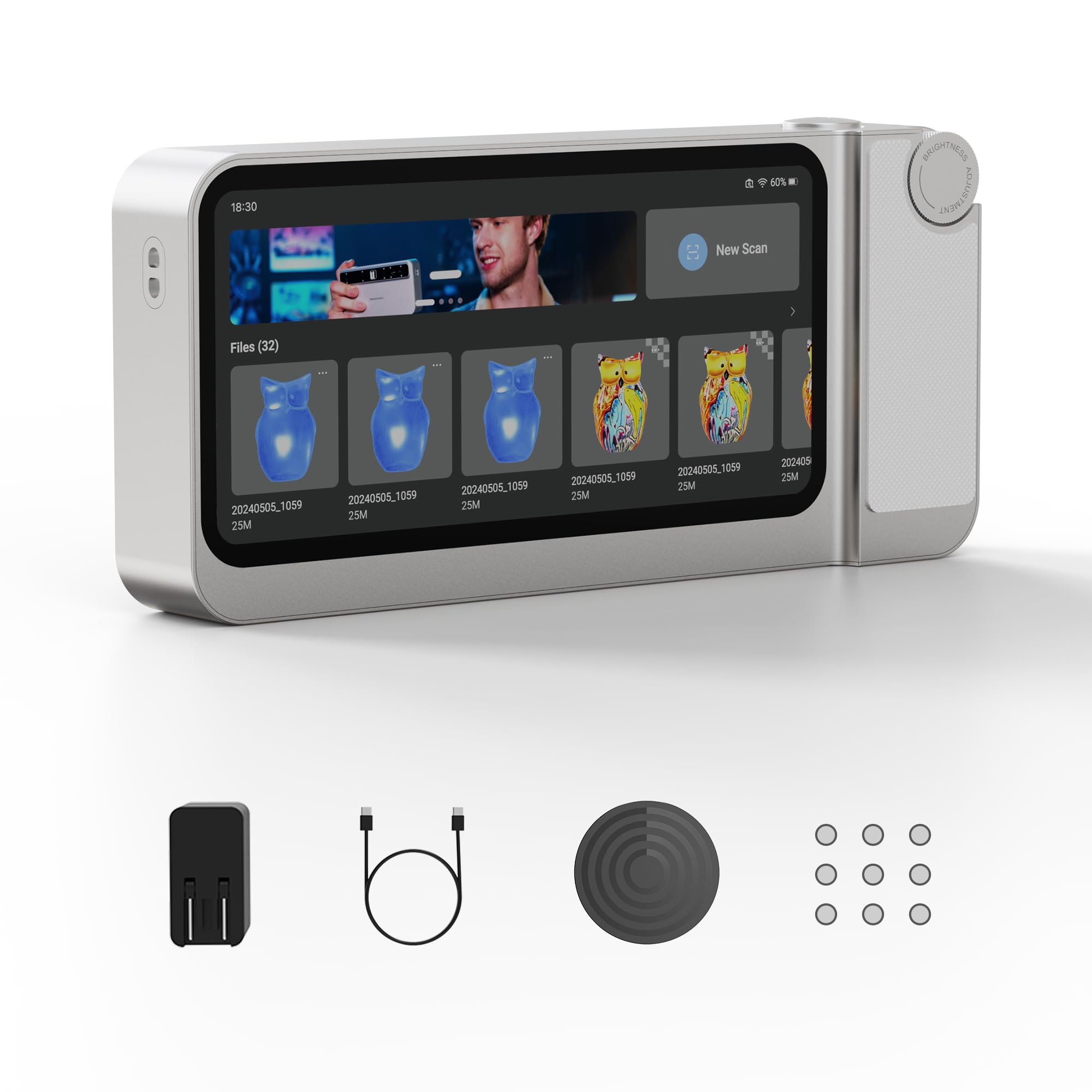
Image 1.1: The 3DMakerpro Toucan Standard 3D Scanner.
Equipped with a high-performance MEMS projection system, the Toucan scanner can capture objects ranging from small items like jewelry (minimum 135 × 185 mm) to large objects such as cars (up to 1000 × 750 mm). For optimal results, maintain a working distance between 200 mm and 1000 mm from the object during scanning.

Image 1.2: Illustration of the Toucan scanner's capability to scan objects of various sizes.
This scanner utilizes blue-light technology to achieve an accuracy of up to 0.03 mm and a resolution of 0.05 mm. A built-in 48MP color camera with a 9-axis position sensor captures fine details, facilitating the creation of high-quality digital models.
2. What's in the Box
Verify that all the following items are included in your package:
- 3DMakerpro Toucan 3D Scanner
- Power Adapter & Cable
- Manual Turntable
- Markers
- Calibration Board
- Silicone case
- Lanyard

Image 2.1: All items included with the 3DMakerpro Toucan Standard 3D Scanner.
3. Setup
Initial Power On and Charging
Before first use, ensure the device is fully charged using the provided power adapter and cable. Connect the power adapter to a suitable power source and the cable to the scanner's charging port. The charging indicator will show the charging status.
Calibration
Place the calibration board on a flat, stable surface. Follow the on-screen instructions on the Toucan scanner to perform initial calibration. This step is crucial for accurate scanning results. Regular calibration is recommended to maintain precision.
Note Before Use: Handheld 3D scanners require some learning to master. Please follow the guides and tutorials carefully—practice makes perfect, and you’ll soon achieve excellent scanning results.
4. Operating Instructions
User-Friendly Controls
The Toucan scanner features a multi-level damping adjustment wheel and quick-access buttons for intuitive control. The damping wheel allows for precise adjustments of scan brightness, screen brightness, and model zoom.

Image 4.1: The multi-level damping wheel for adjusting parameters.
Shortcut buttons enable one-touch start, pause, and stop of scanning, as well as capturing single photos of the object.

Image 4.2: Quick buttons for scan control and single-shot photos.
Scanning Process
To begin scanning, power on the device and select the desired scanning mode from the user interface. Position the scanner at the recommended working distance (200-1000 mm) from the object. Use the quick buttons to start and pause the scan. The device's Smart Resume Scan Mode helps fill gaps by recognizing different object orientations, allowing for effortless capture of undersides and internal structures.

Image 4.3: Smart Resume Scan Mode in action, capturing complex geometries.
Data Processing and Export
After scanning, the device allows for on-board editing, meshing, and exporting of 3D models directly from the scanner's interface, eliminating the need for an external computer during these stages.

Image 4.4: On-device editing capabilities of the Toucan scanner.
Application Scenarios
The Toucan 3D scanner is versatile and can be used in various fields, including 3D printing, virtual reality content creation, reverse engineering, digital education, digital cultural heritage preservation, game development, art & design, and 3D measurement.

Image 4.5: Various professional and creative applications for the 3D scanner.
Instructional Video: Scanning Techniques
Video 4.1: Detailed guide on effective scanning techniques with the Toucan 3D Scanner.
5. Maintenance
Cleaning
Gently wipe the scanner's exterior with a soft, dry cloth. Avoid using abrasive cleaners, solvents, or harsh chemicals, as these can damage the device's surface. Ensure the camera lenses and projection system are free from dust, fingerprints, and smudges for accurate scanning performance.
Storage
When not in use, store the 3DMakerpro Toucan 3D Scanner in its provided silicone case. Keep the device in a cool, dry place, away from direct sunlight, high humidity, and extreme temperatures. This helps protect the internal components and prolong the device's lifespan.
6. Troubleshooting
Connectivity Issues
If you experience connectivity issues (e.g., when connecting to external devices or networks), ensure the device's firmware is up to date. Refer to the official 3DMakerpro support website for specific workarounds or driver updates, especially for newer operating systems or hardware configurations.
Scanning Inaccuracies
If scans appear inaccurate or incomplete, re-perform the calibration process as described in the Setup section. Ensure proper and consistent lighting conditions during scanning. For objects with reflective, transparent, or very dark surfaces, consider applying a temporary scanning spray or strategically placing markers to improve data capture.
Power Issues
If the device does not power on or hold a charge, ensure the power adapter and cable are correctly connected and functioning. Allow the device to charge for the recommended duration. If the issue persists, contact customer support.
7. Technical Specifications
| Feature | Specification |
|---|---|
| Product Dimensions | 7.87 x 3.66 x 1.48 inches |
| Item Weight | 4.63 pounds |
| Manufacturer | 3DMakerpro |
| Model Name | Toucan Standard |
| Batteries | 3 Lithium Polymer batteries (included) |
| Scanning Resolution | 0.05 mm |
| Scanning Accuracy | 0.03 mm |
| Connectivity Technology | Wi-Fi |
| Color Depth | 24 bits_per_pixel |
| Maximum Media Size | 39.4 x 27.6 inches (1000 x 750 mm) |
| Battery Capacity | 6600 mAh (up to 120 minutes continuous use) |
| Processor | 8-core |
| RAM | 32 GB |
| Storage | 256 GB |
8. Warranty and Support
The 3DMakerpro Toucan Standard 3D Scanner comes with a 1-year warranty from the date of purchase, covering manufacturing defects and malfunctions under normal use. Please retain your proof of purchase for warranty claims.
For technical support, warranty claims, or any inquiries regarding your device, please contact 3DMakerpro customer service. You can find contact information on the official 3DMakerpro website or within the product packaging. Our friendly customer service team is available to assist you.
