
1. Introduction
Thank you for purchasing the CiBest W13 Mini Projector. This manual provides essential information for setting up, operating, and maintaining your device. Please read it thoroughly before use to ensure optimal performance and safety.
What's in the Box
- CiBest W13 Mini Projector
- HDMI Cable
- Power Cord
- Remote Control
- User Manual
2. Safety Information
To prevent fire or electric shock, do not expose the unit to rain or moisture. Do not open the casing. Refer servicing to qualified personnel only.
- Ventilation: Ensure proper ventilation to prevent overheating. Do not block the air inlets or outlets.
- Power: Use only the provided power adapter. Disconnect power during lightning storms or when unused for long periods.
- Placement: Place the projector on a stable, level surface. Avoid placing it in direct sunlight or near heat sources.
- Eye Protection: The projector uses diffuse reflection technology to reduce eye strain. Avoid looking directly into the lens during operation.
3. Product Overview
The CiBest W13 is a compact and portable mini projector designed for versatile entertainment. It supports Full HD 1080P resolution and offers multiple connectivity options.
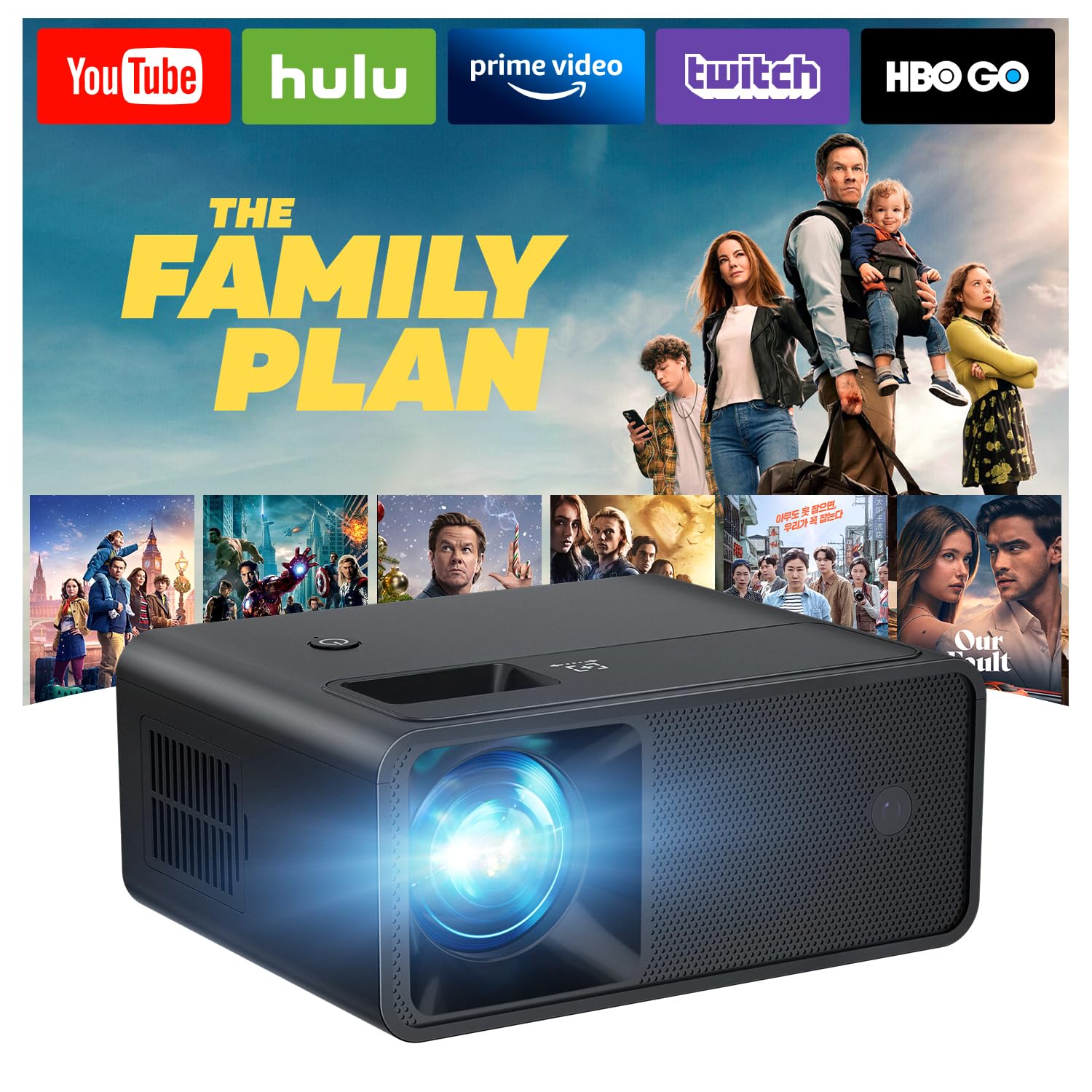
Figure 1: CiBest W13 Mini Projector (Front View)
This image shows the compact black design of the CiBest W13 Mini Projector, highlighting its portable nature.
Key Features:
- Portable Design: Weighing 0.52 kg and sized at 5.5 × 2.36 × 4.33 inches, it is easy to carry for various uses.
- Full HD 1080P Support: Delivers clear and vibrant images with advanced LED technology and uniform illumination.
- Built-in Speakers: Provides original audio fidelity for an immersive experience.
- Low Noise: Features optimized temperature control technology to reduce fan noise by 80%.
Projector Components

Figure 2: Top View with Focus Dial
This image displays the top of the projector, showing the manual focus dial and power button.
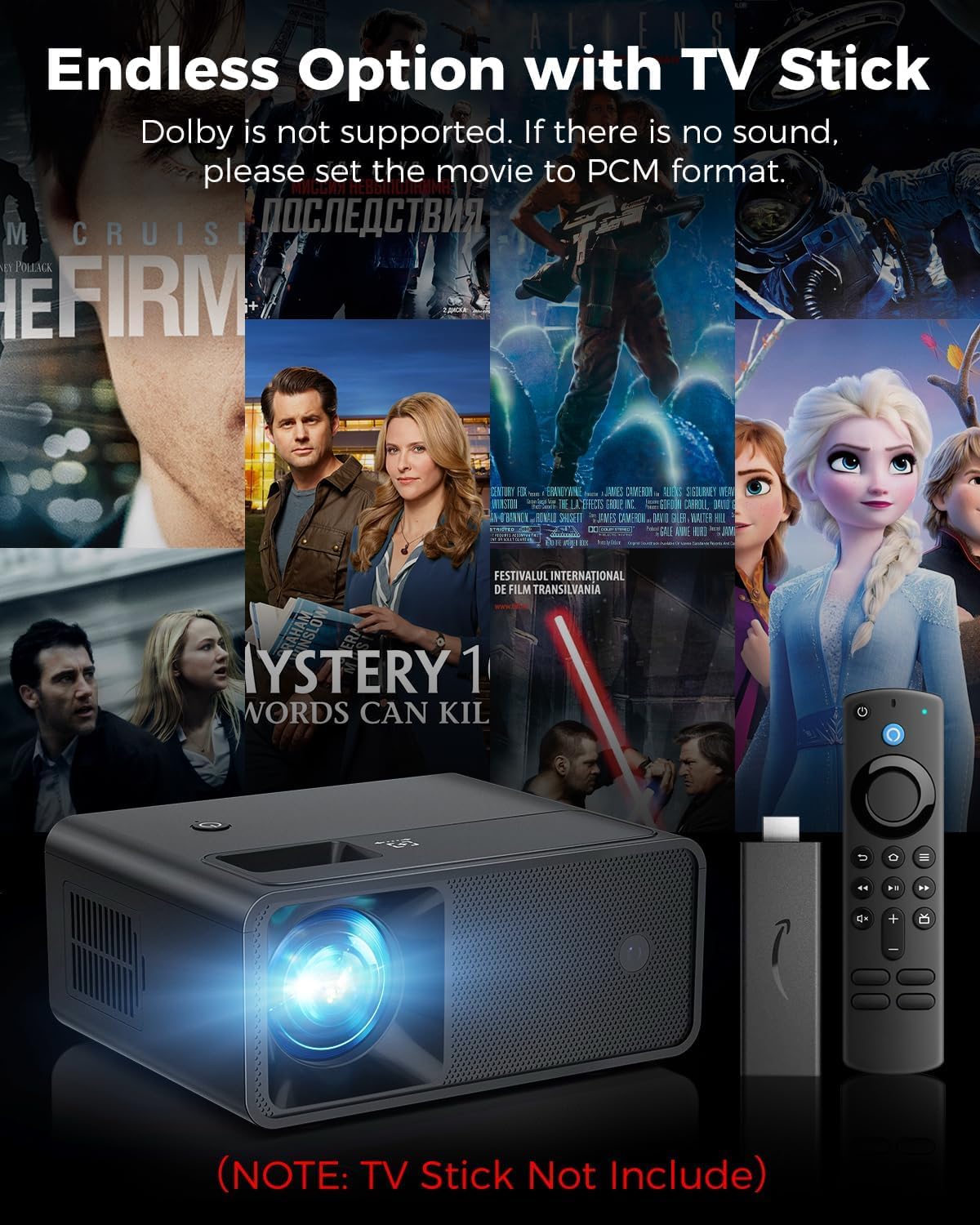
Figure 3: Rear View with Input/Output Ports
This image illustrates the rear panel of the projector, detailing the DC power input, USB port, HDMI port, 3.5mm audio jack, and AV port.
4. Setup
4.1 Power Connection
- Connect the provided power cord to the projector's DC input port.
- Plug the other end of the power cord into a power outlet.
4.2 Placement and Focus
Place the projector on a stable surface. The optimal projection distance is between 2.72 feet and 11 feet, yielding an image size from 30 to 200 inches (60-130 inches recommended).

Figure 4: Various Installation Methods
This image demonstrates three common installation methods: tripod installation, desktop placement, and ceiling installation. The projector features a standard tripod mount on its base.
Adjust the focus by rotating the focus dial on the top of the projector until the image is clear.
5. Operating Instructions
5.1 Power On/Off
Press the power button on the projector or the remote control to turn the unit on or off.
5.2 Remote Control

Figure 5: Projector and Remote Control
This image shows the CiBest W13 Mini Projector alongside its remote control, which allows for easy navigation and control of the projector's functions.
Use the remote control to navigate the on-screen menu, select input sources, adjust volume, and control playback.
5.3 Input Source Selection
After powering on, the projector will display a main menu. Use the remote control to select your desired input source (HDMI, USB, AV).
6. Connectivity
The CiBest W13 Mini Projector offers versatile connectivity for various devices.
6.1 Connecting to Smartphones/Tablets

Figure 6: Smartphone Connection Diagram
This image illustrates how to connect an iPhone (via Lightning to HDMI adapter) and an Android phone (via Micro USB/Type-C to HDMI adapter) to the projector. Adapters are not included.
To connect your smartphone or tablet, you will need an appropriate HDMI adapter (e.g., Lightning to HDMI for iOS, Micro USB/Type-C to HDMI for Android). Connect the adapter to your device, then use an HDMI cable to connect the adapter to the projector's HDMI port. Select HDMI as the input source.
Note: The projector does not have built-in Wi-Fi or Bluetooth. For streaming services like Netflix, Amazon Prime, or Hulu, use an external streaming device (e.g., Amazon Fire Stick, Roku Stick) connected via HDMI.
6.2 Connecting to TV Sticks/Gaming Consoles/Laptops

Figure 7: TV Stick Connected to Projector
This image shows a TV stick and its remote control next to the projector, indicating seamless integration for streaming content. The TV stick is not included.
Use an HDMI cable to connect your TV box, gaming console (PS5, Xbox), or laptop to the projector's HDMI port. Select HDMI as the input source.
6.3 USB Playback
Insert a USB flash drive into the USB port to play media files directly. Select USB as the input source and navigate through your files using the remote control.
Note: The USB port does not support mirroring phones or computers.
6.4 Audio Output
The projector has built-in Hi-Fi stereo speakers. For external audio, connect headphones or external speakers to the 3.5mm audio output port.
7. Image Quality and Display
The CiBest W13 Mini Projector supports 1080P Full HD resolution, offering a display size from 30 to 200 inches. For best results, a display size between 60 and 130 inches is recommended.

Figure 8: Projector in a Home Setting
This image shows the compact projector casting a large image onto a wall in a living room, demonstrating its small size and powerful performance.
The projector utilizes advanced LED technology and a uniform illumination method to ensure bright and clear projection edges. Diffuse reflection technology is applied to protect your eyes from tiredness during prolonged viewing.
8. Media Integration
8.1 Official Product Video
Video 1: CiBest W13 Mini Projector Overview
This video provides a brief overview of the CiBest W13 mini projector, showcasing its features and portability.
9. Maintenance
- Lens Cleaning: Use a soft, lint-free cloth to gently clean the projector lens. Avoid abrasive materials or harsh chemicals.
- Ventilation: Regularly check that the air inlets and outlets are clear of dust and obstructions to prevent overheating.
- Storage: When not in use, store the projector in a cool, dry place, away from direct sunlight and extreme temperatures.
10. Troubleshooting
| Problem | Possible Cause | Solution |
|---|---|---|
| No image/signal | Incorrect input source selected | Select the correct input source (HDMI, USB, AV) using the remote. |
| Blurry image | Focus not adjusted | Rotate the focus dial on the projector until the image is clear. |
| No sound | Volume too low or muted; external device audio settings | Increase projector volume. Check audio settings on the connected device. For some content, set audio to PCM format. |
| Projector overheats | Blocked ventilation | Ensure air inlets and outlets are clear. Allow the projector to rest for 20 minutes after 2 hours of continuous use. |
| Cannot connect to phone | Incorrect adapter or cable | Ensure you are using a data cable and the correct HDMI adapter for your phone model. |
11. Specifications
| Feature | Detail |
|---|---|
| Brand | CiBest |
| Model Name | W13 |
| Display Resolution | 1920 x 1080 (Full HD) |
| Display Type | LCD |
| Brightness | 8000 Lumen |
| Contrast Ratio | 8000:1 |
| Connectivity Technology | 3.5mm Jack, HDMI, USB |
| Form Factor | Portable |
| Item Weight | 0.52 Kilograms |
| Minimum Image Size | 30 Inches |
| Maximum Image Size | 200 Inches |
| Minimum Throw Distance | 2.72 Feet |
| Maximum Throw Distance | 11 Feet |
| Power Input | AC 100-240V 50/60Hz |
| Power Output | DC 12V - 2.5A |
| Power Consumption | 27W |
12. Warranty and Support
CiBest offers a three-year product replacement warranty and lifetime after-sales service for the W13 Mini Projector.
If you have any questions or encounter problems, please contact CiBest customer service directly. You can find support information on the official CiBest website or through your purchase platform.
For 24/7 live chat support and to activate your 12-month warranty, visit: https://www.top-cibest.com
Email support: support@cibest-usa.com
