
Introduction
This manual provides detailed instructions for the installation, operation, and maintenance of your Yonvim DC339CW 4K Front and Rear Dash Cam. Please read this manual thoroughly before using the device to ensure proper functionality and safety. This dash cam is designed to record high-quality video footage of your journeys, offering enhanced security and peace of mind.
Package Contents
Upon unboxing your Yonvim DC339CW Dash Cam, verify that all the following items are included:
- 1 x Yonvim 4K Front Dash Camera
- 1 x Rear Camera
- 1 x 32GB Memory Card
- 1 x USB Power Cable
- 1 x Car Charger (with USB-C and USB-A ports)
- 1 x Rear Camera Connection Cable
- 1 x Electrostatic Film for Windshield Mounting
- 1 x Adhesive Mount for Front Camera
- 1 x Adhesive Mount for Rear Camera
- 1 x Cable Management Tool
- 1 x User Manual (this document)

Figure 1: All components included in the Yonvim DC339CW Dash Cam package.
Product Overview
The Yonvim DC339CW is a high-performance dual dash cam system featuring 4K resolution for the front camera and 2K for the rear camera. It includes a 3.39-inch IPS screen for clear viewing and intuitive controls. Key features include built-in Wi-Fi, GPS, 24-hour parking mode, G-sensor for collision detection, and loop recording.
Key Features:
- Ultra 4K Front + 2K Rear Dual Camera: Captures clear video day and night.
- 3.39" Large IPS Screen: For instant footage review and settings adjustment.
- Smart App Control: Connects to your smartphone via a dedicated app for easy video management.
- 24H Parking Mode: Monitors your vehicle when parked (requires separate hardwire kit).
- Built-in GPS: Records speed and driving routes accurately.
- 32GB Memory Card Included: Ready for immediate use.
- G-Sensor: Automatically locks and saves footage during collisions.
- Loop Recording: Overwrites oldest footage when the card is full.
- Night Vision: Enhanced recording in low-light conditions.
- 170-Degree Wide Angle: Broad field of view for both front and rear cameras.
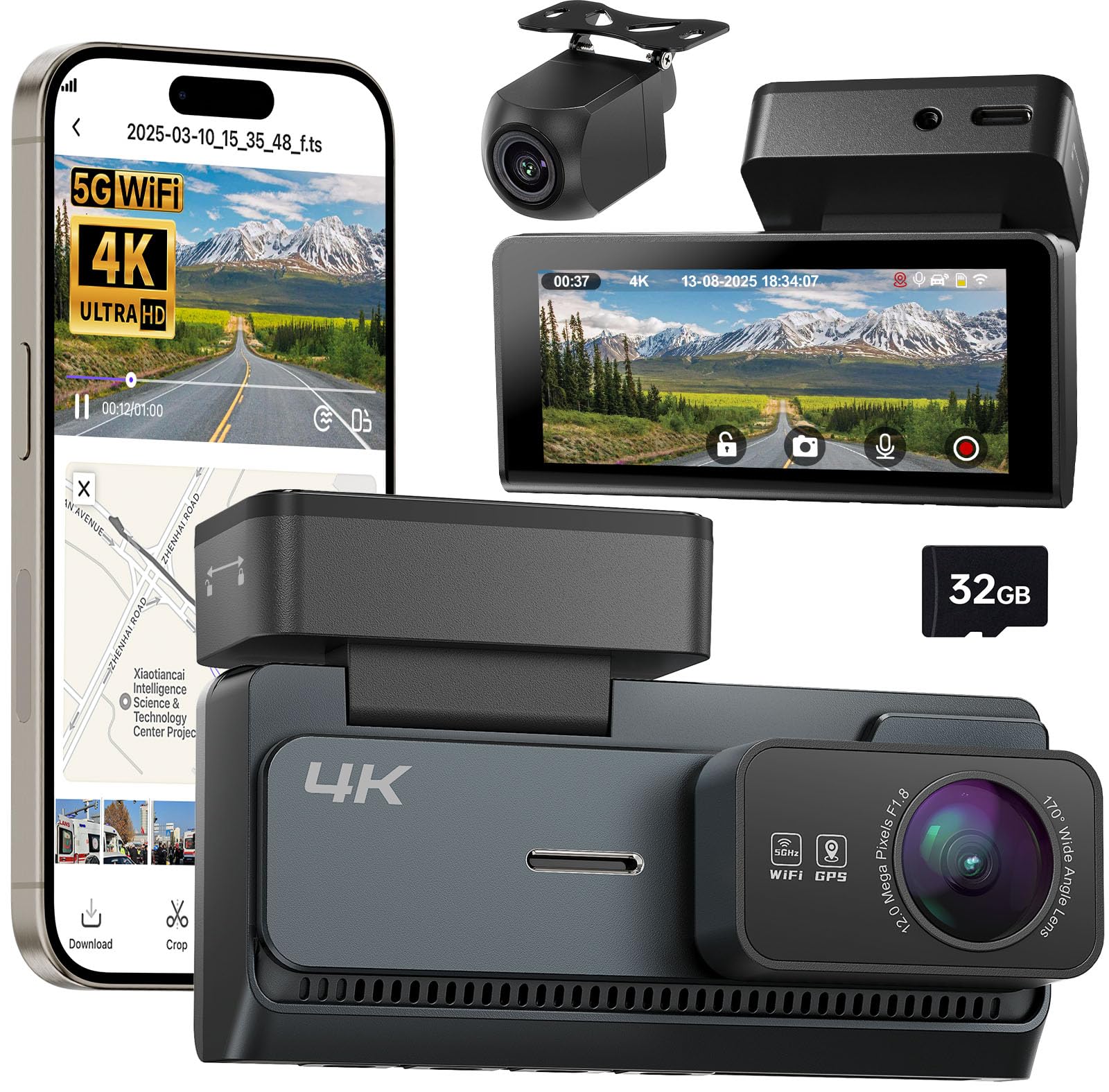
Figure 2: Overview of the Yonvim DC339CW Dash Cam and its key features.
Setup & Installation
Follow these steps for proper installation of your dash cam system:
- Prepare the Windshield: Clean the area on your front windshield where the dash cam will be mounted. Ensure it is free of dust and grease.
- Apply Electrostatic Film: Paste the electrostatic film near the top of the front windshield, ensuring it does not obstruct your view. This film allows for easy removal of the dash cam mount without leaving residue.
- Mount the Front Camera: Attach the adhesive mount to the electrostatic film. Slide the main dash cam unit onto the mount until it clicks securely into place.
- Insert Memory Card: Insert the provided 32GB memory card into the designated slot on the dash cam.
- Connect Power: Connect the USB power cable to the dash cam and route it along the edge of the windshield and dashboard using the provided cable management tool. Plug the car charger into your vehicle's cigarette lighter socket.
- Install Rear Camera: Mount the rear camera on your rear windshield using its adhesive mount. Connect the rear camera to the main dash cam unit using the long connection cable, routing the cable discreetly along the vehicle's interior trim.
- Adjust Camera Angle: Power on the dash cam and adjust the lens angle of both front and rear cameras to ensure optimal recording coverage.
Video 1: Installation guide for the Yonvim 4K Dash Cam, demonstrating mounting and cable routing.

Figure 3: The dash cam features flexible disassembly for easy removal from its mount.
Operating Instructions
Power On/Off:
- The dash cam will automatically power on and begin recording when your vehicle starts.
- It will automatically power off when the vehicle is turned off.
- To manually power on/off, press and hold the power button.
Recording Modes:
- Loop Recording: The camera continuously records video in segments (e.g., 1, 3, or 5 minutes). When the memory card is full, the oldest unlocked footage is automatically overwritten.
- G-Sensor (Emergency Recording): In the event of a sudden impact or collision, the built-in G-sensor will automatically detect the event and lock the current video segment, preventing it from being overwritten.
- Parking Mode: When enabled (requires hardwire kit, sold separately), the dash cam will monitor your vehicle for impacts or motion while parked, recording incidents to protect against vandalism or hit-and-runs.

Figure 4: G-sensor automatically locks footage during a collision.
Screen Operation:
The 3.39-inch IPS screen allows you to view live footage, playback recorded videos, and adjust settings directly on the device. Use the physical buttons located on the dash cam to navigate the menu and select options.

Figure 5: Live view on the 3.39-inch IPS screen.
Smart App Control
The Yonvim DC339CW dash cam can be connected to your smartphone via a dedicated mobile application. This allows for convenient control, live viewing, video download, and settings management.
- Download the App: Scan the QR code provided in the quick start guide or search for the official Yonvim app in your smartphone's app store.
- Connect via Wi-Fi: Enable Wi-Fi on your dash cam and connect your smartphone to the dash cam's Wi-Fi network (SSID and password are displayed on the dash cam screen).
- Access Features: Once connected, you can:
- View live footage from both cameras.
- Playback recorded videos.
- Download videos directly to your phone.
- Adjust camera settings (e.g., video resolution, loop recording duration, G-sensor sensitivity).
- Track GPS data (speed, route).
Video 2: Preview of the dash cam's mobile app interface, showing live view and settings.
Parking Mode
The 24-hour parking mode provides continuous surveillance for your vehicle even when it's parked and the engine is off. This feature helps protect your car from incidents like hit-and-runs or vandalism.
- Activation: Parking mode requires the separate purchase and installation of a hardwire kit (Model: B0FLPT6F86). This kit ensures continuous power supply to the dash cam from your car's battery without draining it.
- Functionality: Once the hardwire kit is installed and parking mode is enabled in the settings, the dash cam will automatically switch to parking surveillance when your vehicle is turned off. It can perform time-lapse recording or event-triggered recording (e.g., G-sensor detection of impact).

Figure 6: Illustration of the 24-hour parking monitoring feature.
GPS Functionality
The built-in GPS module in your Yonvim DC339CW dash cam provides accurate location, speed, and route data for your recordings.
- Route Tracking: The GPS records your driving trajectory, which can be viewed during video playback on the mobile app or a compatible PC player.
- Speed Display: Your current speed is overlaid on the video footage and displayed in the mobile app.
- Location Data: Precise geographical coordinates are logged with your video files, providing crucial evidence in case of an incident.

Figure 7: GPS motion trajectory tracking and data display.
Maintenance
Regular maintenance ensures the longevity and optimal performance of your dash cam:
- Memory Card Formatting: It is recommended to format the memory card every 2-4 weeks to prevent data corruption and ensure smooth recording. This can usually be done through the dash cam's settings menu or the mobile app.
- Lens Cleaning: Periodically clean the camera lenses with a soft, lint-free cloth to ensure clear video quality. Avoid abrasive materials that could scratch the lens.
- Firmware Updates: Check the manufacturer's website or the mobile app for any available firmware updates. Keeping your dash cam's firmware up-to-date can improve performance and add new features.
- Temperature Considerations: The dash cam is designed to operate within a wide temperature range (e.g., -4°F to 158°F). However, prolonged exposure to extreme temperatures can affect battery life and component integrity.

Figure 8: The dash cam is designed for various environmental conditions.
Troubleshooting
If you encounter any issues with your Yonvim DC339CW Dash Cam, refer to the following common problems and solutions:
| Problem | Possible Cause | Solution |
|---|---|---|
| Dash cam does not power on. | No power supply; faulty car charger/cable. | Check car charger connection; test with another power source. |
| Recording stops unexpectedly. | Memory card full/corrupted; low power. | Format memory card; ensure stable power supply. |
| Video footage is blurry/unclear. | Dirty lens; protective film still on lens. | Clean lenses; remove any protective film. |
| Wi-Fi connection issues. | Incorrect password; too far from device. | Verify Wi-Fi password; ensure close proximity to dash cam. |
| GPS not tracking. | Poor satellite signal; GPS module obstructed. | Ensure clear view of the sky; check GPS settings in app. |
If the problem persists after trying these solutions, please contact Yonvim customer support for further assistance.
Specifications
| Feature | Detail |
|---|---|
| Model Name | DC339CW |
| Product Dimensions | 0.78 x 3.62 x 1.67 inches |
| Item Weight | 15.8 ounces |
| Video Capture Resolution | Front: 4K, Rear: 2K |
| Display Screen | 3.39 inches |
| Field Of View | 170 Degrees (Front & Rear) |
| Connectivity Technology | Wi-Fi |
| Special Features | Built-In WiFi, Built-in GPS, G-Sensor, Loop Recording, 24H Parking Mode (Hardwire Kit Required) |
| Included Memory Card | 32GB |
| Mounting Type | Windshield Mount |
| Color | Black |
| Manufacturer | Yonvim |
Warranty and Support
For warranty information and customer support, please refer to the contact details provided on the product packaging or visit the official Yonvim website. Keep your purchase receipt as proof of purchase for any warranty claims.
Contact Information:
- Manufacturer: Yonvim
- Online Store: Yonvim Amazon Store