
Introduction
The ACECONN SWORD Pro+ TVONAIR3 is a high-performance Android TV Box designed to transform your television into a smart entertainment center. This device supports 4K Ultra HD streaming at 60 frames per second, powered by an Amlogic S905W2 quad-core processor and Android 11 OS. It features 2GB RAM and 16GB storage, dual-band Wi-Fi (2.4G/5G), and multiple connectivity options including HDMI 2.1, USB 2.0, optical audio output, and Bluetooth 5.1. This manual provides essential information for setting up, operating, and maintaining your SWORD Pro+ device.
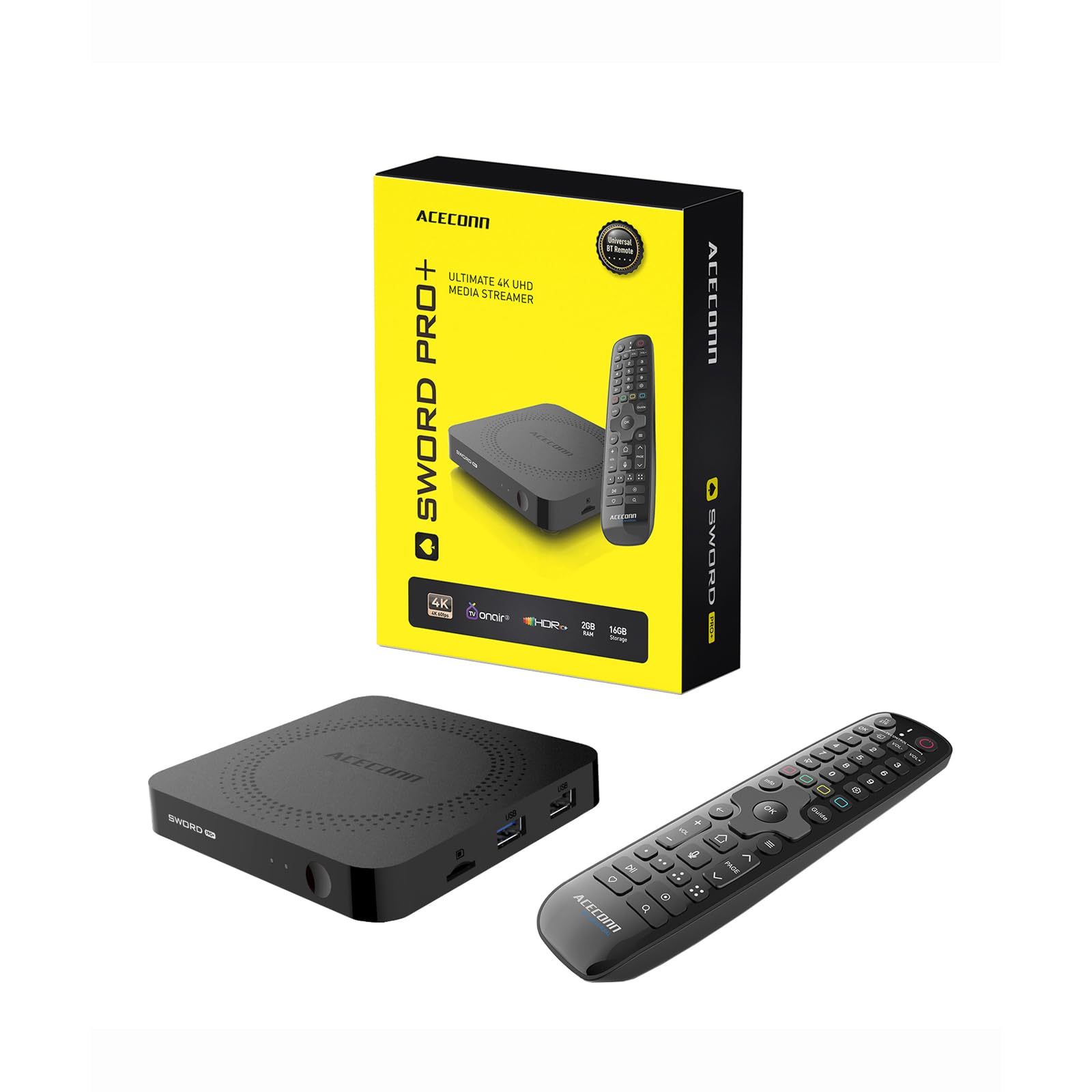
Image: The ACECONN SWORD Pro+ TVONAIR3 Android TV Box with its remote control, showcasing the device's compact design and the remote's layout.
Package Contents
Before proceeding with the setup, please verify that all items listed below are included in your package:
- ACECONN SWORD Pro+ TV Box
- Power Adapter (US/EU/UK/AU plug options)
- HDMI Cable
- Remote Control Unit (RCU)
- User Manual (Quick User Guide)

Image: A visual representation of the package contents, including the TV box, remote control, power adapter, HDMI cable, and user manual.
Setup Guide
- Connect to TV: Connect one end of the provided HDMI cable to the HDMI port on the SWORD Pro+ TV Box and the other end to an available HDMI input on your television.
- Connect Power: Plug the power adapter into the DC IN port on the TV Box, then plug the adapter into a wall outlet. The device should power on automatically or indicate a standby mode.
- Connect to Network (Wi-Fi or Ethernet):
- Wi-Fi: Once the device boots up, navigate to the Settings menu, select Network & Internet, and choose your Wi-Fi network. Enter the password to connect. The device supports 2.4G and 5G dual-band Wi-Fi for stable streaming.
- Ethernet: For a wired connection, connect an Ethernet cable from your router to the LAN port on the TV Box. The device will automatically detect and connect to the wired network.
- Initial Setup: Follow the on-screen instructions to complete the initial setup, which may include language selection, time zone, and Google account login.

Image: The rear view of the ACECONN SWORD Pro+ TV Box, showing the various connectivity ports including HDMI, Ethernet, USB, and power input, alongside dual-band Wi-Fi indicators.
Operating Instructions
Remote Control Unit (RCU)
The included RCU allows for easy navigation and control of your SWORD Pro+ TV Box. Familiarize yourself with the button layout and functions:

Image: A detailed diagram of the ACECONN SWORD Pro+ remote control, labeling each button's function, including power, volume, navigation, hotkeys, and media controls.
- TV Power On/Off: Controls your television's power.
- STB Power On/Off: Controls the TV Box power.
- OK key for TV: Selects options on your TV.
- TV Source: Changes the input source on your TV.
- TV Volume +/-: Adjusts your television's volume.
- Number Keys (0-9): For direct input or channel selection.
- Mouse Color Keys: Specific functions, often customizable.
- Information (Info): Displays program or system information.
- Open TV Guide (Guide): Accesses the electronic program guide.
- Up/Down/Left/Right: Navigation buttons.
- Confirm/Select (OK): Confirms selections.
- Exit: Returns to the previous screen or exits an application.
- Menu: Opens context-sensitive menus.
- Home: Returns to the main home screen.
- Volume +/- (VOL): Adjusts the TV Box volume.
- Page Up/Down (PAGE): Scrolls through pages.
- Voice Assistant: Activates voice control (if supported).
- Hot Keys: Programmable shortcut buttons.
- Play/Pause, Stop, Fast Forward/Rewind: Media playback controls.
- Setup Favorite: Marks content as a favorite.
- Record: Initiates recording (if supported).
- Search: Opens the search function.
Basic Navigation and Applications
Upon startup, you will see the Android TV home screen. This interface provides quick access to installed applications, settings, and media content.
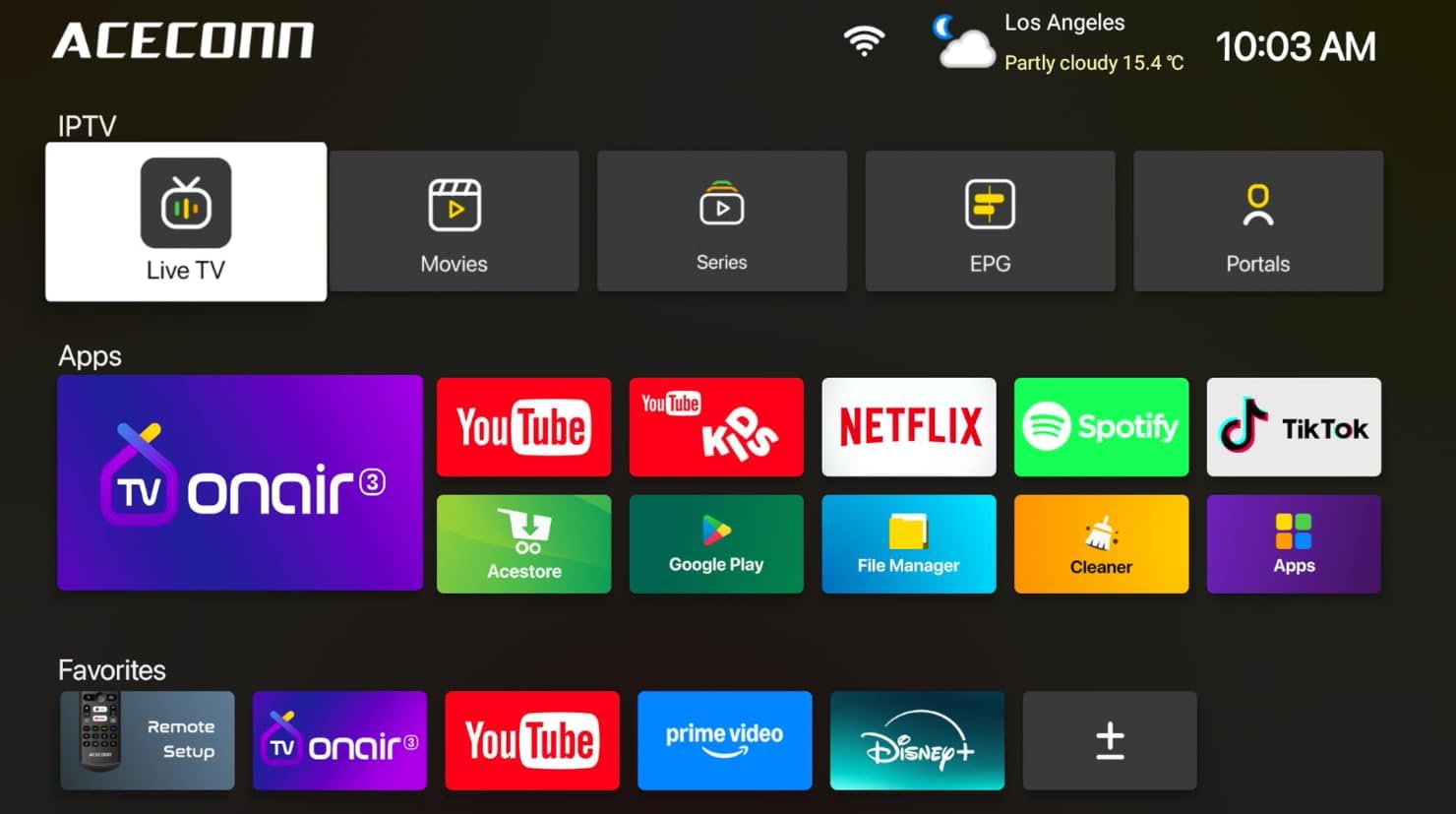
Image: A screenshot of the ACECONN SWORD Pro+ Android TV Box user interface, displaying various streaming apps like YouTube, Netflix, Spotify, and pre-installed TV ONAIR.
- Home Screen: Use the navigation buttons on your RCU to move between app icons and sections.
- Launching Apps: Select an app icon (e.g., Netflix, YouTube, TV ONAIR) and press the OK button to launch it.
- App Management: Access the Google Play Store to download new applications. You can manage installed apps through the Settings menu.
Streaming and Media Playback
The SWORD Pro+ is optimized for a premium 4K streaming experience.

Image: Illustrates the 4K streaming capabilities, multi-scene usage extension with pre-installed TV ONAIR, and live streaming/casting features of the SWORD Pro+.
- 4K Ultra HD: Enjoy content in stunning 4K resolution at 60fps with HDR10+ support for enhanced color and contrast.
- AV1/HEVC Decoding: The device supports advanced video codecs like AV1 and HEVC (H.265) for efficient, high-quality streaming with reduced bandwidth usage.
- Dual-Band Wi-Fi: The 2.4G/5G dual-band Wi-Fi ensures a stable and buffer-free connection for streaming and online activities.
- Multi-Format Support: Play various video formats including MKV, AVI, MP4, MOV, and more from local storage or network sources.
- Casting: Utilize casting features to mirror content from your smartphone or tablet to your TV screen.

Image: Highlights the 4K@60fps and HDR10+ capabilities, along with a comparison demonstrating the superior quality of AV1/HEVC codecs over standard codecs.
Maintenance
- Cleaning: Use a soft, dry cloth to clean the exterior of the TV Box. Do not use liquid cleaners or abrasive materials.
- Ventilation: Ensure the device is placed in a well-ventilated area to prevent overheating. Do not block the ventilation holes.
- Software Updates: Periodically check for system updates in the Settings menu to ensure optimal performance and access to the latest features.
- Power Cycle: If the device becomes unresponsive, disconnect the power adapter, wait 10 seconds, and then reconnect it to perform a power cycle.
Troubleshooting
| Problem | Possible Cause | Solution |
|---|---|---|
| No power | Power adapter not connected or faulty. | Ensure the power adapter is securely connected to the device and a working power outlet. Try a different outlet. |
| No signal on TV | Incorrect HDMI input selected on TV, or HDMI cable is loose/faulty. | Check that your TV is set to the correct HDMI input. Ensure the HDMI cable is securely connected at both ends. Try a different HDMI port or cable. |
| Wi-Fi connection issues | Incorrect password, router too far, or interference. | Verify Wi-Fi password. Move the TV Box closer to the router or reduce interference. Restart your router and the TV Box. Consider using an Ethernet cable for a stable connection. |
| Remote control not working | Low batteries, line of sight blocked, or pairing issue. | Replace batteries in the RCU. Ensure no obstructions between the remote and the TV Box. If it's a Bluetooth remote, re-pair it via Settings. |
| Applications freezing or crashing | Insufficient memory, app conflict, or outdated app version. | Close background applications. Clear app cache/data in Settings. Update the app to the latest version. Restart the TV Box. |
Specifications
| Model Name | SWORD PRO+ |
| Operating System | Android 11 |
| Processor | Amlogic S905W2 Quad-core |
| RAM | 2GB DDR4 |
| Storage | 16GB eMMC |
| Resolution | 4K @ 60fps |
| Video Decoding | AV1, HEVC (H.265), H.264, VP9 |
| HDR Support | HDR10+ |
| Wi-Fi | 2.4G/5G Dual-band Wi-Fi |
| Bluetooth | Bluetooth 5.1 |
| Connectivity | HDMI 2.1, USB 2.0 (x2), Ethernet (LAN), Optical Audio Output, TF Card Slot |
| Dimensions | 4.33 x 4.33 x 0.79 inches |
| Weight | 1.1 pounds |
| Special Features | Parental Controls |

Image: An infographic detailing the SWORD Pro+'s performance, highlighting 2GB DDR3 RAM and 16GB storage for smooth multi-app switching and ample space for content, running on Android 11.
Warranty and Support
For warranty information and technical support, please refer to the documentation included with your product or visit the official ACECONN website. Keep your purchase receipt for warranty claims.


