1. Introduction
The Fenix CL20R Pro is a compact, USB rechargeable camping lantern designed for versatile lighting needs. It features a maximum output of 400 lumens, RGB and white light options, and a motion-sensing function. This manual provides detailed instructions for the safe and effective use of your CL20R Pro lantern.

Image 1.1: Fenix CL20R Pro lantern showcasing its design and key features like 400 lumens, 320 hours runtime, RGB mood lighting, smart sensing function, and magnetic base.
2. Package Contents
Please check the package for the following items:
- Fenix CL20R Pro Camping Lantern
- ARB-LP1900 Battery (pre-installed or included separately)
- USB Type-C Charging Cable
- Spare O-ring
- User Manual
- Warranty Card
3. Setup and Charging
3.1 Battery Installation
The Fenix CL20R Pro uses a nonstandard battery. Ensure the battery is correctly inserted according to the polarity markings if it is not pre-installed. Refer to the diagram inside the battery compartment if unsure.
3.2 Charging the Lantern
Before first use, fully charge the lantern. Connect the provided USB Type-C charging cable to the lantern's charging port and to a USB power source (e.g., computer, wall adapter). The charging indicator will show the charging status.

Image 3.1: Close-up view of the USB Type-C charging port on the Fenix CL20R Pro lantern.
4. Operation
The CL20R Pro features a single multi-function switch for all operations.
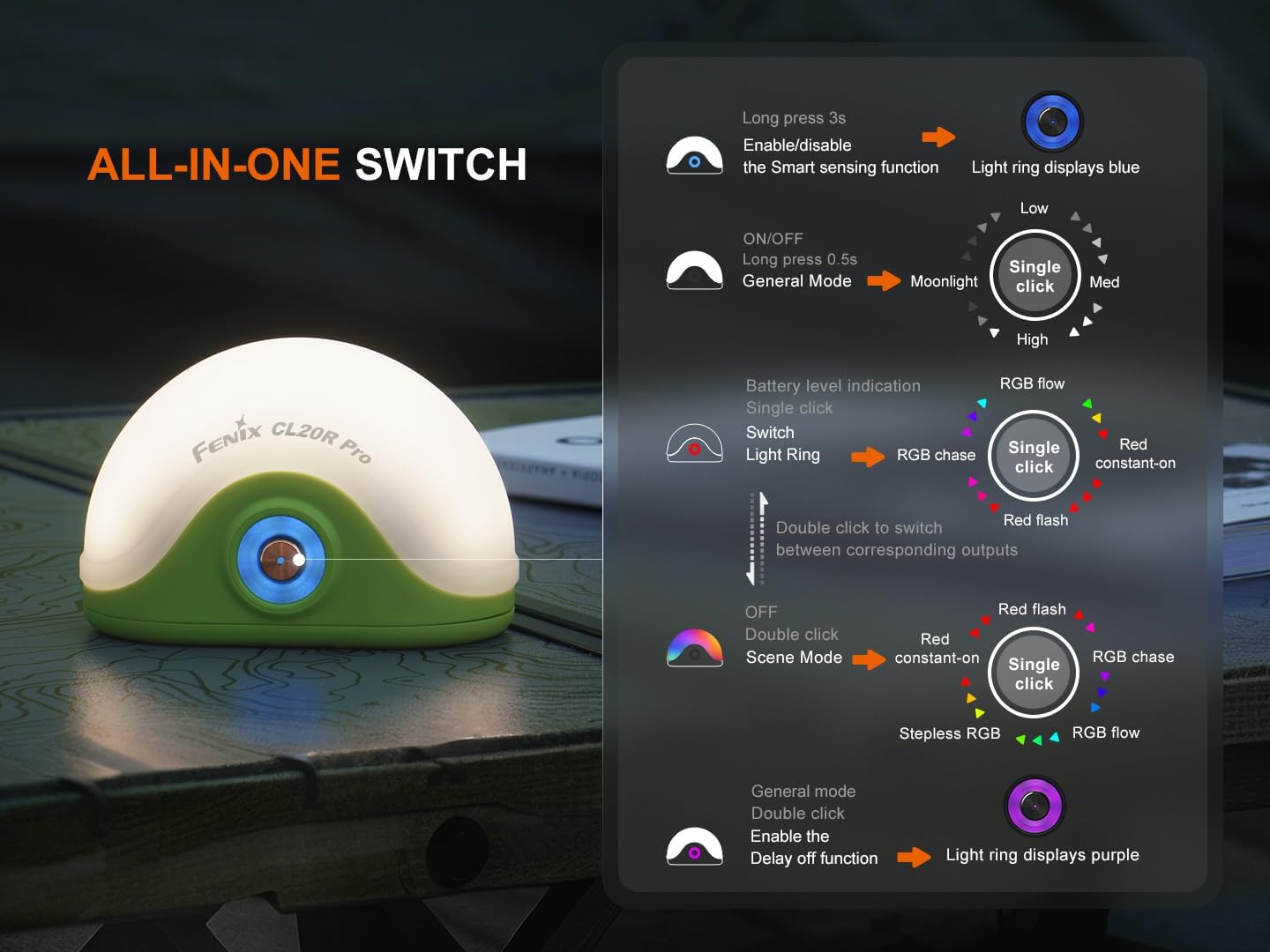
Image 4.1: Detailed diagram illustrating the various functions of the Fenix CL20R Pro's single switch, including power, mode switching, and special features.
4.1 Power On/Off and General Mode
- To Turn On/Off: Long press the switch for 0.5 seconds. The lantern will turn on/off in General Mode.
- General Mode Brightness Levels: While in General Mode, single click the switch to cycle through Moonlight, Low, Med, and High brightness levels.

Image 4.2: The Fenix CL20R Pro providing 400 lumens of light, effectively illuminating a camping area at night.
4.2 Scene Mode (RGB/Red Light)
- Switch to Scene Mode: Double click the switch from General Mode to enter Scene Mode.
- Scene Mode Options: In Scene Mode, single click the switch to cycle through Red constant-on, Red flash, RGB chase, and RGB flow.
- Stepless RGB: Double click the switch from Scene Mode to activate Stepless RGB.
4.3 Light Ring Operation
- Switch Light Ring: Double click the switch to switch between corresponding outputs for the light ring (Red constant-on, Red flash, RGB chase, RGB flow).
4.4 Special Functions
- Smart Sensing Function: Long press the switch for 3 seconds to enable or disable the Smart Sensing function. When enabled, the light ring displays blue.
- Delay Off Function: Double click the switch in General Mode to enable the Delay Off function. The light ring displays purple.
- Battery Level Indication: Single click the switch when the lantern is off to check the battery level.
5. Mounting and Placement
The Fenix CL20R Pro offers multiple options for placement and mounting:
- Hanging: Utilize the integrated hook for hanging inside tents or on branches.
- Attaching: The magnetic base allows attachment to metal surfaces.
- Placing: Its stable base allows for placement on flat surfaces.
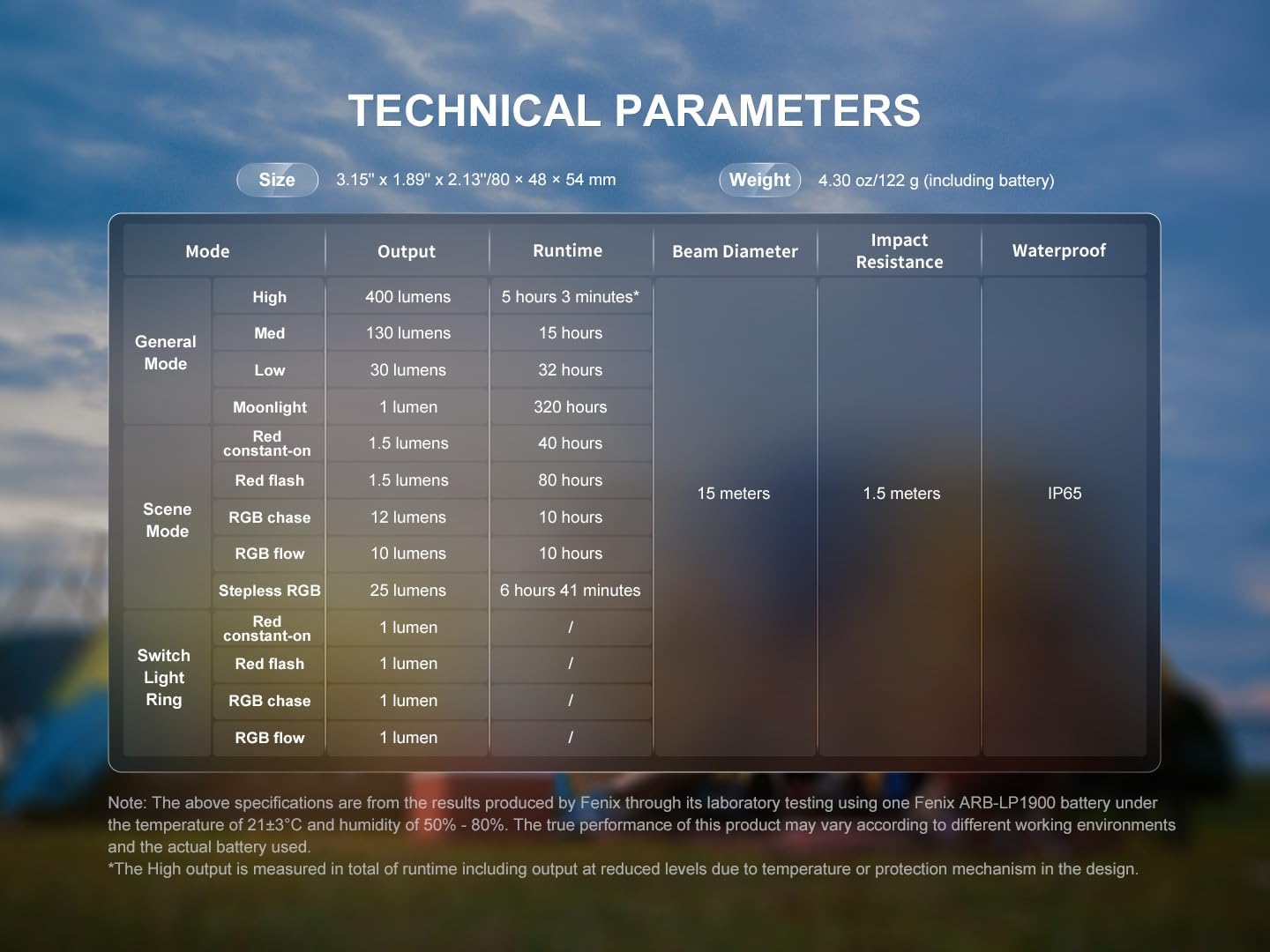
Image 5.1: Examples of how the Fenix CL20R Pro can be used: hanging from a tent, magnetically attached to a car, and placed on a table.
6. Maintenance
Proper maintenance ensures the longevity and optimal performance of your Fenix CL20R Pro lantern.
- Cleaning: Clean the lantern with a soft, damp cloth. Do not use abrasive cleaners or solvents.
- O-ring Maintenance: Regularly inspect the O-ring for wear and tear. Replace it with the provided spare O-ring if necessary to maintain waterproof integrity. Apply silicone grease to the O-ring periodically.
- Battery Care: If the lantern will not be used for an extended period, remove the battery to prevent leakage. Recharge the battery every four months to maintain optimal performance.
- Storage: Store the lantern in a cool, dry place away from direct sunlight and extreme temperatures.
7. Troubleshooting
If your Fenix CL20R Pro lantern is not functioning correctly, please refer to the following common issues and solutions:
- Issue: The lantern does not turn on.
- Solution: Check if the battery is correctly inserted and fully charged. Ensure the switch is pressed for the correct duration (0.5 seconds for on/off).
- Issue: The light output is dim or flickers.
- Solution: The battery may be low. Recharge the battery. Ensure the battery contacts are clean.
- Issue: The lantern is not charging.
- Solution: Check the USB Type-C cable for damage and ensure it is securely connected to both the lantern and the power source. Try a different USB power source or cable.
- Issue: Water ingress after exposure to moisture.
- Solution: Ensure the charging port cover is fully sealed. Inspect the O-ring for damage or improper seating and replace if necessary.
If the problem persists, please contact Fenix customer support.
8. Specifications
The following table details the technical specifications of the Fenix CL20R Pro lantern:

Image 8.1: Technical parameters table for the Fenix CL20R Pro, outlining performance data for various modes and physical characteristics.
| Feature | Detail |
|---|---|
| Light Output Maximum | 400 Lumens |
| Number of Batteries | 1 Nonstandard Battery (included) |
| Manufacturer | Fenix |
| Part Number | CL20RPRO-BBX4 |
| Item Weight | 6.1 ounces (173g) |
| Product Dimensions | 2.13 x 1.89 x 3.15 inches (54 x 48 x 80 mm) |
| Item Model Number | EDB-FEN-CL20RPRO-BBX4 |
| Included Components | Battery, Charging cable |
| Light Source Type | Light Emitting Diode (LED) |
| Color | Green (variant shown) |
| Material | Plastic |
Note: The above specifications are from the results produced by Fenix through its laboratory testing using one Fenix ARB-LP1900 battery under the temperature of 21±3°C and humidity of 50% - 80%. The true performance of this product may vary according to different working environments and the actual battery used. The High output is measured in total of runtime including output at reduced levels due to temperature or protection mechanism in the design.
9. Warranty and Support
Fenix provides a warranty for its products. Please refer to the warranty card included in your package for specific terms and conditions. For technical support, warranty claims, or any inquiries regarding your Fenix CL20R Pro lantern, please contact Fenix customer service directly.
You can typically find contact information on the Fenix official website or on the warranty card.


