
1. Introduction
This manual provides essential instructions for setting up, operating, and maintaining your MENTUME Android 16 Tablet M70. Please read this guide thoroughly before using your device to ensure proper function and longevity. The MENTUME M70 is an 11-inch tablet featuring the Android 16 operating system, an Octa-Core processor, 24GB RAM, 256GB internal storage, and an 8000mAh battery. It comes with a keyboard, mouse, and stylus for enhanced productivity and entertainment.
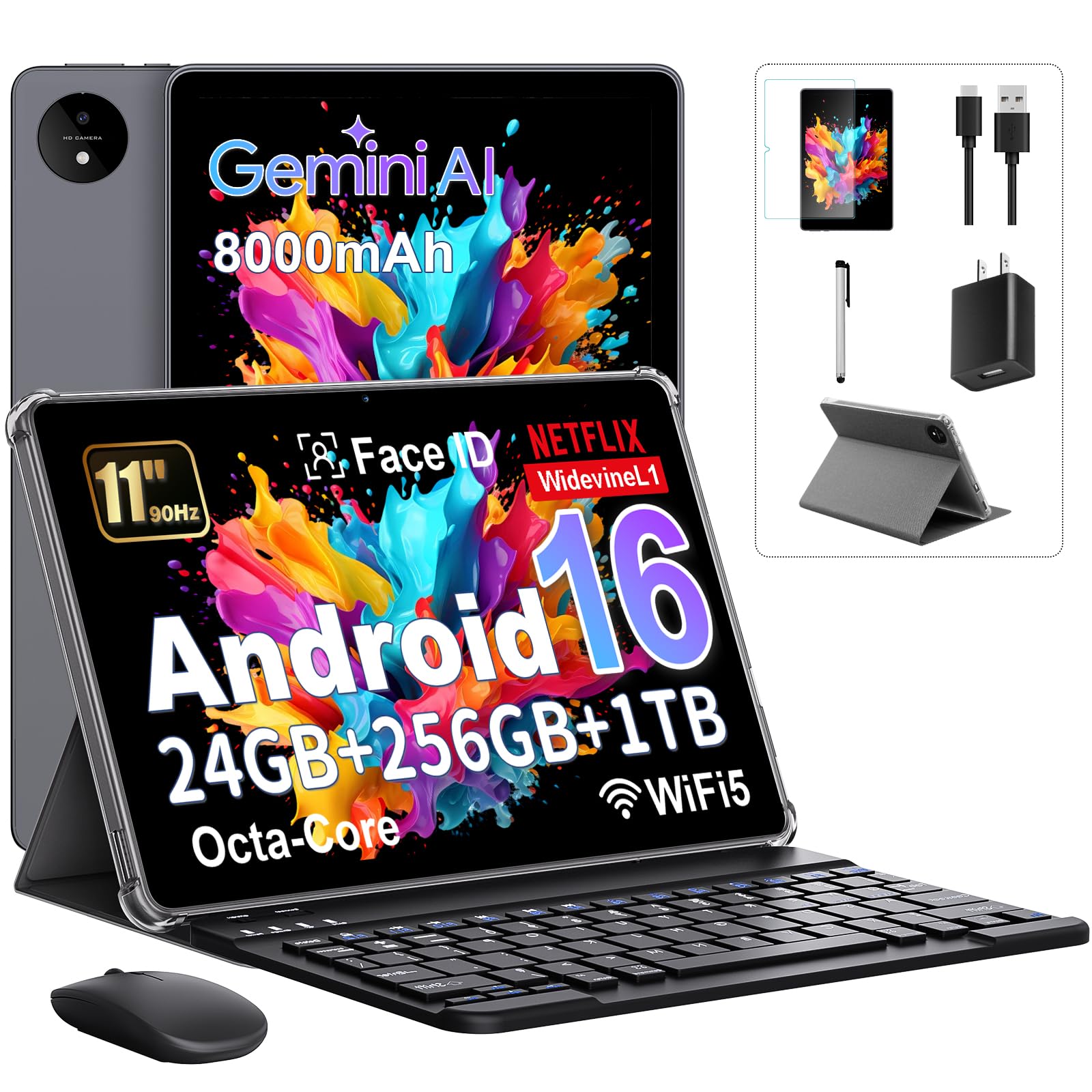
Image: MENTUME Android 16 Tablet M70 shown with its included keyboard, mouse, and stylus, highlighting its versatility.
2. Package Contents
Verify that all items are present in your package:
- MENTUME M70 Tablet
- Protective Case
- Keyboard
- Mouse
- Stylus
- Charger
- USB Cable
- Instruction Manual
- Screen Protector (Pre-applied)

Image: Visual representation of the MENTUME M70 Tablet and its complete set of accessories, including the protective case, keyboard, mouse, stylus, charger, and cables.
3. Device Layout
Familiarize yourself with the physical components of your MENTUME M70 Tablet.
Front View
The front of the tablet features the 11-inch FHD IPS display and the 8MP front-facing camera, typically located at the top center when held in landscape orientation. The display supports touch input and stylus interaction.

Image: The front of the MENTUME M70 Tablet, showcasing its 11-inch display.
Rear View
The rear of the tablet houses the 13MP main camera module. The tablet's sleek gray finish is visible.

Image: The rear of the MENTUME M70 Tablet, showing the main camera and gray casing.
Ports and Buttons
- Power Button: Located on the side, used to turn the tablet on/off or put it to sleep.
- Volume Buttons: Adjust the audio volume.
- USB-C Port: For charging and data transfer.
- 3.5mm Audio Jack: For connecting headphones or external speakers.
- MicroSD Card Slot: For expanding storage up to 1TB.
- Dual Box Speakers: Provide audio output.
4. Initial Setup
Charging the Tablet
Before first use, fully charge the tablet using the provided charger and USB cable. Connect the USB-C cable to the tablet's USB-C port and the charger to a power outlet. The battery indicator on the screen will show charging status.

Image: The MENTUME M70 Tablet connected to a charger, illustrating its 8000mAh battery capacity and estimated usage times for video, music, reading, and standby.
Powering On/Off
- To Power On: Press and hold the Power button until the MENTUME logo appears.
- To Power Off: Press and hold the Power button, then select "Power off" from the options on the screen.
- To Restart: Press and hold the Power button, then select "Restart" from the options.
Initial Android Setup
Upon first power-on, follow the on-screen prompts to complete the initial setup:
- Select your preferred language.
- Connect to a Wi-Fi network.
- Sign in with your Google account or create a new one.
- Review and accept the terms and conditions.
- Set up screen lock (PIN, pattern, password, or Face Unlock).
Connecting Accessories
The MENTUME M70 supports external keyboard, mouse, and stylus for enhanced usability.
- Keyboard and Mouse: These accessories typically connect via Bluetooth. Go to Settings > Connected devices > Bluetooth, turn on Bluetooth, and pair with the keyboard and mouse.
- Stylus: The included stylus is designed for touch input and does not require pairing. Simply use it on the screen as you would your finger.

Image: The MENTUME M70 Tablet with its detachable keyboard and wireless mouse, demonstrating its 2-in-1 functionality.
5. Operating Instructions
Android 16 Operating System
The MENTUME M70 runs on Android 16, offering a smooth, fast, and secure user experience with enhanced multitasking capabilities and improved privacy features.

Image: An illustration highlighting the key benefits of Android 16 OS, such as GMS certification, smoother performance, enhanced multitasking, and increased privacy and security.
Gemini AI Integration
Leverage the built-in Gemini AI for various tasks, including drafting documents, brainstorming ideas, organizing information, and more. Gemini AI enhances productivity and creativity.

Image: A visual representation of Gemini AI 2.0 capabilities, including image recognition, video understanding, data analysis, report generation, content creation, and language learning.
Display and Media
The 11-inch FHD IPS display with 1920x1200 resolution provides sharp and vibrant visuals. With Widevine L1 certification, you can stream high-definition content from platforms like Netflix, YouTube, HBO, Prime Video, and Hulu.

Image: The 11-inch display of the MENTUME M70 Tablet, highlighting its 1920x1200 resolution and 90Hz refresh rate for an immersive viewing experience.

Image: The MENTUME M70 Tablet demonstrating Widevine L1 support, enabling high-definition streaming from popular services such as Netflix, YouTube, HBO, Prime Video, and Hulu.
Storage and Performance
The tablet is equipped with 24GB RAM (8GB + 16GB extended) and 256GB internal storage, expandable up to 1TB via a MicroSD card (not included). The Octa-Core processor ensures fast and lag-free performance for all your applications.

Image: An overview of the tablet's storage capabilities, detailing 24GB RAM, 256GB ROM, and the option for 1TB Micro SD card expansion.

Image: A detailed view of the Unisoc T7250 Octa-core Processor, highlighting its 1.6GHz speed, 12nm architecture, and Mali-G57 GPU for powerful performance.
Cameras and Face Unlock
Capture photos and videos with the 13MP rear camera and conduct clear video calls using the 8MP front camera. The tablet also supports Face Unlock for convenient and secure access.

Image: A user demonstrating the Face Unlock feature on the MENTUME M70 Tablet for quick and secure access.
Connectivity and Audio
The M70 supports Bluetooth 5.0 for wireless accessory connections and 5GHz/2.4GHz Wi-Fi for fast internet access. Enjoy immersive audio through the dual box speakers or connect headphones via the 3.5mm audio jack.

Image: A user enjoying audio content with headphones connected to the MENTUME M70 Tablet.

Image: A group of friends enjoying music together, demonstrating the sound output from the MENTUME M70 Tablet's dual box speakers.
6. Maintenance and Care
- Cleaning: Use a soft, lint-free cloth to clean the screen and body of the tablet. Avoid abrasive cleaners or solvents.
- Battery Care: To prolong battery life, avoid extreme temperatures. Do not leave the tablet fully charged or fully discharged for extended periods.
- Software Updates: Regularly check for and install system updates to ensure optimal performance and security. Go to Settings > System > System update.
- Storage Management: Periodically clear unnecessary files and apps to maintain performance.
- Protection: Use the provided protective case to guard against drops and scratches.
7. Troubleshooting
Common Issues and Solutions
- Tablet not turning on:
Ensure the tablet is charged. Connect it to the charger for at least 30 minutes, then try powering it on again. If it still doesn't turn on, perform a forced restart by holding the Power button for 10-15 seconds. - Wi-Fi connection issues:
Check if Wi-Fi is enabled in Settings. Restart your router and the tablet. Forget the network and reconnect. Ensure you are within range of the Wi-Fi signal. - Slow performance:
Close unused applications. Clear cache for frequently used apps. Restart the tablet. Consider uninstalling large or unnecessary applications. - Touchscreen unresponsive:
Restart the tablet. If the issue persists, ensure the screen is clean and free of debris. - Accessories not connecting:
For Bluetooth devices, ensure they are in pairing mode and Bluetooth is enabled on the tablet. Restart both the tablet and the accessory.
Factory Reset (Last Resort)
If software issues persist, you may need to perform a factory reset. This will erase all data on your tablet, so ensure you back up important information first.
- Go to Settings > System > Reset options.
- Select Erase all data (factory reset).
- Confirm your decision. The tablet will restart and begin the reset process.
8. Specifications
| Feature | Detail |
|---|---|
| Brand | MENTUME |
| Model Name | M70 |
| Operating System | Android 16 |
| Processor | Unisoc T7250 Octa-core, 2 GHz |
| RAM Memory | 24 GB (8GB + 16GB extended) |
| Storage Capacity | 256 GB (expandable up to 1TB via MicroSD) |
| Screen Size | 11 Inches |
| Display Resolution | 1920 x 1200 Pixels (FHD IPS) |
| Display Refresh Rate | 60 Hz |
| Rear Camera | 13 MP |
| Front Camera | 8 MP |
| Battery Capacity | 8000 mAh |
| Connectivity | Wi-Fi (802.11ac, 5GHz/2.4GHz), Bluetooth 5.0, USB-C |
| Audio | Dual Box Speakers, 3.5mm Audio Jack |
| Special Features | Gemini AI, Widevine L1, Face Unlock, Detachable Keyboard Support, Stylus Support |
| Dimensions (L x W x Thickness) | 10.18" x 6.69" x 0.42" |
| Color | Gray |
9. Warranty and Support
Warranty Information
The MENTUME M70 Tablet comes with a 1-year limited warranty from the date of purchase. This warranty covers manufacturing defects and workmanship under normal use. Please retain your proof of purchase for warranty claims.
Customer Support
For technical assistance, warranty claims, or any questions regarding your MENTUME M70 Tablet, please contact our customer support team. We provide 24-hour service to address your concerns.
How to contact us:
- Visit the MENTUME store page on Amazon.
- Locate the 'Ask Question' button below the 'Add to Cart' button on the product page.
- Alternatively, go to your Amazon account's order history, find your order for the M70 Tablet, and click 'Contact Seller'.
