
Introduction
This manual provides detailed instructions for the safe and efficient use of your ONN Blu-ray Player Model 100147615. Please read this manual thoroughly before operating the device and retain it for future reference. This player supports a wide range of disc formats including BD, BD-R, BD-RE, DVD-R/RW, DVD+R/RW, DVD-Video, VCD, CD, and CD-R/RW, and offers high-definition video output up to 1920x1080 pixels via HDMI V1.4.
Important Safety Information
WARNING: TO REDUCE THE RISK OF FIRE OR ELECTRIC SHOCK, DO NOT EXPOSE THIS APPLIANCE TO RAIN OR MOISTURE.
- Do not open the player casing. There are no user-serviceable parts inside. Refer all servicing to qualified service personnel.
- Ensure proper ventilation. Do not block ventilation openings.
- Do not place the player near heat sources such as radiators, heat registers, stoves, or other apparatus (including amplifiers) that produce heat.
- Protect the power cord from being walked on or pinched, particularly at plugs, convenience receptacles, and the point where they exit from the apparatus.
- Unplug this apparatus during lightning storms or when unused for long periods of time.
- Use only attachments/accessories specified by the manufacturer.
- This product utilizes a Class 1 Laser. Avoid direct exposure to the laser beam.
Product Overview
The ONN Blu-ray Player Model 100147615 is designed to provide high-quality video and audio playback for your home entertainment system. Below are the main components and what's included in the box.
Package Contents
- ONN Blu-ray Player
- HDMI Cable (6-foot)
- Remote Control (with battery)
- Power Adapter
- User Guide (this document)
Player Components

Figure 1: Front View of ONN Blu-ray Player. This image displays the front panel of the Blu-ray player, featuring the disc loading tray, power indicator, and control buttons.
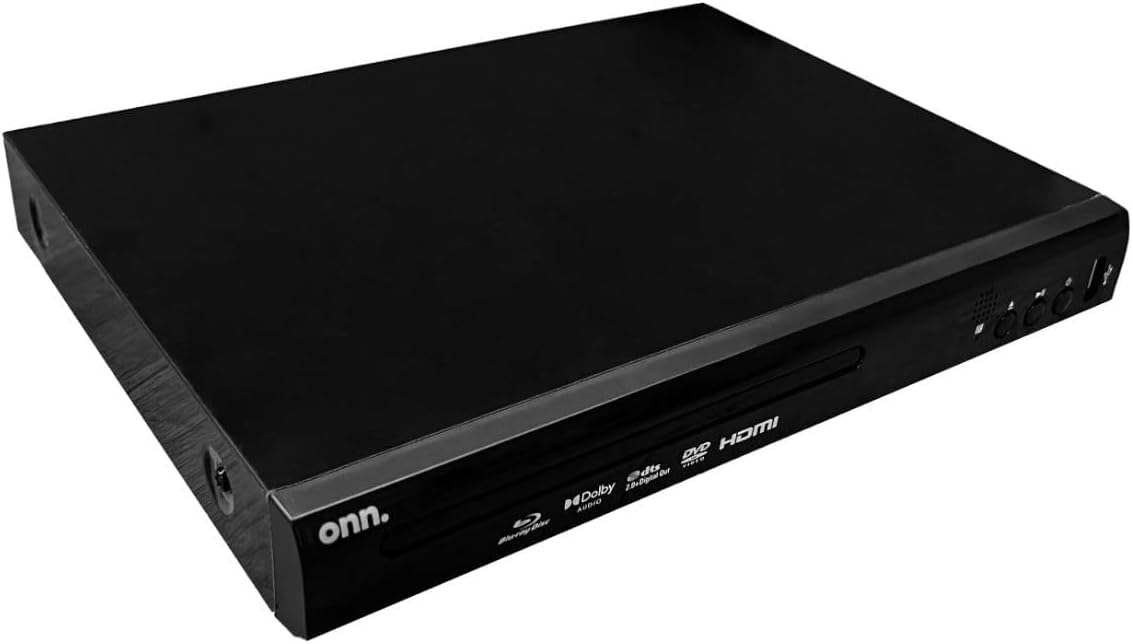
Figure 2: Rear View of ONN Blu-ray Player. This image shows the back panel of the player, highlighting the HDMI output port and the DC power input.

Figure 3: Angled Front View. A perspective view of the player's front, showing brand and supported format logos.
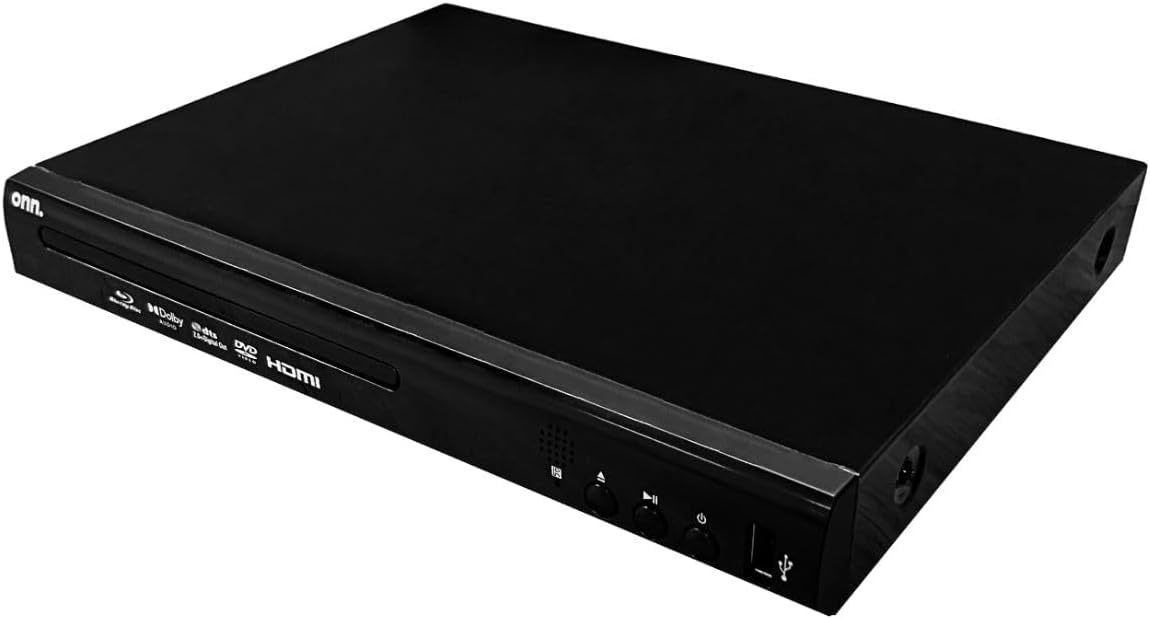
Figure 4: Top Angled View. An overhead angled view of the Blu-ray player, showcasing its sleek black design.
Setup Instructions
Follow these steps to set up your ONN Blu-ray Player:
- Place the Player: Position the Blu-ray player on a stable, flat surface near your television. Ensure there is adequate ventilation around the unit.
- Connect to TV (HDMI):
Using the included HDMI cable, connect one end to the HDMI OUT port on the Blu-ray player (refer to Figure 2) and the other end to an available HDMI input port on your television.
Note: Ensure your TV is set to the correct HDMI input source.
- Connect Power:
Connect the power adapter to the DC IN port on the back of the Blu-ray player (refer to Figure 2), then plug the adapter into a standard electrical outlet.
- Install Remote Control Batteries:
Open the battery compartment on the back of the remote control and insert the supplied battery, ensuring correct polarity (+/-).
- Power On:
Press the Power button on the front of the Blu-ray player or on the remote control to turn on the unit. The power indicator light will illuminate.
Operating Instructions
Disc Playback
- Insert Disc: Press the Eject button (⌂) on the player or remote control to open the disc tray. Carefully place a Blu-ray disc, DVD, or CD onto the tray with the label side facing up. Press the Eject button again to close the tray.
- Start Playback: The player will automatically detect the disc and begin playback. If a menu appears, use the arrow keys and OK button on the remote to navigate and select your desired content.
- Basic Controls:
- Play/Pause: Press the Play/Pause button (▶⏸) to start or pause playback.
- Stop: Press the Stop button (■) to stop playback.
- Skip: Use the Skip Forward (⏭) or Skip Backward (⏮) buttons to jump between chapters or tracks.
- Fast Forward/Rewind: Use the Fast Forward (⏩) or Rewind (⏪) buttons for high-speed scanning.
USB Media Playback
The player supports media playback from USB 2.0 devices (U DISK and USB HDD).
- Connect USB Device: Insert your USB flash drive or external hard drive into one of the USB ports on the front or side of the player (refer to Figure 1).
- Access USB Content: The player should automatically detect the USB device and display its contents. If not, use the remote control's Source or USB button (if available) to switch to USB input.
- Navigate and Play: Use the remote control's arrow keys and OK button to browse folders and select files for playback. Supported video formats include H.264, VC1, MPEG1, MPEG-2, and MPEG4.
Audio and Video Settings
Access the player's setup menu using the remote control to adjust various audio and video settings, such as aspect ratio, resolution, and audio output modes (Dolby Digital, DTS).
Maintenance
- Cleaning the Unit:
Wipe the exterior of the player with a soft, dry cloth. Do not use liquid cleaners or aerosol sprays, as they may damage the finish or internal components.
- Disc Care:
Handle discs by their edges to avoid fingerprints. Clean discs with a soft, lint-free cloth, wiping from the center outwards. Do not use abrasive cleaners or solvents.
- Ventilation:
Ensure that the ventilation openings on the player are not blocked to prevent overheating.
Troubleshooting
If you encounter issues with your Blu-ray player, refer to the following common problems and solutions:
| Problem | Possible Cause | Solution |
|---|---|---|
| No power | Power cord not connected properly; Power outlet not working. | Ensure the power adapter is securely connected to the player and the electrical outlet. Try a different outlet. |
| No video output | HDMI cable loose or incorrect input selected on TV. | Check HDMI cable connections at both the player and the TV. Select the correct HDMI input source on your television. |
| No audio output | Audio settings incorrect; TV/receiver volume too low. | Check the audio settings in the player's menu. Increase the volume on your TV or audio receiver. |
| Disc tray won't open/close | Obstruction in disc tray; Player malfunction. | Ensure there is no obstruction. Power cycle the player (unplug, wait 30 seconds, plug back in). If the issue persists, contact support. |
| Disc does not play | Disc is dirty, scratched, or incompatible format. | Clean the disc. Try a different disc. Ensure the disc format is supported by the player (BD, DVD, CD). |
| Remote control not working | Batteries are dead or inserted incorrectly; Obstruction between remote and player. | Replace batteries, ensuring correct polarity. Remove any obstructions. Point the remote directly at the player's front panel. |
If the problem persists after trying these solutions, please refer to the Support section for further assistance.
Specifications
| Model Name | 100147615 |
| Brand | ONN |
| Media Type | Blu-Ray Disc, DVD, CD |
| Supported Disc Formats | BD, BD-R, BD-RE, DVD-R/RW, DVD+R/RW, DVD-Video, VCD, CD, CD-R/RW |
| Supported Video Formats | H.264, VC1, MPEG1, MPEG-2, MPEG4 |
| Supported Audio Formats | Dolby Digital, Dolby Digital Plus, Dolby TrueHD, DTS |
| Video Output Resolution | Up to 1920x1080 pixels (1080p) |
| Connectivity Technology | HDMI V1.4 (with HDCP support) |
| Ports | 1x HDMI Out, 2x USB 2.0 (Type A) |
| Compatible Devices | Television |
| Color | Black |
| Item Weight | 3 pounds |
| Dimensions (L x W x H) | 7.63" x 10.23" x 1.68" |
| UPC | 615764096857 |
Warranty Information
This ONN Blu-ray Player Model 100147615 comes with a 90-day Replacement Warranty from the date of purchase. Please retain your proof of purchase for warranty claims. The warranty covers manufacturing defects and malfunctions under normal use. It does not cover damage caused by misuse, accidents, unauthorized modifications, or improper installation.
Customer Support
For technical assistance, troubleshooting beyond this manual, or warranty inquiries, please contact ONN customer support. Refer to the product packaging or the official ONN website for the most current contact information, including phone numbers and support portals.
Note: Always have your product model number (100147615) and proof of purchase ready when contacting support.


